Check object editability
Open the imported board and test text, connectors, frames, shapes, sticky notes, images, and cards. Confirm that the objects your team needs behave as expected before moving more boards.




Online Collaborative Whiteboard

Boardmix Developer Platform

100+ AI Agents Integrated

UI/UX Tool, Figma Alternative

AI PPT Maker, Gamma Alternative
Miro migration guide
Import directly in Boardmix or use the browser extension. Follow the step-by-step guide below.
Import from MiroWatch the walkthrough
This video shows the file-based workflow used in Method 2. Use the illustrated steps below for both available methods.
Plan the move
Start with one representative board. Keep the original available while you check the imported copy.
Two import methods
Choose the direct workspace flow or the file-based plugin flow. Each method creates a Boardmix copy that you should check against the original Miro board.
Method 1 · Direct import
Use this method to start in Boardmix, connect the Miro account that can access your source board, and choose the destination in one guided flow. No browser extension is required.
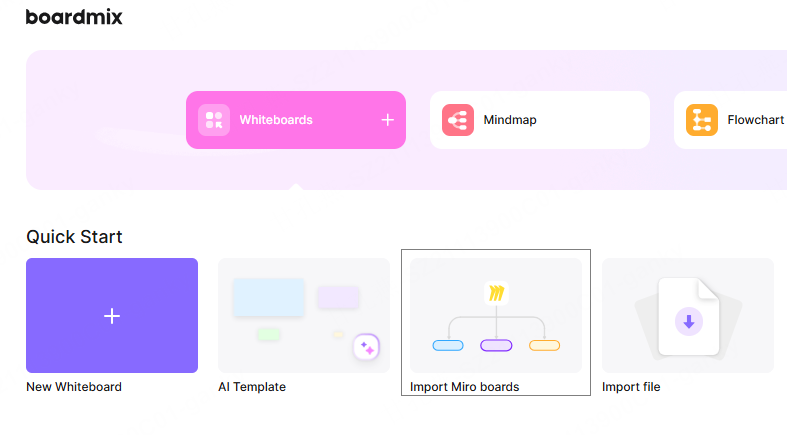
Sign in to Boardmix. In the workspace, find Quick Start and click Import Miro boards.
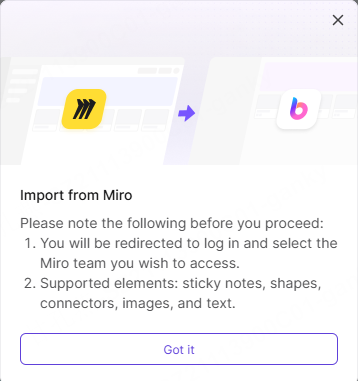
Read the import notice, then click Got it. Boardmix will redirect you to Miro so you can sign in and select the team that contains your board.
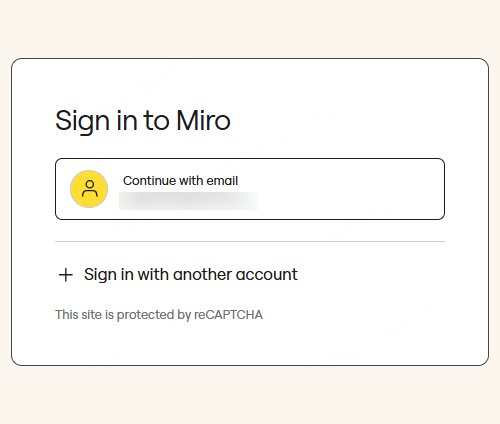
Continue with the Miro account that can access the board you want to import. If the displayed account is not the right one, choose Sign in with another account.
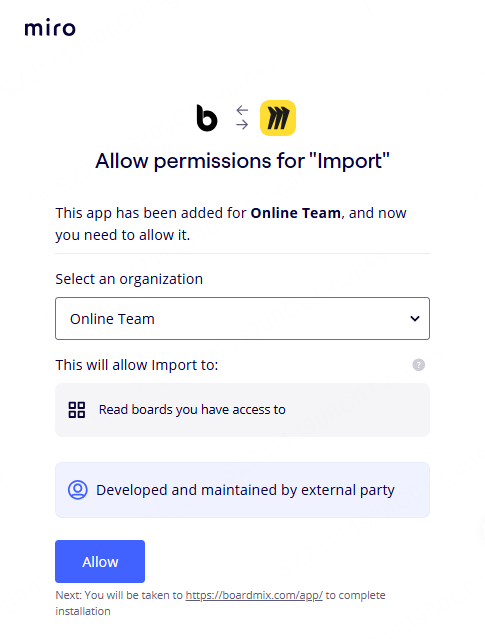
Select the Miro organization or team that contains your board. Review the requested permission, then click Allow.
In the Select file window, choose the board you want to import. Confirm that it has a check mark, then click Next.
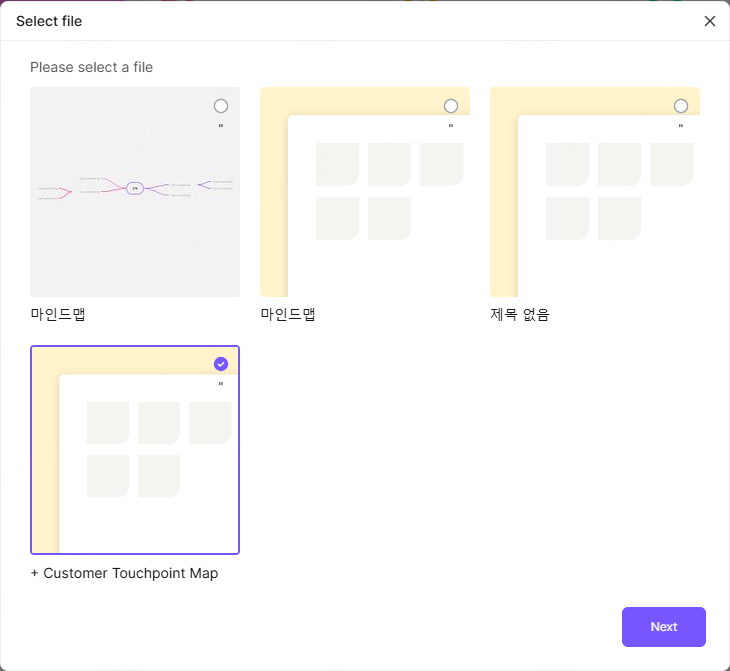
Expand your Boardmix team or workspace and select a folder where you can create files. After a valid location is selected, click Start import.
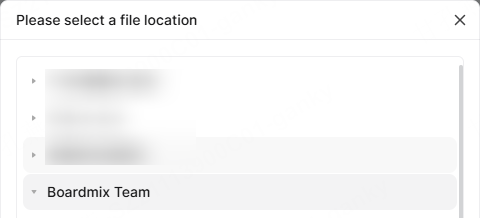
Keep Boardmix open until it displays Imported. Then open the board from the destination you selected and check its key content, layout, and editability against the Miro source.

Method 2 · File-based import
Use this method when you need local export files, batch export, attachment-file handling, or a private deployment workflow.
Screenshots show the supplied plugin and import examples. Version numbers and interface language may differ; the captions explain each action.
Install the plugin
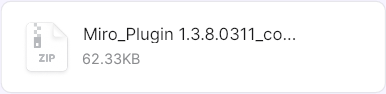
Download the plugin ZIP, then extract it to a folder on your computer. Keep the extracted folder: Chrome will load the extension from this location.
Download Miro export pluginZIP · 62 KB · version 1.3.8.0311
Private deployment customers: Contact your B2B account manager to get your dedicated private deployment plugin. It is tailored to your project environment.
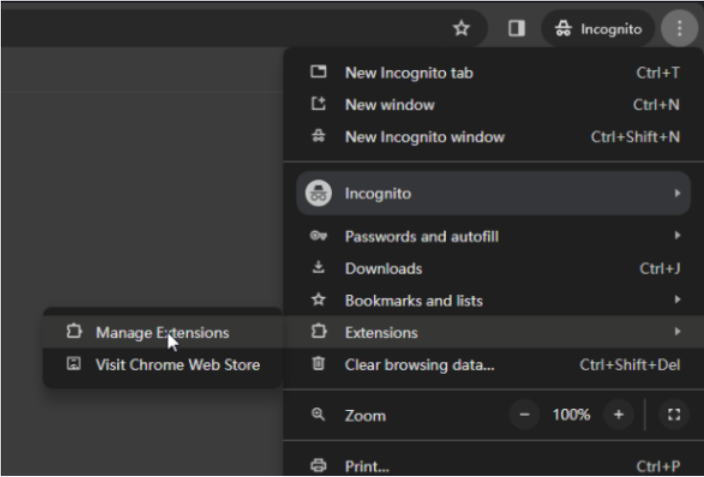
In Chrome, open Extensions → Manage Extensions, or enter chrome://extensions in the address bar.
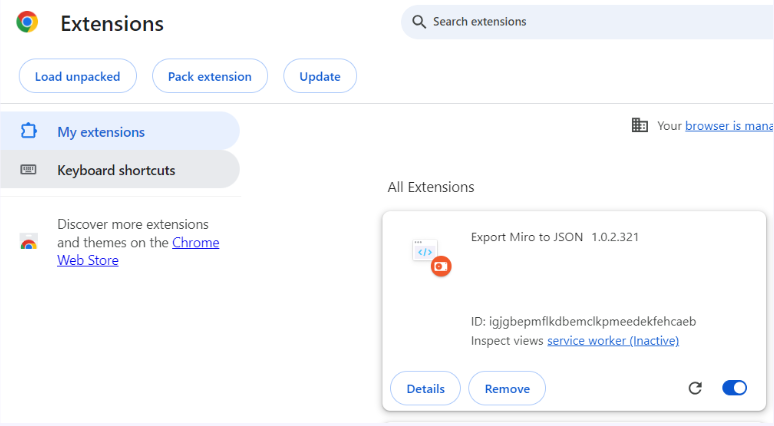
Turn on Developer mode, click Load unpacked, and select the extracted folder containing manifest.json. Check that Export Miro to JSON is enabled.
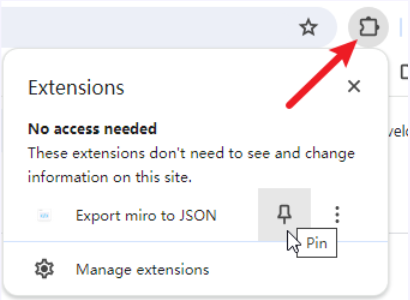
Click Chrome’s Extensions puzzle icon, then the pin next to Export Miro to JSON. The plugin icon will stay in your toolbar for easy access.
Export from Miro
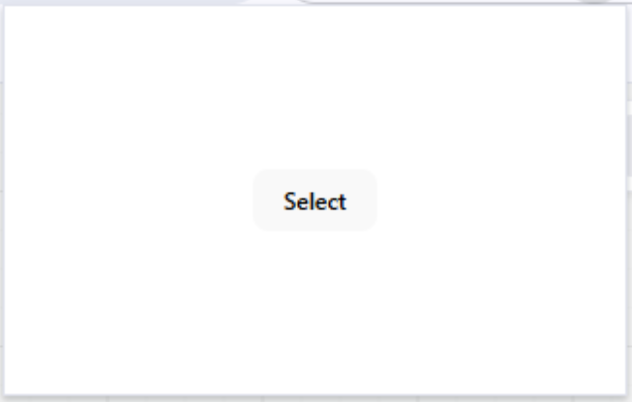
Sign in to Miro and open the board you want to move. Click the pinned plugin. When it asks for an export directory, click Select and choose a folder on your computer.
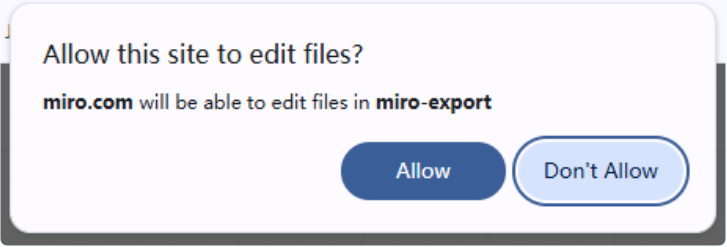
When Chrome asks whether miro.com can edit files in the selected folder, click Allow. Open the plugin again to access the export controls.
For one complete board, click Export current file. If the plugin shows only Export all and Export selected, choose Export all.
To export several boards, check their names in the board list, then click the bottom Export button. Export selected exports only the objects currently selected on the open board.
Keep the Miro tab active until the export finishes.
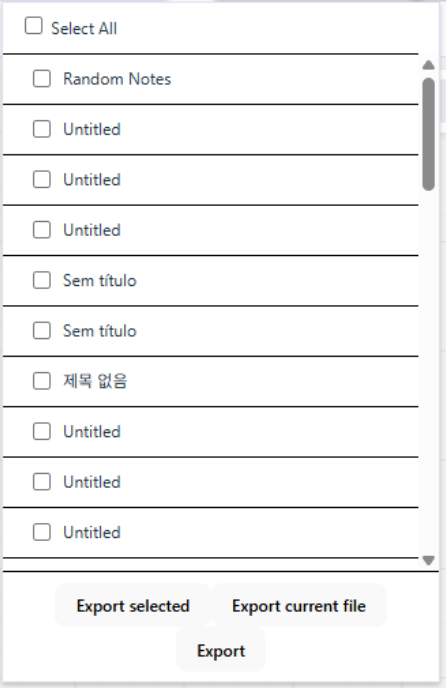
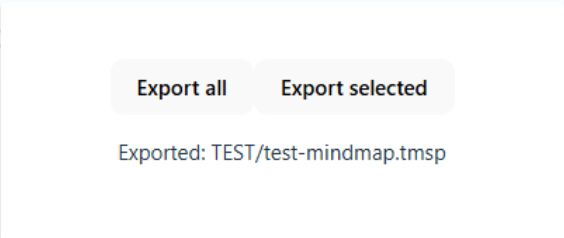
Find the exported .tmsp board file. If the board contains attachments, the plugin also creates .mtd storage files.
Keep every matching .mtd file with its .tmsp board file, without renaming them. Larger attachments can create several storage files.

Import into Boardmix
Sign in to your Boardmix account, then open the import page:
boardmix.com/app/filegeneratorPrivate deployment customers: Open your private importer at your-domain-or-IP/app/filegenerator/, using your private deployment domain or IP address.
Drag the .tmsp files and all matching .mtd files onto the page. You can select several boards at once, or drag the whole export folder; the importer filters the files it needs.
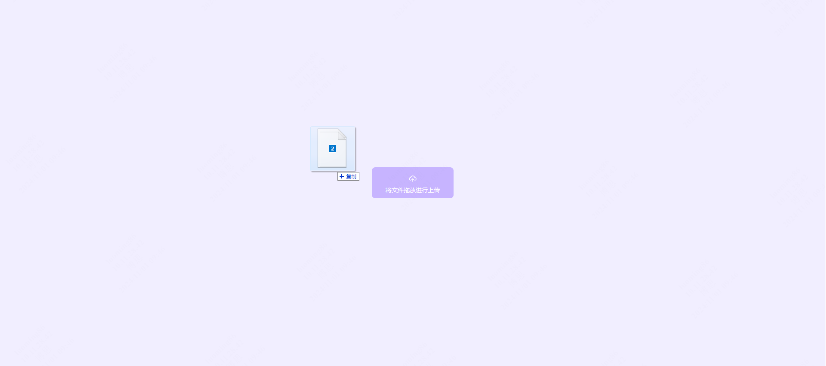
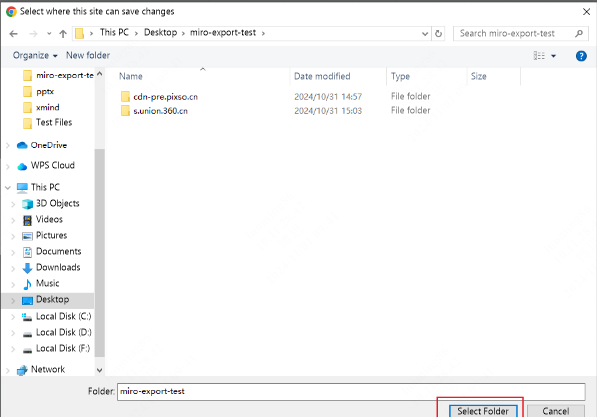
If the importer asks for the attachment directory, choose the folder containing the exported .mtd files and allow access when prompted. This lets Boardmix locate the attachment data for the imported boards.
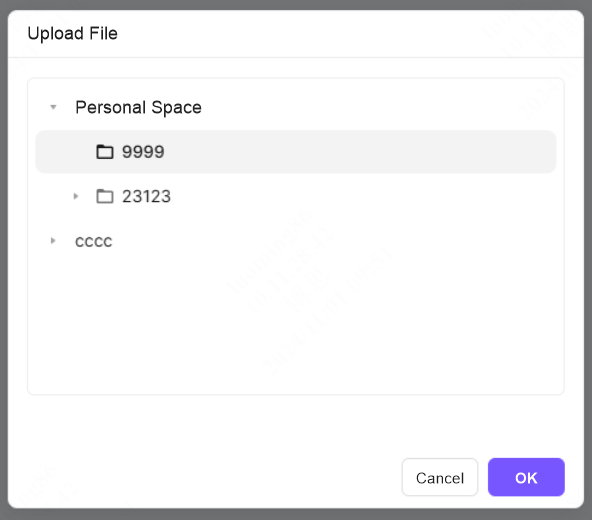
Choose the Boardmix location where the imported boards should be created, then click Confirm.
Keep the import page open while it processes the files. A green check mark shows that a file has finished importing.
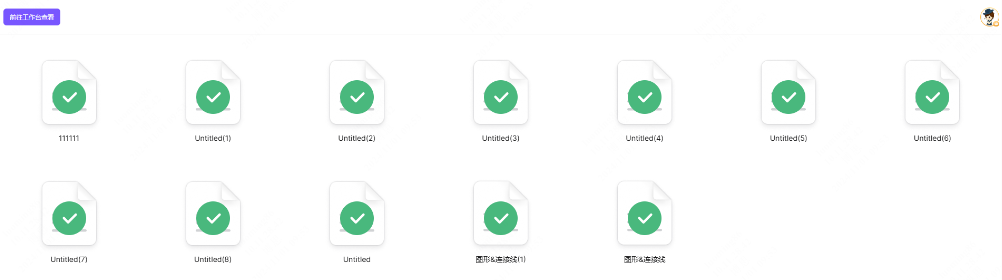
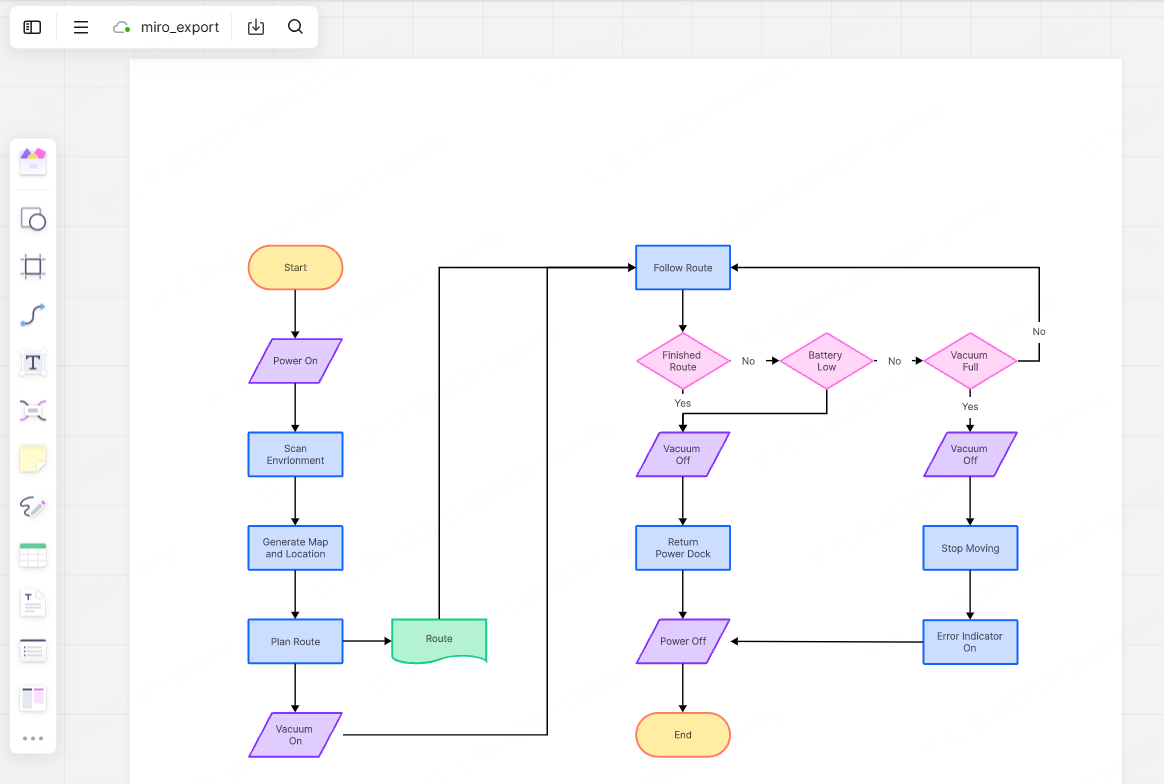
Click a successfully imported file to open it, or return to the Boardmix workspace and find it in your selected location.
Compare the content, layout and attachments with the original Miro board. Keep the export files until you have checked the result.
Set expectations
Open the imported board and test text, connectors, frames, shapes, sticky notes, images, and cards. Confirm that the objects your team needs behave as expected before moving more boards.
Comments, permissions, board history, app data, and integrations may need separate setup. Recreate or confirm them before you retire the source board.
A PDF or image is useful for visual comparison, while a structured export can help you keep a record of the source. Neither should be treated as proof that every object is natively editable.
Quality check
Keep the original Miro board available until the owner accepts the copy. Compare the pilot first, then repeat the flow for the rest of the workspace.
Troubleshooting
Confirm that you signed in with the Miro account that can access the source board, selected the correct organization, and allowed the requested read access. Then reopen the direct import flow.
Confirm that the full board export completed and that you uploaded the .tmsp file with every matching .mtd attachment file. Select the attachment folder if Boardmix asks for it.
For Method 1, keep Boardmix open until Imported appears. For Method 2, keep the Miro export tab and Boardmix import page open until their completion states appear.
Fallback option
If you only need a visual reference, export a PDF or image from Miro and add it to Boardmix where that file type is supported. Keep it for comparison with the imported board.
FAQ
Use Method 1 for a guided import that starts in the Boardmix workspace and lets you authorize a Miro team, select a board, and choose a destination. Use Method 2 when you need local export files, batch export, attachment-file handling, or a private deployment workflow.
The direct workflow shown in Method 1 selects one board per run. For a file-based batch, use Method 2: check the boards in the plugin, click Export, then upload the .tmsp files with all matching .mtd attachment files.
Do not assume they do. Check the imported board and rebuild any comments, permissions, history, app data, or integrations that your team needs.
For Method 1, confirm the Miro account, organization, source-board access, and Allow step. For Method 2, confirm the full export completed and upload the .tmsp file with every matching .mtd attachment file. Then open the result and compare it with the source.
The import is intended to create a Boardmix copy. Keep the source board until your team validates the copy and completes the rollout.
Open the imported copy and test the text, connectors, frames, images, shapes, sticky notes, and cards your team needs. Confirm their editability on one board before a full migration.
Time depends on board size and attachments. For Method 1, keep Boardmix open until Imported appears. For Method 2, keep the Miro export tab active and the Boardmix import page open until the file completion states appear.
Choose the import method that fits your board, validate the result, then repeat the rollout with confidence.
Try Boardmix free