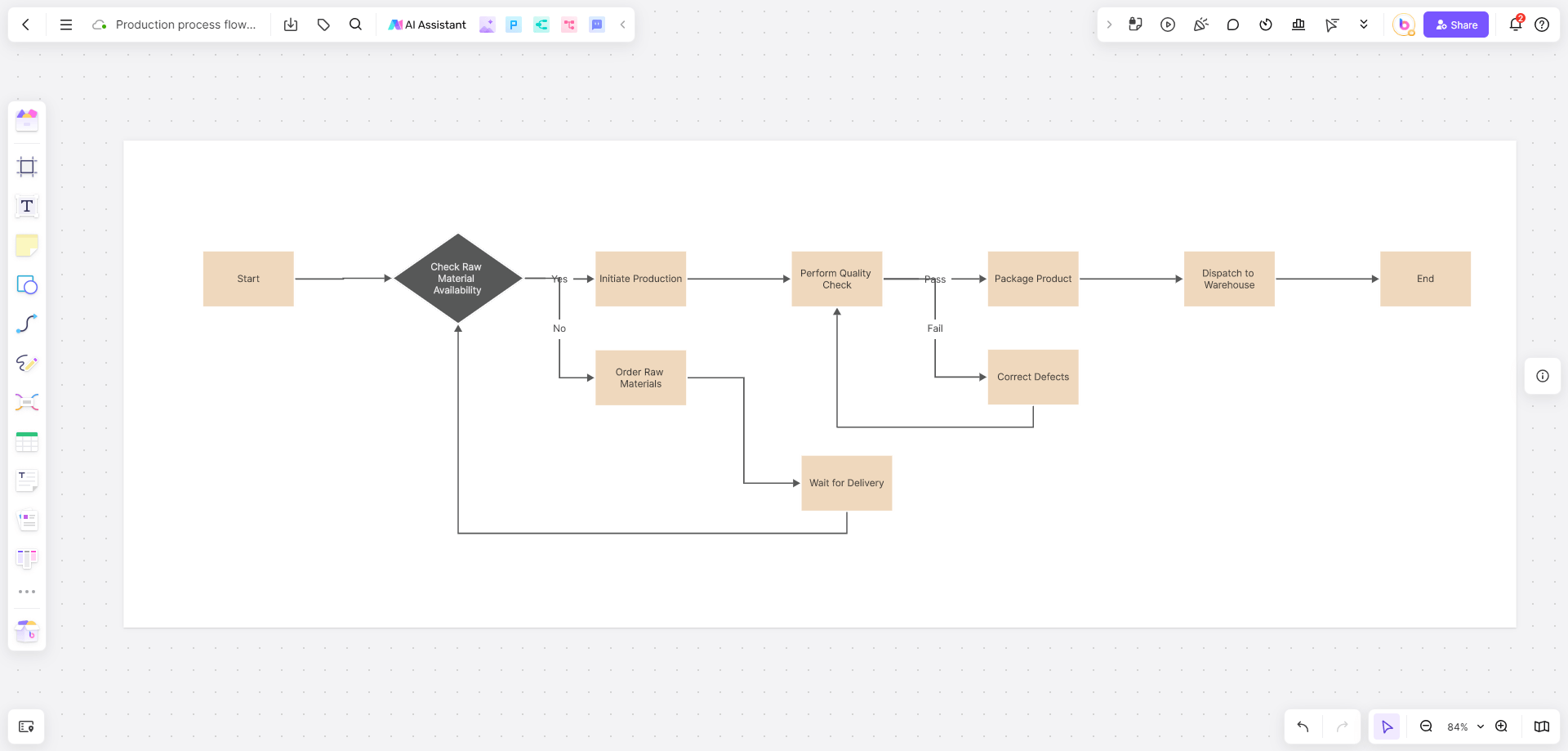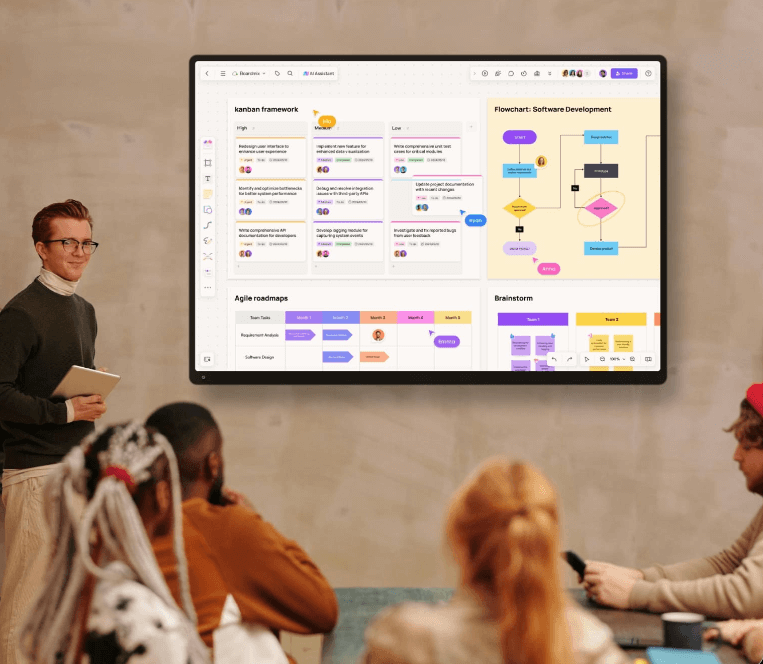




Want to know how to generate a flowchart with Doubao? It might be your first step towards boosting productivity. Forget manually dragging shapes just provide a clear instruction, and Doubao instantly delivers a flowchart skeleton. Whether you're mapping a project process or facilitating cross-team collaboration, Doubao provides a highly efficient creative starting point for your flowcharts. Of course, the AI draft often requires further refinement and collaborative deep-diving. This guide will walk you through using Doubao to create flowcharts: from crafting precise prompts to enabling team collaboration, making professional flowchart creation a breeze!
Why Use Doubao to Create Flowcharts?
Why choose Doubao for your flowcharts? It's all about speed and simplicity! Skip the steep learning curve of complex diagramming software. Simply throw your process idea as a text description at Doubao, and it quickly generates a textual outline or code for the flowchart, with some platforms offering direct previews.
It's particularly useful for quickly organizing thoughts, validating logic, or serving as a starting point for your diagram. To turn it into a polished final version that's easy for your team to edit and collaborate on, you'll likely want to use a more specialized tool for further refinement.
Beginner's Guide to Generating Flowcharts with Doubao
Prerequisite: Open the Doubao web version or app, and have a clear idea of the process logic you want to visualize.
Method 1: Generate Flowchart Description/Code Directly
Step 1: Describe Your Needs Clearly
In the chat dialog, input your flowchart request.
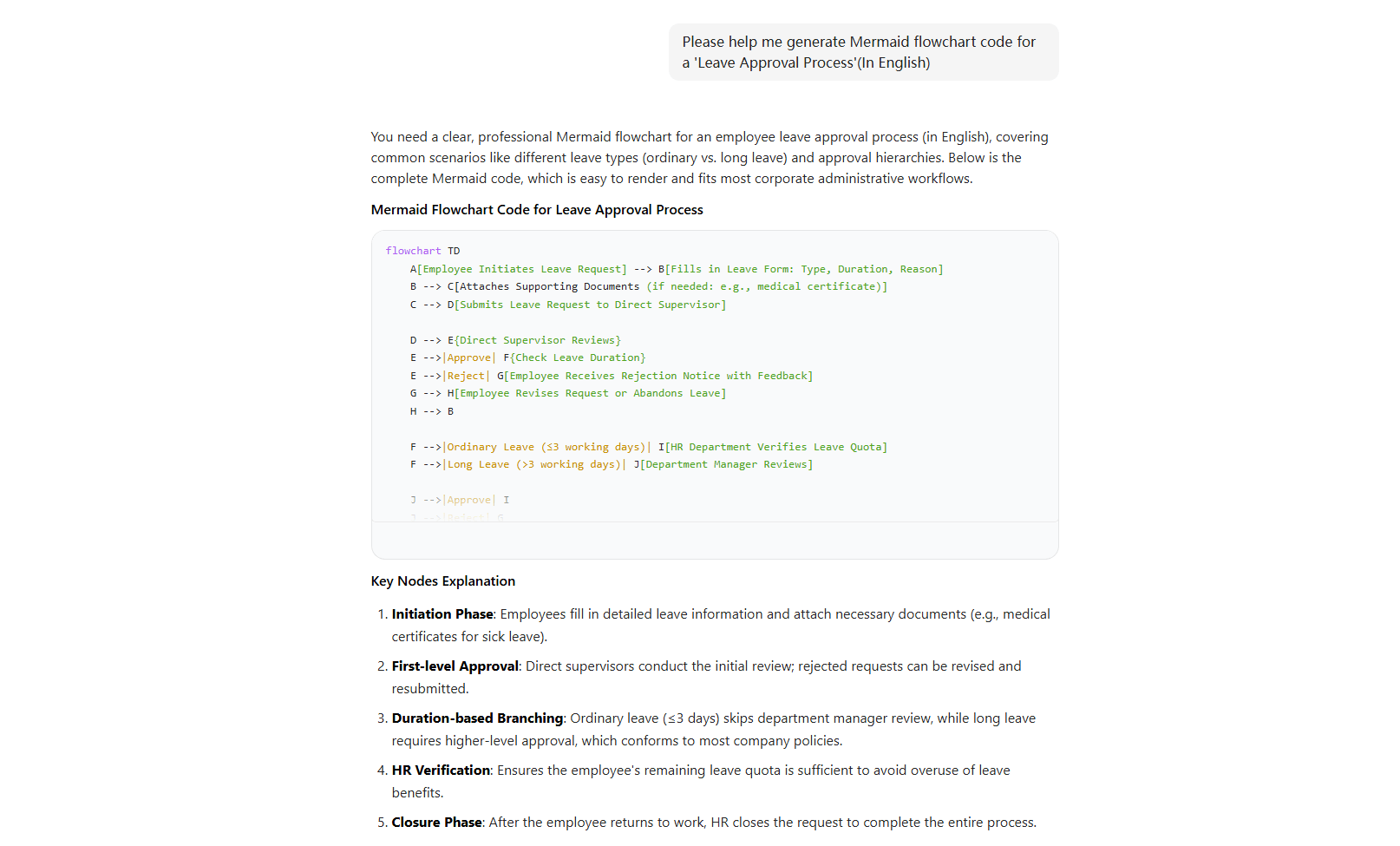
Example: "Please generate Mermaid flowchart code for a Paid Time Off (PTO) Approval Process."
Step 2: Review and Refine the Output
Doubao will return corresponding flowchart code (e.g., Mermaid, PlantUML) or a text description. If the output is missing elements or needs additions, provide more details based on Doubao's response.
Step 3: Copy the Code/Description
Copy the generated text or code and save it to a note or document for easy import into a diagramming tool later.
Method 2: Generate and Preview the Diagram
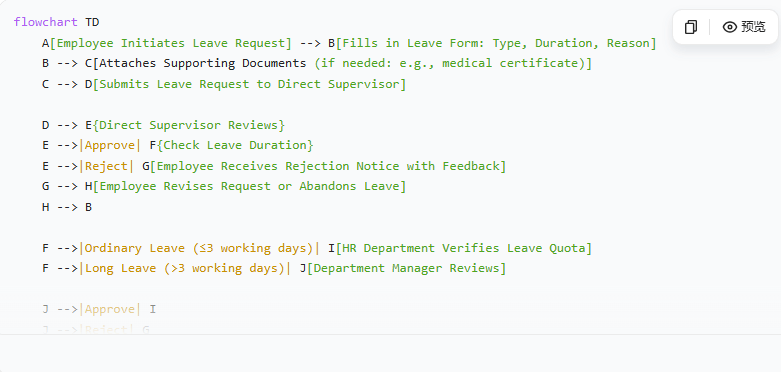
The steps are the same as above—input a clear flowchart generation prompt. If using the Doubao web version and the generated code is in a renderable format like Mermaid, Doubao may render a basic flowchart preview within the chat window. However, editing and saving functionalities are usually limited. The core output from Doubao remains the code or text.
Practical Tips for Generating Flowcharts with Doubao:
Be Specific for Accurate Results: Include key steps, decision points (Yes/No), roles/systems, and specify your desired output format (e.g., code, text description).
Break Down Complex Processes: For lengthy workflows, break them into sub-processes and generate them separately.
Iterate and Optimize: Based on the generated code/preview, ask Doubao for adjustments. For example: "Move the 'Manager Approval' step to occur after 'Department Approval'."
Common Questions About Doubao Flowcharts
Q1: What if the flowchart generated by Doubao doesn't meet my expectations?
First, check if your instruction was clear. Try regenerating with added details or adjusted logic. Don't expect perfect AI output in one go. Treat Doubao's draft as a starting point. You can easily manually optimize nodes, add branches, and adjust the layout in a tool like Boardmix's online whiteboard to match your needs perfectly.
Q2: How can I get Doubao to create more complex flowcharts?
The key is to provide details step-by-step. First, define the main process framework, then refine sub-processes layer by layer.
Example: "First, generate the main nodes for a 'Product Development Process.' Then, add branches for the 'Testing & Validation' phase."
Q3: Can I directly edit and save the flowchart within Doubao?
Direct graphical editing within Doubao's interface is typically limited. The primary output (code/text) needs to be copied into a dedicated diagramming tool like Boardmix that supports rendering that code. There, you can visualize, edit, save, and collaborate. Try it for free now!
Q4: How do I share a Doubao-generated flowchart with my team?
Paste the Doubao flowchart code into Boardmix, then simply copy and share the whiteboard link via Slack, Microsoft Teams, or email. Team members can view or edit with one click. You can also export the final diagram as PNG, PDF, or SVG for easy embedding into presentations, documents, and reports.
Q5: Can Doubao help generate other types of diagrams besides flowcharts?
Absolutely! Doubao can assist in generating mind maps, swimlane diagrams, architecture diagrams, and more, following a similar logic. Import the draft into tools like Boardmix for polishing.
How to Achieve Visual Collaboration on Flowcharts?
Doubao excels at quickly generating a flowchart draft from scratch. However, for visual presentation, detailed design, and team collaboration, a more specialized platform is key.
With a professional diagram editor like the Boardmix online whiteboard, you can easily paste the Mermaid/PlantUML code from Doubao and instantly convert it into an editable, customizable professional flowchart. Let's see how Boardmix visualizes and enhances Doubao's output.
(1) How to Visualize a Doubao-Generated Flowchart?
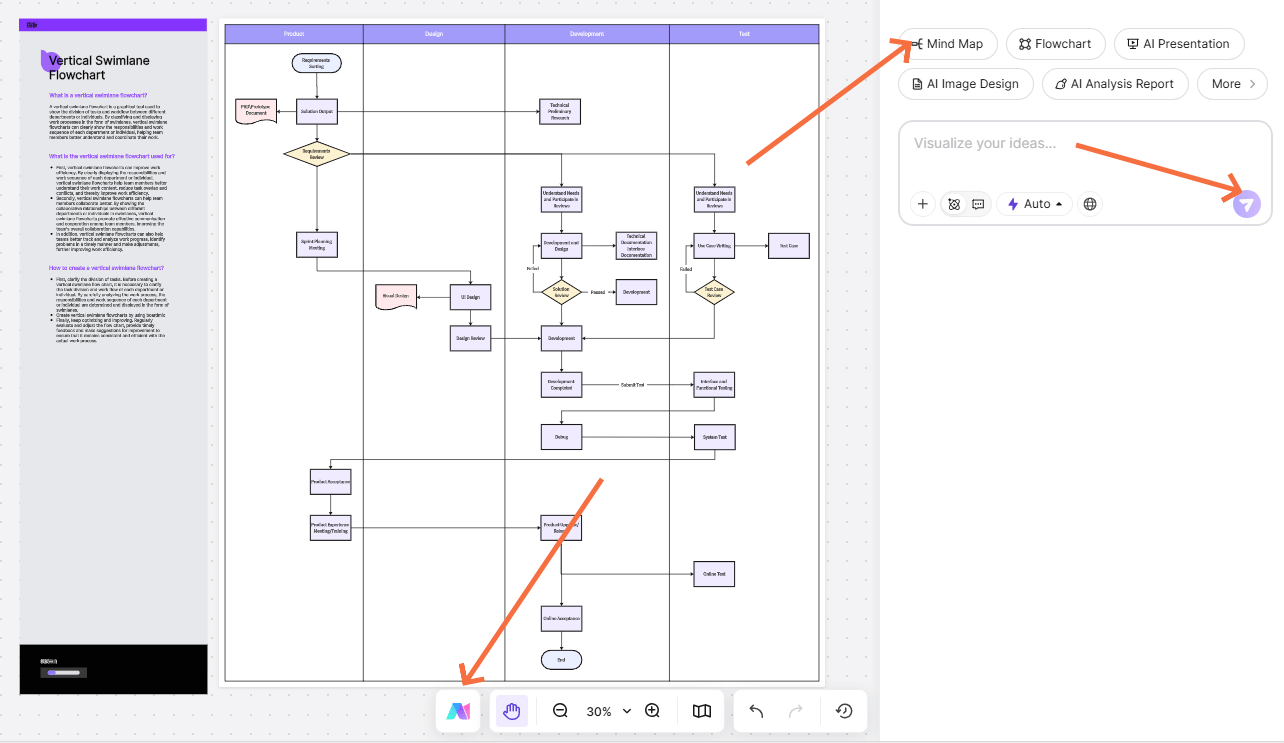
Paste the text or code from Doubao into Boardmix. With one click, it's automatically converted into a visual flowchart. Transform text to graphic in 5 seconds, eliminating manual drawing entirely.
The process requires no manual node drawing or connecting. Boardmix intelligently arranges elements based on the code logic, significantly saving design time.
(2) How to Make Detailed Adjustments to the Flowchart?
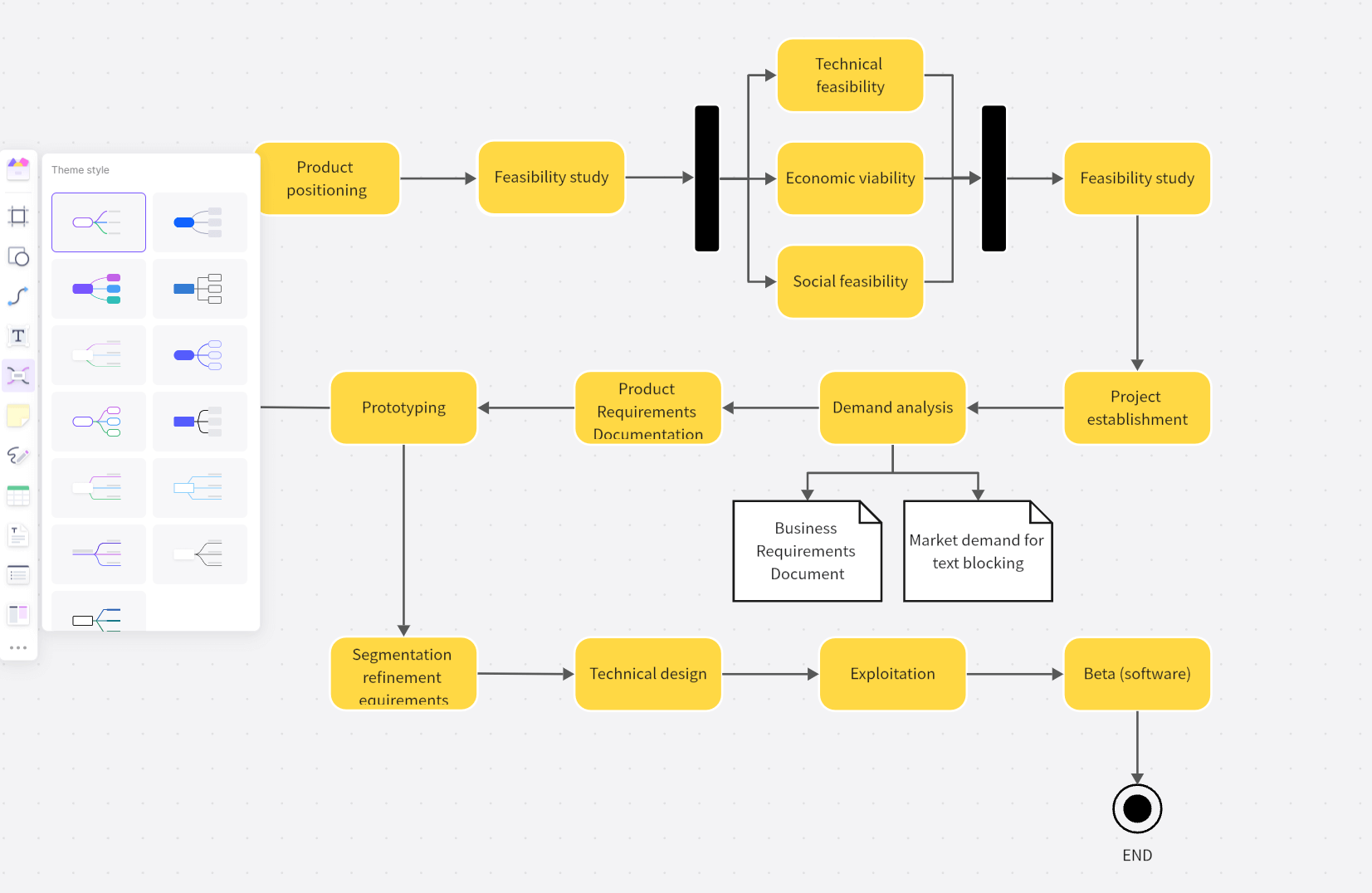
In Boardmix, you have full control: freely drag nodes to reorder, double-click to edit text and modify colors or shapes, click connectors to add arrows or annotations, and easily add or delete steps to perfect the logic.
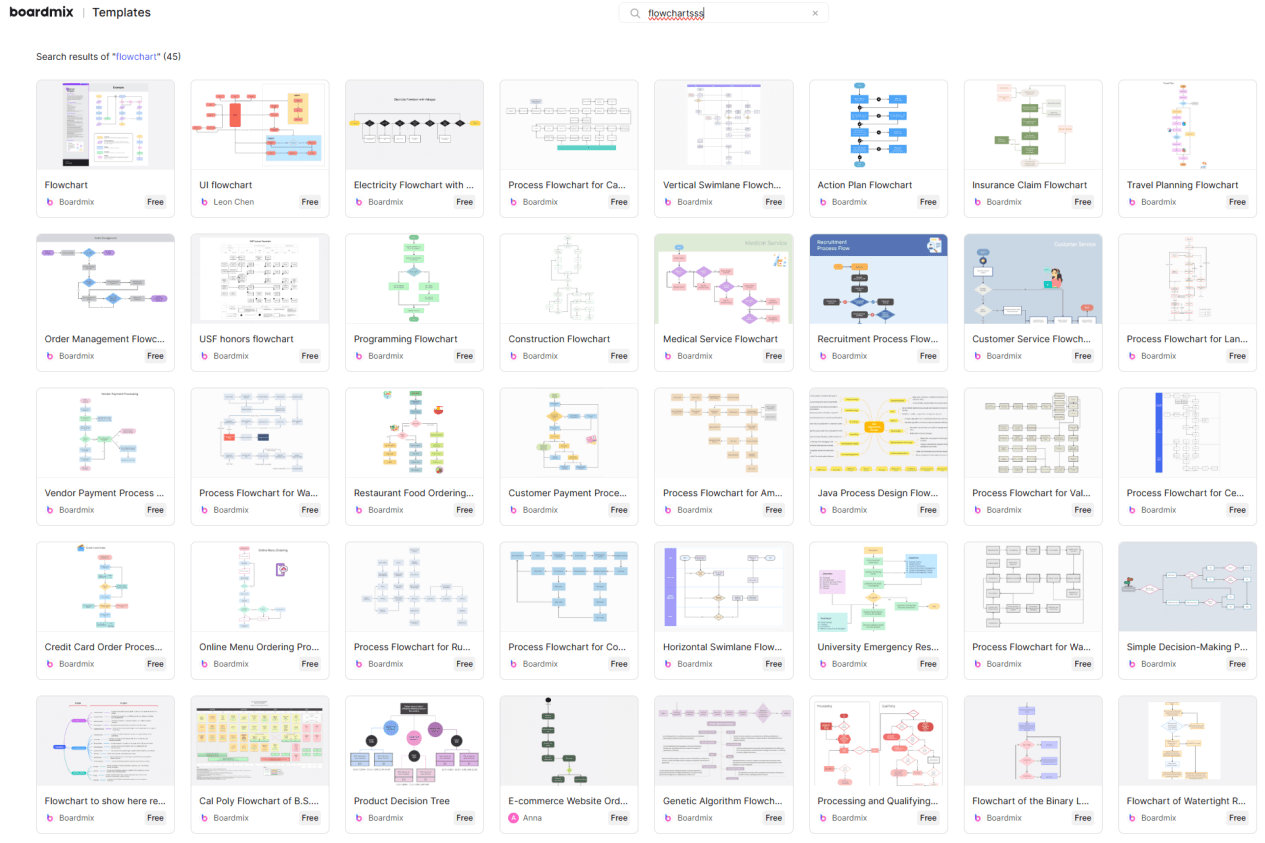
Furthermore, Boardmix offers a rich library of flowchart templates and shape libraries for one-click application, ensuring your diagrams are both professional and visually appealing.
(3) How to Collaborate Efficiently on the Flowchart?
A flowchart's true value emerges through team sharing and collaboration. Boardmix supports real-time, multi-user editing. Team members can simultaneously view and modify the same flowchart, use comment functions to leave feedback, @mention specific members to assign tasks, and track changes with automatically saved version history.
Starting from the Doubao draft, your team can discuss process logic and add details directly on the whiteboard, making the finalization process smoother and more efficient.
Conclusion
Once you know how to generate a flowchart with Doubao, you have a powerful tool for efficient drafting. When the AI-generated draft is ready, Boardmix becomes the essential next-step tool:
- One-Click Conversion: Instantly transform Doubao text/Mermaid code into visual charts.
- Detailed Editing: Freely edit nodes, styles, and logical branches.
- Team Co-Creation: Collaborate in real-time to finalize the flowchart.