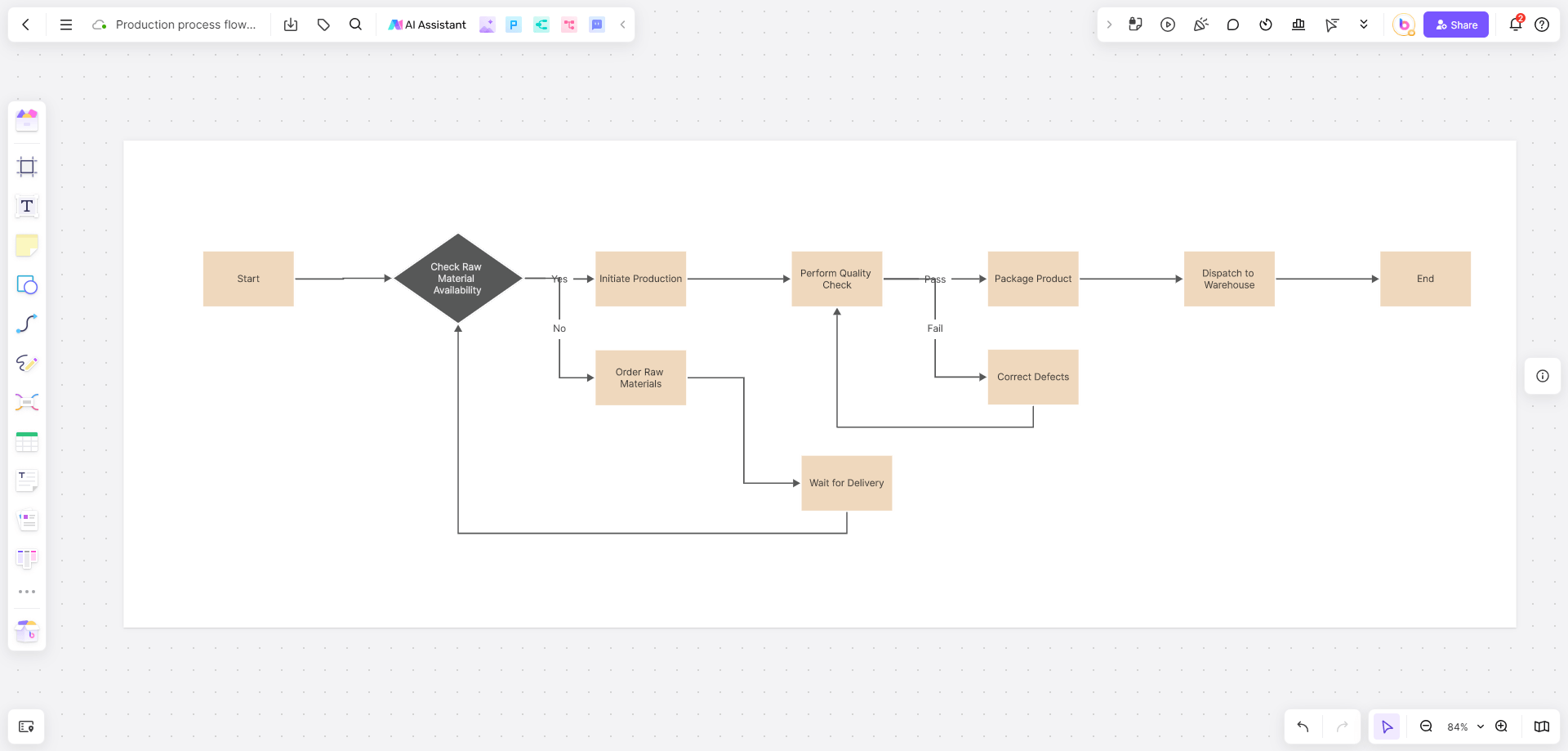




Struggling to map out a complex process? Wondering how to generate a flowchart with Tongyi AI? It's easier than you think! Whether you're a new hire or a seasoned professional, Tongyi AI can transform your text description into a professional flowchart in just three simple steps. This guide will walk you through the minimalist secrets of using Tongyi AI to generate flowcharts, from basic creation to advanced styling tips. Absolute beginners can create a diagram in under three minutes—say goodbye to late-night drawing sessions!
How Does Tongyi AI Generate Flowcharts? A 3-Step Tutorial?
The core logic of using this AI diagram generator is to have a natural language conversation, letting the AI draw the process for you. You only need three steps: "Describe your need – Send the instruction – Get the result." Anyone can create a chart quickly.
Step 1: Describe Your Flowchart Requirement
Use this versatile formula: "Generate a flowchart for [Scenario] + key nodes."
Example: "Please generate an e-commerce order placement flowchart with key steps: Login -> Select Product -> Checkout -> Payment -> Shipping."
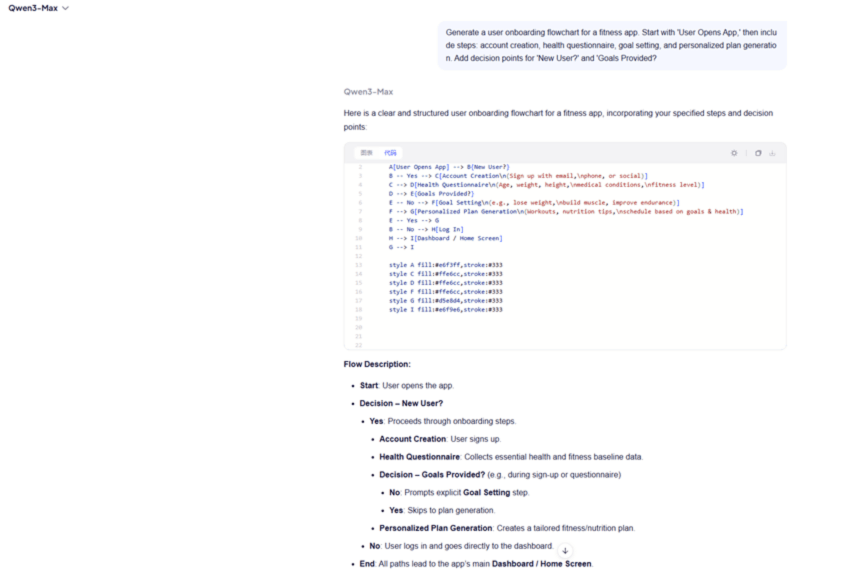
Pro Tip: Avoid vague terms like "maybe" or "etc." Use clear outcomes like "Approved" or "Payment Failed." Limit key steps to 8 or fewer; too many can cause the AI to miss some.
Step 2: Enter the Instruction in Tongyi
Copy your flowchart description into the Tongyi AI chat dialog and send it. Tongyi AI can quickly generate a flowchart image, a text description, or Mermaid code.
Step 3: Get Your First Draft Instantly
You will receive the AI-generated content. To adjust the step sequence or improve the layout, simply paste the Mermaid code or image into the Boardmix online whiteboard to create a fully visual and editable flowchart!
Advanced Tips for Tongyi AI Flowchart Generation
(1) Advanced Description Formula
To make the flowchart fit real business needs, refine your request from these angles:
Specify a Role: E.g., "Generate a user-perspective membership registration flowchart, including the step to receive an SMS verification code."
Define the Type: E.g., "Use a swimlane diagram to describe the cross-departmental project approval process between the Marketing and Engineering teams."
(2) Correcting and Iterating on the Draft
If the generated flowchart is missing a branch or has flawed logic, don't regenerate it—just instruct the AI to fix it.
Instruction Example: "After the 'Submit Order' step, add a branch for 'Payment Failed -> Return to Top-up Page -> Retry Payment'."
Visual Optimization Tip: If the AI-generated diagram has clashing colors or inconsistent shapes, save the image or copy the Mermaid code. Open Boardmix, create a new file, and import the content to instantly generate a professional, clean flowchart.
(3) Utilize Professional Symbol Libraries
Tongyi AI typically uses basic shapes (rectangles/diamonds). For complex processes, you need more professional notation.
Solution: Paste the AI-generated text or code into Boardmix and use its built-in professional flowchart symbol library (found on the left toolbar) to replace generic shapes, instantly elevating your diagram's professionalism.
How to Visually Edit Your Tongyi AI-Generated Flowchart?
AI drafts often have limitations like messy layouts, rough styling, and lack of collaboration features. Overcome these by using Boardmix, a professional online flowchart editor. Upgrade your diagram in three steps.
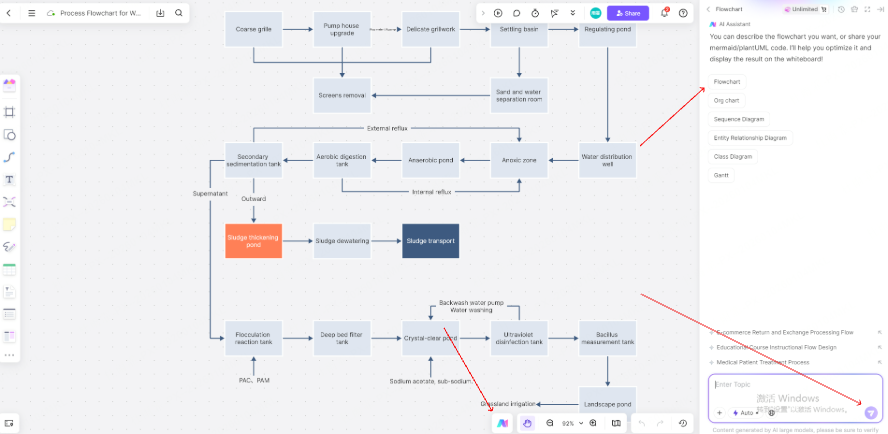
Step 1: Import the AI Draft
Create a new Boardmix file. Paste the Mermaid code from Tongyi AI, and it will auto-convert into an editable flowchart. Alternatively, upload the PNG image for one-click conversion, eliminating manual redrawing.
Step 2: Edit the Flowchart Effortlessly
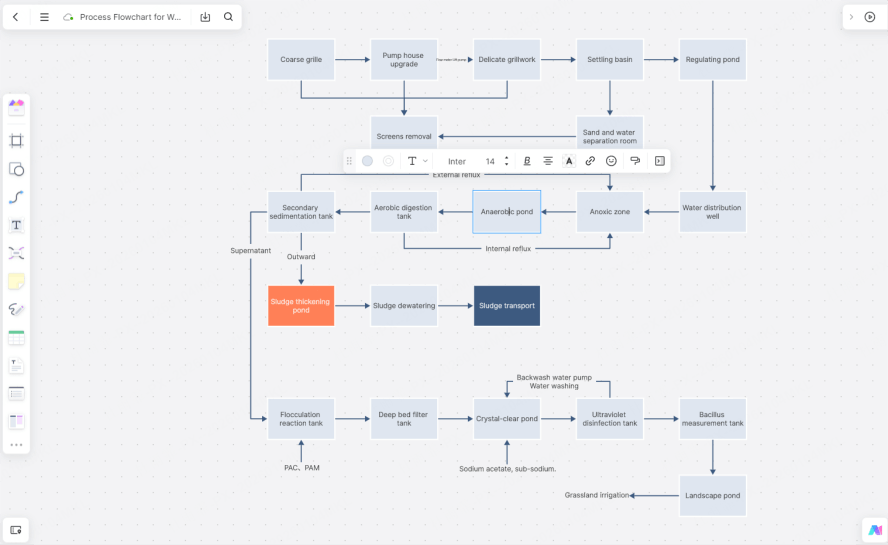
Drag nodes with your mouse to reorder—Boardmix automatically snaps them into alignment.
Click on connectors to modify their paths and untangle crossovers instantly.
To add a new branch, simply drag a node to pull out a new connection line—much faster than drawing by hand!
Step 3: Share and Collaborate in Real-Time
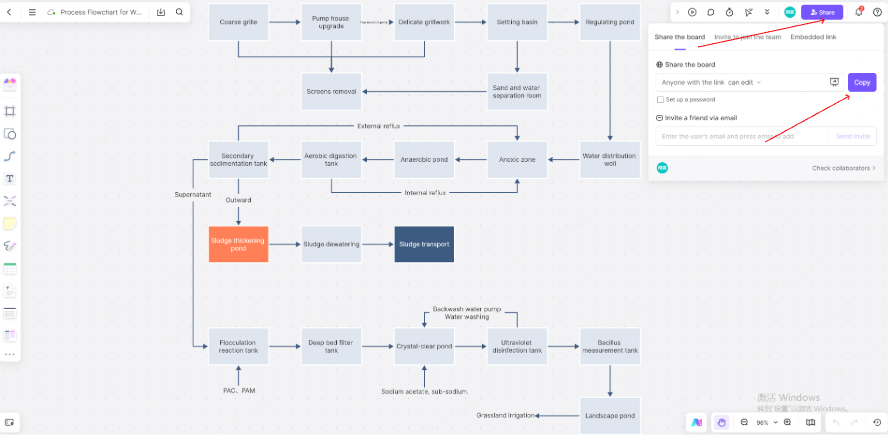
Invite team members to collaborate via a shareable link. They can comment, annotate, and edit the diagram live within the online whiteboard, eliminating endless email attachments. Finally, export your diagram as an image, PDF, or PowerPoint slide, or share a live link for any business need.
Conclusion
After reading this guide, you've mastered the core method of generating flowcharts with Tongyi AI and unlocked advanced techniques. The ultimate secret is: Let AI handle the initial draft from 0 to 1, and use a professional tool like Boardmix for the perfect visual upgrade and seamless collaboration. Start creating smarter today!