


AI image generation is rapidly becoming the go-to method for creative expression, illustration production, and content creation. By simply typing a text description, you can generate a vast array of image styles online—from photorealistic portraits to cartoon illustrations, and from landscapes to product shots. Compared to traditional drawing, AI image creation is more intelligent, efficient, and accessible. This guide will provide a quick start, walking you step-by-step through the entire process of online AI drawing. Let's start creating your own AI artwork together!
Choose the Right AI Image Generator
Selecting the appropriate tool enhances both efficiency and output quality. Here are several excellent online AI image generators:
- Boardmix: User-friendly for global users with a simple interface. Supports text-to-image, poster design, sketch-to-image, and more—generating ideal pictures from a single sentence. Highly suitable for beginners.
- MidJourney: Renowned internationally for its refined and artistic style. Ideal for artistic creations, though it has a slightly steeper learning curve and operates through Discord.
- Stable Diffusion: An open-source project with immense flexibility, perfect for tech-savvy users seeking high degrees of freedom. Requires local installation or access via third-party platforms.
- Adobe Firefly: Leans towards commercial design, supporting AI text-to-image and text effects. Excellent for advertisements and posters.
If your goal is a quick start and a smooth experience, we recommend beginning with Boardmix. The following tutorial will use it for our step-by-step walkthrough.
AI Drawing Tutorial: 3 Easy Steps
Let's use Boardmix to learn how to quickly generate high-quality images—no drawing skills required. Before starting the formal painting, first register for a free Boardmix account.
Enter the Creation Interface & Set Basic Parameters
In the creation interface, start by selecting a style model (e.g., Realistic, Illustration, Anime, Classical, Ink Wash, Cyberpunk). This directs the AI to generate images matching your desired aesthetic. You can also configure additional settings like aspect ratio and the number of images to generate, preparing everything for the next step.

Input Your Creative Description (The Prompt)
This is the most crucial step—the quality of your prompt determines the output. Describe your desired scene in the input box:
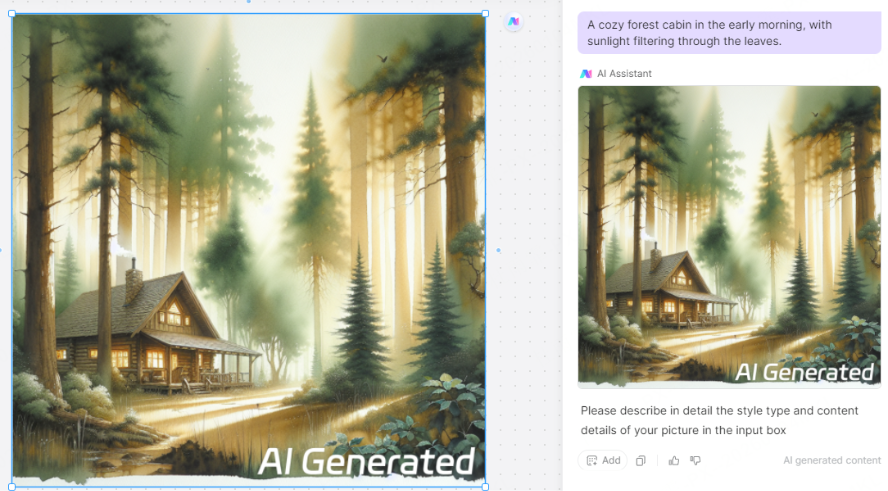
- A cozy forest cabin in the early morning, with sunlight filtering through the leaves.
- An anime-style school scene, with bright and vibrant colors.
To enhance your results, you can utilize:
- Keyword Suggestions: Integrate terms like HD close-up, panoramic view, soft lighting, perfect shadows, or depth of field to make the image more professional.
- Prompt Optimization: If you only have a basic description, the AI can automatically expand it into a more detailed prompt, helping beginners quickly generate high-quality images.
Generate & Refine
Click "Generate," and the AI will output an image based on your description. If the first result isn't perfect, don't worry. Optimize it like this:
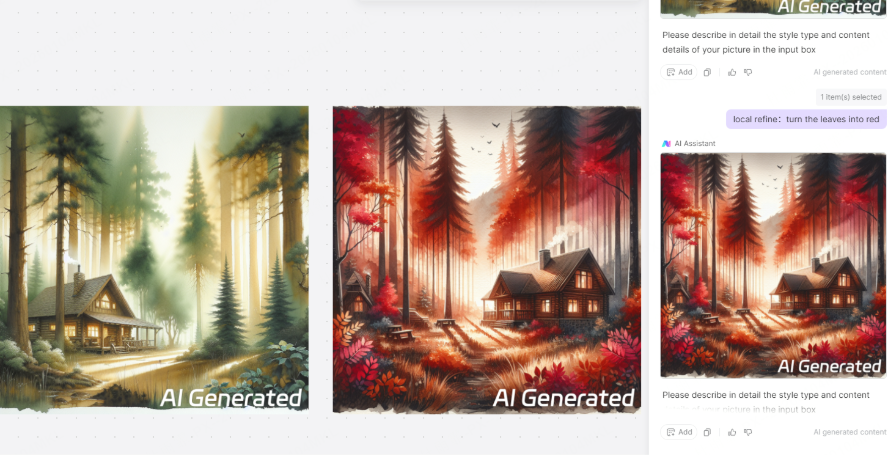
- Partial Redraw: On an existing generated image, use a brush to mask areas you want to change, like adding clouds or adjusting colors.
- Sketch-to-Image: Upload your own draft or line art sketch. Combined with a prompt, the AI can complete the detailed rendering for you.
Pro Tips for AI Drawing Beginners
While the tutorial above is straightforward, beginners can often feel unsure at first. Mastering these tips will make you more proficient:
- Prompt Structure: Use the format Subject + Scene + Style + Details. For example: Futuristic city + Night street + Cyberpunk style + Neon lights, highly detailed. This leads to more consistent and stable results.
- Style Matching: Choosing the right model is crucial, as different models produce vastly different outputs. For instance, a Realistic model is best for lifelike scenes, while Illustration or Anime models are better for cartoon-style images.
- Iterate Often: It's normal for the first image not to be ideal. Try different keywords or change their order—you'll often get pleasantly surprising results.
- Partial Optimization: If the tool supports it, use partial redraw to modify only a section of the image instead of regenerating the entire picture, saving time and effort.
Conclusion
The essence of AI drawing is simply: describe your idea → let the AI draw it → refine and optimize. This core workflow is the same whether you use MidJourney, Stable Diffusion, or the more accessible Boardmix.
If you're new to this, why not try Boardmix? Its online AI image generation, combined with other creative tools, empowers you to bring your creative visions to life effortlessly.