


To make a flowchart, define a clear start and end, list the actions in order, turn branching questions into decisions, connect every path with arrows, and test the result with a real example. A useful flowchart explains how the process works; it does not merely arrange attractive shapes.
This guide is for beginners, process owners, students, and teams that need to document or improve a workflow. It covers the planning decisions, standard symbols, drawing sequence, validation checks, and tool choices that produce a flowchart another person can follow without extra explanation.
Plan the Process Before Drawing
Start by defining the boundary. Write one sentence for the event that begins the process and one for the state that ends it. Then identify the people, systems, inputs, rules, and exceptions that affect what happens between those points.
- Purpose: decide whether the chart documents the current process, proposes a future process, trains a reader, or supports an improvement discussion.
- Audience: use the terms and level of detail that the people reading the diagram will understand.
- Evidence: gather the procedure, policy, system behavior, or interviews needed to confirm each step.
- Boundary: keep adjacent processes outside the chart unless they change the path being documented.
For a purchase approval flow, the boundary might begin when an employee submits a request and end when the requester receives an approval or rejection. Procurement, payment, and delivery can be separate subprocesses if they do not affect that decision.
Use the Right Flowchart Symbols
A small, consistent symbol set is easier to understand than a diagram filled with specialized notation. These symbols cover most business and instructional flows:
| Symbol | Meaning | Writing rule |
|---|---|---|
| Oval or terminator | Start or end | Name the triggering event or completed state |
| Rectangle | Process or action | Use one concise verb-led action per shape |
| Diamond | Decision | Write a question and label every outgoing branch |
| Parallelogram | Input or output | Name the information received or produced |
| Small circle | Connector | Use matching labels when a path continues elsewhere |
| Arrow or flowline | Direction of flow | Keep direction consistent and minimize crossings |
Do not use shape differences only for decoration. If a rectangle and a diamond represent the same kind of statement, the notation no longer helps the reader understand the logic.
Make a Flowchart in Seven Steps
- List the actions. Capture what actually happens, including rework, rejection, delay, and cancellation paths.
- Put the actions in order. Arrange the normal path first, then add exceptions and loops.
- Assign symbols. Convert actions, decisions, inputs, and endpoints into the appropriate shapes.
- Connect the flow. Draw arrows in a consistent reading direction and avoid lines that appear to touch a shape without connecting.
- Label decisions. Add the criterion inside the diamond and the outcome beside each outgoing arrow.
- Check ownership and handoffs. Identify who acts when responsibility changes; use a swimlane only when ownership is important to the reader.
- Walk every path. Test a normal case, an exception, and a repeated loop with someone who performs or owns the process.
In the purchase example, the path could be: request submitted, request complete?, return for missing information when No, check budget when Yes, approve or reject, then notify the requester. Writing the decision as a question and labeling the outcomes makes the logic testable.
Create and Review a Flowchart in Boardmix
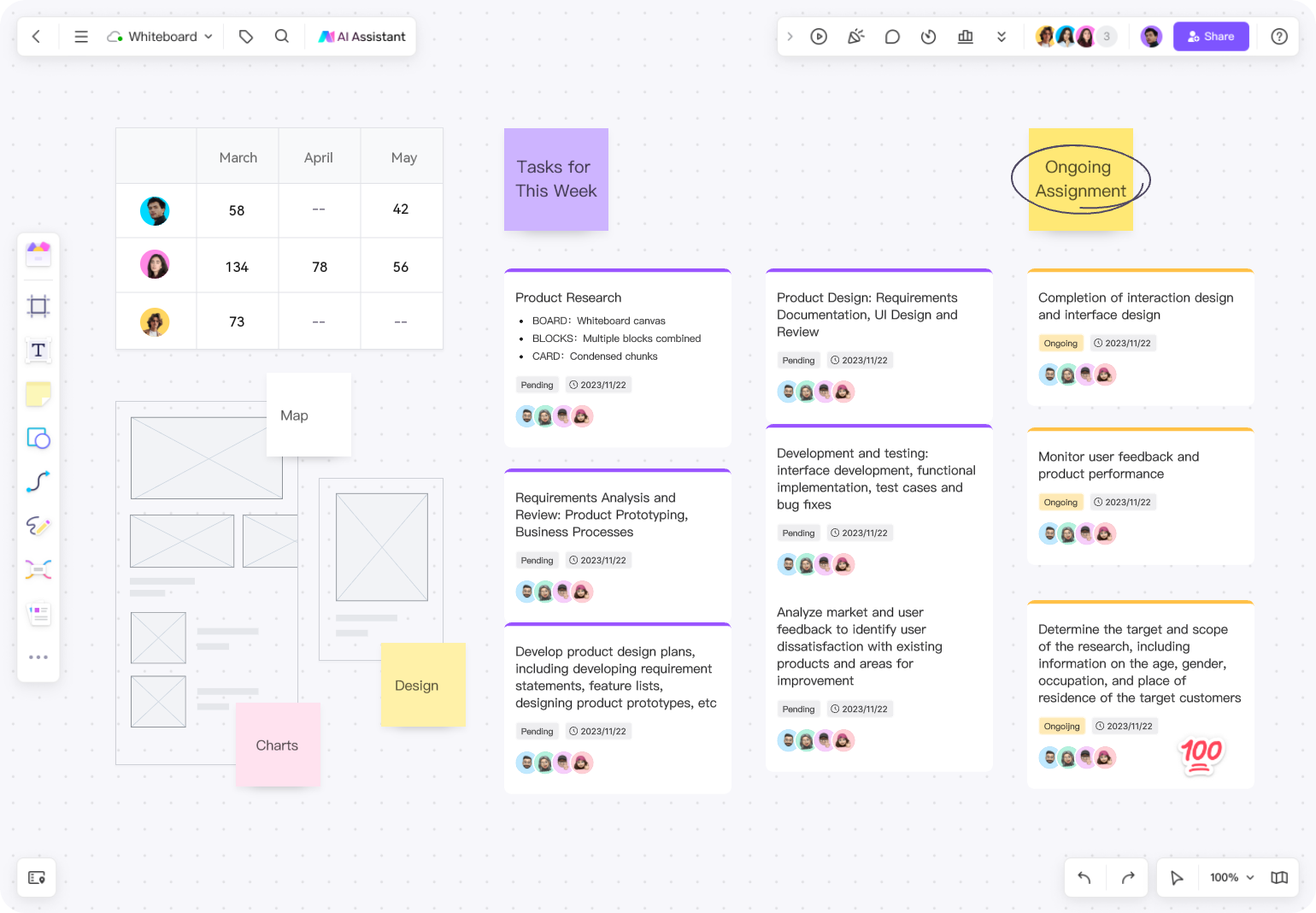
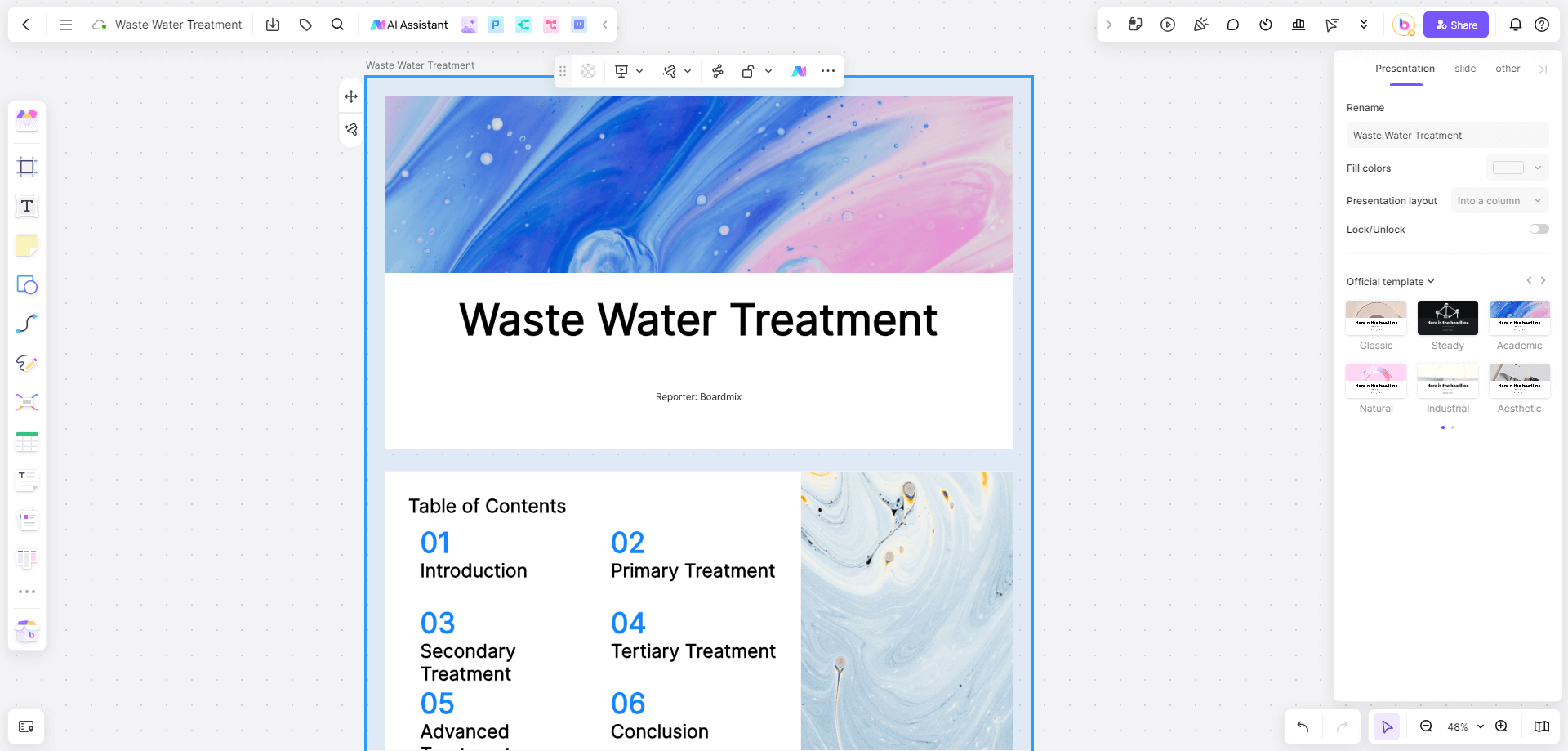
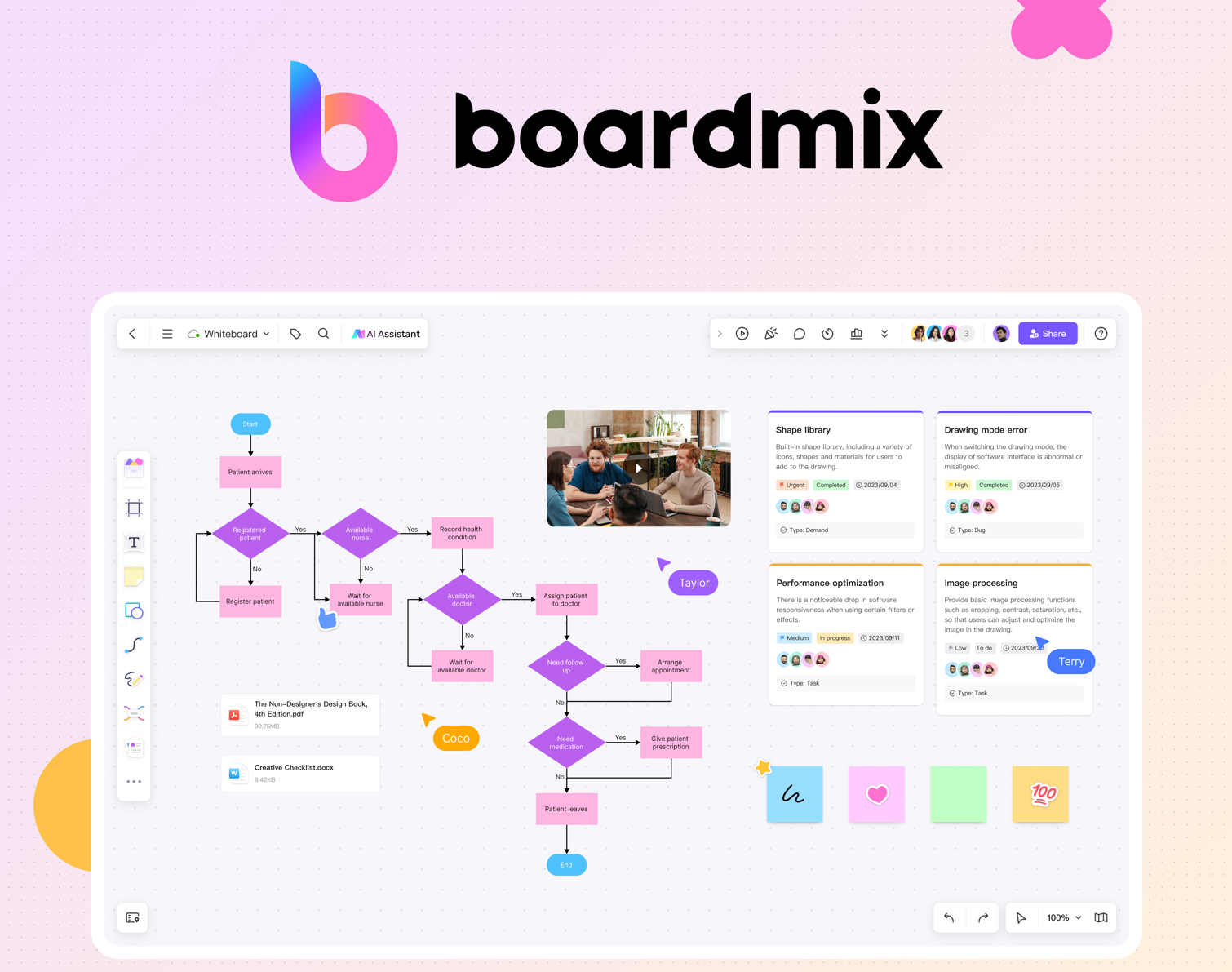
An online whiteboard is useful when the process is still being discovered or several people need to review it together. The Boardmix online flowchart maker provides an infinite canvas, standard shapes, smart connectors, alignment tools, comments, co-editing, and sharing or export options.
Start with the process boundary
Open a board and place the start and end before adding detail. Keep supporting notes, interview findings, or source links near the diagram so reviewers can distinguish confirmed steps from unresolved questions.
Try Boardmix Flowchart for Free
Choose a relevant starting structure
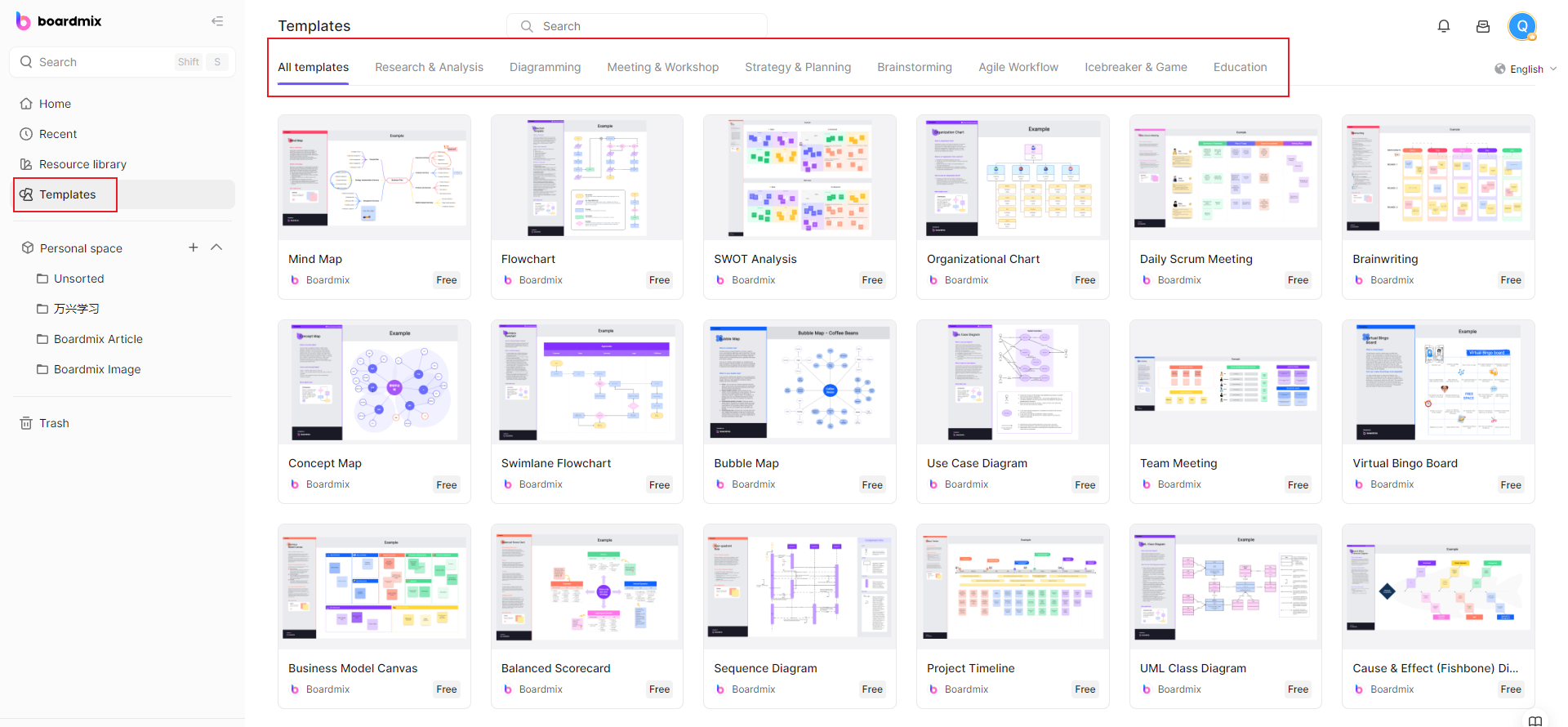
Use a blank canvas when the team is discovering the process. When the workflow has a familiar shape, adapt a verified flowchart template, remove irrelevant example steps, and replace them with the actual actors and decision criteria.
Build the flow with standard shapes
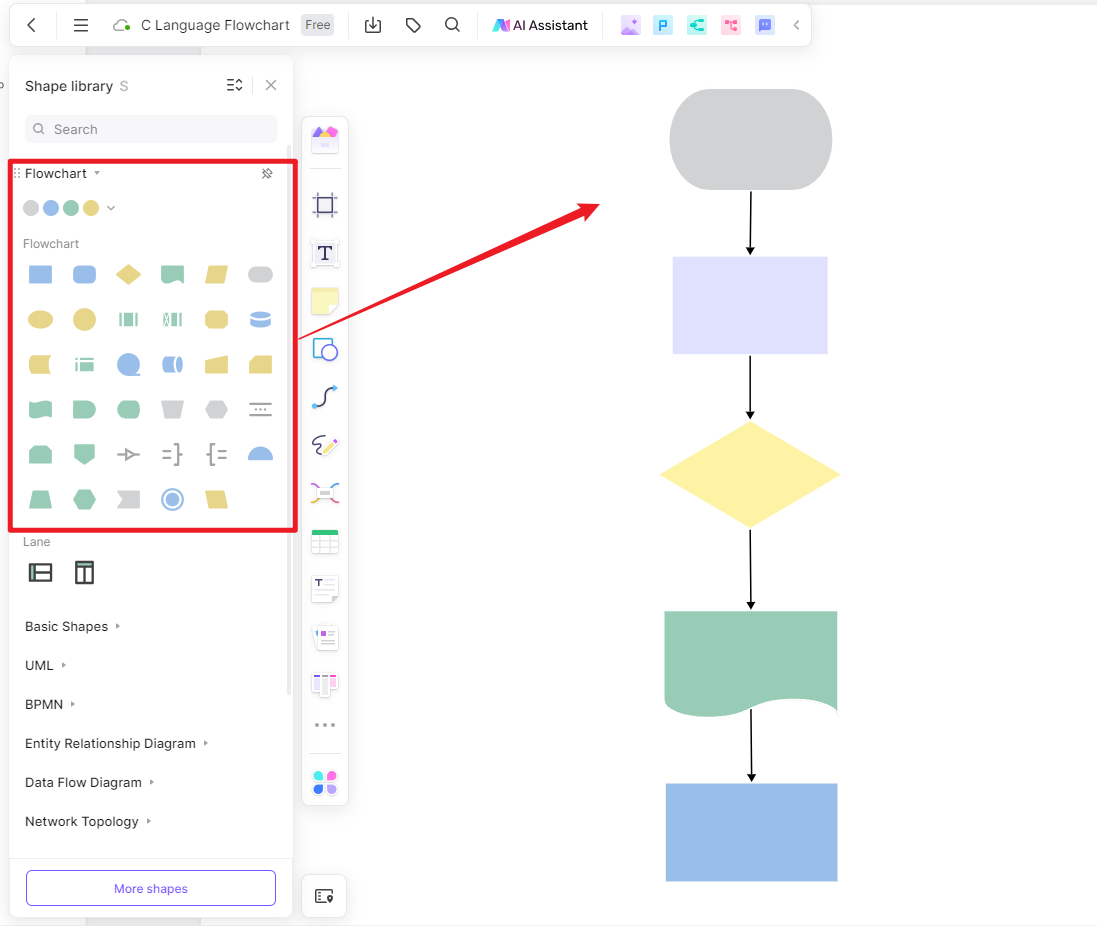
Add one action or question per shape, snap the connectors to their endpoints, and label each decision branch. Keep comments and evidence outside the shapes so the main path stays readable.
Review the complete path
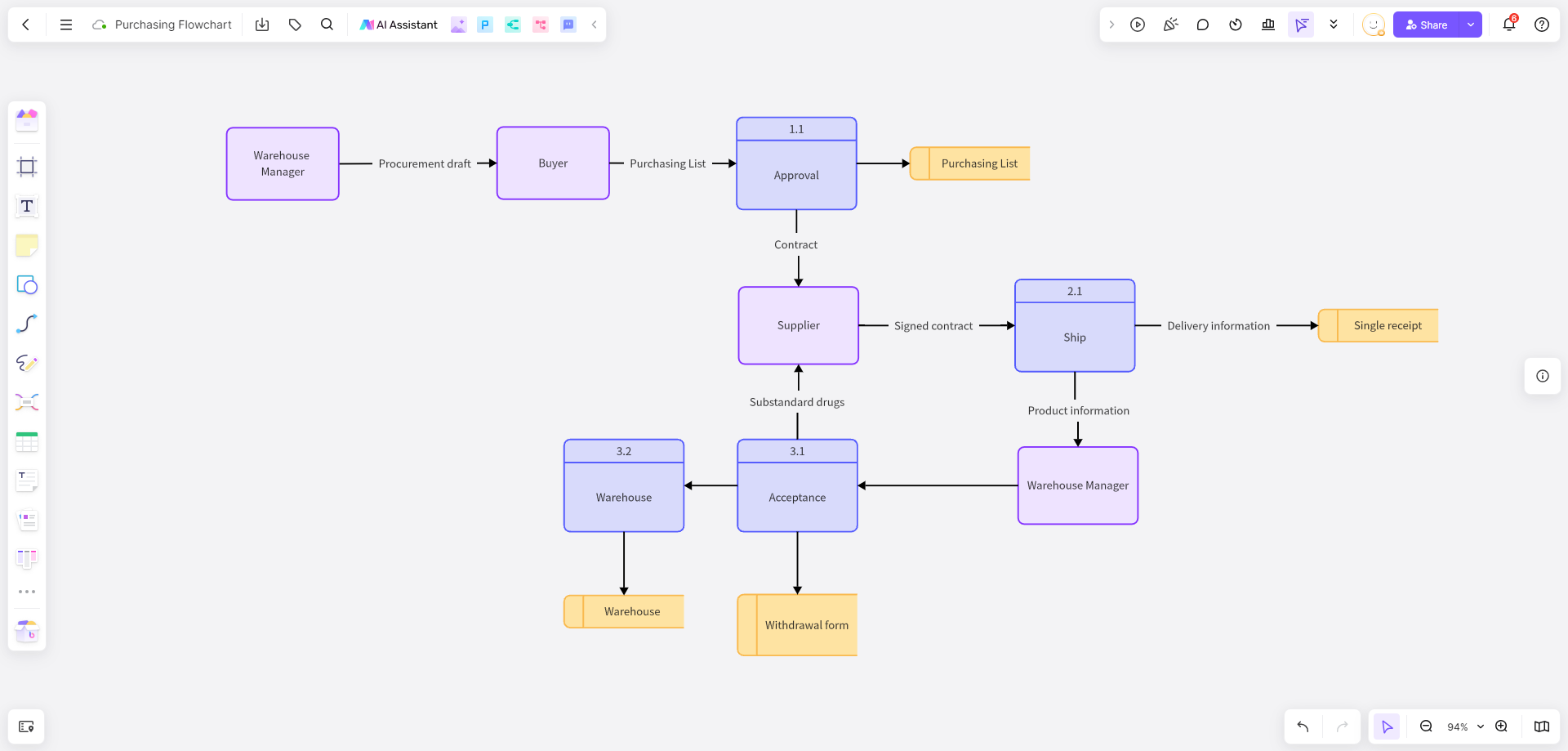
Invite the people who perform or own the process. Ask each reviewer to identify a missing step, an impossible path, an unlabeled decision, or a handoff without an owner. Resolve comments before treating the diagram as approved.
When to Use Word, Excel, PowerPoint, or Visio
The drawing method should fit the destination and complexity. This is a practical choice, not a software ranking:
Excel or PowerPoint
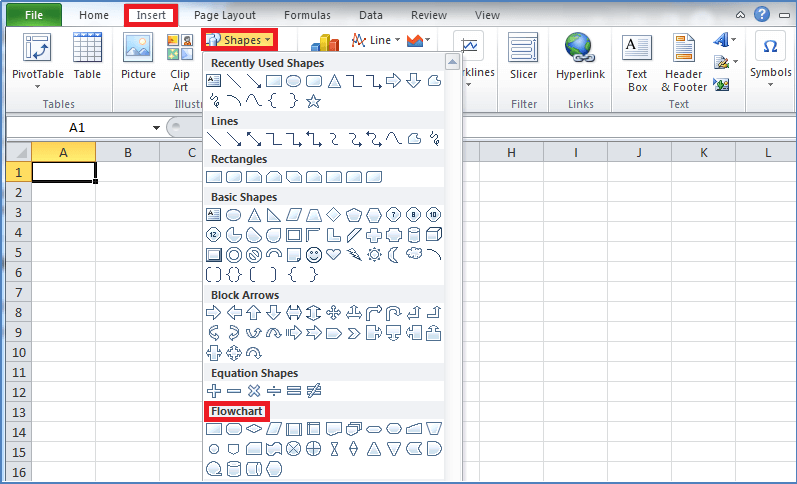
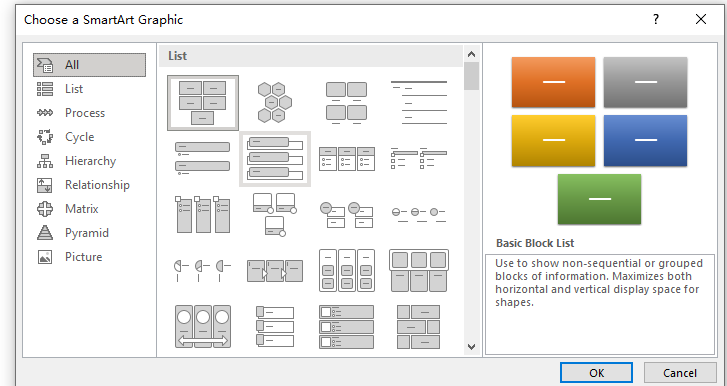
SmartArt is useful for a short presentation-ready sequence, while Shapes offers more control over standard notation. Excel can be convenient when the process sits beside worksheet analysis; PowerPoint works when the diagram is part of a presentation.
Word
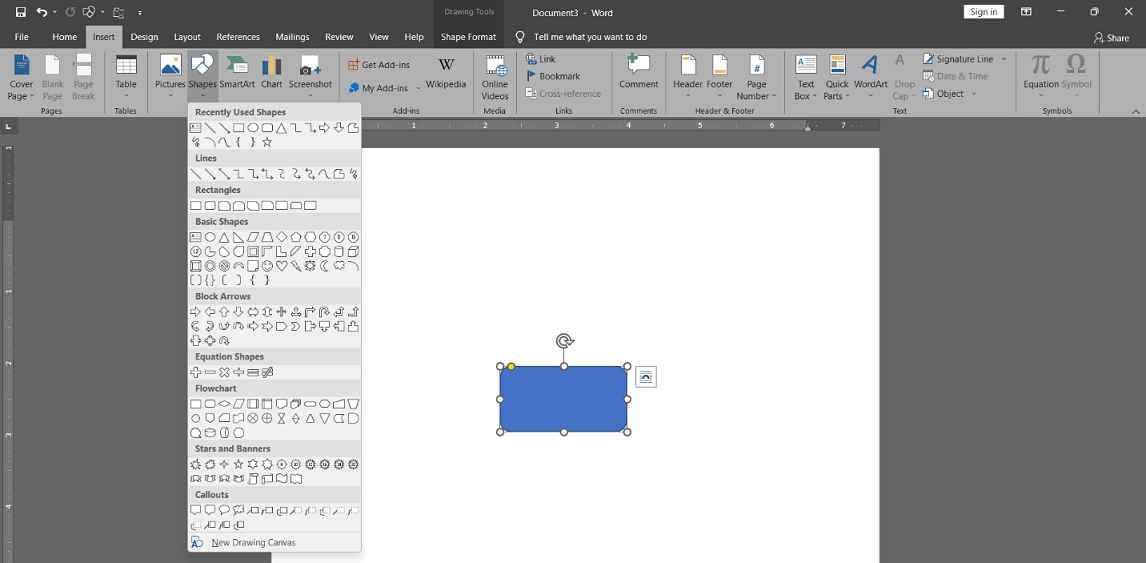
Word is appropriate when a compact flowchart belongs inside a procedure, assignment, or report. Use Shapes for branching logic and SmartArt for a simple sequence. Follow the detailed Word flowchart tutorial for menu steps, connectors, layout fixes, and validation.
Visio
Visio is designed for formal diagramming and is a better fit when you need specialized notation, structured templates, or detailed process documentation. Define the process before choosing a template so the tool does not dictate the logic.
If tool requirements are the main question, use the separate online flowchart software comparison rather than turning this method guide into a product list.
Flowchart Best Practices and Common Mistakes
- Use verb-led action labels. “Verify account” is clearer than “Account verification process.”
- Write decisions as questions. The outgoing arrows should answer the question.
- Keep one reading direction. Return loops are easier to understand when the primary path still moves consistently.
- Limit crossing lines. Reposition shapes or use a labeled connector instead of creating a knot of arrows.
- Show exceptions. A chart that shows only the happy path is usually incomplete.
- Separate facts from assumptions. Mark unresolved steps and confirm them with the process owner.
- Track the approved version. Record the owner and review date when the chart documents an operational process.
A common failure is adding visual detail before confirming the logic. Color and styling can help group information, but they cannot fix a missing branch or an incorrect sequence.
Validate the Flowchart Before Sharing
- Can a new reader identify the start and end without assistance?
- Does every decision have labeled outcomes?
- Does every arrow connect to a valid next step or defined end?
- Can you trace one normal case, one exception, and one loop?
- Are roles and system actions distinguishable where ownership matters?
- Does the chart match the source procedure or the people who perform the work?
- Is the text readable at the size in which the diagram will be viewed or exported?
Validation is complete only when the logic and the presentation both work. A visually neat chart with an untested branch is still unreliable.
Flowchart FAQ
What are the basic steps for making a flowchart?
Define the boundary, list the actions, identify decisions, assign symbols, connect the paths, label branch outcomes, and test every route with a concrete example.
How many symbols should a flowchart use?
Use the smallest consistent set that expresses the process accurately. Most basic workflows need start/end, process, decision, input/output, connector, and flowline symbols.
Should a flowchart show every detail?
No. Show enough detail for the stated audience and purpose. Move lengthy instructions into notes or supporting documentation, and use subprocesses when a section would overwhelm the main flow.
How do I know whether a flowchart is correct?
Compare it with the source process, trace normal and exception cases, and ask someone who performs or owns the process to verify the steps, decisions, and handoffs.
Conclusion
An effective flowchart begins with a defined process, not a drawing tool. Use consistent symbols, make decision criteria explicit, test every path, and keep the final diagram readable for its audience. Choose a document tool for a compact embedded chart, a specialist diagramming tool for formal notation, or an online whiteboard when the process needs collaborative discovery and review.
For adjacent examples, see flowchart examples for beginners and the flowchart software guide.