



Markdown is the essential skill for efficient formatting. But what exactly is Markdown? In essence, it's a lightweight language that uses simple symbols (like #, *, /) to turn plain text into structured documents. This guide will systematically break down Markdown's core concepts from its fundamental definition to practical applications like code formatting. We’ll cover 12 standard syntax rules, from headers to code blocks, to help programmers, students, and content creators work more efficiently. Best of all, you can practice all of these in real-time on an online whiteboard like Boardmix, which combines Markdown’s simplicity with collaborative visual tools to elevate your content creation workflow. In today’s digital landscape, where clear, structured communication is critical—whether for technical documentation, academic notes, or marketing content—Mastering Markdown is no longer just a "nice-to-have" skill but a necessity for anyone looking to work faster and more effectively without sacrificing formatting quality. Unlike complex word processors that require endless menu navigation, Markdown lets you focus on what matters: your content, not the tools used to format it.
What is Markdown Formatting?
The Essence: Plain Text + Symbols = Structured Document
Markdown is a lightweight markup language created by John Gruber in 2004, designed to bridge the gap between plain text simplicity and formatted document functionality. By adding specific, easy-to-remember symbols to plain text, you transform unstructured writing into a polished, organized document with minimal effort. These symbols act as simple commands that define elements like heading levels, paragraph styles, bold or italic text, and even tables—similar to how you might use asterisks to make text italic in Slack or Discord, but with far more versatility. For example, adding a single # before a line of text turns it into a main heading, while two ## create a subheading, and wrapping a word in **asterisks** makes it bold. This simplicity is intentional: Markdown was built to be human-readable even in its raw form, meaning you can edit and understand a Markdown document without any special software. Unlike HTML, which uses complex tags like `` or ``, Markdown’s syntax is intuitive and requires no prior coding knowledge, making it accessible to beginners while still powerful enough for advanced users.
Why Learn Markdown?
- Markdown is a universal tool that transcends industries and roles, proving invaluable for programmers writing technical documentation, marketers formatting blog posts or social media content, and students organizing lecture notes or research papers. Its versatility stems from its core strength: it works everywhere, from code repositories like GitHub to note-taking apps like Notion, and even email clients and content management systems (CMS).
- Programmers rely on Markdown to organize technical documentation efficiently, as it integrates seamlessly with code repositories and supports syntax highlighting for code snippets—critical for explaining APIs, documenting code bases, or writing README files. Unlike traditional word processors, Markdown files are lightweight, plain text, and version-control friendly, making them ideal for collaborative software development.
- Marketers can style articles, social media captions, and email newsletters quickly without navigating complex WYSIWYG (What You See Is What You Get) editors that often add hidden formatting code. This speed is a game-changer for fast-paced marketing teams, allowing them to iterate on content quickly and maintain consistent formatting across all channels.
- Students benefit from Markdown by keeping their notes clean, structured, and easy to review. Whether outlining essays, organizing research notes, or creating study guides, Markdown’s simple syntax lets them format content without interrupting their thought process—no more clicking through menus to adjust font sizes or bullet points.
- Compared to traditional WYSIWYG editors, Markdown eliminates the need for constant mouse-clicking and menu navigation. You format content directly with keyboard symbols, allowing you to stay in the flow of writing and focus on the content itself rather than formatting tools. This not only reduces distractions but also dramatically boosts productivity, with many users reporting a 30% or more increase in writing speed when using Markdown over traditional editors.
Why Learn Markdown with Boardmix?
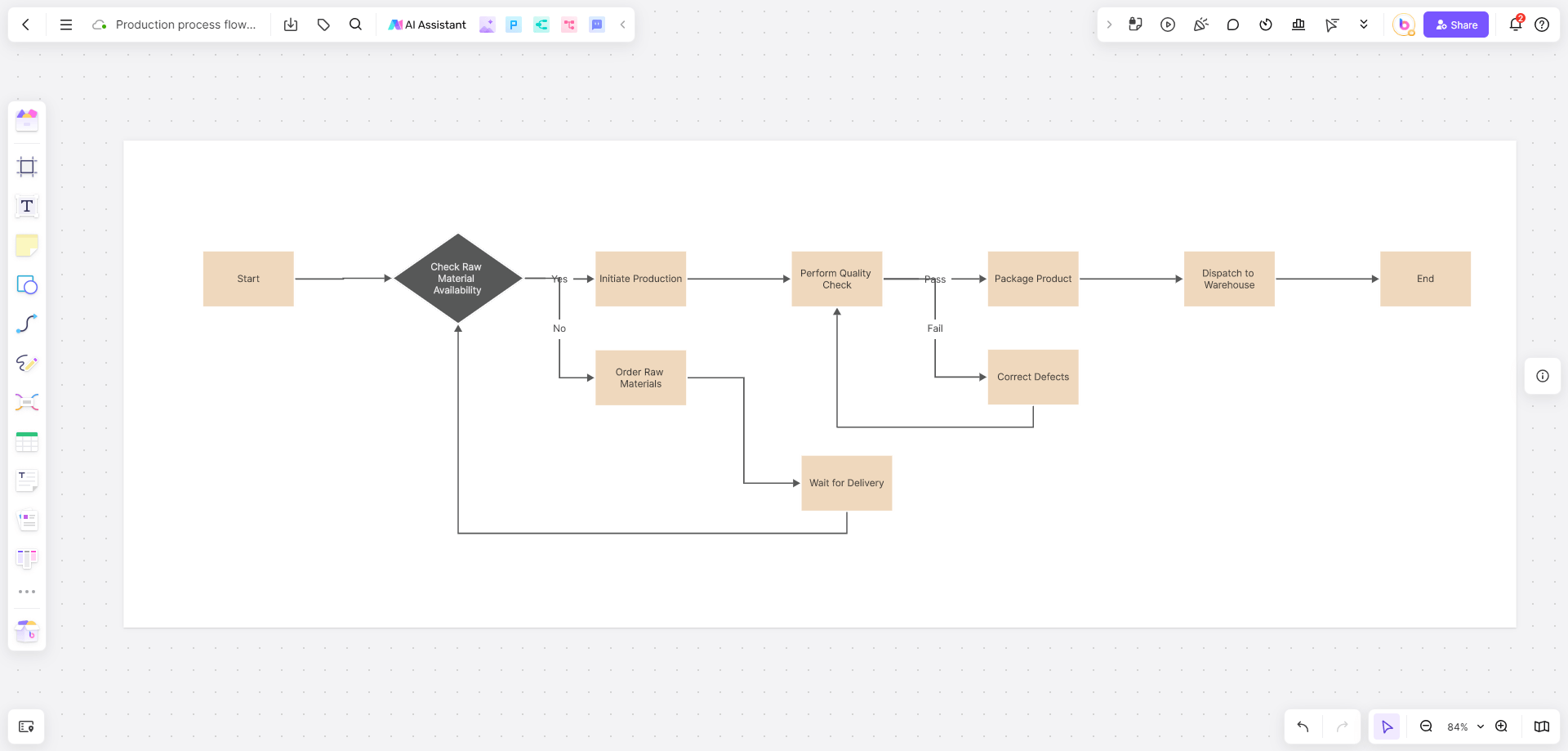
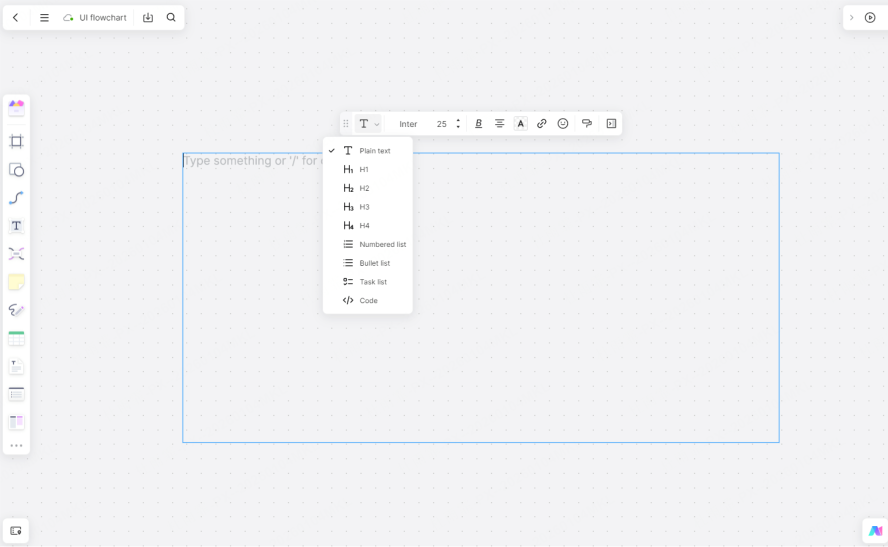
We recommend using Boardmix Whiteboard an online whiteboard tool that supports real-time editing of Markdown code blocks with syntax highlighting, making it the perfect platform to learn and apply Markdown skills. Unlike basic text editors that only display raw Markdown or preview panels that require manual refreshing, Boardmix offers a live, side-by-side view of your Markdown code and its formatted output—so you can see exactly how each symbol affects your content in real time. Its AI assistant takes this a step further: it can parse your Markdown text and instantly generate visualizations like mind maps and flowcharts, helping you organize and present information effortlessly. For example, a student can write lecture notes in Markdown, then use Boardmix’s AI to convert those notes into a mind map for better retention; a programmer can document a code workflow in Markdown and turn it into a flowchart to explain it to non-technical stakeholders. This blend of Markdown’s structured writing and Boardmix’s visual collaboration tools creates a workflow that is both efficient and highly communicative, bridging the gap between text-based documentation and visual understanding.
Detailed Guide to 12 Core Markdown Syntax Rules
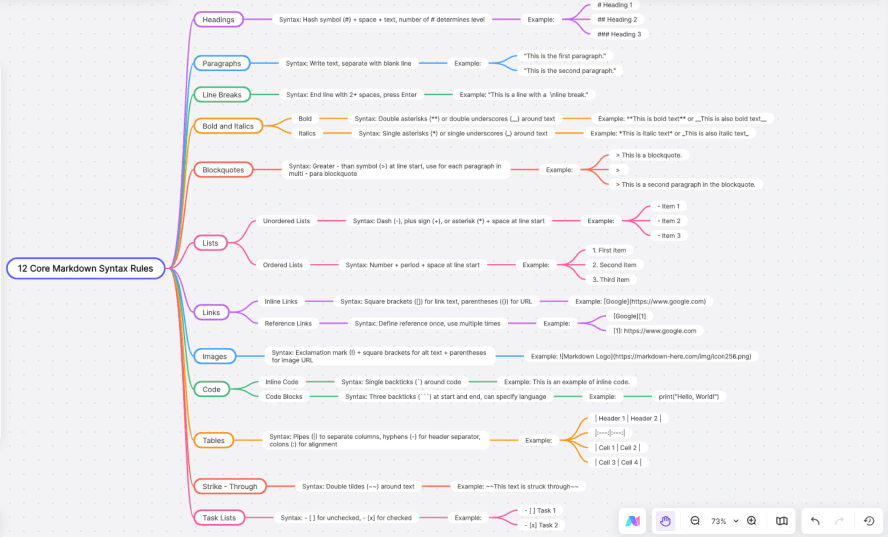
To use Markdown effectively and unlock its full potential, master these 12 core syntax rules. Each rule addresses a key document formatting need, from structuring headings to embedding images, letting you concentrate on creating great content rather than troubleshooting formatting issues.
(1) Headers
Create six levels of headings using the hash symbol #, with one # for the highest level (main heading) and six ## for the lowest (sub-sub-subheading). A critical pro tip to remember: you must include a space between the # and the header text (e.g., # Title is correct; #Title will not render as a heading). This small detail is one of the most common mistakes beginners make, but it’s easy to avoid with a little practice. Headers are essential for organizing long documents, as they create a clear hierarchy that guides readers and makes your content scannable—whether you’re writing a technical manual, a blog post, or a research paper.
(2) Paragraphs & Line Breaks
Markdown handles paragraphs and line breaks differently than traditional word processors, and understanding this is key to avoiding messy formatting. For a line break within a paragraph (a "soft return"), end a line with two spaces before pressing Enter—this lets you split text into lines without creating a new paragraph. For a new paragraph, separate two blocks of text with one blank line; this adds spacing between paragraphs and makes your content easier to read. For example, writing two lines of text with two spaces at the end of the first line will keep them in the same paragraph, while leaving a blank line between them creates a distinct new paragraph. This syntax is subtle but powerful, giving you precise control over text spacing without complex formatting tools.
(3) Emphasis (Bold, Italic, Strikethrough)
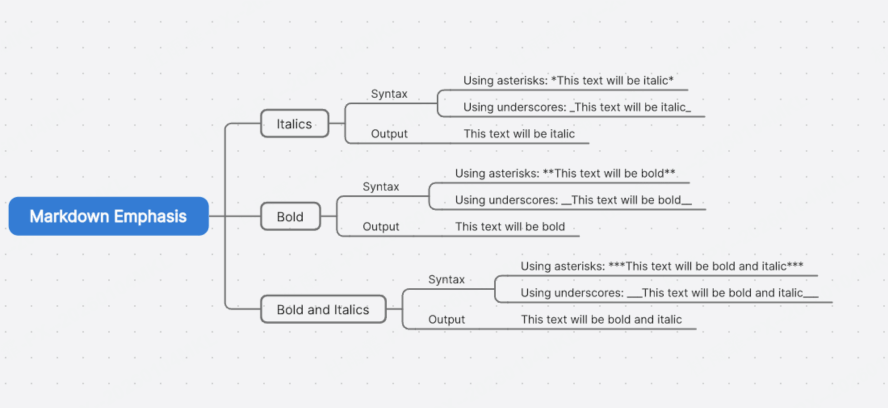
Emphasizing text is one of Markdown’s most frequently used features, and it uses simple symbols that are easy to remember. For bold text, enclose the text with two asterisks ** (e.g., **important** renders as important). For italic text, use one asterisk * (e.g., *emphasis* renders as emphasis). For strikethrough text (to indicate deleted or outdated content), enclose the text with two tildes ~~ (e.g., ~~old text~~ renders as old text). These symbols work inline with your text, so you can add emphasis without breaking your writing flow—unlike WYSIWYG editors where you have to highlight text and click a button to make it bold or italic.
(4) Lists
Markdown supports both unordered and ordered lists, making it easy to organize items, steps, or ideas. For an unordered list (bullet points), use an asterisk * followed by a space (hyphens are also acceptable but asterisks are more widely supported). For an ordered list (numbered steps), use numbers followed by a period and a space—Markdown handles the numbering automatically, so you can write 1. First item, 1. Second item, and it will render as 1. First item, 2. Second item. This is incredibly useful for writing tutorials, to-do lists, or step-by-step guides, as you can rearrange items without manually renumbering them.
(5) Links
Links are a foundational part of digital content, and Markdown makes adding them simple with two main formats. Inline links use the format [Link Text](URL "Optional Hover Tooltip")—for example, [Boardmix](https://boardmix.com "Online Whiteboard Tool") creates a link to Boardmix with a tooltip that appears when a user hovers over it. Reference-style links use [Link Text][id] in the body of the document and define the link at the end with [id]: URL—great for reusing the same link multiple times (e.g., [Boardmix][1] in the text and [1]: https://boardmix.com at the bottom). Reference-style links keep your text clean, especially in long documents with many links, as they move the URL clutter to the end of the document.
(6) Images
Adding images in Markdown uses a syntax similar to links but with an exclamation mark at the start: . The Alt Text is critical—it describes the image for users with screen readers (accessibility) and displays if the image fails to load, so always include descriptive alt text (e.g.,  instead of just ). An advanced tip: make an image clickable by wrapping it in a link—[](destination-url) turns the image into a hyperlink to another page, perfect for adding clickable logos or product images to your content.
(7) Blockquotes
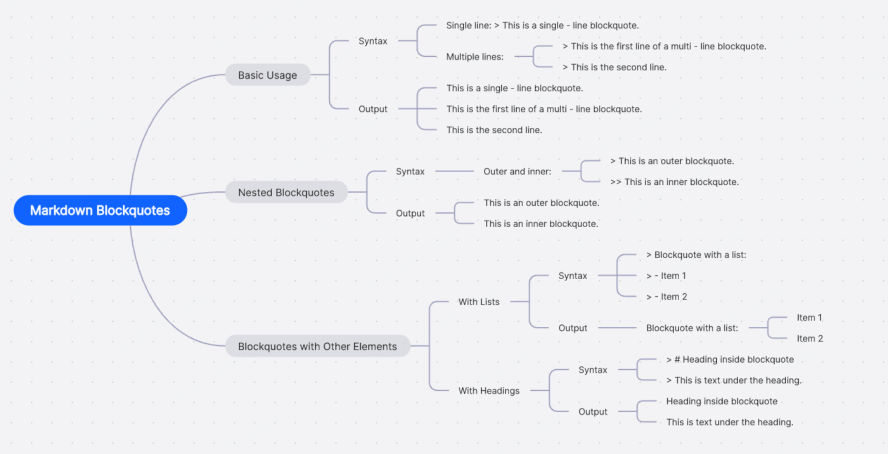
Create a blockquote (for quoting text or highlighting important information) by starting a line with >. For example, > This is a quoted paragraph renders as a distinct blockquote with indentation. For nested quotes (quotes within quotes), use multiple > symbols (e.g., >> Nested quote) to create a hierarchical quote structure. Blockquotes are ideal for citing sources, highlighting key takeaways, or drawing attention to important information in your document.
(8) Horizontal Rules (Dividers)
Create a visual dividing line (horizontal rule) with three hyphens, asterisks, or underscores on a new line, preceded by a blank line (---, ***, or ___ all work). Horizontal rules are useful for separating sections of a document, creating visual breaks between different topics, or emphasizing the end of a chapter or section. Just remember to add a blank line before the rule to ensure it renders correctly—this is a common mistake that can cause formatting errors.
(9) Tables
Markdown tables use pipes | and hyphens to create structured tables, with colons : to control alignment (left, center, right). For example, | Header 1 | Header 2 | creates a table with two columns, and adding | :--- | :---: | below the headers aligns the first column left and the second center. Tables are essential for presenting data, comparing options, or organizing information in a clear, scannable format—something that is surprisingly difficult to do in plain text without Markdown’s table syntax.
(10) Task Lists (Checkboxes)
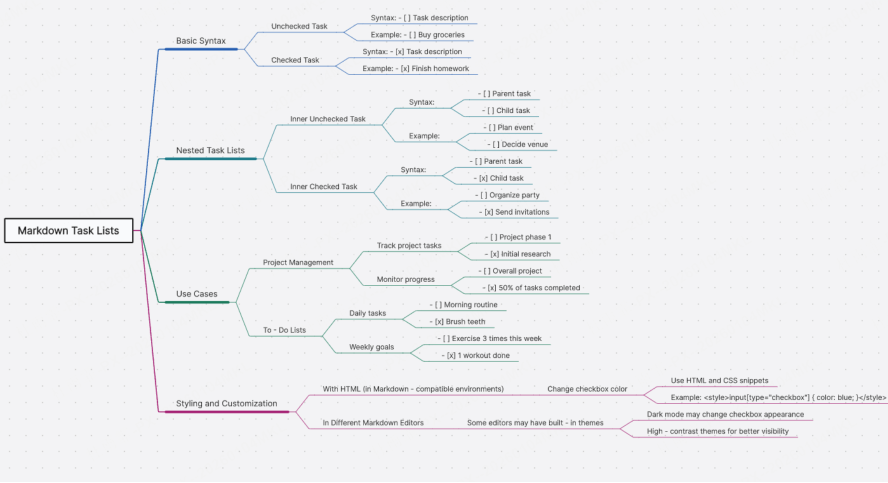
Task lists (checkboxes) use [ ] for an incomplete task and [x] for a completed one (e.g., [ ] Finish Markdown guide or [x] Practice syntax). They are perfect for project management, to-do lists, or tracking progress on tasks, and they render as interactive checkboxes in many Markdown-supported platforms. Using Boardmix for Task Lists: When editing in Boardmix, syntax like [ ] is highlighted for easy identification, and the AI assistant can transform your task list into a Gantt chart or mind map for clearer project visualization—turning a simple text-based checklist into a visual project plan with just one click.
(11) Automatic Links
Markdown automatically converts standard URLs (like https://boardmix.com) and email addresses into clickable links with no extra syntax needed. Simply type the full URL (including https://) or email address, and Markdown will make it clickable—saving you time and ensuring links are formatted correctly every time. This feature is especially useful for quickly adding links to documentation or notes without remembering the full link syntax.
(12) Escaping Characters
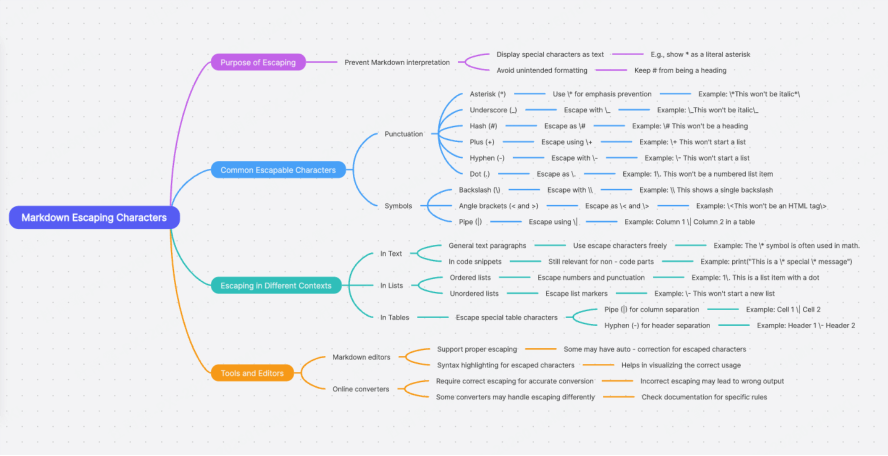
To display a Markdown symbol as plain text (instead of using it for formatting), precede it with a backslash \. For example, \* displays as an asterisk (instead of creating italic text), and \# displays as a hash symbol (instead of a heading). Escaping characters is essential for writing about Markdown itself (like this guide) or for including symbols in technical documentation where they need to be shown as text, not formatting commands.
Practice Markdown in Boardmix: All the above syntax can be used directly in Boardmix’s code block feature, which provides real-time syntax highlighting to help you catch errors and learn faster. Need to turn your Markdown text into a flowchart or mind map? Use Boardmix’s AI assistant to generate structured visualizations instantly, turning plain text into engaging, visual content that’s easier to share with teams or audiences.
Special Guide: Code Formatting in Markdown
Markdown provides excellent support for presenting and editing code, making it the go-to choice for programmers, developers, and technical writers. Its code formatting features let you display code snippets clearly and with proper syntax highlighting, ensuring your code is readable and easy to understand.
(1) Inline Code
Wrap short code snippets, function names, or variable names in single backticks: `print()` renders as print() in your document. Inline code is perfect for mentioning code elements within a sentence (e.g., "Use the `print()` function to display text") without breaking the flow of your writing.
(2) Code Blocks
Wrap multiple lines of code in triple backticks ``` to create a distinct code block, and specify the language (e.g., python, javascript) after the first set of backticks for syntax highlighting. For example: ```python def hello(): print("Markdown code block") This renders the code with syntax highlighting (color-coding for keywords, functions, and comments) that makes it much easier to read than plain text. Code blocks are essential for documenting code, writing tutorials, or sharing code snippets with teammates, as they preserve indentation and formatting—critical for code readability.
(3) Diff Syntax (Highlighting Changes)
Use diff syntax within code blocks to show additions (+) and deletions (-) in code, making it easy to track changes between versions of a script or program. For example: ```diff def hello(): print("Old message") print("New message") ``` This highlights deletions in red and additions in green, making it simple to see exactly what changed in the code—ideal for code reviews, version control notes, or explaining updates to a code base.
Applying Markdown in Boardmix: A Practical Guide
As a collaborative online whiteboard with real-time Markdown editing and AI conversion capabilities, Boardmix transforms how you work with Markdown, turning text-based formatting into a collaborative, visual workflow.
(1) Real-Time Editing & Preview
Use Boardmix’s dedicated code block tool to write Markdown code, and see a live preview of the formatted result side-by-side—no need to refresh or switch tabs. The built-in syntax highlighting color-codes your Markdown symbols (e.g., # for headings, ** for bold) for clarity and accuracy, helping you avoid common syntax errors and learn faster. This real-time feedback is invaluable for beginners learning Markdown, as it lets you experiment with syntax and see the results instantly.
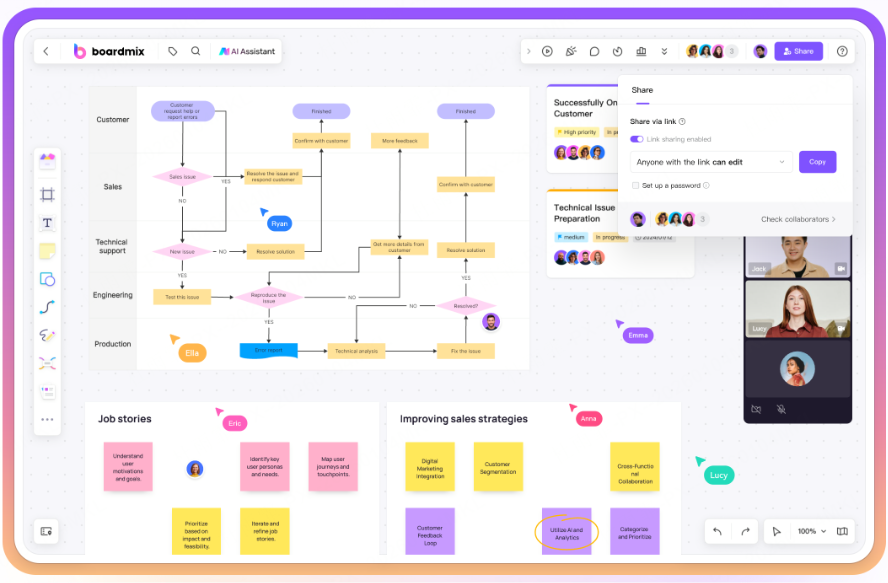
(2) One-Click AI Conversion
Boardmix’s AI assistant takes Markdown to the next level with one-click conversion to multiple formats, turning plain text into visual, shareable content: Generate a mind map from project notes to visualize structure and relationships between ideas. Turn technical instructions or step-by-step guides into a flowchart for clear, easy-to-follow visuals. Automatically summarize long Markdown documents to capture key points and save time for readers. Create ready-to-use PPT slides from Markdown content, preserving all formatting and structure for presentations.
This AI-powered conversion eliminates the need to retype or reformat content for different use cases, saving hours of work and ensuring consistency across all your documents and visuals.
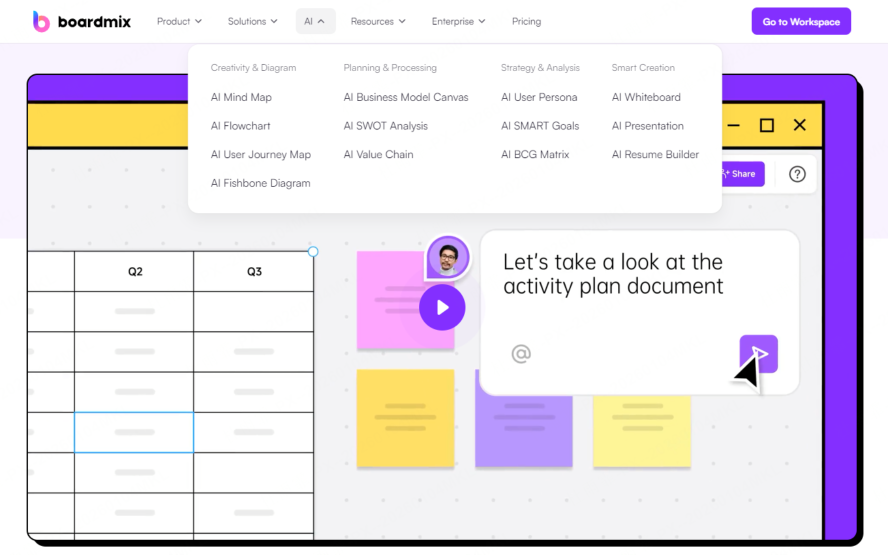
(3) Seamless Sharing & Collaboration
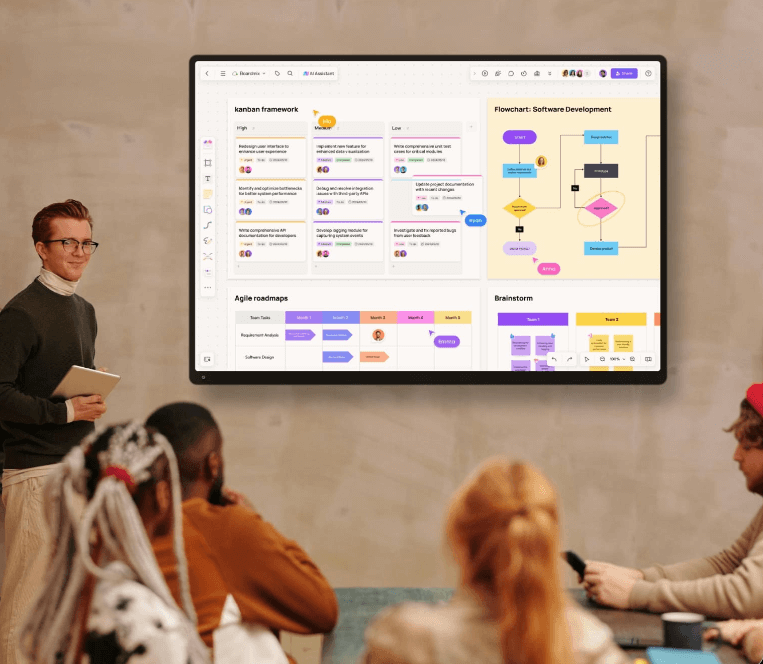
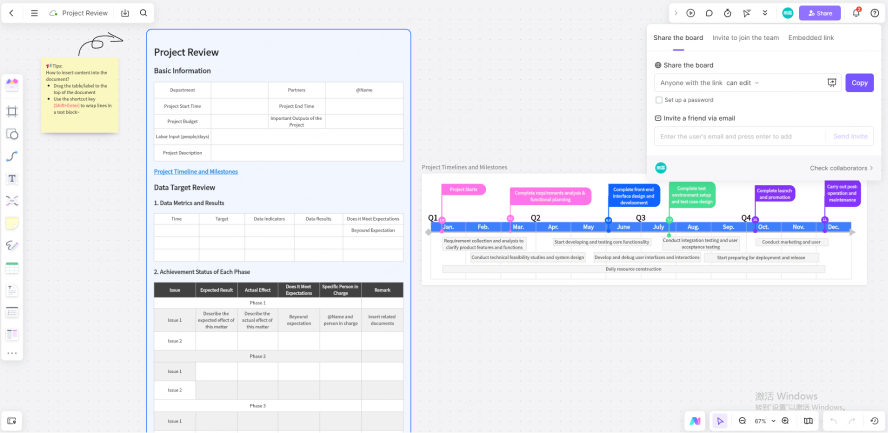
Share your Boardmix board with a simple link for real-time collaboration with teammates, clients, or students—no software installation required. Boardmix supports dozens of simultaneous editors, so everyone can contribute to the Markdown document or its visualizations at the same time, regardless of their location. The built-in version control lets you track changes, view edit history, and revert to previous versions if needed, ensuring you never lose work or overwrite important content. This collaboration feature makes Boardmix ideal for team projects, from writing technical documentation with developers to creating marketing content with remote teams.
Top 5 Common Markdown Mistakes to Avoid
Even experienced Markdown users make mistakes, but avoiding these top 5 pitfalls will ensure your documents render correctly and look professional every time:
- Missing Spaces: #Header won’t work as a heading—always use a space between the # and the text (e.g., # Header). This is the most common mistake, but it’s easy to fix with a quick check.
- Using Wrong Symbol Type: Always use English symbols (e.g., *, not *) for Markdown syntax—non-English symbols (often from mobile keyboards) will not render correctly.
- Missing Image Alt Text: is bad practice for accessibility and usability—always include descriptive alt text (e.g., ) to describe the image.
- Incorrect Code Block Language Declaration: Use the full language name (e.g., javascript, not js) for reliable syntax highlighting—shortened names may not work in all platforms, including Boardmix.
- Forgetting Escape Characters: To show # or * as plain text (not formatting), write # or *—forgetting the backslash will cause unintended formatting (e.g., # becomes a heading instead of a hash symbol).
Conclusion
You should now have a comprehensive understanding of Markdown's core syntax, from its fundamental principles (plain text + simple symbols = structured documents) to advanced features like code formatting and task lists. Markdown’s beauty lies in its simplicity: it’s easy to learn, works everywhere, and lets you focus on content instead of formatting. When paired with Boardmix’s collaborative online whiteboard, Markdown becomes even more powerful—offering real-time editing, AI-powered visual conversion, and seamless team collaboration that elevates your content from plain text to engaging, shareable documents and visuals.
Ready to put Markdown into practice and transform your writing workflow? Boost your productivity with Boardmix Whiteboard: Edit Markdown with real-time preview and syntax highlighting to catch errors fast. Use AI to instantly convert Markdown notes into mind maps and flowcharts for better visualization. Collaborate seamlessly with your team in a single online whiteboard, no matter where they are.
Experience the power of structured writing and visual collaboration combined. Try Boardmix today and discover how Markdown + Boardmix can make your content creation faster, more organized, and more impactful—whether you’re a programmer, student, marketer, or anyone who values clear, efficient communication.