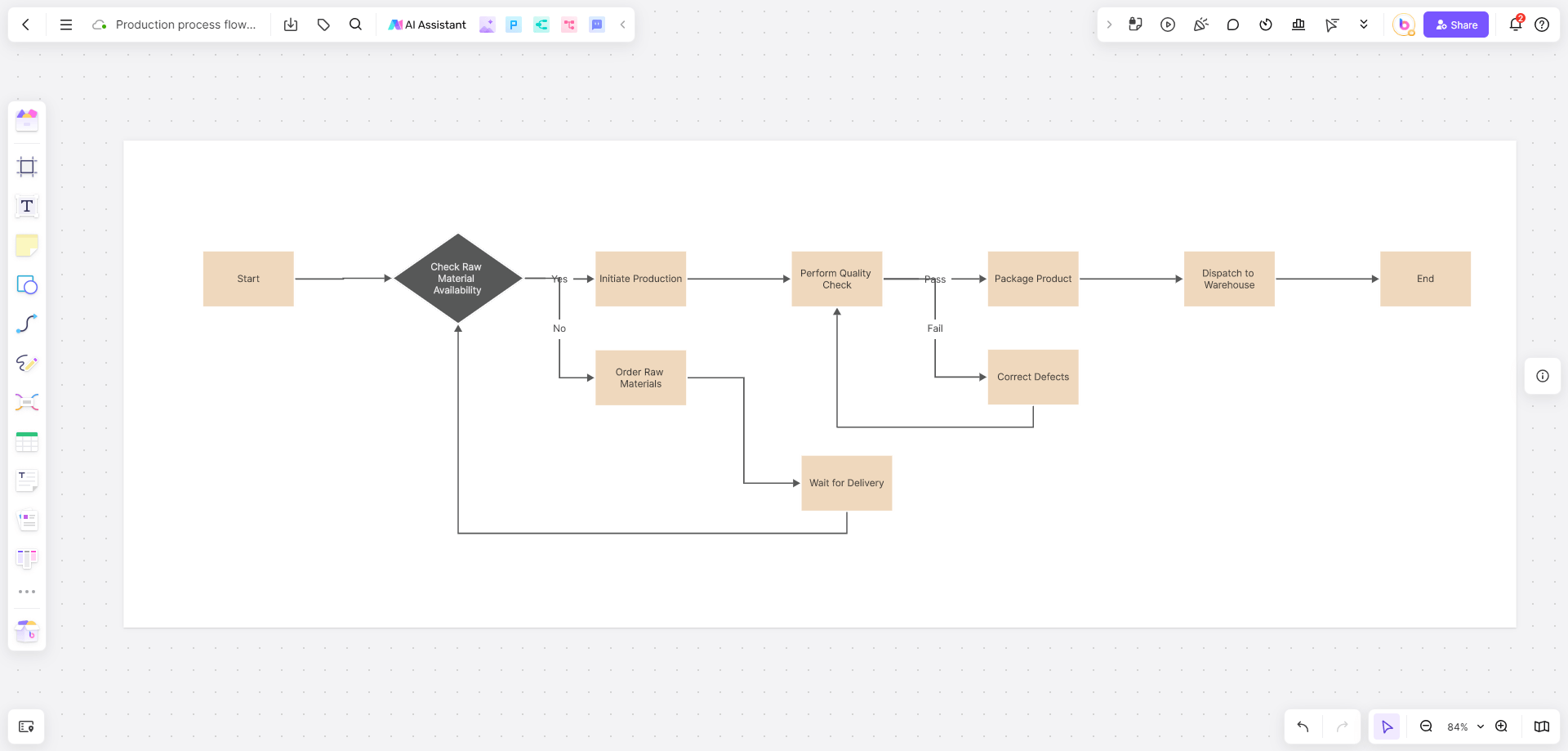




Are you searching for a free version of Microsoft Visio for your diagramming work? Here's a crucial clarification: Microsoft does not offer a permanently free, standalone version of Visio. The only official and safe way to access Visio for free is through a limited-time trial. If you want a legitimate and secure way to download and install Visio for free, this guide clearly explains your options and details three reliable official methods.
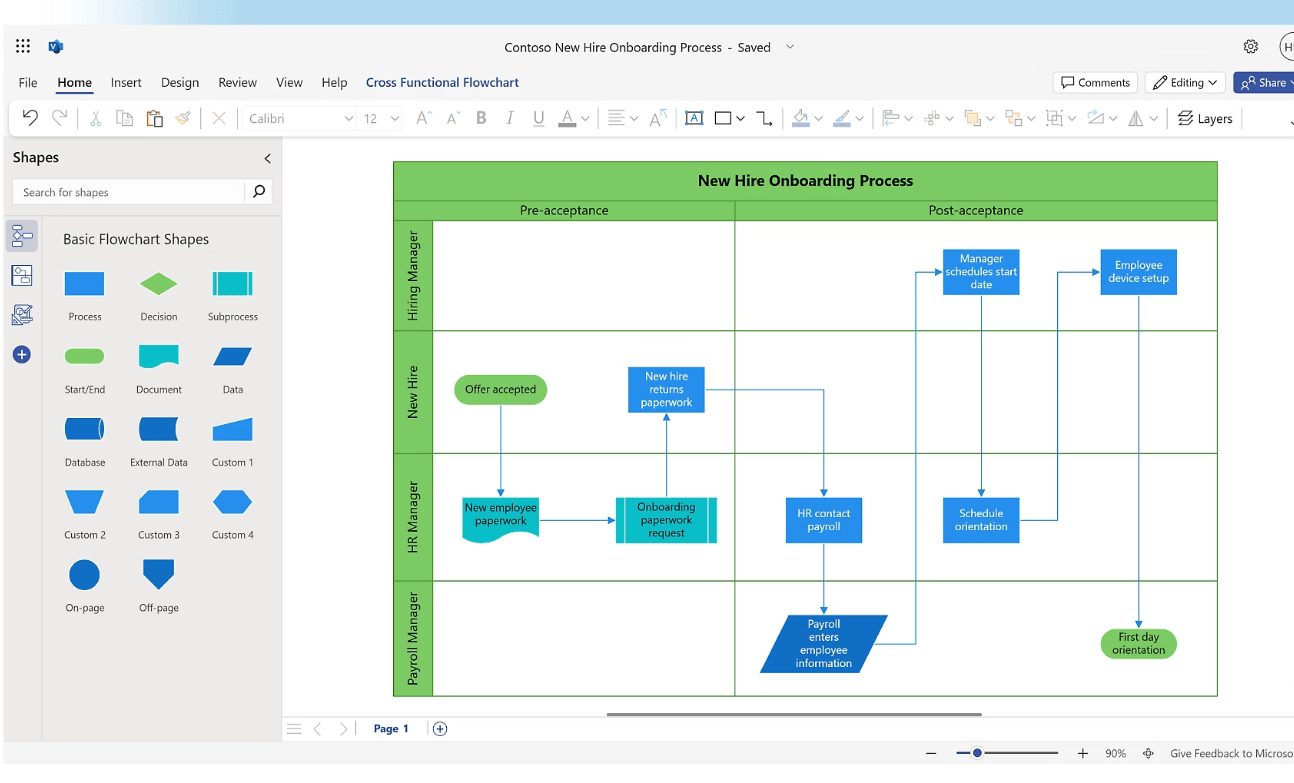
Understanding the "Free Visio" Reality
As a professional diagramming tool from Microsoft, Visio's official free offering is specific and tightly regulated, with no loopholes for permanent free access. According to Microsoft's 2025 product policy, the only official free access to Visio comes in the form of a 30-day full-feature trial—no perpetual free licenses exist for standalone Visio, whether for personal or commercial use. This trial is available exclusively through Microsoft’s official channels, such as the Microsoft 365 website or authorized resellers, and any third-party website claiming to offer "free full version Visio downloads" is likely distributing pirated software, malware, or modified versions that pose security risks to your device and data.
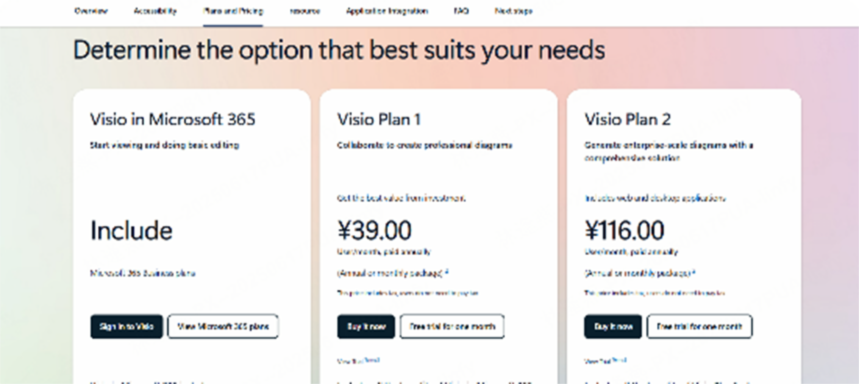
The 30-day trial unlocks all Visio features, including advanced diagramming tools, template libraries, and integration with Microsoft 365 apps like Word, Excel, and Teams. It’s ideal for short-term projects (e.g., a one-time process flowchart for a client), testing Visio’s capabilities to decide if a paid subscription is worth it, or fulfilling one-time diagramming needs like creating an organizational chart for a small team. After the trial expires, you’ll need to subscribe to a paid plan (Visio Plan 1 starts at $5 per user per month, Plan 2 at $15 per user per month) to continue using the tool, or transition to alternative diagramming solutions that offer permanent free access.
Safe Ways to Get an Official Visio Trial
How to Download the Official Visio Trial
Microsoft offers three verified methods to download the Visio trial, each tailored to different user needs (personal use, development testing, or educational access). All methods are secure, legal, and free of malware, ensuring you avoid the risks of unofficial downloads.
Method 1: Download the Trial Directly from Microsoft.com
This is the simplest method for individual users seeking short-term Visio access. Start by visiting the official Microsoft Visio product page (https://www.microsoft.com/en-us/microsoft-365/visio/flowchart-software) and navigate to the pricing section, where you’ll find the "Free Trial" or "Try for free" button prominently displayed.
Click the button and select your preferred Visio version: Plan 1 (web-based Visio with core diagramming features) or Plan 2 (desktop app with advanced tools like data linking and custom shapes). You’ll be prompted to sign in with a Microsoft account (create one for free if you don’t have it), verify your identity via email or phone, and then download the installer file (for Plan 2) or gain access to Visio Online (for Plan 1). The installer is small (under 100MB) and will download the full software package during installation, ensuring you get the latest version with all security updates.
Method 2: Use a Microsoft 365 Developer Account
For developers, IT professionals, or anyone needing longer trial access, the Microsoft 365 Developer Program offers a 90-day free trial of Visio Plan 2 (and other Microsoft 365 apps like Word, Excel, and SharePoint). To register, visit the Microsoft 365 Developer Program website and sign up with a Microsoft account.
You’ll need to provide basic information about your development goals (e.g., "building a workflow automation tool" or "testing Visio integrations") to get approved—approval typically takes 1-2 business days. Once approved, you can create an E5 developer sandbox subscription, which includes full access to Visio desktop and web apps, as well as 1TB of OneDrive storage and Microsoft Teams access. The 90-day trial can be renewed indefinitely if you maintain active development activity (e.g., publish a small app, update a diagram template, or complete developer challenges on the Microsoft Learn platform).
Method 3: Check for Educational Institutional Licenses
Students, faculty, and staff at accredited educational institutions may qualify for free Visio access through Microsoft’s Education program, which often includes Visio as part of the Microsoft 365 Education suite. To check eligibility, visit the Microsoft Education website and sign in with your academic email address (e.g., yourname@university.edu).
If your institution has a licensing agreement with Microsoft, you’ll gain access to Visio Online (Plan 1) for free, with no expiration date as long as you’re enrolled or employed by the institution. Some universities also offer free Visio desktop app access via their IT department—contact your school’s IT support team to request a license key or download link. This is a great option for students working on group projects, faculty creating lecture materials, or researchers visualizing data for papers.
Step-by-Step Visio Trial Installation Guide
Once you’ve downloaded the installer (for Visio Plan 2) or accessed the web app (for Plan 1), follow these step-by-step instructions to install and activate the trial. The process is straightforward, but following these steps will avoid common installation errors and ensure smooth activation.
For Windows:
Locate the downloaded .exe file (usually in your "Downloads" folder) and double-click it to launch the setup wizard. You’ll be asked to accept the Microsoft Software License Terms (read them or skip for quick installation) and choose an installation directory—we recommend using the default location (C:\Program Files\Microsoft Office) to avoid compatibility issues. The wizard will download and install the full Visio package, which takes 10-20 minutes depending on your internet speed. Once installation is complete, launch Visio from the Start menu and sign in with the same Microsoft account used to download the trial. The app will automatically activate the 30-day trial, and you’ll see a "Trial Active" message in the top-right corner of the interface.
For Mac:
Visio Plan 2 is also available for macOS, though the installation process differs slightly. Open the downloaded .dmg file (a disk image) and drag the Visio icon into your "Applications" folder to install the app. Once copied, launch Visio from the Applications folder and sign in with your Microsoft account. The app will verify your trial eligibility and activate the 30-day trial—no additional setup is needed. Note that Visio for Mac has the same core features as the Windows version but lacks a few advanced tools (e.g., some custom shape libraries), so check compatibility with your project before installing.
Pro Tip: Troubleshooting Common Installation Errors
Even with official downloads, installation errors can occur due to outdated operating systems or corrupted files. Here’s how to fix the most common issues:
- Missing .dll file error: This error happens when Windows system files are outdated or missing. Fix it by running the Office Repair function: go to Windows Settings > Apps > Installed apps, locate Microsoft Visio, click the three dots next to it, select Modify, and choose Online Repair (this will download and replace missing files). Alternatively, ensure your Windows 10/11 is fully updated via Windows Update.
- License validation failed: This error typically stems from poor internet connectivity or an inactive Microsoft account. Check your Wi-Fi/Ethernet connection, ensure your account is not suspended (log in to account.microsoft.com to verify), and try signing out of Visio and signing back in. If the issue persists, clear the Office cache by deleting the "Office" folder in %localappdata%\Microsoft and restart Visio.
- Installation stuck at "90%": This is often caused by antivirus software blocking the installer. Temporarily disable your antivirus (ensure it’s a trusted tool like Windows Defender) and restart the installation—remember to re-enable it afterward.
A Powerful Free Alternative to Visio: Boardmix Whiteboard
While the Visio free trial is great for short-term, individual use, it has two major limitations: it expires after 30 (or 90) days, and it lacks robust real-time collaboration features (Visio Online allows co-editing but no live cursor tracking or comment threads). For long-term diagramming needs, team projects, or users who want permanent free access, Boardmix is a superior alternative—a modern, cloud-based online whiteboard designed for collaboration and AI-powered diagramming.
Key Advantages of Boardmix's Free Plan
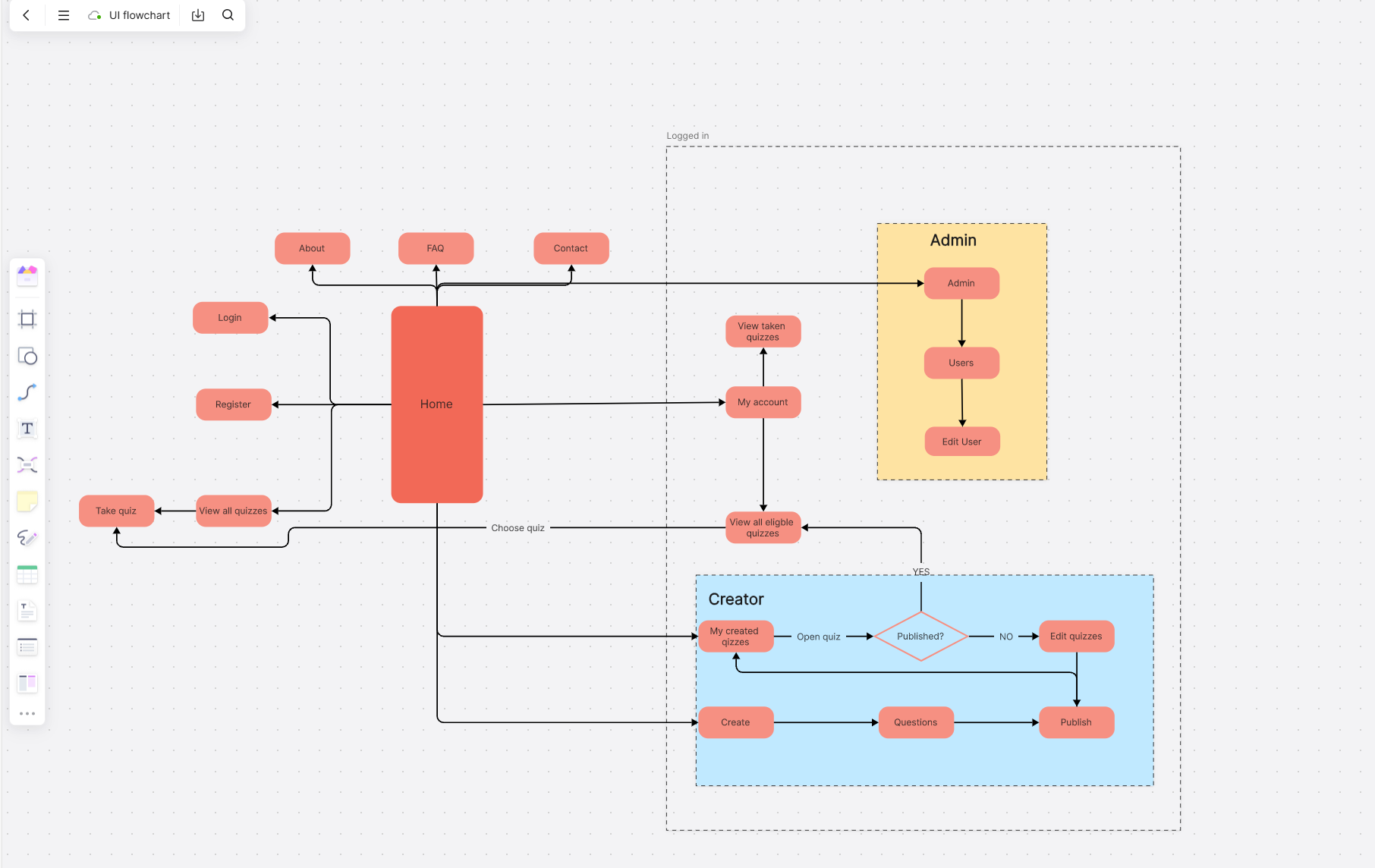
Boardmix’s free plan offers permanent access to core diagramming features with no expiration date, making it ideal for individuals and small teams on a budget. Here are its standout benefits: Unlike Visio (which requires emailing files back and forth or using third-party tools for collaboration), Boardmix lets multiple team members edit the same board simultaneously. You can see each other’s cursors move in real time, add comment threads to specific shapes or connectors, and use @mentions to tag teammates (e.g., "@John: Review this decision point") for seamless communication. All changes are autosaved, so you never lose work, and version history lets you revert to previous drafts with one click.
- AI-Powered Diagramming: Boardmix’s built-in AI Assistant is a game-changer for busy users. Simply type a text description (e.g., "Generate a software development lifecycle flowchart" or "Create an org chart for a 50-person startup") and the AI will generate a complete diagram draft in seconds. It can also add annotations, explain complex steps, or even reformat your diagram for better readability—saving hours of manual work compared to Visio.
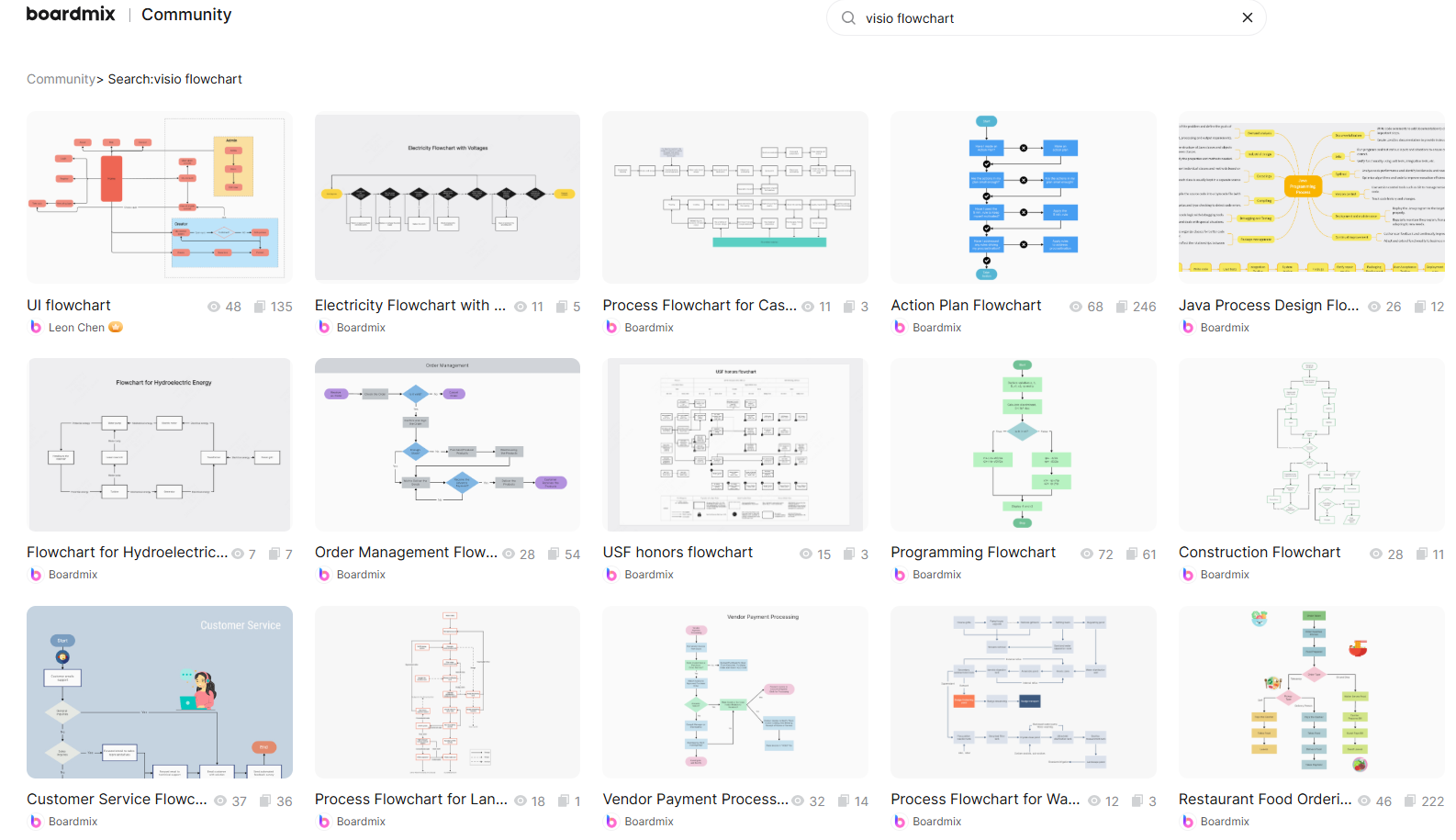
- Vast Template Library: Boardmix offers over 1,000 professionally designed templates for every use case: flowcharts, mind maps, wireframes, org charts, Gantt charts, network diagrams, and more. All templates are fully editable, so you can customize them to fit your needs (e.g., change colors, add shapes, or adjust text) without starting from scratch. This is more than Visio’s basic template library, which requires a paid plan for advanced templates.
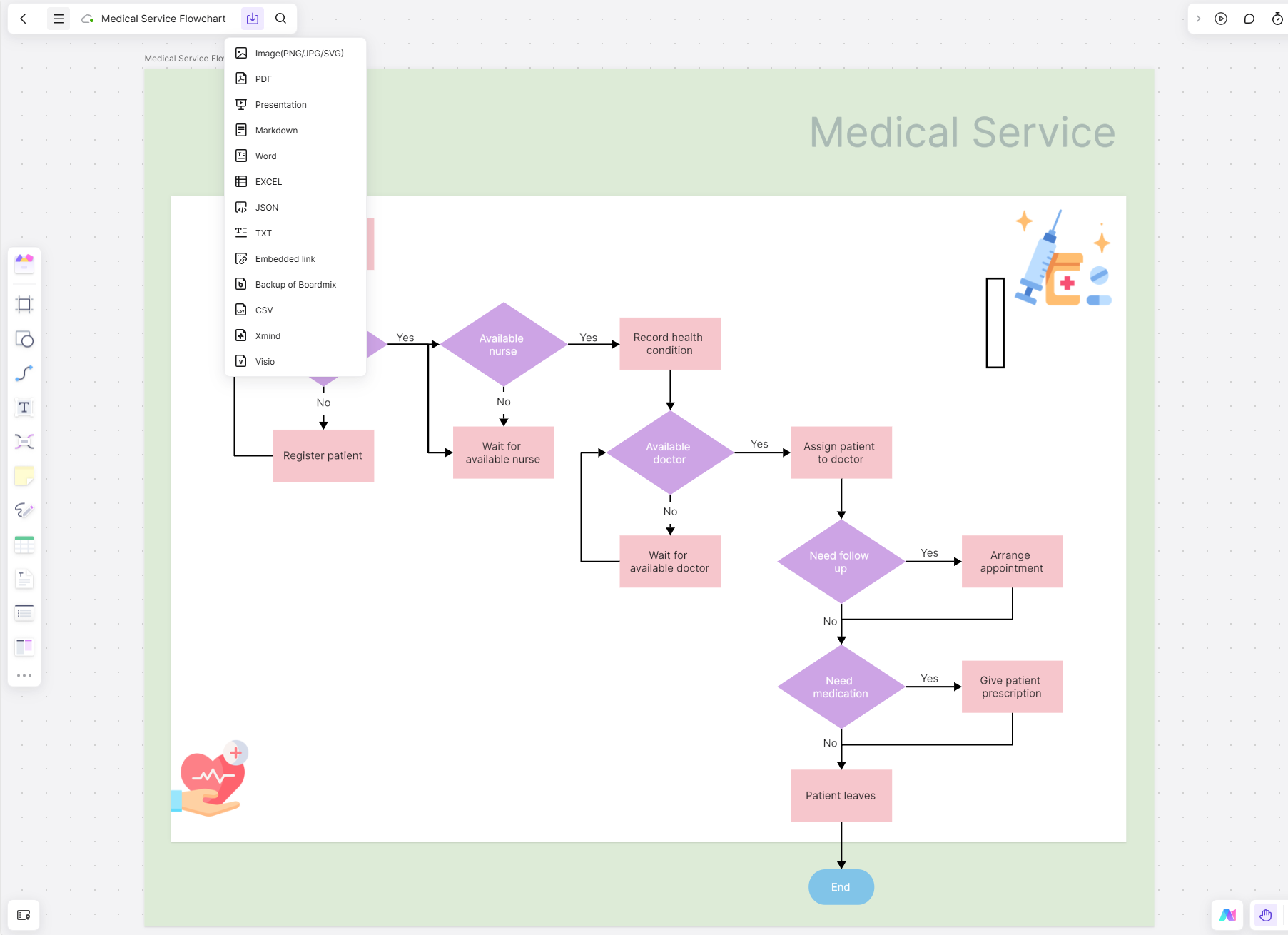
- Cross-Platform & Zero-Install: Boardmix works on any device with a web browser—Windows, Mac, iOS, Android, or even ChromeOS—no installation or downloads required. It also seamlessly imports and exports Visio (.vsdx) files, so you can convert your existing Visio diagrams to Boardmix for collaboration, or export Boardmix diagrams to Visio format for sharing with colleagues who use Visio. This compatibility ensures a smooth workflow transition with no data loss.
Ideal Use Cases for Boardmix
Boardmix is versatile enough to replace Visio for almost all diagramming needs, and its collaboration features make it better suited for team work:
- Professional Diagramming: Create precise, industry-standard diagrams like flowcharts, swimlane diagrams (for cross-departmental processes), org charts, and data flow diagrams with ease. Boardmix’s shape libraries include all Visio-compatible symbols (UML, BPMN, AWS icons) and let you create custom shapes for unique needs.
- Complex Team Projects: Beyond diagramming, Boardmix acts as a visual project management tool. Use Kanban boards to track task progress, mind maps for brainstorming sessions, data visualization charts to present insights, and AI-assisted whiteboarding to collaborate on ideas in real time. Cross-functional teams (e.g., product, design, and engineering) can work together on the same board, eliminating silos and miscommunication.
- Educational and Personal Use: Students can use Boardmix to create study guides (mind maps of textbook chapters), group project flowcharts, or presentation visuals—all for free, with no trial limits. Teachers can create interactive lesson plans, and individuals can use it for personal planning (e.g., a budget flowchart or travel itinerary mind map).
Get Started with Boardmix in 3 Minutes
Boardmix’s intuitive interface makes it easy to start diagramming in minutes, even if you’ve never used a whiteboard tool before:
- Sign Up Free: Open your preferred web browser (Chrome, Firefox, Safari) and go to the Boardmix website (https://www.boardmix.com). Click "Sign Up Free" and register with your email, Google account, or Microsoft account—no credit card is required, and there’s no commitment.
- Create Your First Project: From the Boardmix homepage, click "New Board" and choose either a template (e.g., "Basic Flowchart," "Org Chart," or "Software Architecture") or a blank canvas. Templates are pre-formatted with the right shapes and layout, so they’re perfect for beginners.
- Start Diagramming: Manually: Use the left-side toolbar to access shape libraries (flowchart, basic shapes, icons). Drag and drop shapes onto the canvas, and connect them with smart connectors (they snap to shapes and stay aligned when you move elements). Double-click shapes to add text, and use the formatting toolbar to change colors, fonts, or line thickness. Using AI: Click the AI Assistant icon (a robot symbol) in the top toolbar, type a prompt (e.g., "Generate a customer support workflow flowchart" or "Create a mind map of digital marketing strategies"), and press Enter. The AI will generate a draft diagram in 10-15 seconds, which you can refine by adding/removing shapes or editing text.
- Collaborate with Your Team: Click the "Share" button in the top-right corner of the board to invite teammates via email or a shareable link (choose "Edit" or "View" permissions). Once invited, they can join the board instantly and edit in real time—you’ll see their cursors and changes live. Use the comment tool to leave feedback on specific elements, and use @mentions to notify teammates of updates.
Conclusion
Whether you want to try the official Visio free trial via Microsoft’s website, use a developer account for longer access, or leverage an educational license, the options outlined in this guide provide legitimate, secure ways to access Visio for free. However, it’s important to remember that all official Visio trials expire, and the tool’s collaboration features are limited—making it best for short-term, individual projects.
For long-term use, team collaboration, or permanent free access, Boardmix is the superior choice. It not only supports Visio file formats (import/export .vsdx files) but also offers powerful AI-enhanced diagramming tools, real-time collaboration, and a vast template library—all for free, with no trial limits. Boardmix’s cross-platform compatibility means you can work from any device, and its intuitive interface makes it easier to use than Visio, even for beginners.
Ready to experience better diagramming—without the limitations of expired trials or clunky collaboration? Try Boardmix for free today. The free plan includes unlimited boards, real-time collaboration for up to 5 users, access to all core templates, and basic AI features. Upgrade to a paid plan (starting at $8 per user per month) for advanced AI, unlimited team members, and premium templates—but even the free plan has everything most users need to create professional diagrams and collaborate effectively.