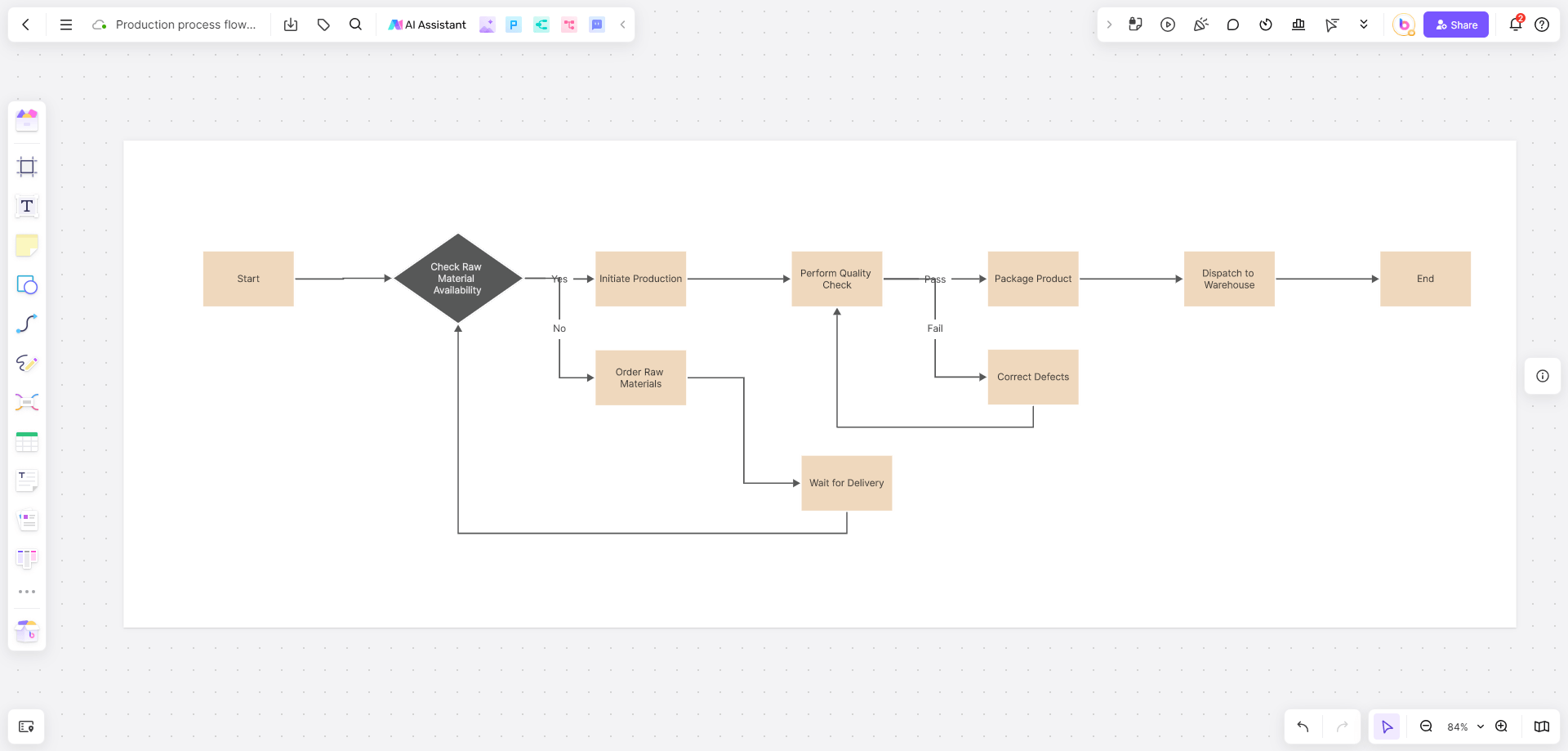




Struggling with complex formatting in Word, distracting font issues, and constant interruptions to your writing flow? Want to focus on creating content, not fiddling with layout details? Meet Markdown – the lightweight markup language designed to solve these exact problems! This guide will quickly explain what Markdown is, showcase its benefits for writing efficiency, and recommend 4 powerful Markdown editors to get you started in just 5 minutes. Say goodbye to tedious formatting and rediscover the joy of pure writing.
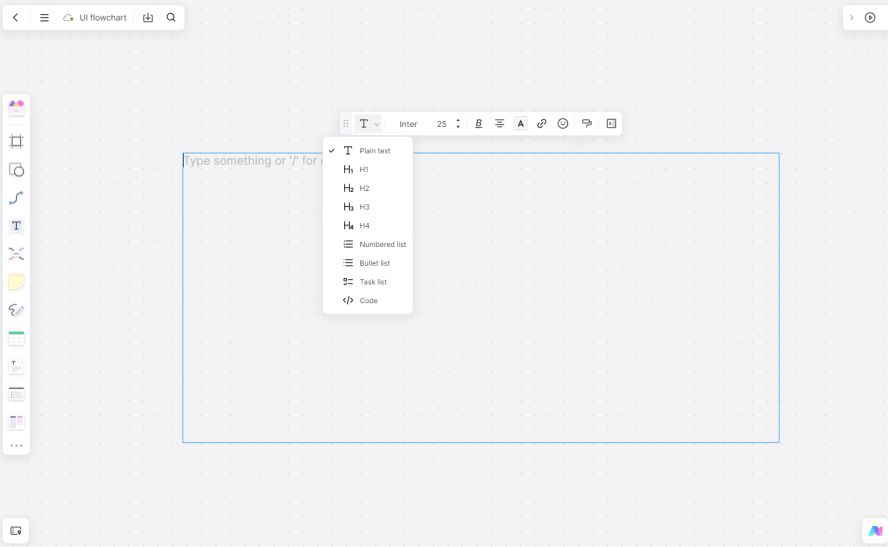
What is Markdown? Understanding Markdown Text & Documents
When people ask “what is Markdown text?”, they’re referring to content written using Markdown syntax—a simple, readable plain text with added symbols for formatting. A Markdown document is simply a plain text file (usually with a .md or .markdown extension) that contains this Markdown text. Its power lies in being both human-readable in its raw form and easily convertible into richly formatted HTML, PDF, or other formats.
Markdown is a lightweight markup language. Its core principle is using simple symbols to “mark up” or format your text. You type symbols like #, *, or -, and the editor automatically converts them into clean, formatted elements like headings, bold text, or lists. Here are its key advantages:
Focus on Content: Write without constantly reaching for your mouse to click “Bold” or “Heading” buttons. Use symbols to format directly from your keyboard, keeping your thoughts flowing uninterrupted. Perfect for notes, articles, and code documentation.
Universal Compatibility: Files use the .md or .markdown extension, are tiny in size, and can be opened and edited by any device‘s text editor or professional software—even a code editor.
Flexible, Consistent Output: The same Markdown document can be effortlessly converted into multiple formats (HTML, PDF, Word, PPT) while maintaining consistent styling.
Future-Proof: As plain text, Markdown files have no format compatibility issues. Any device that can read text will be able to view and edit your files, making them ideal for archiving notes and documents.
Why Choose Markdown?
Key Takeaway: Markdown is not a programming language, nor is it exclusive to developers. It‘s a productivity tool for anyone who writes. Here’s why it‘s so effective:
Simple & Fast: No more manual formatting with a mouse. A few keystrokes (# for a heading, - for a list) handle the formatting, which is much quicker than navigating menu bars.
Consistent Formatting: Manual formatting can be inconsistent. Markdown uses fixed symbols as rules. For example, **text** always means bold. This ensures a clean, uniform look throughout your document, eliminating the need for constant style checks.
Easy Revision & Collaboration: Being plain text, it works perfectly with version control tools like Git. In team settings, you can easily see who changed what and when, preventing version chaos.
Cross-Platform Usability: Most modern platforms—blogs, note-taking apps, project management tools (like Slack or Asana)—support Markdown. Your content will look the same on your computer, phone, or web browser.
Who should use Markdown? Developers, writers, students, marketers, product managers—anyone who frequently creates structured text will benefit from Markdown’s writing efficiency.
Markdown Syntax Explained
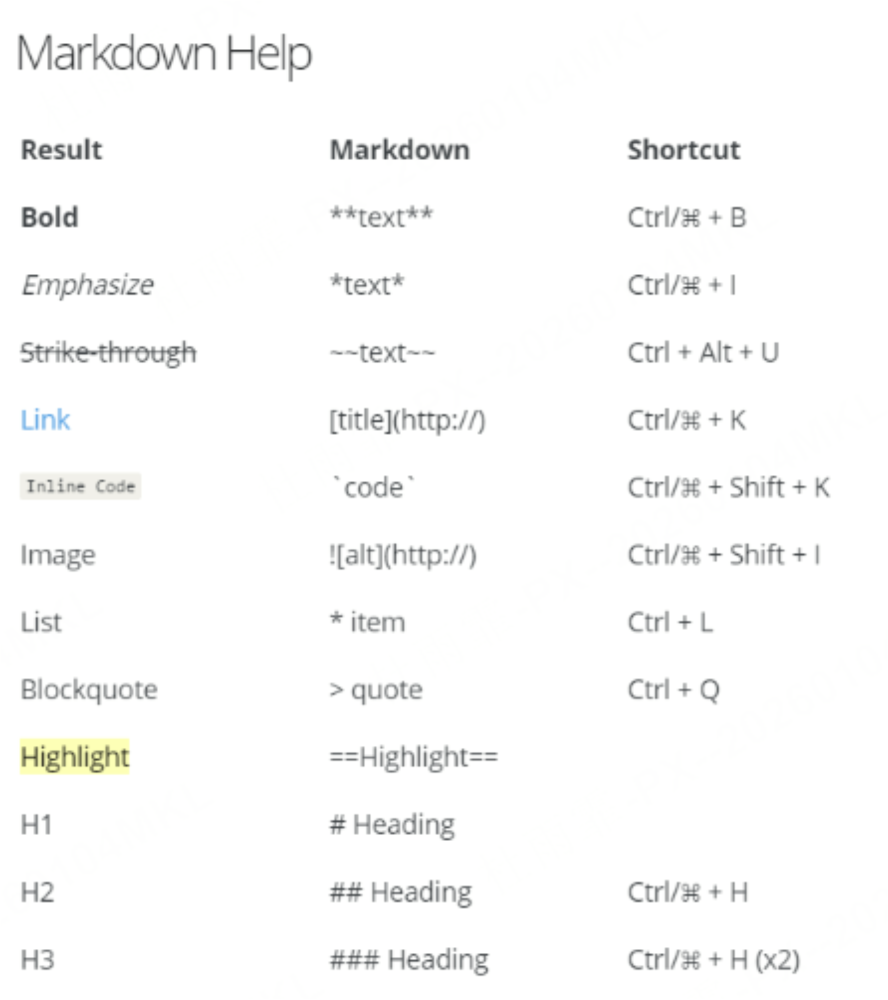
The beauty of Markdown syntax is its simplicity. Memorize these 5 symbols to handle 90% of your daily writing tasks and keep your focus squarely on the content.
Remember this: Almost always, you need to put a space between the formatting symbol and your text. This is the most common oversight for beginners and the most critical step!
Basic Syntax Demo
Headings (#): # Main Title, ## Subtitle, ### Section Heading (The number of # indicates the heading level).
Emphasis: Bold (** or __): **This is bold** or __This is bold__
Italic (* or _): *This is italic* or _This is italic_
Lists: Unordered List (- or *); Ordered List (1.)
Link ([]()): [Link Text](https://example.com)
Image (![]()): 
Blockquote (>): > This is a quoted line of text.
Pro Tip: Master these 5 core symbols (#, **, *, -/1., []()) first. They are the foundation of efficient writing with Markdown. Explore advanced syntax later!
What is a Markdown Editor? Top 4 Picks for Every Need
Markdown editor is a specialized tool designed for writing and previewing Markdown text in real time. Unlike a basic text editor that only shows the raw symbols, a true Markdown editor typically features a live preview pane (editing on the left, formatted view on the right), syntax highlighting for easier reading, and one-click export to various formats.
Why a dedicated Markdown editor? A basic text editor only shows the source code. A proper Markdown editor offers these essential features. Here are our top picks for different use cases:
Boardmix
The Visual & AI-Powered Editor
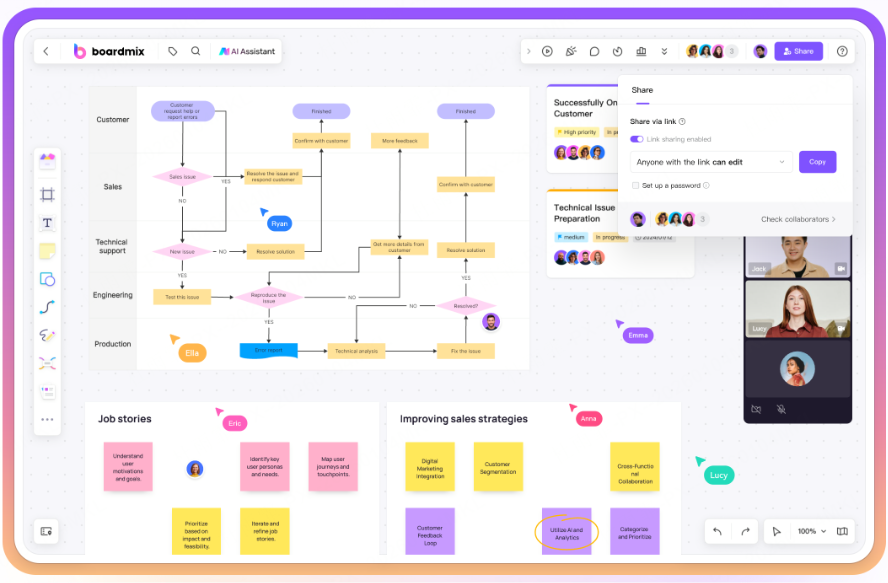
Boardmix is a visual collaboration platform with a built-in Markdown code block editor.
This brings us to “what is Markdown in AI?” In tools like Boardmix, AI integrates with Markdown by interpreting your text instructions. You can write a description in a Markdown code block, and the AI assistant can instantly generate a flowchart, architecture diagram, or mind map from it, bridging text and visualization.
Key Features:
Real-time collaboration, version history, permission controls, AI text-to-diagram.
Perfect for:
Making technical documentation visual, organizing personal notes with mind maps, and team brainstorming. Its core features (including AI) are free; paid plans unlock unlimited collaborators and private deployment.
VS Code
The Power User‘s Choice
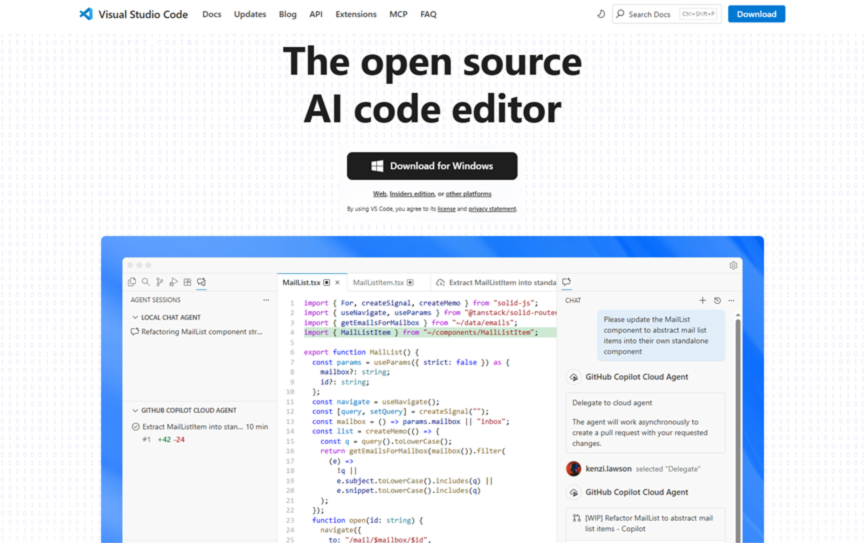
VS Code is a free, open-source code editor from Microsoft with superb Markdown support via extensions.
Key Features:
Live preview, extensive syntax highlighting, custom themes, supports mathematical formulas and diagrams, integrated Git version control.
Perfect for:
Writing technical documentation, code comments, and detailed personal notes. It’s completely free with a vast ecosystem of open-source plugins.
Evernote
The Cross-Platform Note-Taking Hub
Evernote excels at OCR (Optical Character Recognition) and syncing across all your devices.
Key Features:
Supports hybrid Markdown and rich-text editing, scans handwritten notes/images/PDFs into searchable text, offers tags, tasks, and email integration.
Perfect for:
General note-taking, research, and project management. The free plan has monthly limits; paid plans unlock unlimited notes and advanced search.
Notion
The All-in-One Workspace
Notion blends document editing with database functionalities in a modular “block” system.
Key Features:
Built-in templates (wikis, project boards), real-time team collaboration, granular permissions, supports mixing Markdown with multimedia.
Perfect for:
Personal knowledge management and building team project workflows. The free plan supports up to 10 collaborators; team plans offer unlimited storage.
What is Markdown in Squarespace (and similar platforms)?
While this guide focuses on dedicated editors, many popular website builders and content platforms like Squarespace, WordPress, and Ghost have built-in support for Markdown or Markdown-like shortcuts in their text editors. This allows you to format posts and pages quickly using the same familiar syntax without leaving the platform‘s interface.
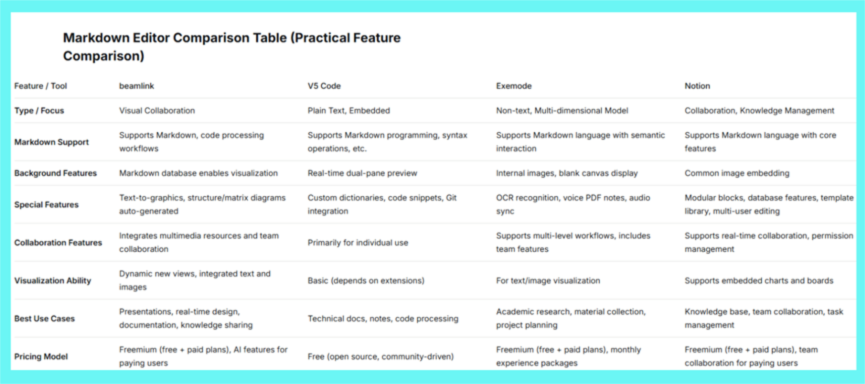
Editor Selection Guide:
For technical docs: Choose VS Code (free, excellent code integration).
For clipping web content & notes: Use Evernote (superior OCR, multi-device sync).
For team wikis & projects: Opt for Notion (databases, modular editing).
For visual collaboration & AI diagrams: Boardmix is essential (AI text-to-chart, unlimited real-time collaboration).
Where Can You Use Markdown?
Markdown‘s simple syntax is powerful enough for numerous writing tasks, helping you maintain format consistency while focusing on creation.
Efficient Note-Taking & Knowledge Management: Structure your ideas and build a clear knowledge base. With Boardmix, you can edit Markdown and use online whiteboard features to visualize connections between ideas.
Technical Documentation: The standard for writing clear API documentation, README files, and development manuals.
Professional & Academic Writing: Organize project reports, meeting minutes, and research notes with clean, logical structure.
Focused Content Creation: Write blog posts, e-books, or proposals without the distraction of constant formatting adjustments. Use it directly in platforms like Squarespace for faster web publishing.
The key is that Markdown lets you focus on content creation, boosting efficiency while ensuring consistency. Combined with a tool like Boardmix, it enhances how information is presented and simplifies team collaboration.
Conclusion
Markdown isn‘t just for programmers—it‘s a tool for anyone to boost productivity! It brings simplicity back to writing: focus on your words, not the layout; use simple symbols for uniform formatting; and rely on future-proof plain text. Ready to try it?
Practice now: Open a text file and type - Daily Tasks to start a list.
Choose your editor: For a blend of visual editing, AI-powered diagrams, and team collaboration, try Boardmix.
Enjoy efficient, distraction-free writing!