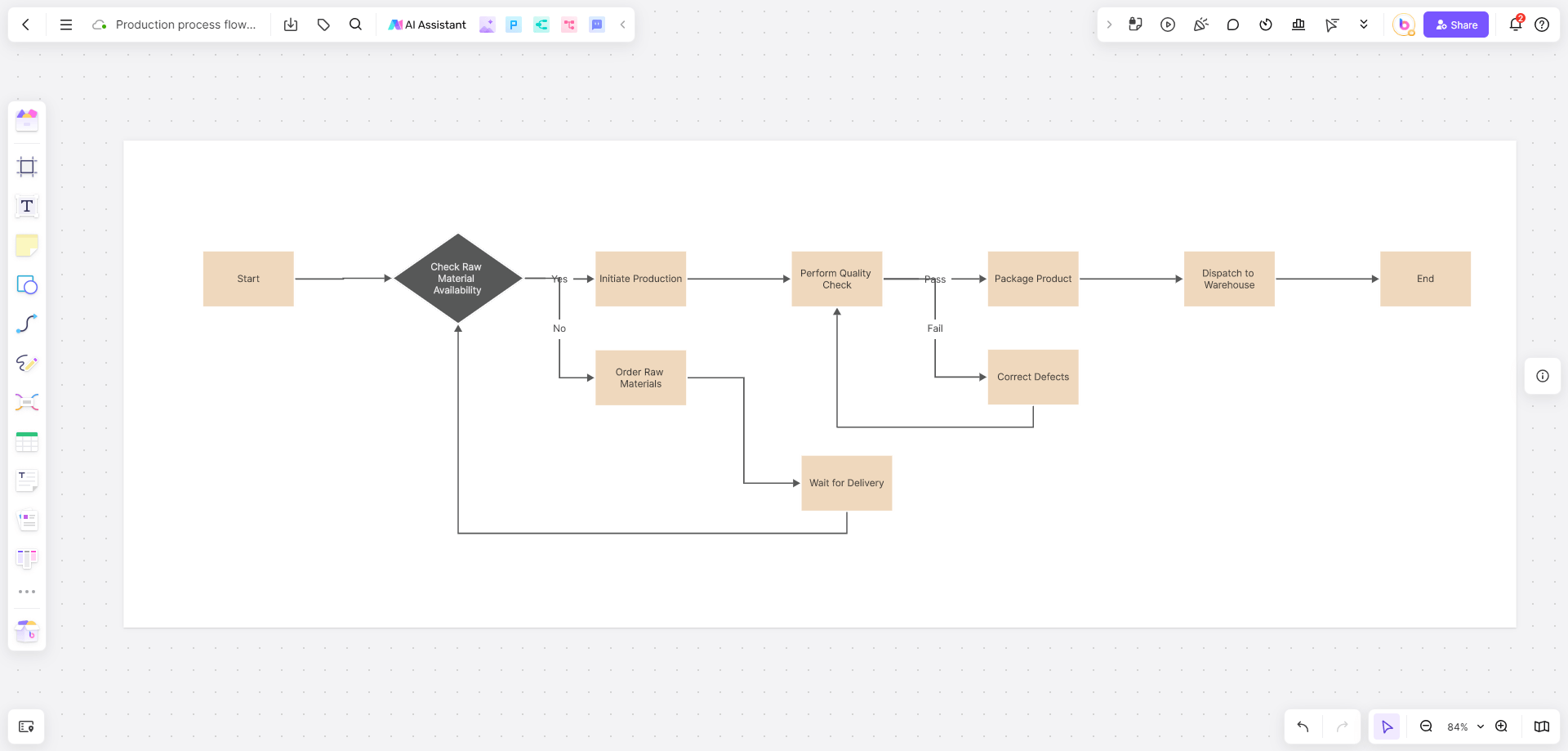




Wondering how to generate a mind map from OneNote? For users accustomed to taking notes in Microsoft OneNote, mind mapping is a powerful tool for efficient and clear knowledge organization and content structuring. This guide will break down practical techniques for creating a mind map from your OneNote content. We'll combine operational insights to show you how, in just a few simple steps, you can transform your OneNote notes into a clear and visually appealing mind map automatically—perfect for beginners!
The Best Approach to Generate a Mind Map from OneNote
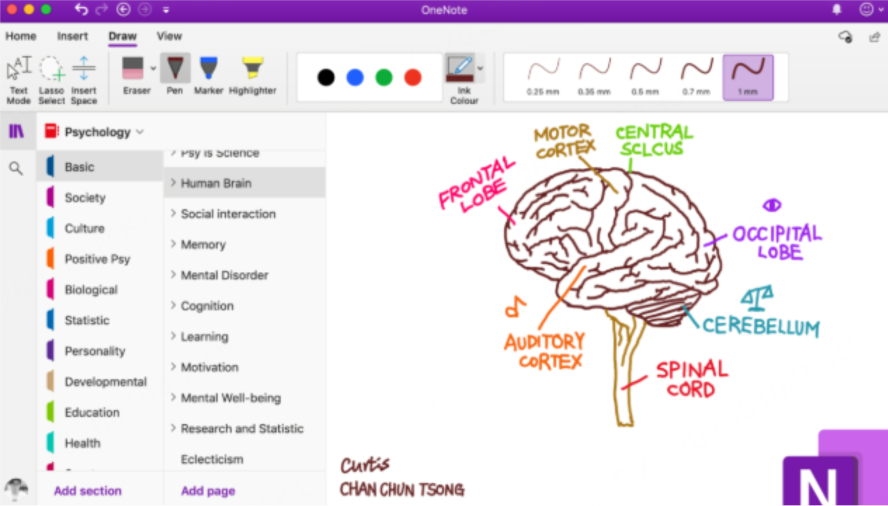
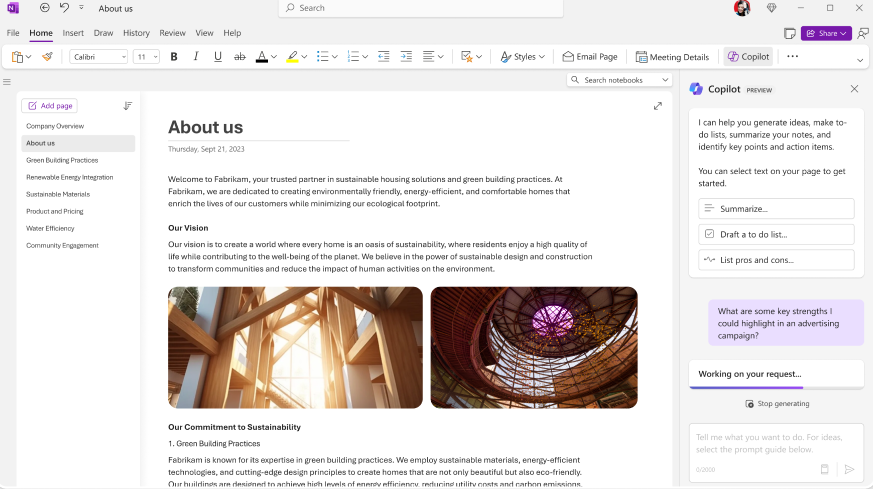
It's important to understand that OneNote itself does not support automatic mind map generation, nor does it have built-in mind mapping tools. As a core component of the Microsoft 365 suite, OneNote is designed primarily as a digital notebook for free-form note-taking, content storage, and basic organization—not as a visualization or diagramming tool.
However, as a powerful note-taking app, OneNote excels at content categorization, logical breakdown, and hierarchical structuring, making it ideal for preparing the foundation of a mind map. Its flexible formatting options (headings, subheadings, indentation, bullet points, and sections) allow users to organize even the most complex information into a clear, tiered structure—exactly the kind of framework a mind map relies on.
Many users make the mistake of trying to manually draw mind maps from unstructured OneNote notes, which is time-consuming and prone to logical gaps. Instead, the recommended method is: Organize notes in OneNote + Export + Use an external AI-powered tool.
Step-by-Step: Convert OneNote Notes to a Mind Map
We'll use Boardmix, a popular and user-friendly online whiteboard tool trusted by over 10 million users globally, as an example to show you how to quickly turn your OneNote content into a visual mind map. Boardmix is ideal for this task because it combines AI-powered content parsing with intuitive visualization tools, supports PDF imports (the most reliable export format from OneNote), and offers real-time collaboration features—making it perfect for both individual use and team projects. Below is a detailed, step-by-step guide to the entire process, with tips to ensure the highest accuracy in mind map generation.
(1) Structure Your Notes in OneNote
The quality of your final mind map depends entirely on how well you structure your OneNote notes—garbage in, garbage out. When editing content in OneNote, use a clear logical format with headings, indentation, and bullet points to create a hierarchical structure. For best results, follow these formatting rules:
- Use OneNote’s built-in heading styles (Heading 1 for core themes, Heading 2 for main branches, Heading 3 for sub-branches) instead of manual formatting (e.g., bold text, larger fonts). AI tools can easily recognize these standardized heading styles, ensuring accurate node hierarchy in the mind map.
- Use indentation for subpoints: For each Heading 2, indent bullet points or subheadings to indicate they are part of that branch. Avoid mixing indentation levels (e.g., indenting some subpoints 1 tab and others 2 tabs) as this can confuse AI parsing.
- Keep bullet points concise: Each bullet point should be a single idea (1-2 sentences max). Long paragraphs will be split awkwardly in the mind map, so break down complex points into smaller, digestible bullet points.
- Use sections and pages to group related content: OneNote’s section tabs and page dividers help organize content into distinct categories—export one section/page at a time to keep mind maps focused (exporting an entire notebook with unrelated sections will result in a cluttered mind map).
Example of well-structured notes:
- Heading 1: College Biology - Cell Structure Heading 2: Cell Membrane
- Function: Controls nutrient entry/ waste exit
- Composition: Phospholipid bilayer, proteins Heading 2: Nucleus - Function: Stores genetic material (DNA)
- Key Components: Nuclear envelope, nucleolus This clear structure will translate directly to a mind map with "Cell Structure" as the central node, "Cell Membrane" and "Nucleus" as main branches, and the bullet points as sub-branches.
(2) Export Your Notes as a PDF File
Export your structured notes from OneNote to your local computer in PDF format—this is a crucial step, as the PDF will be the basis for generating your mind map. While OneNote supports other export formats (e.g., Word, Excel), PDF is the most reliable because it preserves all formatting (headings, indentation, bullet points) exactly as they appear in OneNote, whereas Word files may lose formatting during conversion, leading to inaccurate AI parsing.
Here’s a detailed breakdown of the export process (works for both OneNote desktop app and web version):
Open the OneNote notebook/section/page you want to export. Ensure you have edit permissions (if it’s a shared notebook) to avoid export errors.
- Click File in the top menu bar (in the web version, this is a three-dot icon in the top-right corner labeled "More options").
- Select the Export option from the dropdown menu. In the desktop app, you’ll see a dedicated "Export" tab; in the web version, it’s under "Save as" or "Download".
- Choose PDF as the format from the list of export options. Avoid "PDF (OneNote format)" if available—select the standard "PDF" option for maximum compatibility with Boardmix.
- Name your file with a clear, descriptive title (e.g., "Biology_Cell_Structure_Notes.pdf") and choose a save location on your local computer (e.g., Desktop or a dedicated "Mind Map Exports" folder) for easy access. Click "Save" or "Export" to complete the process.
Pro Tip: If your notes include images or tables, ensure the "Include images" box is checked during export—Boardmix’s AI can parse text from images (OCR technology) and include it in the mind map, though text-only notes yield the most accurate results.
(3) Use Boardmix AI to Generate the Mind Map Automatically
Open Boardmix and log in (sign up for free with email, Google, or Microsoft account—no credit card required). Instead of manual drawing, the Boardmix AI Assistant will extract the logical structure of your notes and convert it into a well-organized mind map, preserving all hierarchical relationships from your OneNote notes. Follow these steps for seamless generation:
- Once logged in to Boardmix, click the "+ New Board" button on the homepage to create a blank whiteboard—this will be the canvas for your mind map.
- Locate the AI Assistant icon in the bottom-right navigation bar (marked with a robot symbol) and click it to open the AI tools panel.
- From the dropdown menu of AI tools, select "Mind Map"—this tells the AI to focus on generating a mind map rather than other diagram types (e.g., flowcharts, Gantt charts).
- Ensure the default AI model is switched to QWEN3 (Boardmix’s most advanced model for multilingual content) for better understanding of both Chinese and English note structures. QWEN3 is optimized for parsing formatted text and identifying hierarchical relationships, making it the best choice for OneNote notes.
- In the AI tools panel, select "Upload Document" (supports files under 100,000 words—more than enough for most OneNote notes). Click the "Upload Attachment" button in the file upload box to open your computer’s file explorer.
- Navigate to the folder where you saved the OneNote PDF export, select the file, and click "Open" to upload it to Boardmix. Once uploaded, click the blue "Generate" button and wait for the system to parse the content—this takes 2-5 seconds for short notes (under 1,000 words) and up to 10 seconds for longer documents.
- Within seconds, you'll see the complete mind map generated on your blank whiteboard. The AI will place the core theme (Heading 1) at the center, main branches (Heading 2) radiating outward, and sub-branches (bullet points/Heading 3) under each main branch—all formatted with clean, readable fonts and color-coded nodes for easy navigation.
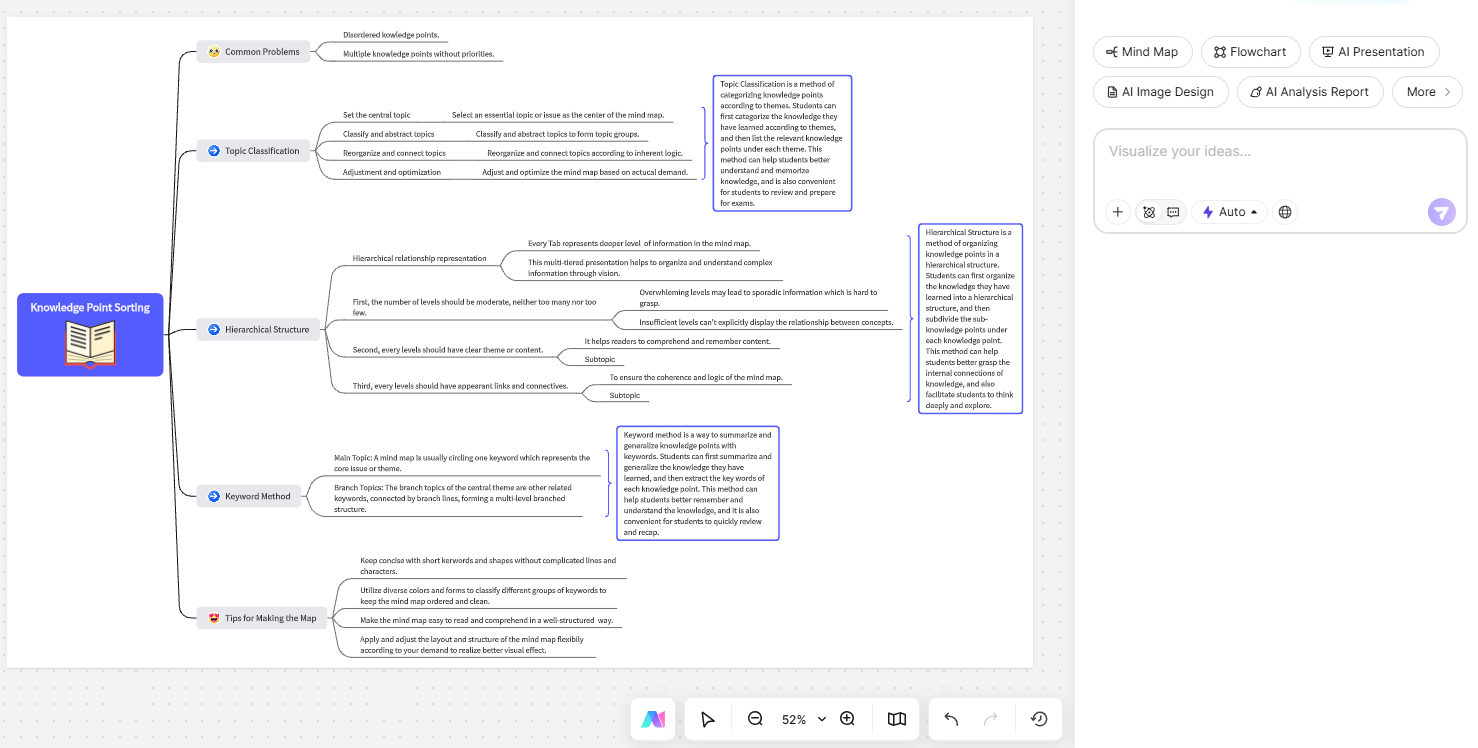
Post-Generation Tips: After the mind map is generated, you can customize it to fit your needs: - Drag nodes to reposition branches for better readability. - Change node colors (e.g., red for important points, green for actionable steps). - Add icons (e.g., checkmarks, stars) to highlight key information. - Invite teammates to collaborate (click "Share" in the top-right corner) to edit the mind map in real time.
Conclusion
While OneNote doesn't have direct mind mapping capabilities, pairing it with the Boardmix AI Assistant automates the entire workflow from note organization to diagram generation. This integration leverages OneNote’s strength in structured note-taking and Boardmix’s AI-powered visualization to create a seamless process that saves time and reduces errors. If you've been struggling with how to create a mind map from OneNote, try this streamlined process—it might just revolutionize the way you organize knowledge! For teams, this workflow is even more valuable: multiple team members can collaborate on structuring OneNote notes, export a single PDF, and generate a shared mind map in Boardmix for brainstorming, project planning, or client presentations.
Ready to visualize your notes? Try Boardmix today and see your note structure clearly, boosting your study and work efficiency!