


A Miro board download for Windows can take one of two forms: the desktop app, or a board file exported from the board menu. Miro's current documentation supports PDF, JPG, SVG, and CSV exports in eligible environments. An exported document, however, is not the same as an offline editable Miro board.
Miro's browser and desktop experience gives Windows users a way to open collaborative boards, but the local file created by an export should be treated differently from the live board. A downloaded PDF, JPG, SVG, or CSV is useful for a review, backup, or handoff; it does not automatically preserve every comment, permission, integration, history event, or app object.
Download the Miro Desktop App for Windows
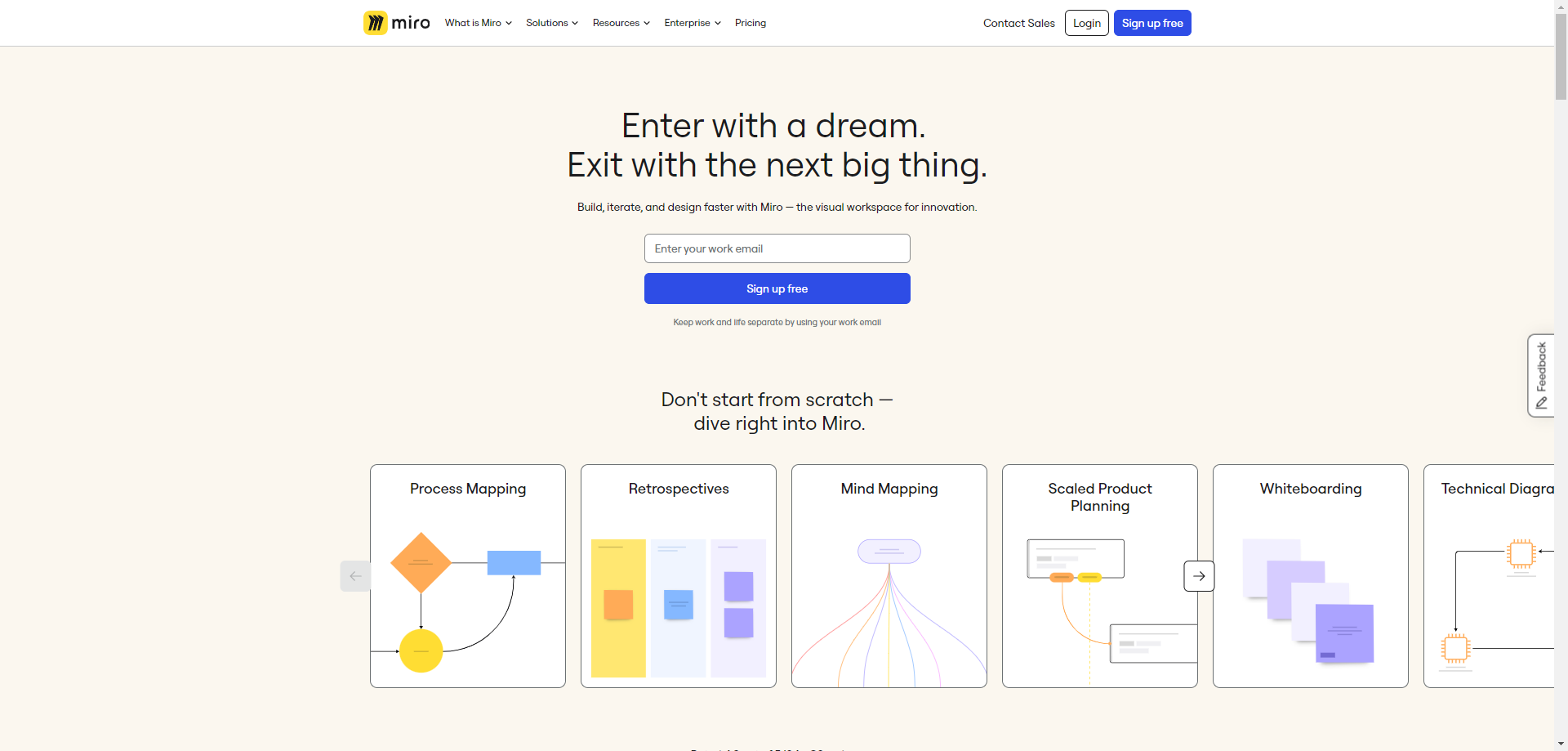
Use Miro's official apps page to obtain the current Windows installer or Microsoft Store version. Avoid third-party download sites. After installation, sign in to the same account and team that own the board you need.
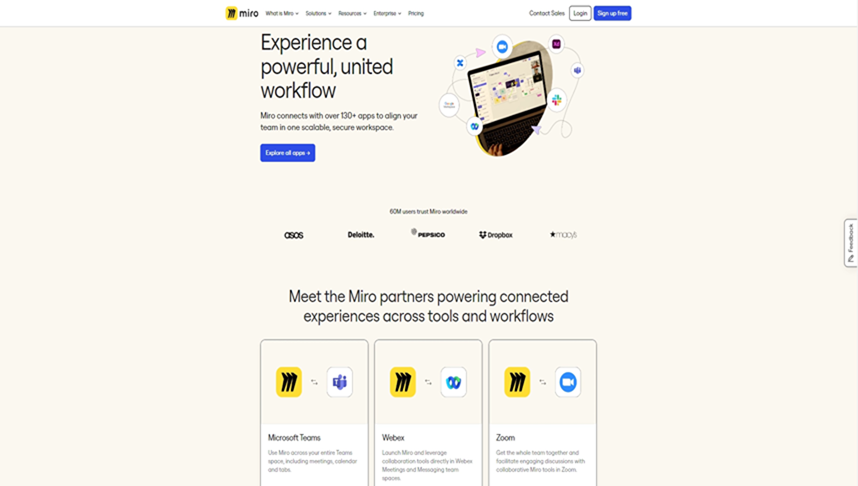
Install the desktop app only from Miro's official download channel, and sign in to the team that owns the board. If the installer is blocked by company policy, use the supported browser workflow or ask IT to approve the package rather than downloading an unofficial copy.
Download a Board File from Miro on Windows
- Open the board in the Miro desktop app.
- Open the board export menu.
- Choose image, PDF, or CSV according to the intended use.
- Select the available size or quality.
- Export and check the Windows Downloads folder.
Export availability depends on plan, content settings, and format. High-resolution image and PDF export are paid-plan capabilities, while CSV extracts supported text rather than the complete visual structure. See the full Miro export format guide before using an export as a migration backup.
A Download Is Not Always an Editable Backup
PDF, JPG, and SVG are visual outputs. CSV is a text-oriented output. Neither recreates every board permission, comment, integration, history event, or app-specific object. If the board is business-critical, record those dependencies and retain source access until the destination is validated.

When a download fails, check whether the board owner allows copying and exporting, whether the selected format requires a paid plan, and whether the board is too large for the chosen browser or device. Re-open the saved file after the export; a successful download notification does not prove that all text, frames, images, and links rendered correctly.
Find and Manage Exported Files on Windows
Most browser and desktop-app downloads go to the Windows Downloads folder unless the browser asks for a destination or a different default has been configured. Search by the board name and the export extension, then open the file before moving it into a shared archive. A completed download notification confirms that a file was written; it does not confirm that every board element rendered correctly.
For sensitive boards, avoid leaving duplicate exports in personal Downloads folders. Move the verified copy into an approved location, apply the required access controls, and delete temporary copies according to company policy. Use an informative file name with the board name, export date, and format so that reviewers can distinguish it from later versions.
Boardmix Desktop Option for Windows
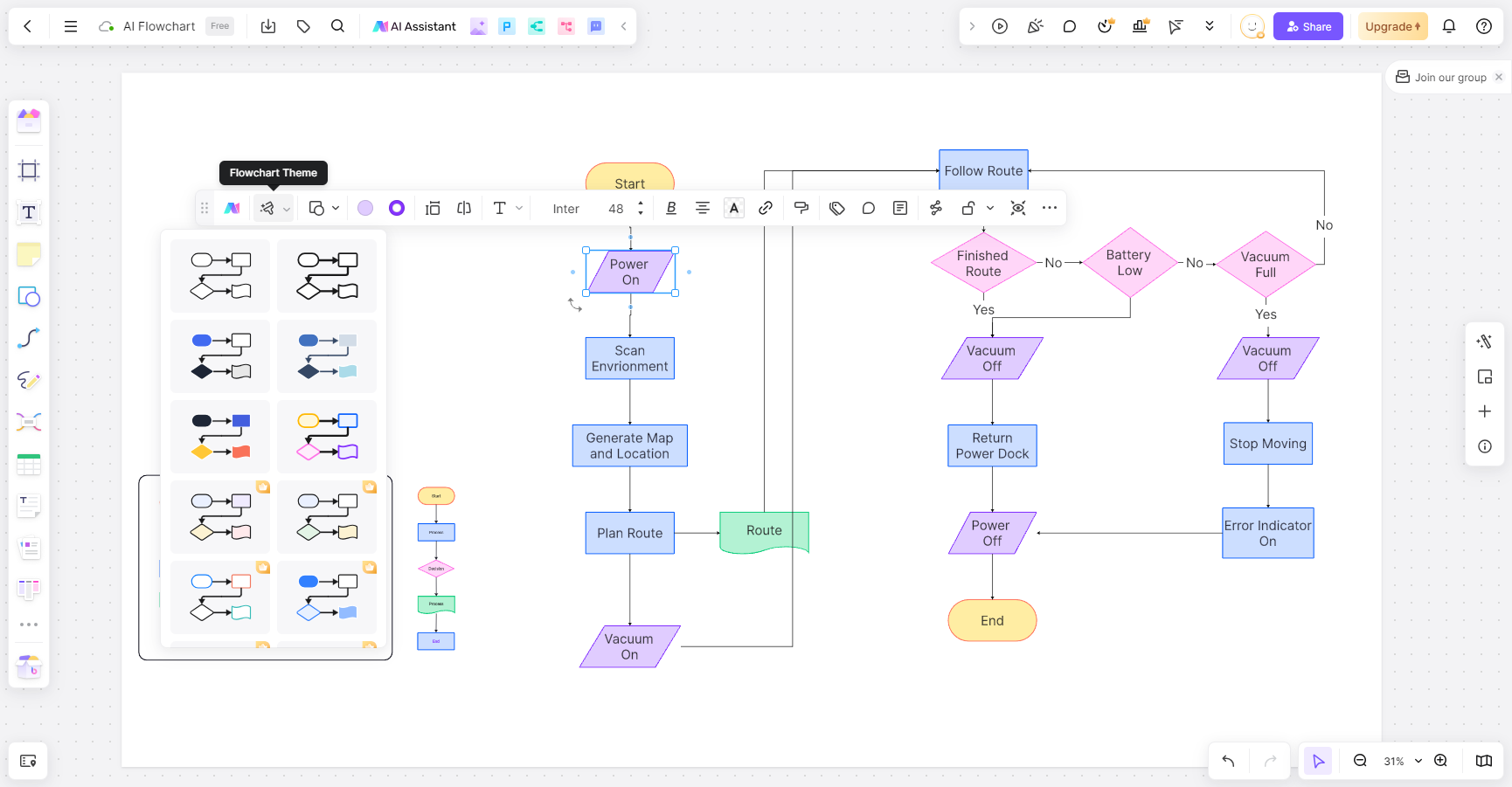
Boardmix provides a Windows desktop download on its official download page. Teams evaluating a switch can combine desktop access with the direct Miro importer for supported editable objects, then verify layout and permissions on a test board.
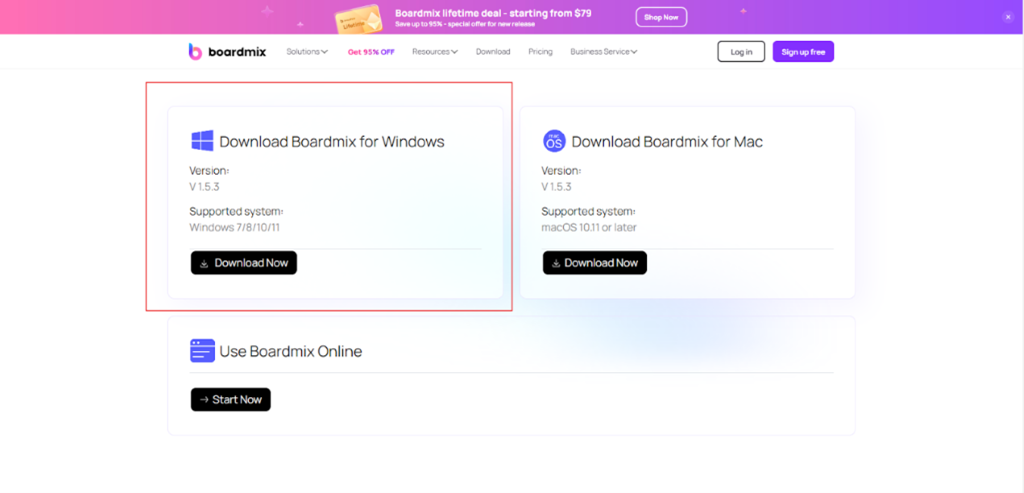
Boardmix can be evaluated on Windows as a desktop or browser workspace. Teams that are moving from Miro can combine the official download with a direct import pilot, then compare the imported board with the source before changing the team's default workflow.
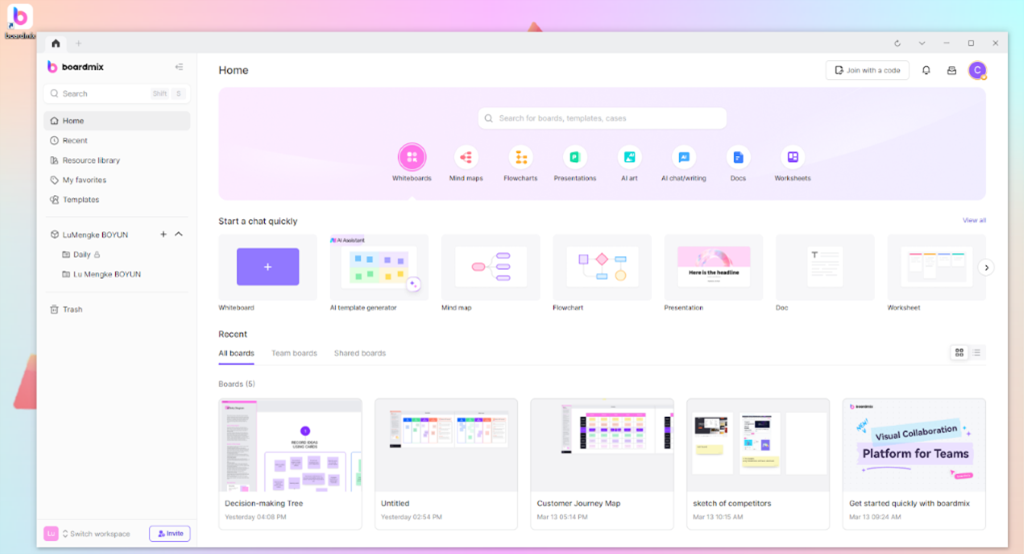
After installation, launch Boardmix from the Start menu or the shortcut created by the installer. Sign in, open the destination workspace, and confirm that the board owner and sharing settings match the migration plan before inviting the rest of the team.
Windows Download Checklist
- Download desktop software only from the vendor's official page.
- Confirm the account, team, and board owner before exporting.
- Open the saved file and check text, images, frame order, and links.
- Store sensitive exports according to company policy.
- Use a representative migration pilot before moving many boards.
Last verified: September 16, 2026. Desktop and export support can change with vendor releases and plan rules.