


The best AI flowchart generator depends on what must happen after the first prompt. Boardmix is a strong all-in-one option for teams that need an editable diagram on a collaborative whiteboard; Lucidchart is better for governed business diagrams, Miro for workshop-led collaboration, and Eraser or Mermaid Chart for technical diagrams that should stay close to code.
This guide compares ten current AI flowchart tools by input, refinement, collaboration, export, free access, and the main tradeoff. It focuses on tools that can generate or materially revise a flowchart with AI, rather than calling every app with templates or automatic layout an AI generator.
Quick Picks: Which AI Flowchart Generator Fits Your Work?
- Best for collaborative planning: Boardmix combines prompt-to-flowchart generation with an editable whiteboard, comments, permissions, and mixed project content.
- Best for formal business diagrams: Lucidchart suits teams that need structured diagramming, data or document links, and administrative controls.
- Best for facilitated workshops: Miro keeps the generated diagram beside research, sticky notes, voting, and team discussion.
- Best for engineering documentation: Eraser DiagramGPT and Mermaid Chart keep a text or code representation that can be reviewed alongside the visual output.
- Best for a simple product or user flow: Whimsical is fast to start and easy to edit, but its free AI and board allowances are deliberately small.
- Best for broad diagram libraries: EdrawMax offers many diagram types and desktop-style controls, with more restrictive free exports and document limits.
If your only goal is a quick draft, almost any current generator can produce boxes and arrows. The meaningful differences appear when you correct missing branches, add an exception path, invite reviewers, preserve source context, and move the result into the next tool.
How the 10 AI Flowchart Tools Compare
Use the table as a shortlist, not as a universal ranking. The right tool is the one that accepts your source material, leaves every node and connector editable, supports the reviewers who must approve the process, and exports in the format your next workflow can actually open.
| Tool | Best for | AI input and revision | Collaboration | Export | Free-plan limit | Main tradeoff |
|---|---|---|---|---|---|---|
| Boardmix | Collaborative planning | Prompt to editable flowchart on a mixed-content canvas | Real-time editing, comments, permissions, history | PDF, PNG, JPG, BDX | Free board limits; AI Flowchart uses an AI plan | Broad canvas can be more than a solo user needs |
| Lucidchart | Governed business diagrams | Prompt or attachment, then AI refinement | Real-time review and enterprise controls | PDF and image formats; linked data | AI is currently available to users; terms may change | Advanced governance generally needs paid plans |
| Miro | Workshops and discovery | Prompt to editable flowchart, ERD, or UML draft | Strong multiplayer canvas and facilitation | Image, PDF, board workflows | Free: 3 editable boards and 10 team AI credits/month | Free AI allowance is small |
| Creately | Process documentation | Generate, expand, and reorganize a process | Real-time co-editing and workspace context | PNG, PDF, SVG | Free boards have item limits; AI is positioned on paid plans | Plan boundaries matter for larger processes |
| Eraser | Engineering diagrams | Text to diagram-as-code with editable source | Workspace sharing and review | Image and document workflows | Free: 3 files, 3 AI diagrams, 7-day history | Less natural for nontechnical workshop users |
| Mermaid Chart | Versionable documentation | Prompt, document, or text to Mermaid with diff review | Shared diagrams and code-plus-visual editing | PNG, SVG | Basic: up to 3 diagrams with limited AI | Mermaid syntax still matters for precise control |
| Whimsical | Product and user flows | Text to flowchart with editable nodes | Real-time collaboration | Image/PDF workflows; free exports are watermarked | Free: 10 AI credits/person and 50 board objects/month | Tight free object and history limits |
| EdrawMax | Many diagram types | Text to editable diagram with template support | Sharing and multi-platform editing | Multiple image/document formats | Free AI tokens; document and export restrictions apply | Free exports may carry a watermark |
| Jotform | Fast operational drafts | Natural-language generation plus manual or AI edits | Share link or copy; no live co-editing in one file | PNG and share links | Available as a web generator; verify current account limits | Not suited to simultaneous team editing |
| Visily | Non-designers mapping UX | AI diagram generation within a product-design workspace | Real-time co-editing and comments | Board and design handoff workflows | Free: 300 AI credits/month and 2 editable boards | Best when the flow leads into UI work |
Product and plan details were checked against official product, help, and pricing pages on September 28, 2026. Limits can change, so verify the current plan before purchase or team rollout.
10 Best AI Flowchart Generators in 2026
1. Boardmix: Best for Collaborative Planning on One Canvas
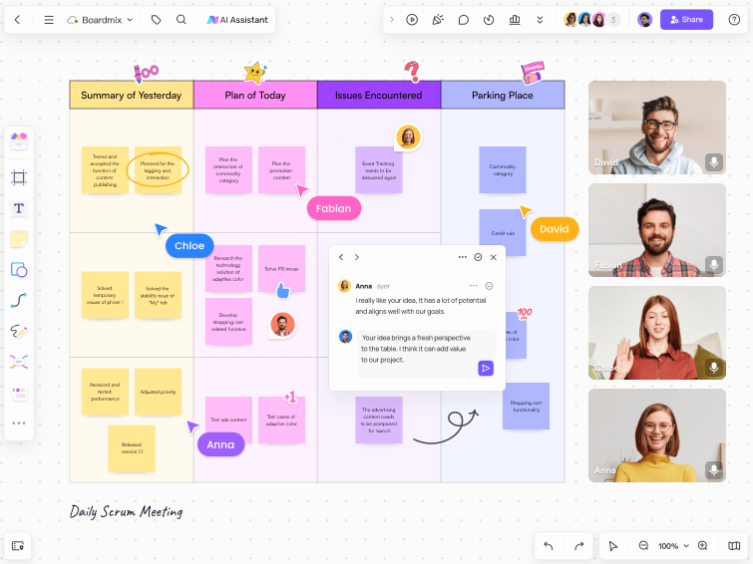
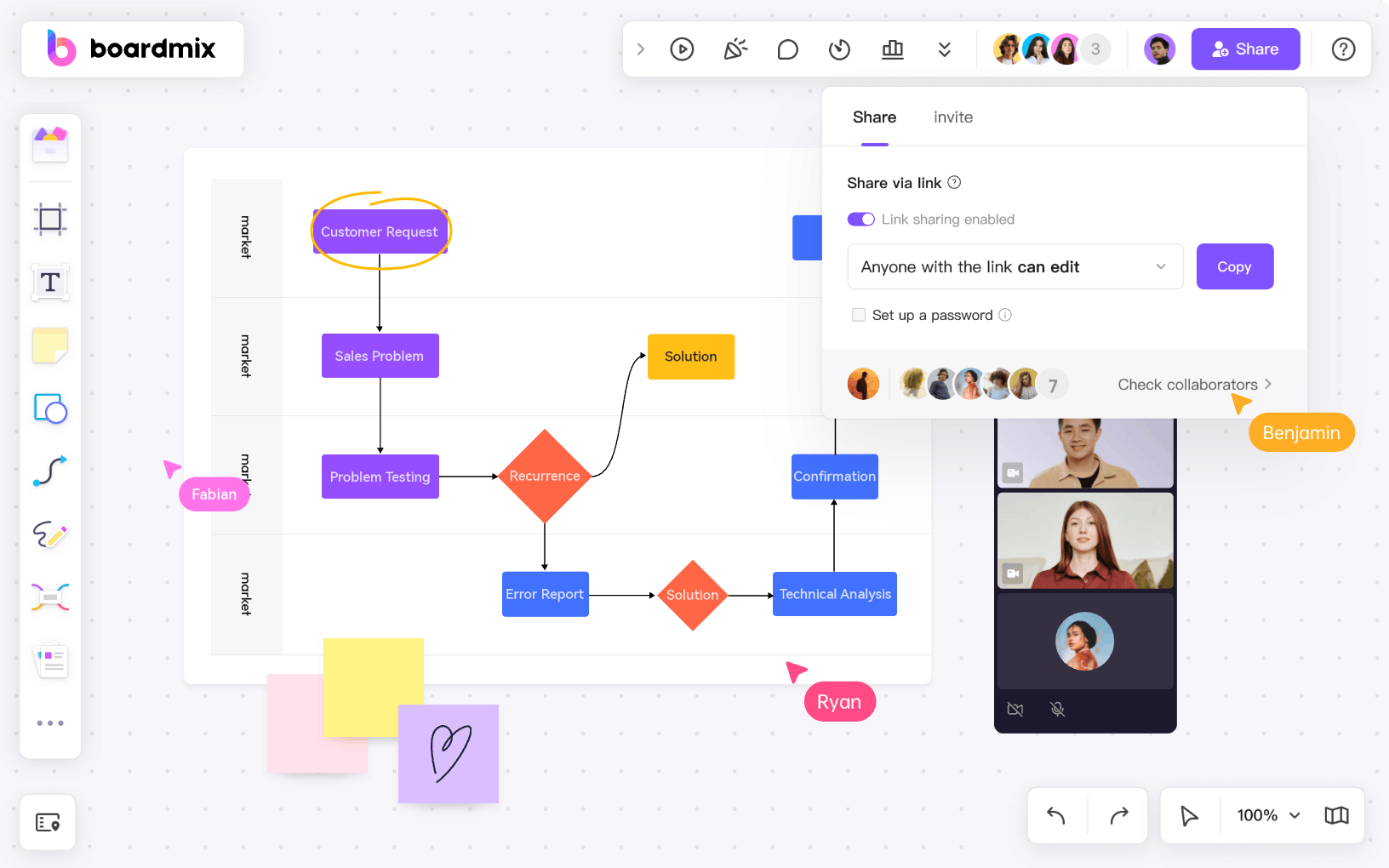
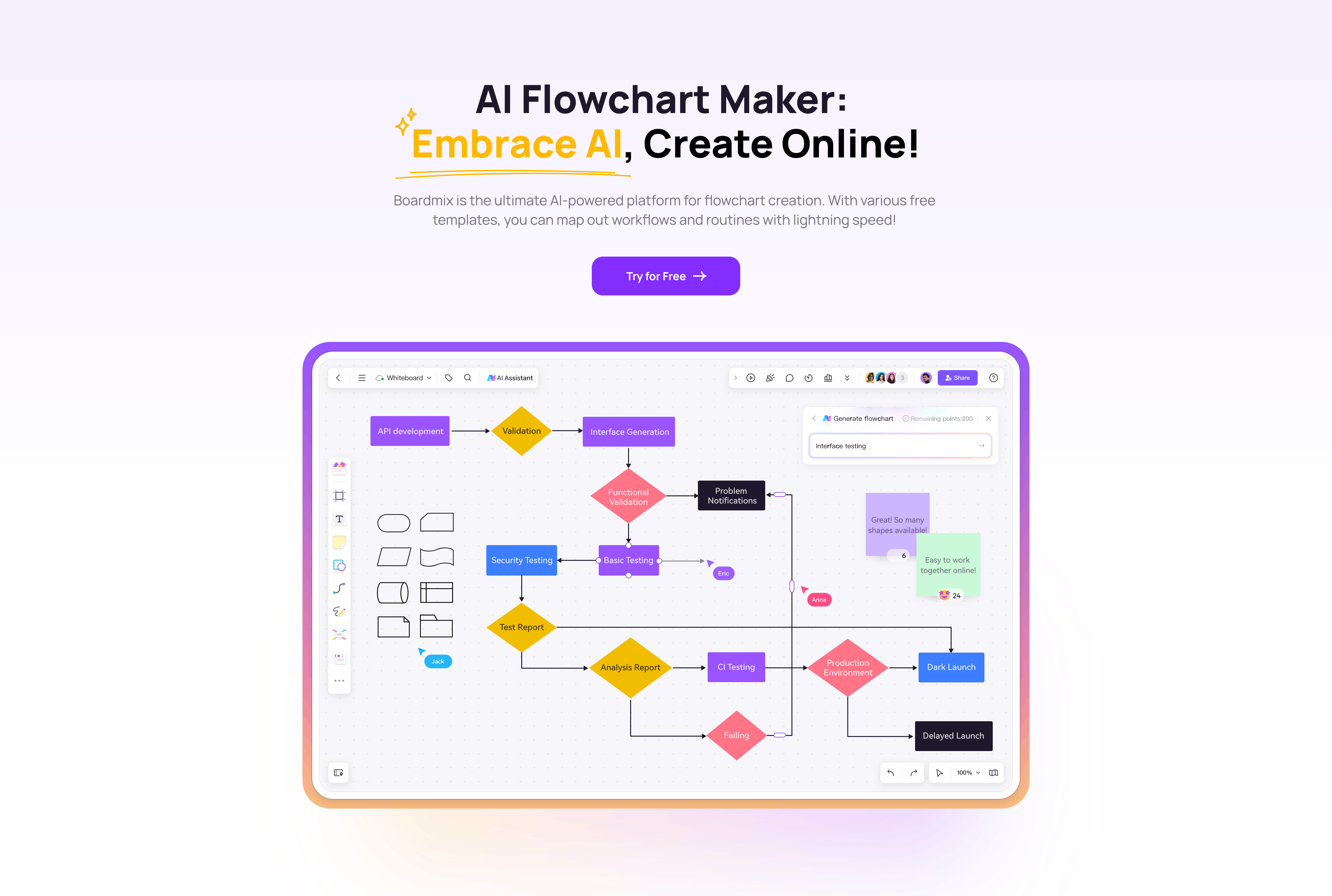
Boardmix fits teams that want the generated flowchart to remain beside notes, documents, mind maps, decisions, and feedback. The Boardmix AI flowchart generator turns a prompt into an editable diagram; the surrounding whiteboard supports real-time editing, comments, permissions, and version history.
Choose it when: the process is still being discovered and several roles need to correct it together. After generation: move nodes, relabel branches, add missing owners, and connect the process to related project material. Free and paid boundary: the current free plan limits editable boards and objects, while AI Flowchart is included in an AI plan with monthly credits; check the current Boardmix pricing page before rollout. Tradeoff: a large collaborative canvas is more capability than a user who only needs a one-off static diagram may require.
2. Lucidchart: Best for Governed Business Diagrams
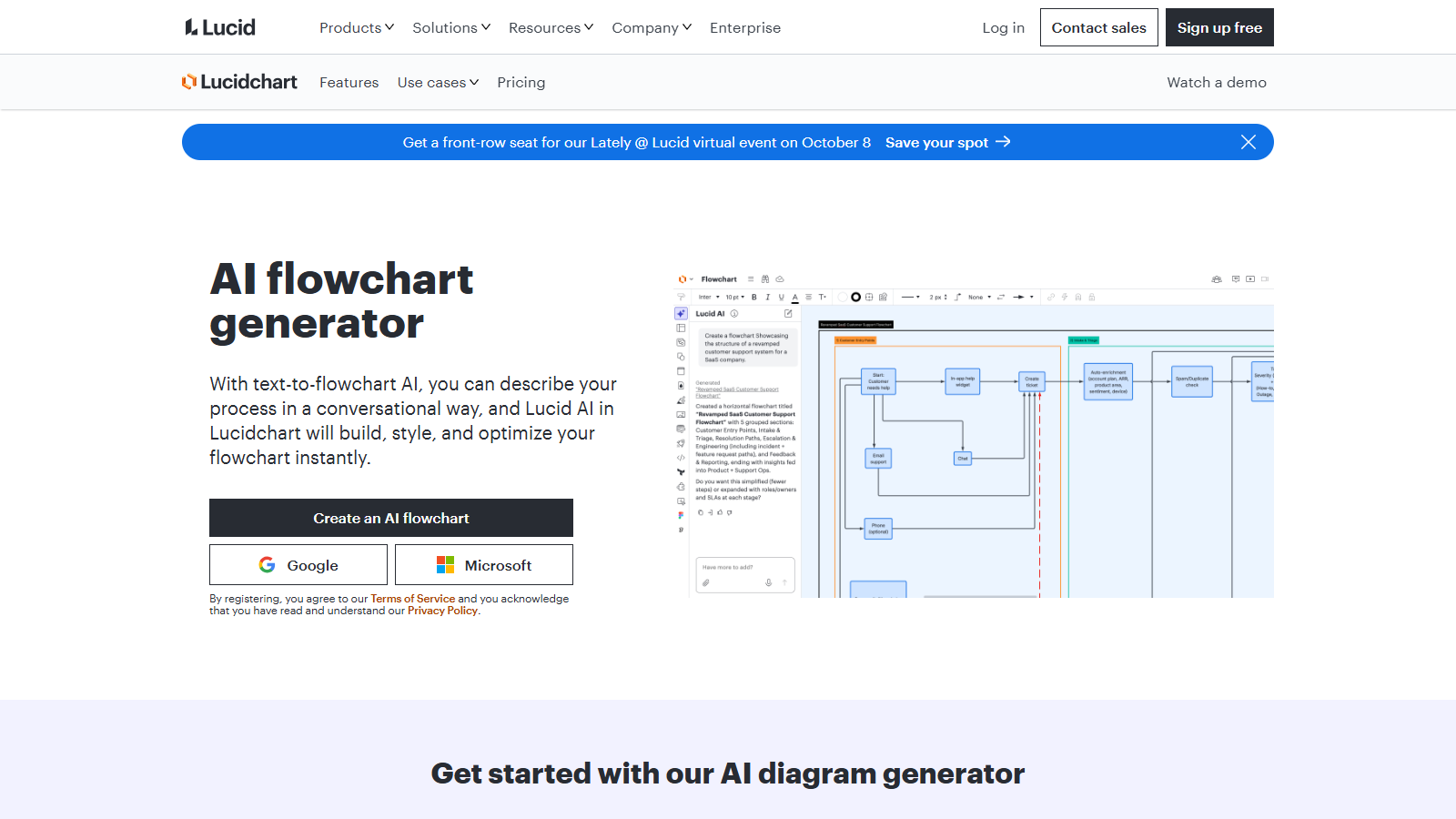
Lucidchart's AI flowchart generator can start from a prompt or attached source, then refine the generated diagram. It is a strong fit when the flowchart must become formal business documentation, connect to data or supporting material, and sit inside a managed workspace.
Choose it when: diagram governance, structured review, and integrations matter more than freeform brainstorming. After generation: inspect every branch, replace generic labels, and use the editor to enforce the notation your organization expects. Privacy note: Lucid says customer data is not used to train third-party generative models, but enterprise buyers should still confirm the current data-processing and retention terms. Tradeoff: the controls that make Lucidchart attractive to larger organizations generally sit beyond the most limited plan.
3. Miro: Best for Workshop-Led Flowcharting
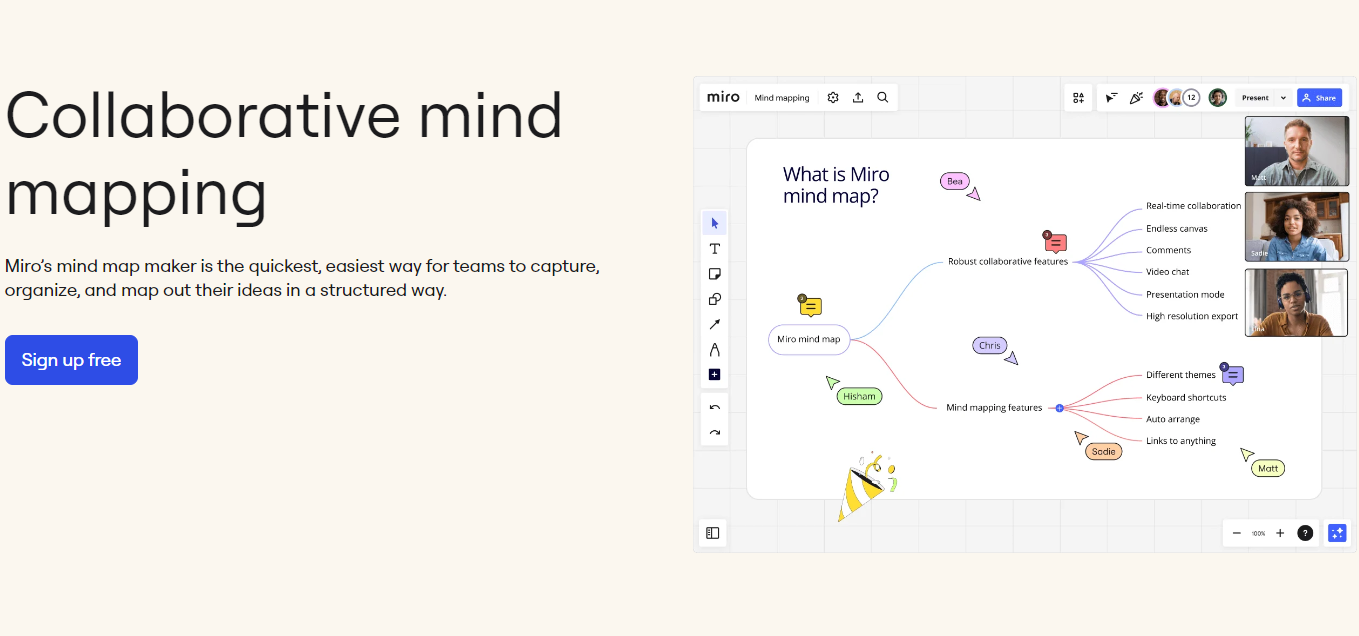
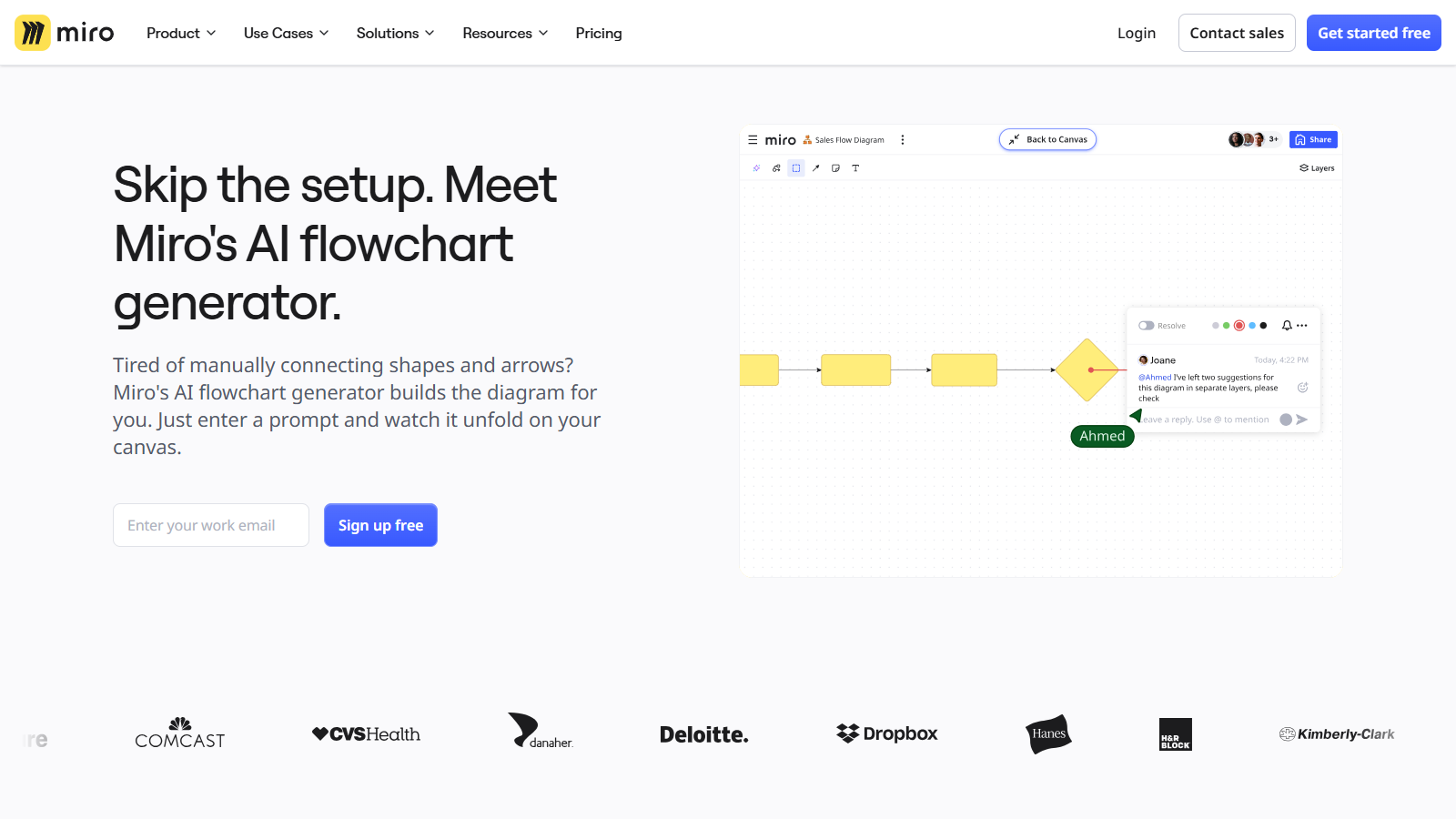
Miro AI can generate editable flowcharts and related diagram types on a multiplayer canvas. Its advantage is not just the first diagram: facilitators can keep interview notes, sticky-note clusters, votes, and follow-up actions around the process during a workshop.
Choose it when: the flowchart emerges from group discovery rather than a finished specification. After generation: let subject-matter experts correct steps and exceptions in the same board, then clean the result for handoff. Free boundary: the current Miro Free plan lists three editable boards and a small team-level monthly AI allowance. Tradeoff: that allowance is enough to evaluate the workflow but not to support heavy recurring generation.
4. Creately: Best for Process Documentation with Workspace Context
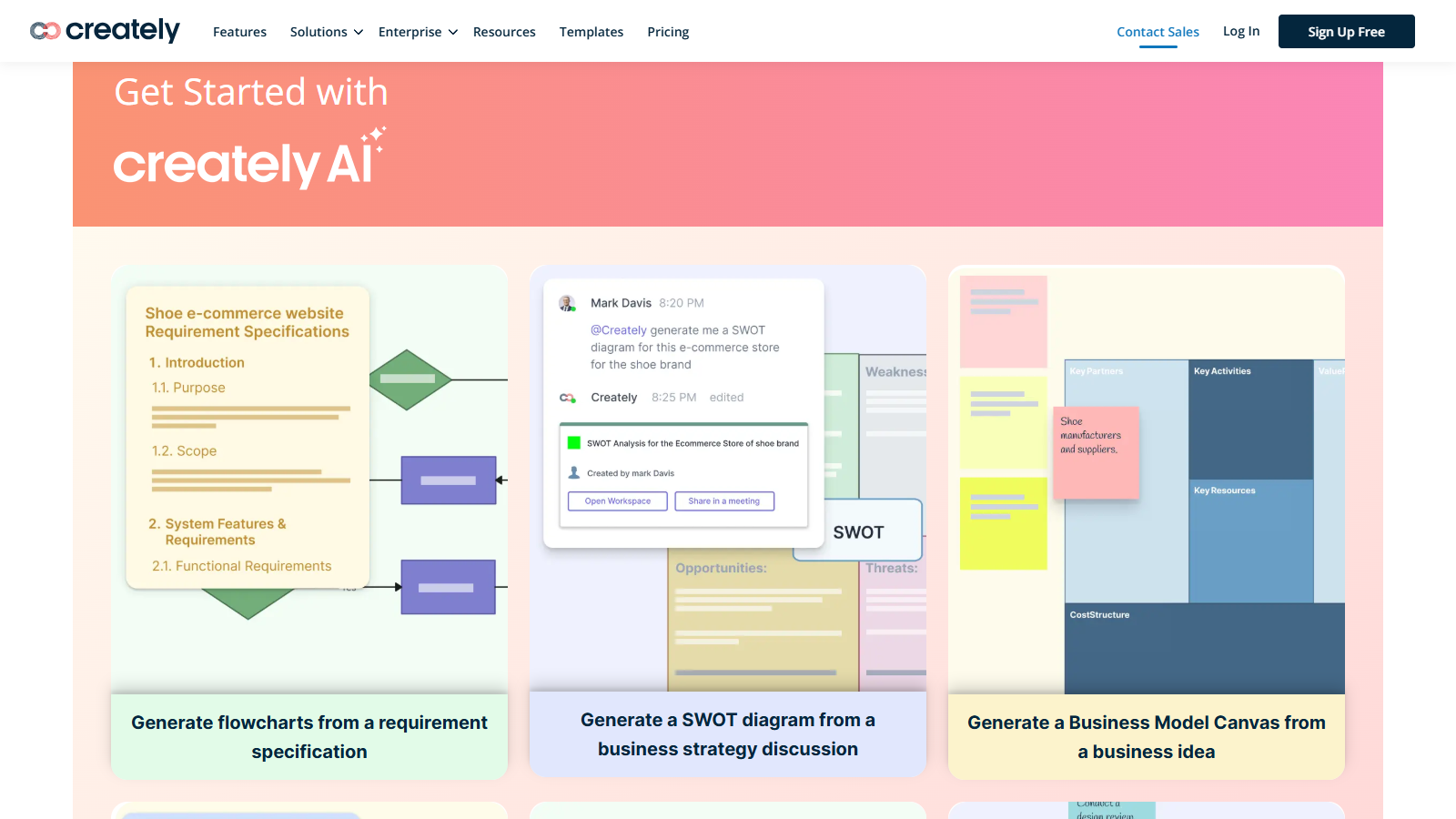
Creately AI Flowchart supports generating, expanding, and reorganizing process diagrams. It suits teams that want the flowchart to link with project objects, responsibilities, and documentation rather than remain an isolated picture.
Choose it when: a process map is part of a maintained operational workspace. After generation: assign clear owners, document inputs and outputs, and review how the diagram behaves when the process grows. Free boundary: Creately's current free workspace allows broad collaboration but limits the number of items on a board, while its plan page positions AI diagrams in paid tiers. Tradeoff: detailed or enterprise-sized processes can hit plan limits quickly, so model a representative workflow before choosing a tier.
5. Eraser DiagramGPT: Best for Engineering and Diagram-as-Code
Eraser DiagramGPT generates several technical diagram types from text and keeps an editable diagram-as-code representation. That makes changes reviewable and reduces the gap between a visual architecture flow and the documentation engineers maintain.
Choose it when: developers or architects own the source and want reproducible diagrams. After generation: compare the diagram source with the actual system, verify direction and boundaries, then commit the revised representation with the related documentation. Free boundary: Eraser's current pricing page lists three files, three AI diagrams, and seven days of history for the free plan. Tradeoff: diagram-as-code is precise but less approachable for a workshop participant who expects direct manipulation only.
6. Mermaid Chart: Best for Versionable Documentation
Mermaid Chart AI can turn a natural-language prompt or source document into Mermaid syntax, show changes for review, and support both code and visual editing. It is a practical choice when a flowchart belongs in technical documentation and should be easy to diff.
Choose it when: the diagram must remain portable as text and understandable in a code review. After generation: inspect the Mermaid source, use stable node names, and verify that loops and conditional exits render as intended. Free boundary: the current Basic plan allows a small number of diagrams and limited AI use, with PNG and SVG export available in the product workflow. Tradeoff: precise changes eventually require some familiarity with Mermaid syntax.
7. Whimsical: Best for Product and User Flows
Whimsical AI turns text into an editable flowchart inside a lightweight visual workspace. It is especially useful for product managers and designers who need a readable user flow quickly and expect to keep editing it with teammates.
Choose it when: speed, clarity, and a low learning curve matter more than complex notation. After generation: replace generic steps with user actions, system responses, and error paths, then test whether the sequence matches the real experience. Free boundary: Whimsical currently lists limited AI credits, board objects, history, and watermarked exports on the free plan. Tradeoff: those limits can interrupt a larger process or repeated experiments.
8. EdrawMax: Best for a Broad Diagram Library
EdrawMax AI Flowchart generates an editable diagram from text and places it in an editor with a wide set of symbols, templates, and export formats. It is a sensible fit for users who create several kinds of business or technical diagrams in one application.
Choose it when: you need more than flowcharts and prefer a feature-dense diagram editor. After generation: normalize symbols, check connector direction, and apply the correct standard for the audience. Free boundary: the current product pages advertise starter AI tokens, while free documents and exports have page, shape, or watermark restrictions. Tradeoff: the interface and plan matrix are heavier than a focused text-to-flowchart tool.
9. Jotform AI Flowchart Generator: Best for a Fast Operational Draft
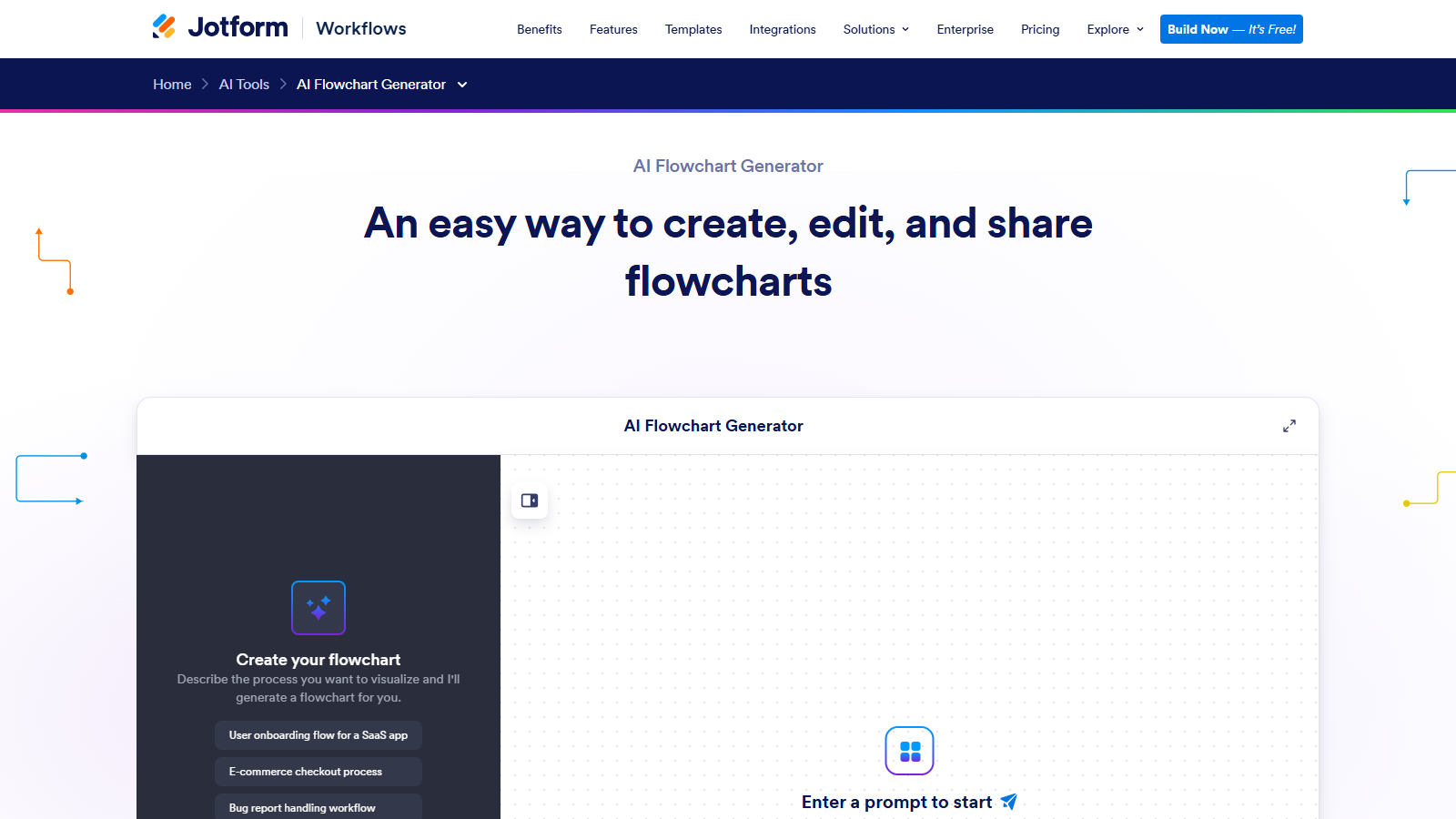
Jotform's AI Flowchart Generator creates a flowchart from natural language and supports subsequent manual or AI edits. It is useful for quickly visualizing an approval path, intake process, or other operational sequence and sharing the result as a link or PNG.
Choose it when: one person needs to create a clear draft with minimal setup. After generation: confirm branch labels, remove invented steps, and check the current sharing workflow. Collaboration limit: Jotform documents viewing or copying a shared flowchart rather than real-time editing by several people in one file. Tradeoff: that makes it less suitable for live process-mapping sessions.
10. Visily: Best for Non-Designers Mapping a Product Experience
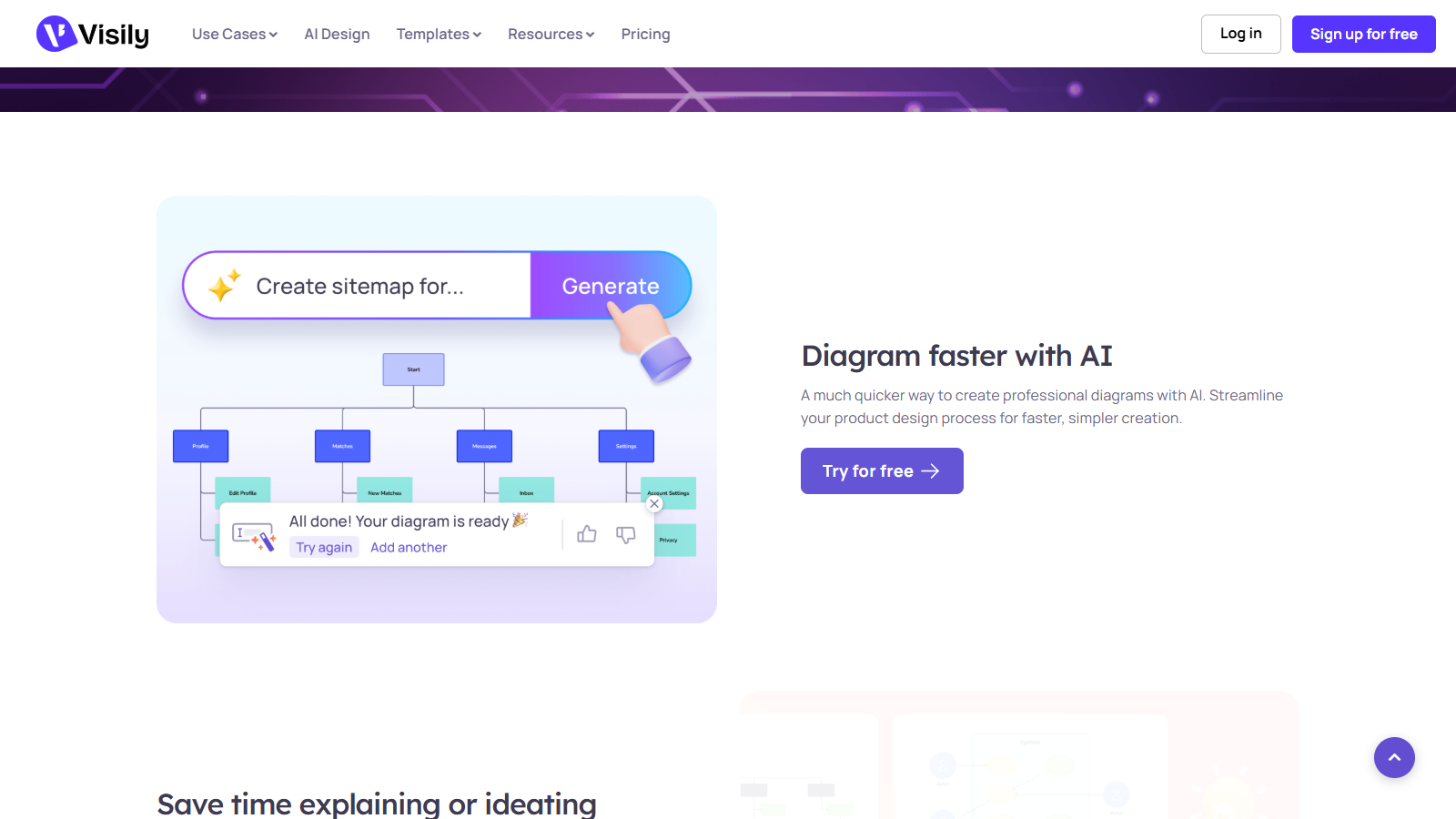
Visily Diagram AI is most relevant when the flowchart is an early step toward a product or interface design. The workspace supports AI-assisted diagramming, real-time co-editing, comments, and a path from flow to visual design without asking every contributor to be a trained designer.
Choose it when: a product team needs to connect user journeys, flows, and screens. After generation: distinguish user actions from system states and validate the transitions against product requirements. Free boundary: Visily's current free plan lists monthly AI credits, two editable boards, and a per-board element limit. Tradeoff: teams that only need formal process notation may prefer a dedicated diagramming product.
Other Flowchart Tools Worth Considering
These tools fit narrower workflows and complement the ten products compared above. Choose them when the stated use case matches your process, and verify current plan details before relying on a specific feature.
PopAi: Presentation-First Visual Drafts
PopAi can help turn source material into visual or presentation content. Choose it when the flowchart is part of a broader presentation brief; use a dedicated diagram editor when connector-level editing and process review are central.
Flowchart Fun: Text-First Flowcharts
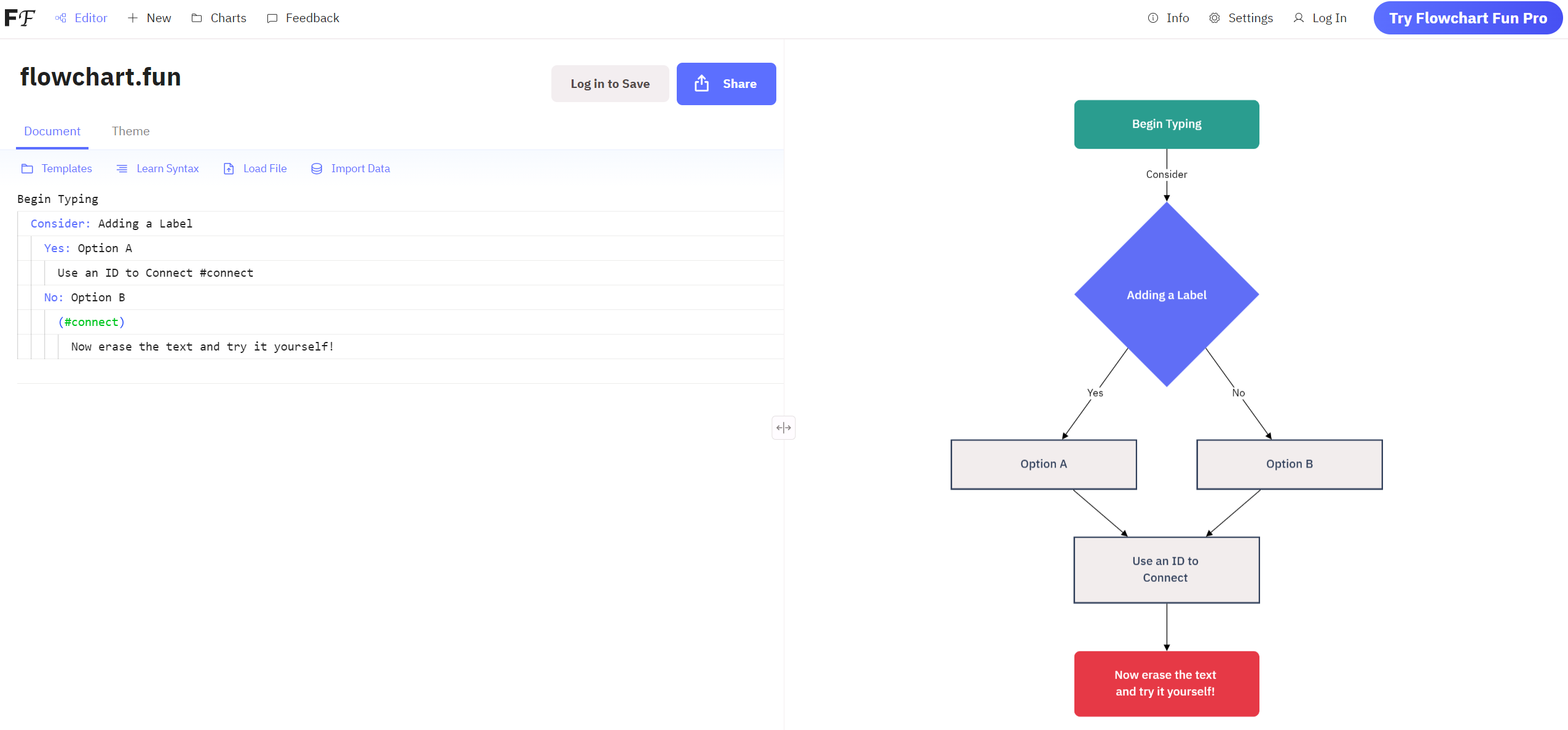
Flowchart Fun uses concise text to render a flowchart quickly. It suits individuals who prefer a text-first workflow, but teams should confirm collaboration and AI access on the current plan.
draw.io: Portable Manual Diagramming
draw.io supports manual diagramming and documents an AI generation workflow. It is a good fit for users who want a familiar editor and portable files; review the current AI model and privacy documentation before uploading sensitive process data.
GitMind: Multiple Visual Inputs
GitMind AI Flowchart supports prompt, Mermaid, and image-based flowchart creation. It suits users comparing several visual-thinking formats; verify current trial limits and collaboration needs before adopting it.
Moqups: Diagramming Beside Wireframes
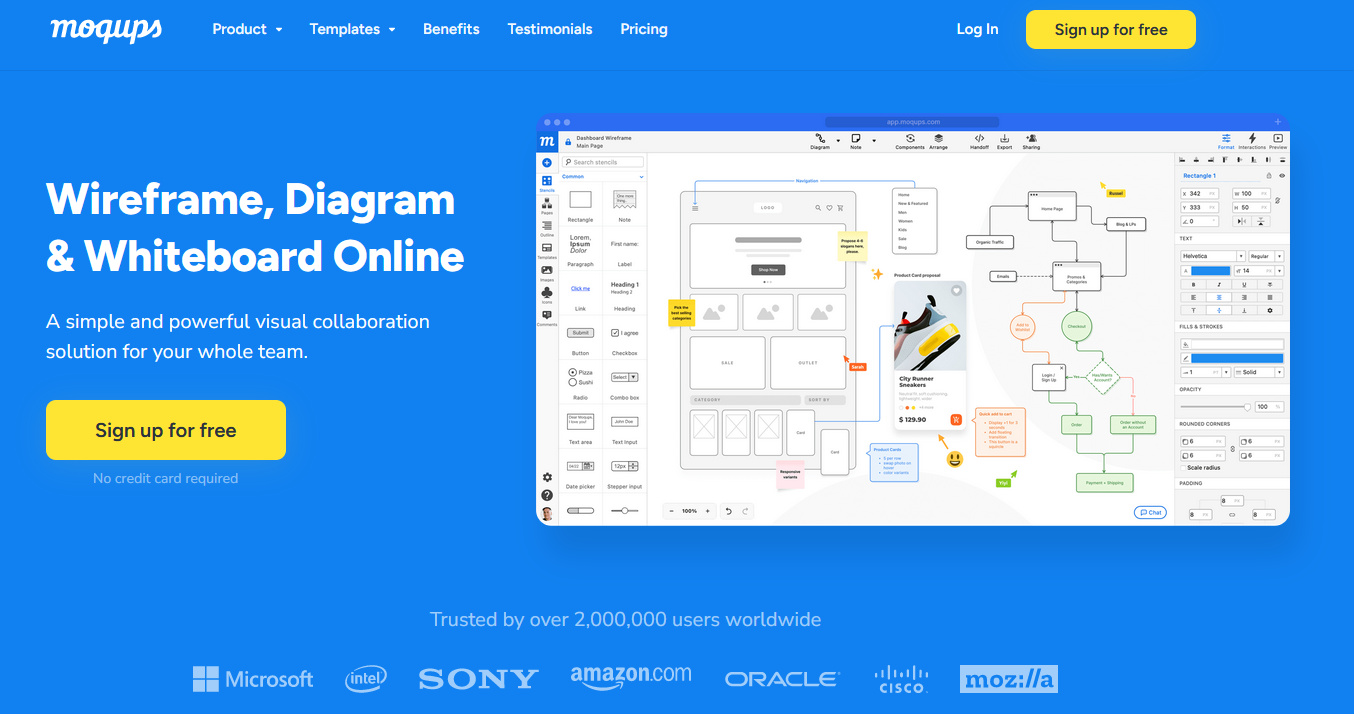
Moqups is a collaborative diagramming and wireframing workspace. Choose it when flowcharts sit beside product specifications; it is not a verified prompt-to-flowchart generator.
Zen Flowchart: Focused Manual Flowcharting
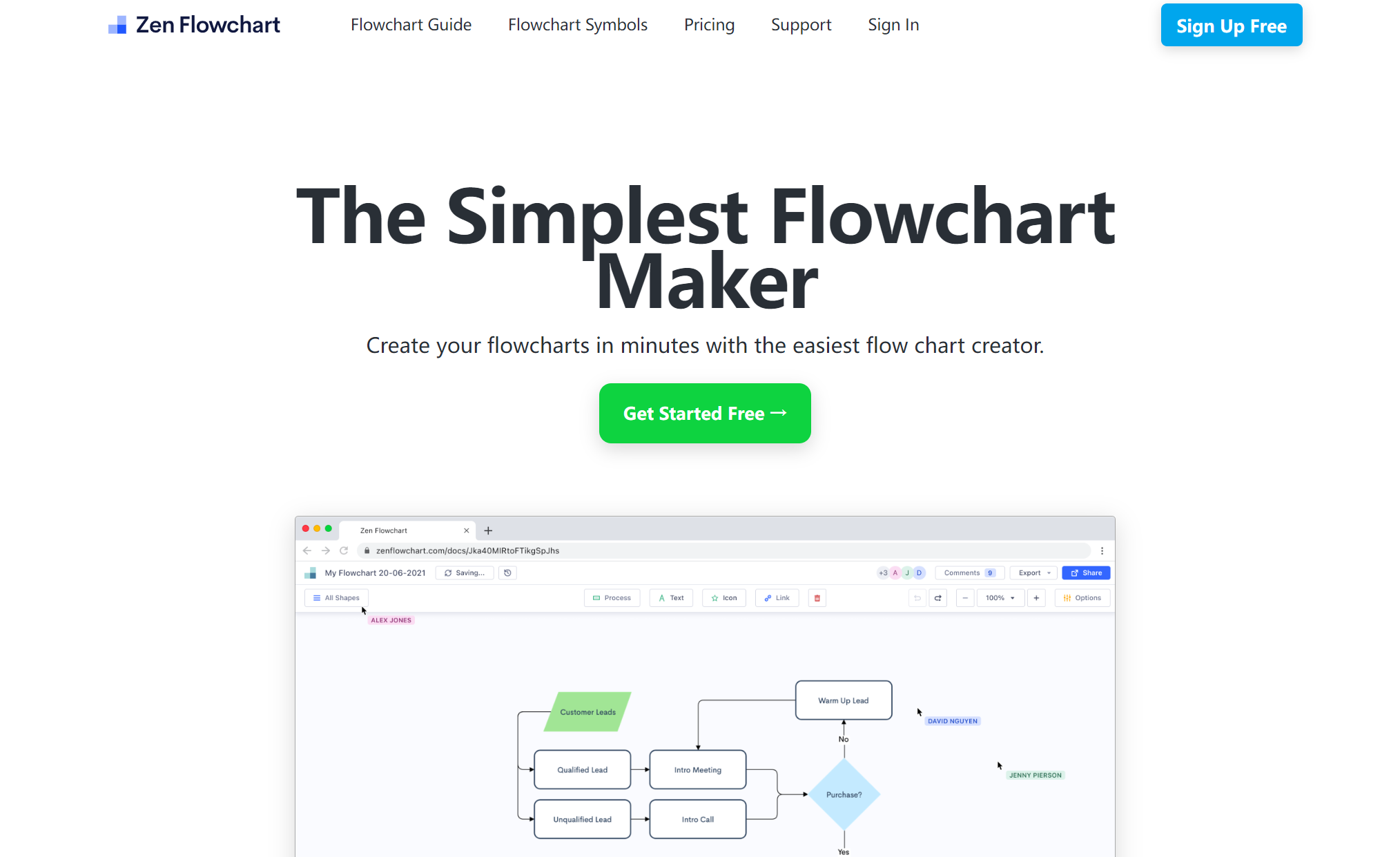
Zen Flowchart is a focused manual flowchart tool for users who value a clean drawing experience. Choose a documented AI generator when text-to-diagram creation is required.
Taskade: Turning Process Maps into Work
Taskade's AI flowchart workflow is useful when a process map needs to become tasks, owners, and recurring work. It is a better fit for action-oriented workflows than for formal diagram notation.
How to Test an AI Flowchart Generator
To compare tools fairly, use the same realistic source and judge the editable result rather than the first visual impression. The prompt below tests decisions, loops, ownership, and handoffs in one workflow.
Create a customer-refund flowchart. Start when a request arrives. Check whether the order is within 30 days. If no, send the policy response and end. If yes, check whether the item is damaged. Damaged items go to evidence review; undamaged items go to return-label creation. If evidence is incomplete, request more information and loop back to review. End with refund approved, replacement offered, or request declined. Label every decision branch Yes or No and show the owner for each handoff.
Record only what you can observe: which steps were omitted, how long it takes to repair the hierarchy, whether branch labels and loops survive revision, whether source links remain accessible, how reviewer permissions work, and whether the required export opens cleanly in the next application.
Flowchart Accuracy Checklist
- Start and end: Confirm that every path begins and terminates instead of leaving orphaned branches.
- Decision logic: Check that each decision is a question and every outgoing connector has an unambiguous label.
- Loops and exceptions: Verify rework paths, timeouts, escalations, and failure states; AI commonly simplifies these away.
- Owners and handoffs: Add the responsible role at every cross-team transition.
- Source facts: Compare thresholds, policy wording, and system names with the authoritative source.
- Readable layout: Fix crossing connectors and long labels only after the process logic is correct.
- Export test: Open the exported file in the destination tool and check text, connectors, page boundaries, and editability.
How to Choose Without Buying the Wrong Plan
Start with the Source Type
A short prompt is enough for a simple process. A policy document, meeting transcript, image, or existing diagram requires a tool that explicitly supports that input and preserves enough context to audit the result. Do not assume that a product accepting attachments also cites or traces every generated node back to the source.
Separate Generation from Editing
The first draft saves time only if the result remains easy to correct. Confirm that you can insert a decision, move a branch, rename a node, change connector direction, and revise the prompt without flattening the diagram into an image.
Check Collaboration and Permissions
Real-time cursors are not the same as approval controls. For team use, test guest access, commenter versus editor roles, link permissions, version history, and whether external reviewers need paid seats.
Match Export to the Next Tool
PNG is adequate for a slide but not for continued editing. Technical teams may need SVG or Mermaid source; formal documentation may need PDF; a Boardmix workflow may use BDX. Choose the required downstream format before comparing visual themes.
Protect Sensitive Process Data
A process map can reveal customer data, internal controls, security boundaries, and confidential operations. Remove sensitive details from evaluation prompts, review model and retention terms, and ask for current security, data-processing, residency, and deletion documentation before enterprise deployment.
Compare the First Real Limit
Free plans are useful for evaluation, but the blocking limit may be AI credits, editable boards, object count, export watermark, version history, guests, or administration. Price the first tier that removes your actual blocker instead of comparing headline monthly prices alone.
AI Flowchart Generator FAQs
What is the best AI flowchart generator?
Boardmix is a strong all-in-one choice for teams that want an editable AI-generated flowchart inside a collaborative whiteboard. Lucidchart is stronger for governed business documentation, Miro for workshops, Eraser and Mermaid Chart for technical diagrams, and Whimsical for lightweight product flows.
Is there a free AI flowchart generator?
Several products offer free AI credits, trials, or limited diagrams, but the restriction differs by tool. Miro, Eraser, Mermaid Chart, Whimsical, EdrawMax, and Visily all expose a current evaluation path with different board, object, history, export, or credit limits. Check the official plan page immediately before choosing.
Can ChatGPT create a flowchart?
ChatGPT can help structure a process and produce Mermaid or other diagram syntax, but a dedicated flowchart editor is usually easier for moving shapes, correcting connectors, collaborating, and exporting. Treat the generated logic as a draft and validate it against the source process.
Can AI turn a document or image into a flowchart?
Some tools accept files, documents, images, or existing diagram text, while others accept only a prompt. Verify the supported input type and whether the output remains editable. For confidential documents, review data-handling terms before upload.
Are AI-generated flowcharts accurate?
Not automatically. AI can omit exception paths, reverse a connector, invent a step, or simplify a policy threshold. A process owner should verify every decision, branch label, loop, owner, and consequential fact before the diagram is shared as documentation.
Which AI flowchart tool is best for teams?
Boardmix and Miro are strong for collaborative discovery, while Lucidchart and Creately fit more structured process documentation. Compare guest access, editor roles, comments, history, and administrative controls with the exact review process your team uses.
Which export format should I choose?
Use PNG for simple display, SVG for scalable graphics, PDF for fixed documentation, and Mermaid or diagram source when the flowchart must remain versionable. Test the export in its destination because visual fidelity and editability are not the same.
Choose for the Review Workflow, Not the First Draft
AI reduces the time needed to reach a first flowchart, but the durable value comes from correction, review, and handoff. Choose Boardmix when the diagram must remain editable inside a shared visual workspace, Lucidchart for controlled business documentation, Miro for facilitated discovery, or a code-oriented tool when versioned technical documentation is the priority.
Start with the same source and acceptance criteria, validate the logic, then compare the real plan limit and export path. To build the first collaborative draft, open Boardmix or review the dedicated AI flowchart guide before choosing a broader diagramming workflow.