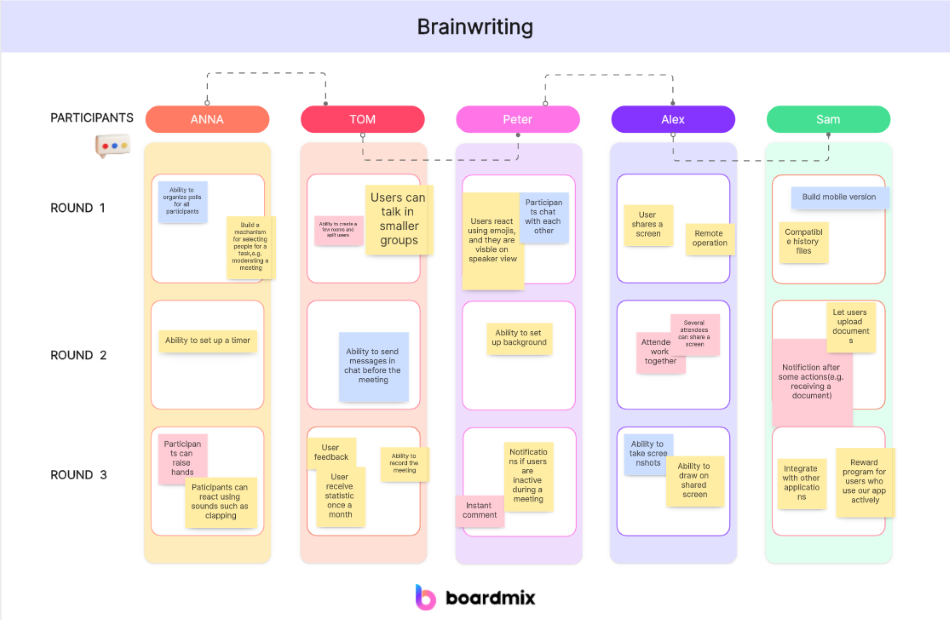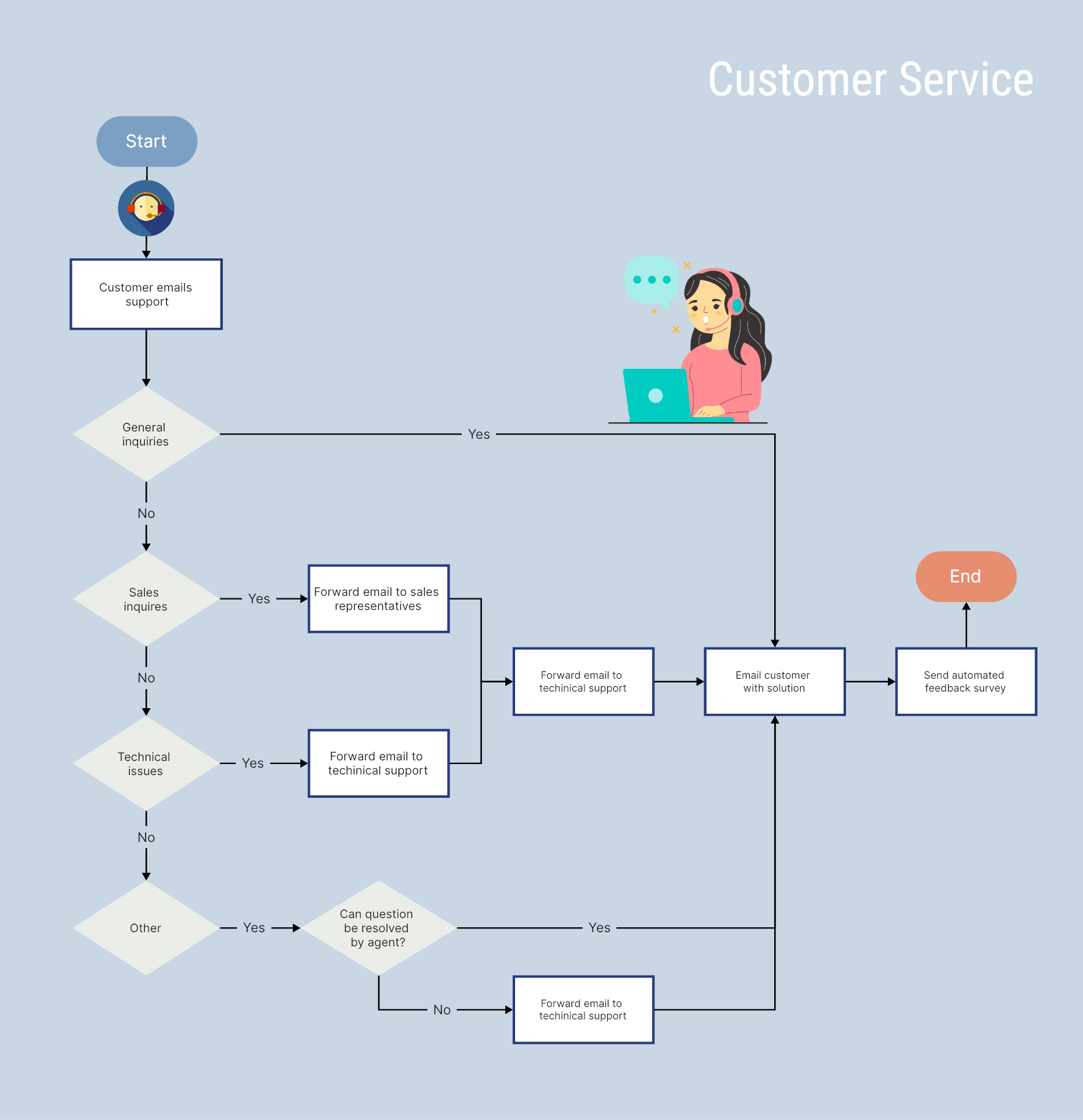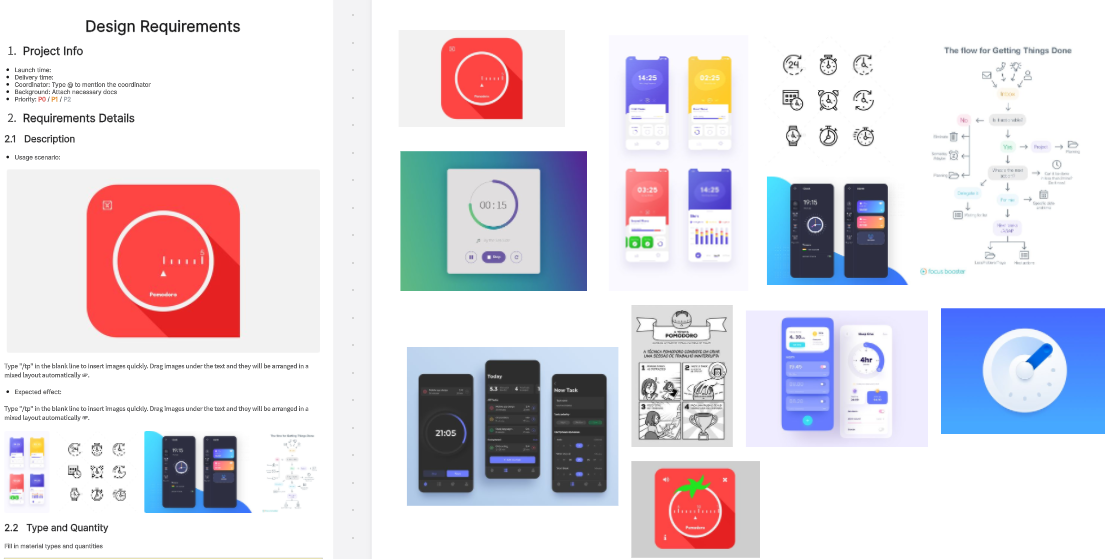



Before choosing a tool: Screenshots are examples from the original review. Interfaces, subscriptions, and feature limits may change; check the current product documentation and test your required workflow.
Online whiteboards can support remote and classroom teaching by giving students a shared space to draw, organize ideas, and discuss a lesson. The right choice depends on your class size, devices, access requirements, and budget.
With online whiteboards, online classes have bridged the gap between physical and online classes. An online whiteboard enables instant recording, voting, chatting, screen sharing, real-time collaboration, and more features that allow active interaction and participation between students and teachers. You can also share documents with the whole class without wasting a piece of paper or fighting with the printing machine.
There are many online whiteboards to choose from to pick the best and look out for the positives and their opposing sides before deciding on one.

Part 1. How to Choose an Online Whiteboard for Teaching
Choosing the perfect online whiteboard requires you to check and understand the features of your options before settling for one. Many subjects require different unique approaches to creating engagement with the students.
Therefore, it is crucial to consider each feature before settling for one that fits your agenda best. Here are things to consider when choosing an online whiteboard.
1. Features of the Free Version
It is always great to have quality products for free or at very minimal prices. Consider the features of a free online whiteboard for teaching. Some have more features at that free level. These features will also give you a good idea of what to expect if you go the VIP route. The essential tools include a pen, brush, eraser, and pencil.
You can also export your drawings as an image into your device, create layers, power points presentations, audio, highlight, annotate, work on files, video, and much more.
2. Collaborative Features
One of the key benefits of a whiteboard is its collaborative features. An excellent whiteboard should allow you to interact with your students and teammates. It should make brainstorming on study materials and project materials engaging. More collaborative features you should look out for in a digital whiteboard include:
- Live meetings
- On-demand recordings
- Instant messaging
- Easy file sharing
- Mobile apps for on the go-use
3. Supported Exporting Formats
When having interactive sessions online, different types of files need to be exported. For images, JPG and PNG exporting formats are required. Check the details of the whiteboard you want to choose to see if it has all the format you need. Formats to check in the product’s current export options include:
- Portable document format PDF
- Microsoft word document .doc and .docx
- PPT, PPTX, PPS, and more.

Part 2. Teaching Whiteboard Options and Legacy Tools
The tools below offer different collaboration workflows and plan limits. Evaluate currently supported options with a sample lesson. Google Jamboard and AWW App are retained as historical references, not current sign-up recommendations.
#1 Boardmix - Free Collaborative Whiteboard for Teaching
Boardmix is an online collaborative whiteboard that integrates several tools for an interactive session between "teachers, students," team members, and collaborators. Boardmix interactive whiteboard enables sharing of data, tracking of progress, easy file sharing, and more in a digital class.
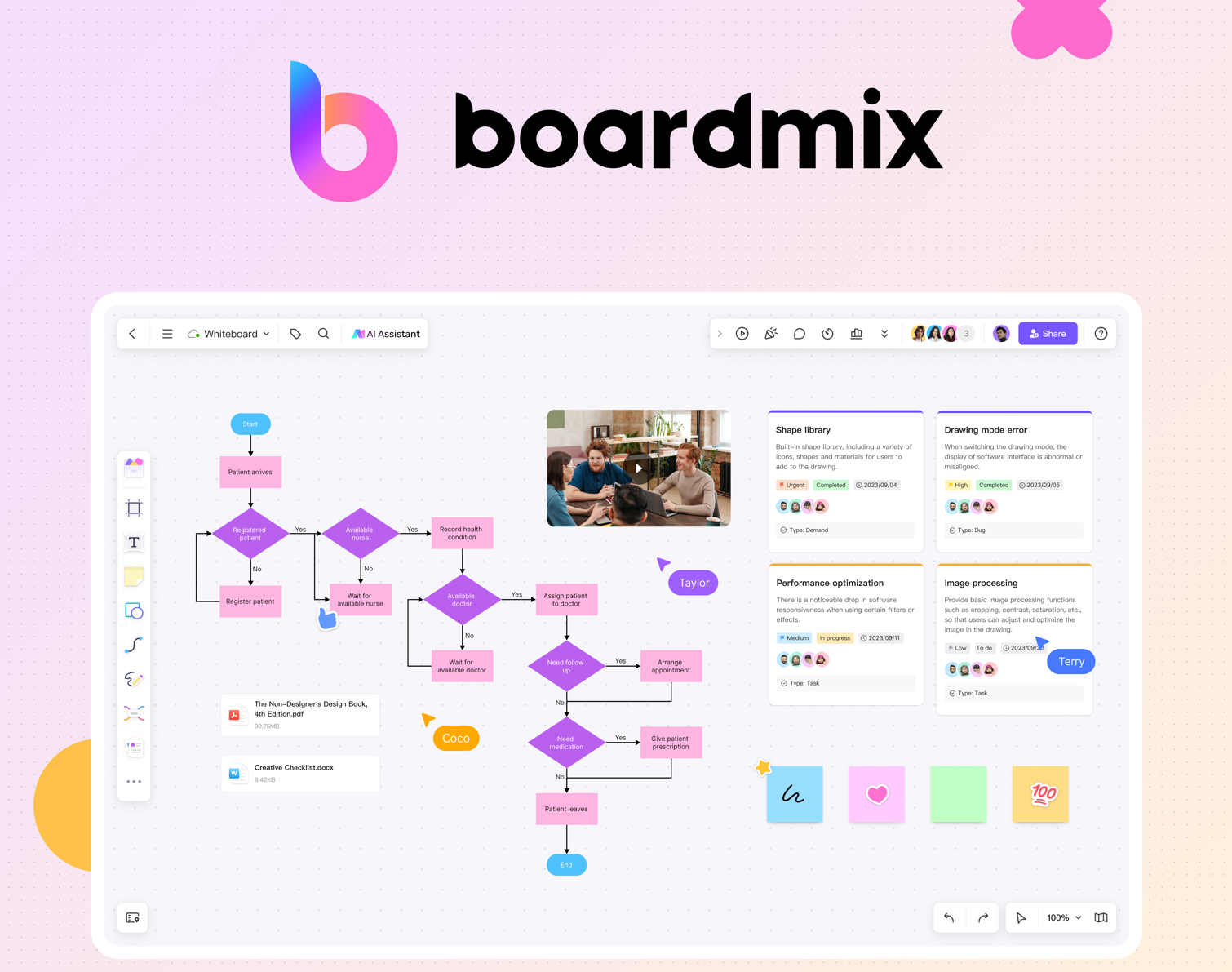
The Boardmix Free plan includes 3 editable boards and 100 objects per board. Check current pricing and plan limits for feature access, sharing permissions, and paid options.
Features:
- Integrated with many utilities, such as pen, shapes, connection lines, roadmap, sticky note, table, card, etc.
- Supports collaboration; check the participant roles and sharing permissions included in your plan.
- Allow you to create Kanban, Venn diagrams, fishbone diagrams, mind maps, and more with free templates and practical tools.
- Support online meetings.
- Allows you to import files.
- Can export the selected area and save files in different formats.
- Get instant feedback with comment and chat features.
- Interactive features.
- Support demonstration.
#2 Miro
Miro is a popular online whiteboard tool to visualize, share and collect data. Miro stands out among its peers and is especially popular for its free plan. Miro is generous regarding the free plan feature, which includes many positive qualities that will benefit your lesson sessions.

#3 Ziteboard
Sharing drawings, plans, tasks, and more on an online space will provide the height of experience for teachers and their students. If you are a math teacher, Ziteboard is the perfect tool for you, and it has a free plan where you can use many of its features. It makes learning seamless for students and easier for teachers. You can get started with a ziteboard free plan, which has many excellent features.

#4 FigJam
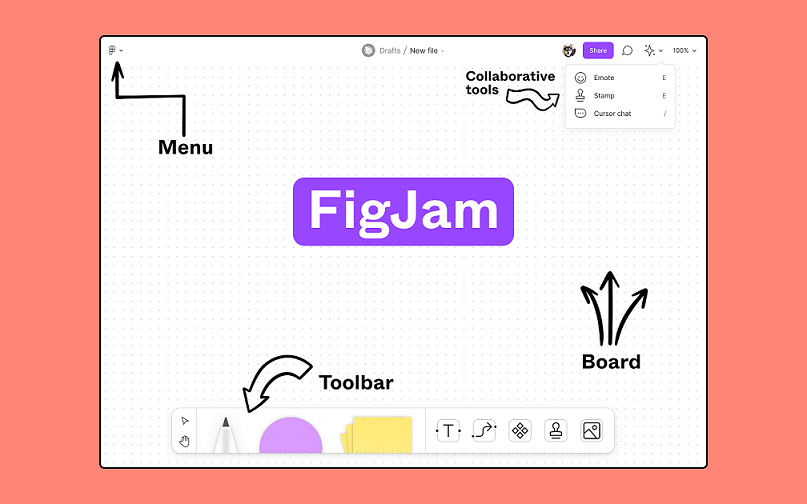
FigJam supports collaborative diagrams and classroom activities. It has free and paid plan options; verify current file limits, education eligibility, and guest access before using it for a class.
#5 Zoom
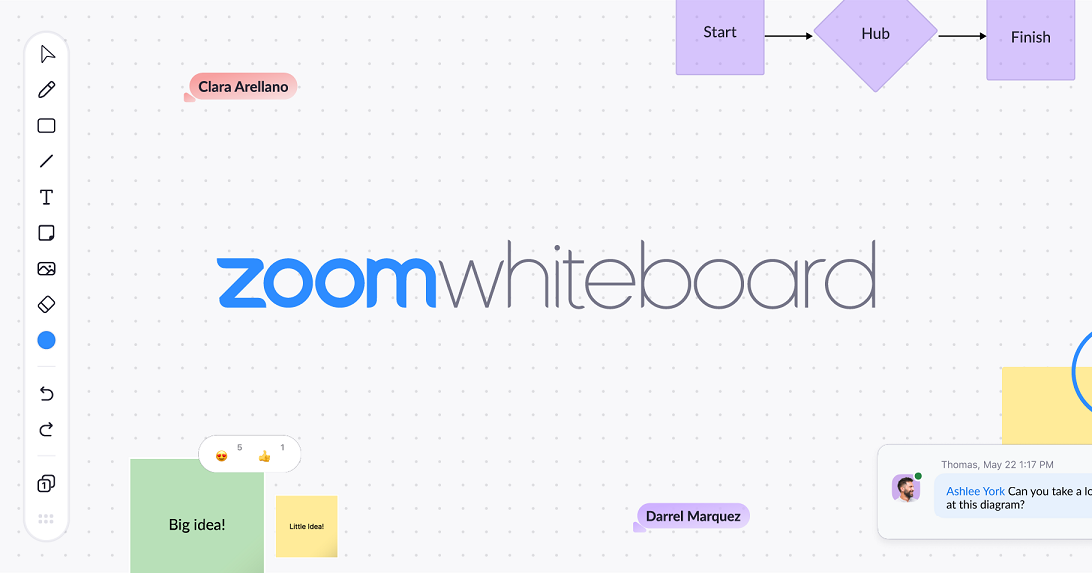
Zoom is a well-rounded whiteboard collaboration app. You can access it from laptops and desktops and on the go from your phone app. The free plan is there for an unlimited time. Thus, you can use it for as long as you need. It benefits team members for brainstorming and teachers and students for online classes.
#6 Limnu
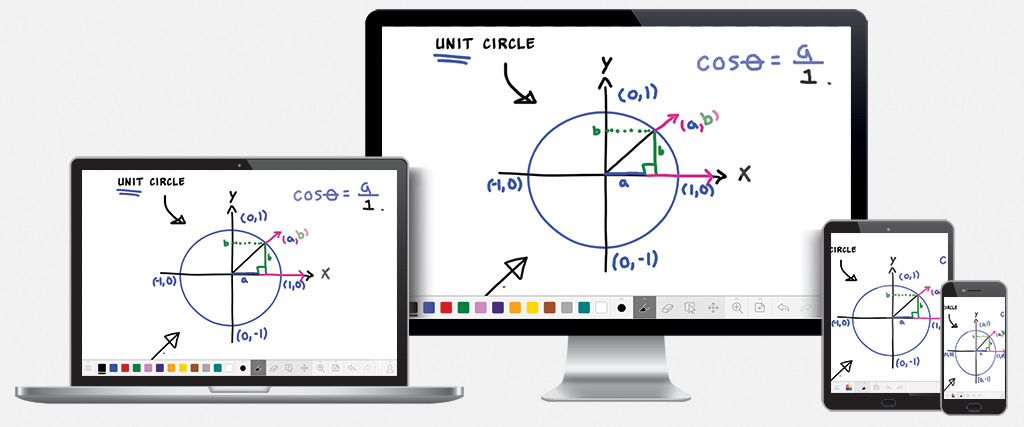
Limnu is a whiteboard option for drawing and collaboration. Check its current trial or subscription terms, classroom access, and available sharing features before selecting it.
#7 Kaltura
Kaltura is for teaching sessions, with more emphasis on visual presentation. It can power a wide array of video presentations, video calls, and other visual elements that makes e-learning fun and interactive.
#8 Google Jamboard — Legacy Reference
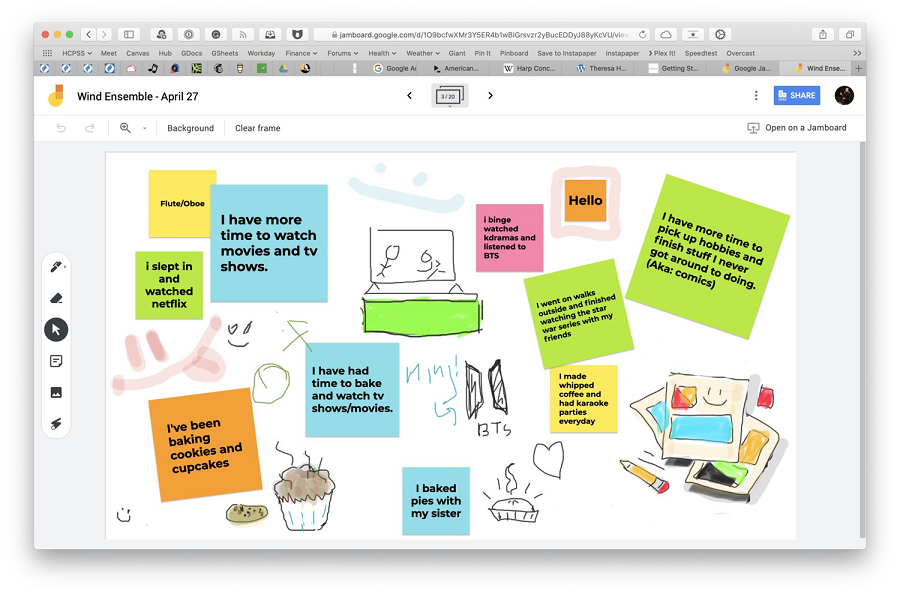
Google Jamboard is a legacy reference. Google ended the Jamboard application in December 2024, so it should not be selected for new lessons. The screenshot and feature notes below describe the former product. See Google’s Jamboard end-of-life notice.
#9 Groupboard
Groupboard is an advanced online whiteboard that makes collaborating more accessible and fun. Like many other whiteboards on this list, it has a free plan where you can use many of its features for free, and it improves the quality of your class. This can help you pass your desired message to your student in an easy way.

#10 AWW App — Legacy Reference
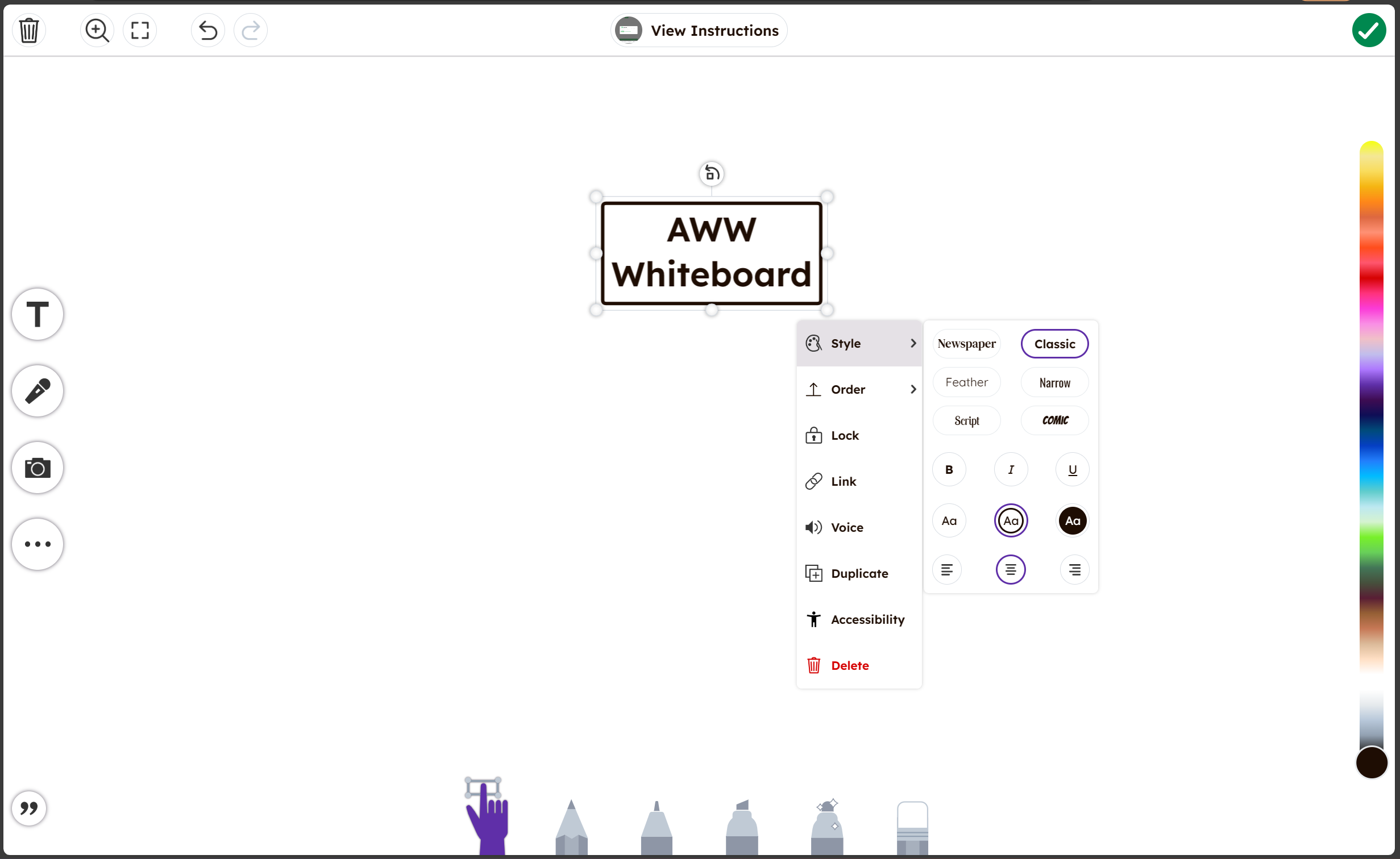
AWW App is a legacy reference. Miro’s migration notice states that AWW App is no longer supported after July 31, 2021. Do not plan new lessons around it. The screenshot and feature notes below describe the former app; see Miro’s AWW migration notice.
FAQs about Online Whiteboard for Teaching
What is online whiteboard for teaching?
Online whiteboard for teaching, as the name suggests, is a digital tool that brings the traditional classroom whiteboard experience to the online teaching environment. This innovative technology has become an integral part of remote learning, offering a collaborative platform where teachers and students can interact in real-time, just as they would in a physical classroom.
The online whiteboard is not just a blank space for writing or drawing. It's an interactive canvas enriched with various features designed to enhance the learning process. For instance, it allows teachers to upload documents, images, or videos directly onto the board. They can then annotate these materials during the lesson, highlighting key points or adding supplementary information.
Moreover, online whiteboards offer functionalities such as screen sharing and recording. These features allow teachers to share their screen with students for live demonstrations and record their lessons for future reference or for those who couldn't attend the live session.
But what truly sets online whiteboards apart is their ability to foster active participation from students. Unlike passive video lectures, lessons on online whiteboards encourage students to actively engage in the learning process. They can write, draw, ask questions or share ideas on the board in real-time, promoting interactive learning.
In conclusion, an online whiteboard is much more than a digital version of its physical counterpart. It's a dynamic teaching tool that brings interactivity and collaboration into the virtual classroom, making distance learning more effective and engaging.
What whiteboard app do teachers use?
There are several whiteboard apps that teachers frequently use for online teaching. Here are a few examples:
- Zoom Whiteboard: Zoom is not only a video conferencing tool but also has an in-built whiteboard feature. Teachers can share the whiteboard with students, draw, write, or import images during the lesson. It's especially useful as most people are already familiar with Zoom.
- Microsoft Whiteboard: This app is integrated with Microsoft Teams, making it a convenient choice for schools using Microsoft's suite of tools. It offers unlimited canvas, pre-made templates, and the ability to insert text boxes or images.
- Google Jamboard (legacy): The application has ended and is not an option for new Google Classroom lessons. Choose a currently supported whiteboard and test its access and export workflow with your school accounts.
- BoardMix: BoardMix is a versatile online whiteboard tool that supports real-time collaboration, sticky notes, templates, and even video embedding.
- Explain Everything: This app is more than just a whiteboard; it's an interactive screencasting tool. Teachers can record their lessons while illustrating concepts on the whiteboard.
- Ziteboard: This is a simple and intuitive online whiteboard tool that offers real-time collaboration and easy-to-use drawing tools.
Remember, the best app depends on your specific needs and the digital environment you're working in. Consider factors like ease of use, compatibility with your existing software, and what features will best support your teaching style and your students' learning needs.
How do you use a digital whiteboard in the classroom?
Using a digital whiteboard in the classroom can significantly enhance both teaching and learning experiences. Here's a step-by-step guide on how to use it effectively:
- Understand the Features: First and foremost, familiarize yourself with the features of the digital whiteboard app you're using. Whether it's Zoom Whiteboard, Microsoft Whiteboard, Google Jamboard, or any other tool, each has its unique features and functionalities. Some common ones include drawing tools, text boxes, shapes, sticky notes, image or file uploads, screen sharing, and recording.
- Prepare Your Lesson: Plan your lesson ahead of time and prepare any materials you want to use on the digital whiteboard. This could include images, diagrams, videos, or documents that you want to annotate during the lesson.
- Engage Students: Use the interactive features of the digital whiteboard to engage students in real-time. Encourage them to write, draw, or post sticky notes on the board during discussions or brainstorming sessions.
- Demonstrate Concepts: Use drawing tools to illustrate complex concepts visually. This can help students understand better than just verbal explanations.
- Share Your Screen: If you're working through a problem or demonstrating a process on your computer, use the screen sharing feature so students can follow along.
- Record Your Lessons: If your digital whiteboard tool has a recording feature, use it! This allows students who missed class or need to revisit certain concepts to watch the lesson at their own pace later.
- Save and Share: After your lesson is over, save your work on the digital whiteboard and share it with students for future reference.
Remember that like any technology tool, there's a learning curve involved with digital whiteboards. But with practice and exploration of different features and teaching techniques, they can become an invaluable part of your virtual classroom.
How do I tutor an online whiteboard?
Tutoring using an online whiteboard can be an effective way to provide personalized instruction in a virtual setting. Here are some steps to guide you:
- Choose the Right Whiteboard App: Select a whiteboard app that suits your needs best. Consider factors like ease of use, interactive features, compatibility with your device, and whether it allows for real-time collaboration.
- Familiarize Yourself with the Tool: Spend time learning the different features of your chosen app. Practice using the drawing tools, uploading files, screen sharing, and other functionalities until you feel comfortable.
- Prepare Your Lesson: Plan your tutoring session in advance. If you're going to use diagrams or images, prepare them beforehand and know how to upload them onto the whiteboard.
- Interactive Teaching: Use the whiteboard to make your tutoring sessions interactive. Ask your student to solve problems on the whiteboard or brainstorm ideas together for a project.
- Demonstrate Clearly: Use clear and bold strokes while writing or drawing on the whiteboard so that it's easy for your student to see. You can also use different colors to highlight important points.
- Use Screen Sharing: If you need to demonstrate something on your computer, use the screen sharing feature of your tool.
- Record Sessions: If possible, record your sessions so that your student can go back and review later if they need to.
- Provide Feedback: Most online whiteboards allow you to leave comments or annotations directly on the board. Use this feature to provide feedback on your student's work.
- Practice Online Etiquette: Make sure both you and your student are aware of online etiquette rules such as not drawing over each other's work without permission.
Remember that patience and flexibility are key when tutoring online. It might take some time for both you and your student to get used to using an online whiteboard, but once you do, it can greatly enhance your tutoring sessions.
Conclusion
Choose a supported whiteboard by testing it with a short lesson, student accounts, and the devices used in your class. Confirm sharing permissions, export options, and plan limits. Google Jamboard and AWW App are historical references here, not current recommendations. The Boardmix Free plan includes 3 editable boards and 100 objects per board. Check current pricing and plan limits for feature access, sharing permissions, and paid options.