


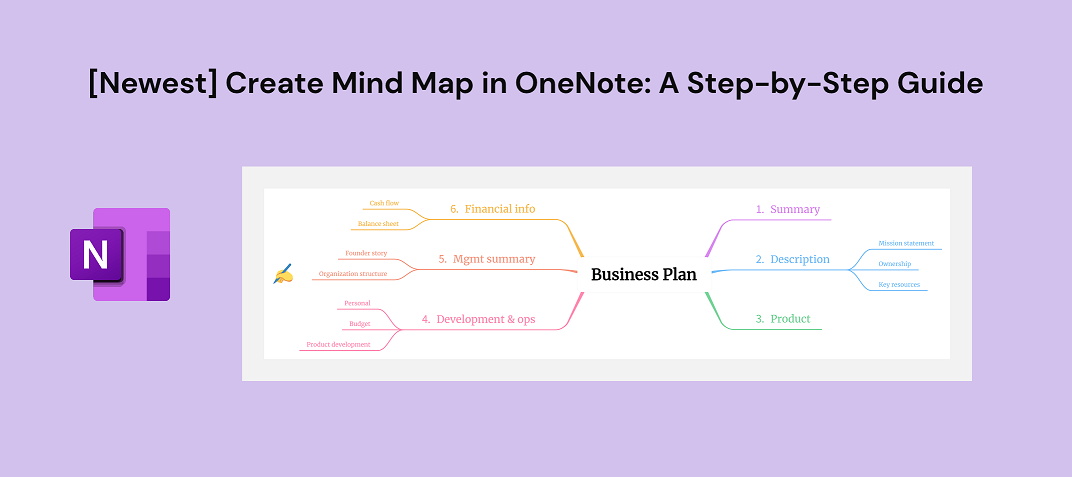
A mind map organizes notes around a central topic. Main branches identify themes, while smaller branches add examples, details, and questions. In OneNote, you can create this structure manually and keep it beside your other notes.
This guide uses text and drawing tools to build the map. The available controls differ between OneNote versions, so use the desktop drawing tools for the steps below and check the options in your own version.
Part 1. OneNote Mind Map: A Quick Overview
OneNote brings text, drawings, images, and other notes together in a notebook. That makes a manually drawn mind map useful when you want a visual overview beside a page of research or meeting notes.
For a manual mind map, place text on the page, draw shapes around the main ideas, and connect them with lines. You control the layout yourself; moving an idea may also require moving or redrawing its connections.
Part 2. How to Create a Mind Map with OneNote
Start with one central topic and branch into distinct themes. Add supporting details below each theme. Use position, color, or short labels consistently so the relationships are understandable.
Create a new page with enough space around the central topic. Use the drawing and text controls available in your OneNote version.
Step 1. Type the central topic on the page. In the Draw tab, use a shape such as a rectangle to frame it, or draw the outline with a pen. Leave space for the main branches.
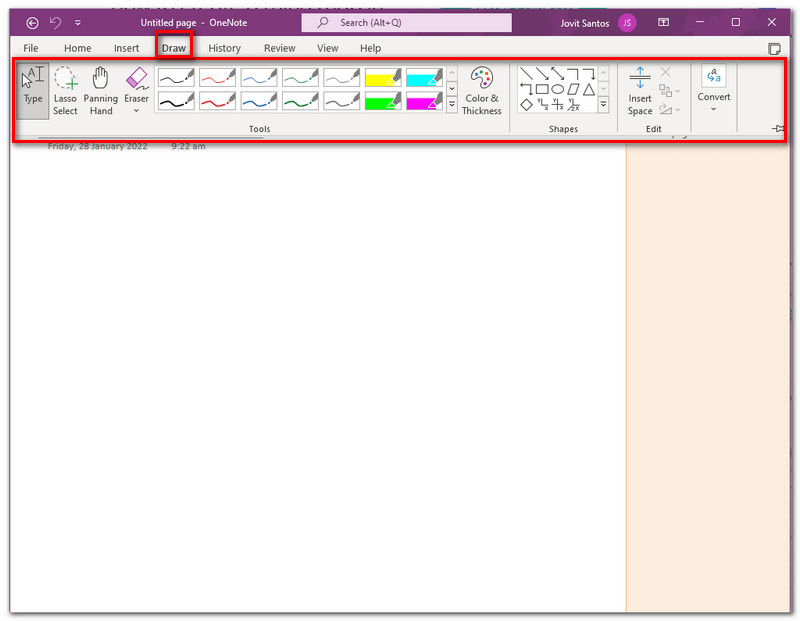
Step 2. Add the main themes around the center. Give each one a short label and connect it to the central topic with a line. Use a consistent style for ideas at the same level.
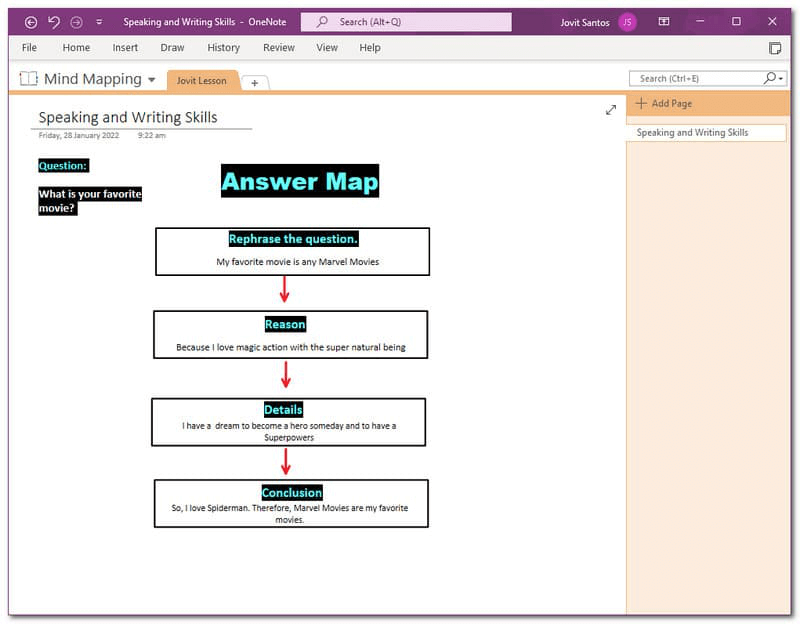
Step 3. Add details and examples to the relevant branches. Move text and lines when the layout becomes crowded. Review the connections after rearranging content.
If you frequently create mind maps, you might want to create a blank OneNote mind map template that you can copy and paste to fill in each time, saving effort when you create future mind maps.
Part 3. Use a Dedicated Mind-Mapping Workspace
Manual drawing works well for a small map that stays beside your notes. When the map grows, a dedicated mind-mapping tool can make it easier to rearrange branches and maintain the structure.
Boardmix provides a mind-mapping workspace on a shared canvas. Use it when you want to develop branches, change the layout, and invite other people to contribute to the same map.
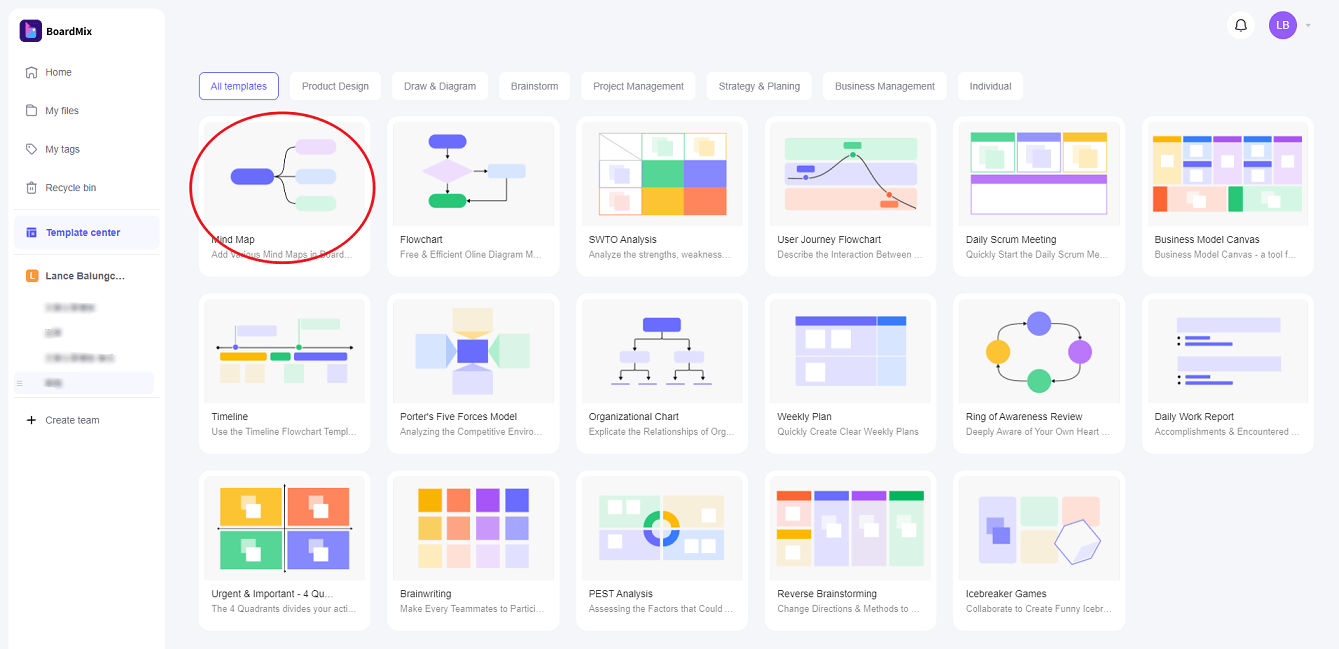
Step 1. You can start with the template, or just click on the mind map button. This allows you to add your central topic.
Step 2. Add a subtopic to the selected branch. Continue with another child topic or a sibling topic at the same level, using the controls or shortcuts shown in the workspace.
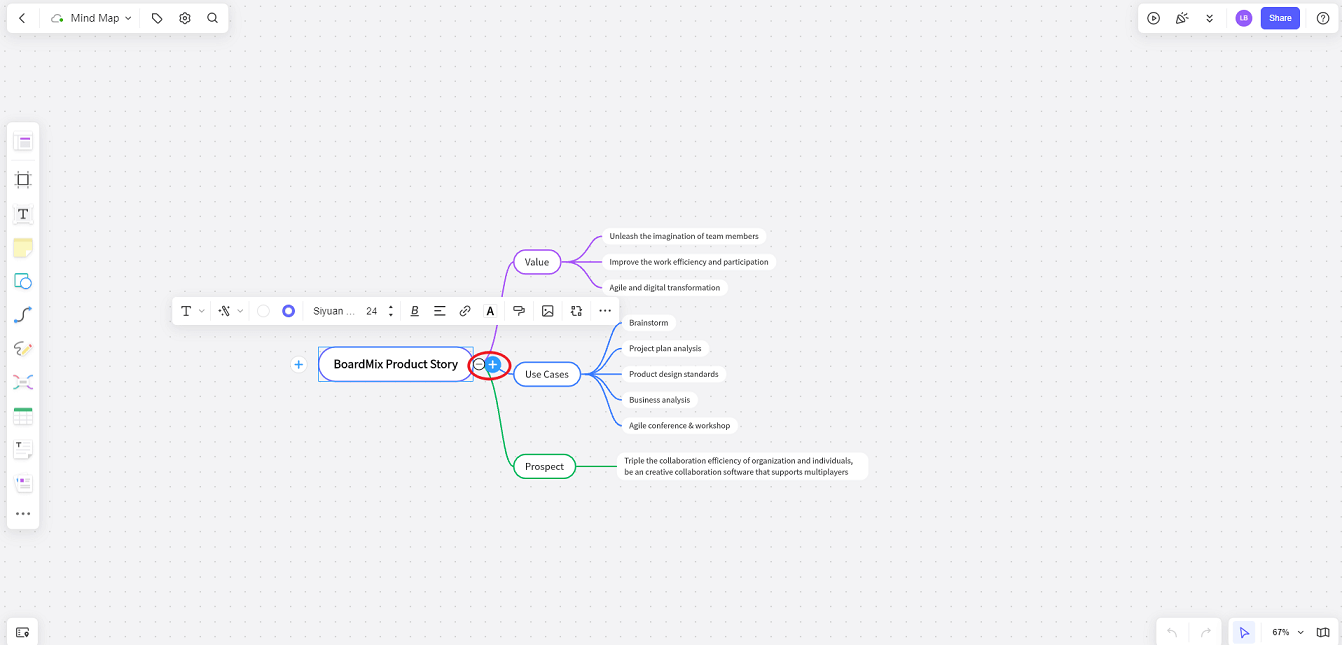
Step 3. Once your mind map has been created, you can organize it as you need. Boardmix has a simple drag-and-drop interface, making it easy to rearrange your mind map as new ideas and thoughts occur to you.
Boardmix lets you export your mind map in supported formats. To keep a visual copy with your OneNote notes, export an image and insert it on a OneNote page. The image preserves the appearance, while further branch editing stays in the original mind map.
Part 4. Some Mind Map Examples to Get Inspiration
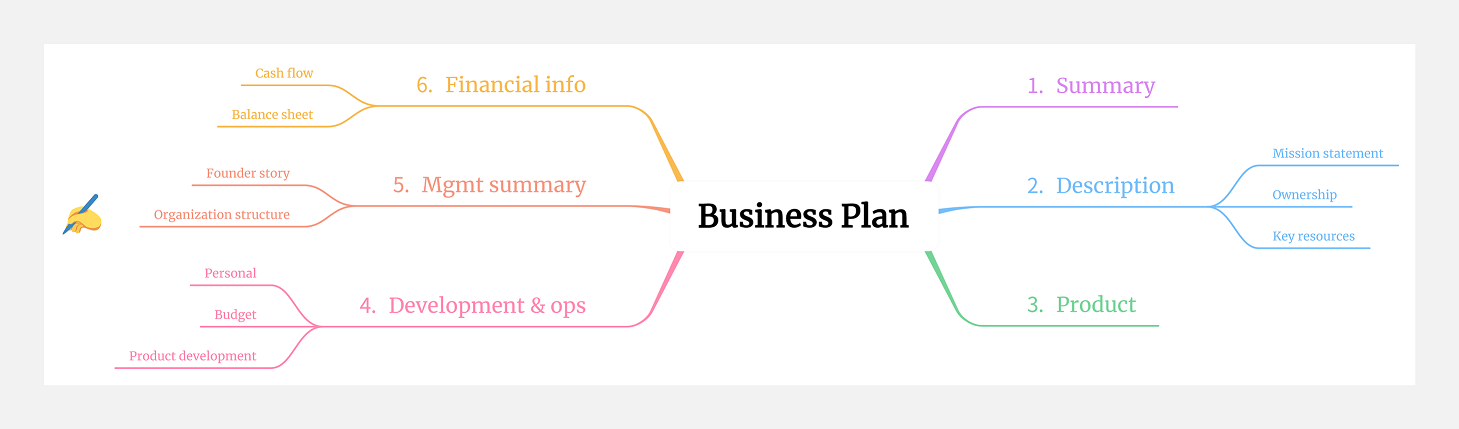
Use the examples below to choose a structure for your own task. A planning map groups work, while a brainstorming map can leave room for several possible directions.

1 The planning mind map
Mind maps are great for planning. Imagine you are moving offices; your central topic would be ‘Office move’. As you think about the move, you can add branches to help plan, like ‘removal company’ or ‘packing’, or have a branch that helps you cover practical issues like changing addresses or advising customers.
2 The brainstorming mind map
Sticking with the office theme, why not use a mind map to brainstorm the new office? The branches on this would look very different from your planning map, even taking flights of fancy, like a ‘fun’ branch that includes slides between floors, or ideas for recreation areas.
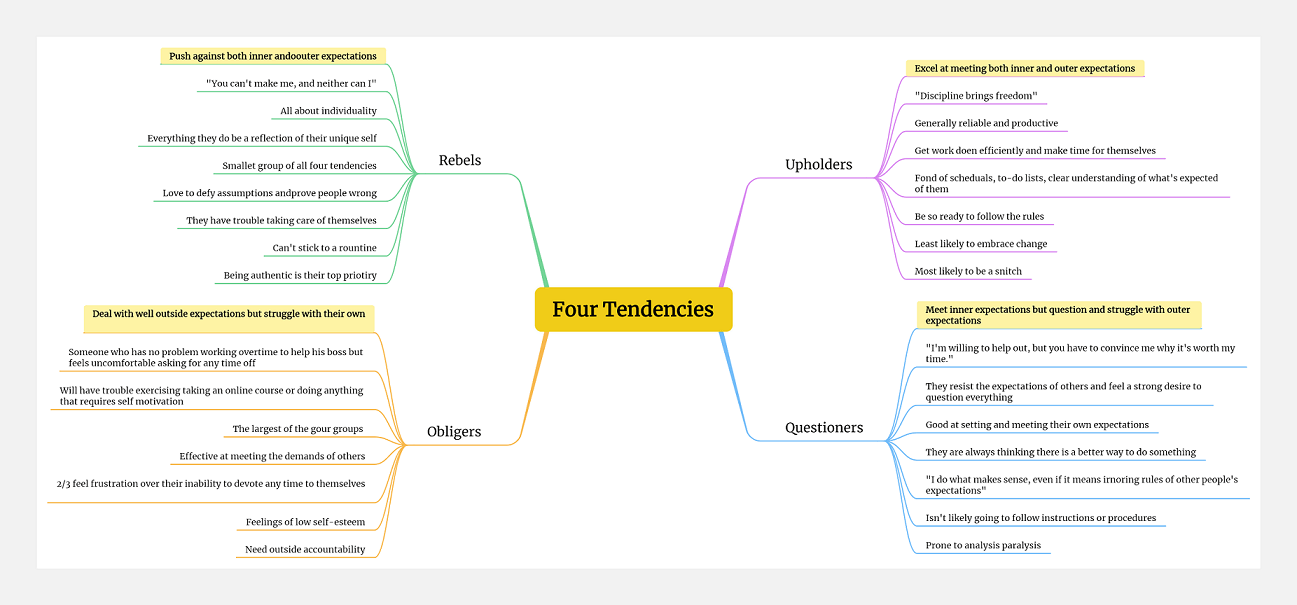
3 A Map with Short Branch Labels
Short labels make a map easier to scan. For example, a branch called “pizza” can lead to ingredients, recipes, and cooking methods. Add a longer note beside a branch when a single word would be ambiguous.
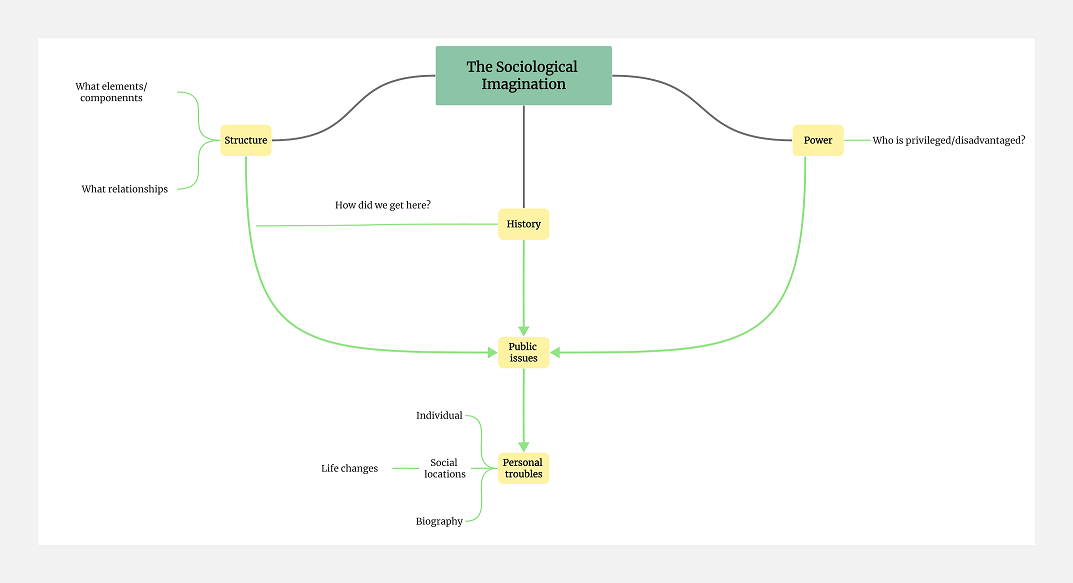
Conclusion
Use OneNote when you want a small, manually arranged map beside your notes. Use a dedicated mind-mapping workspace when branch editing and collaborative discussion are more important.
Choose a central question, keep related ideas together, and leave room for changes. The best layout is the one that helps you understand and use the information.
![[Full Guide] Strategic Planning Tools](https://cms.boardmix.com/images/articles/strategic-planning-tools.png)