


New teachers often need a repeatable way to prepare a lesson, guide group work, and review responses. Boardmix can provide a shared space for those materials. Start with a small activity and check which functions your account includes. Boardmix Free includes three editable boards, up to 100 objects per board, and 1 GB of storage. AI access and usage allowances vary by plan; see Boardmix pricing.
A Practical Starting Point for New Teachers
Choose one routine that currently creates extra work, such as collecting ideas at the start of a lesson. Use a board with instructions, a worked example, and a response area. Introduce the routine before adding more tools.
Test access with a student account and agree on editing rules. Keep an alternative available for students using limited devices or unreliable connections. A free plan can support a trial, but it does not remove every classroom or account constraint.
Prepare Materials With AI Assistance and Teacher Review
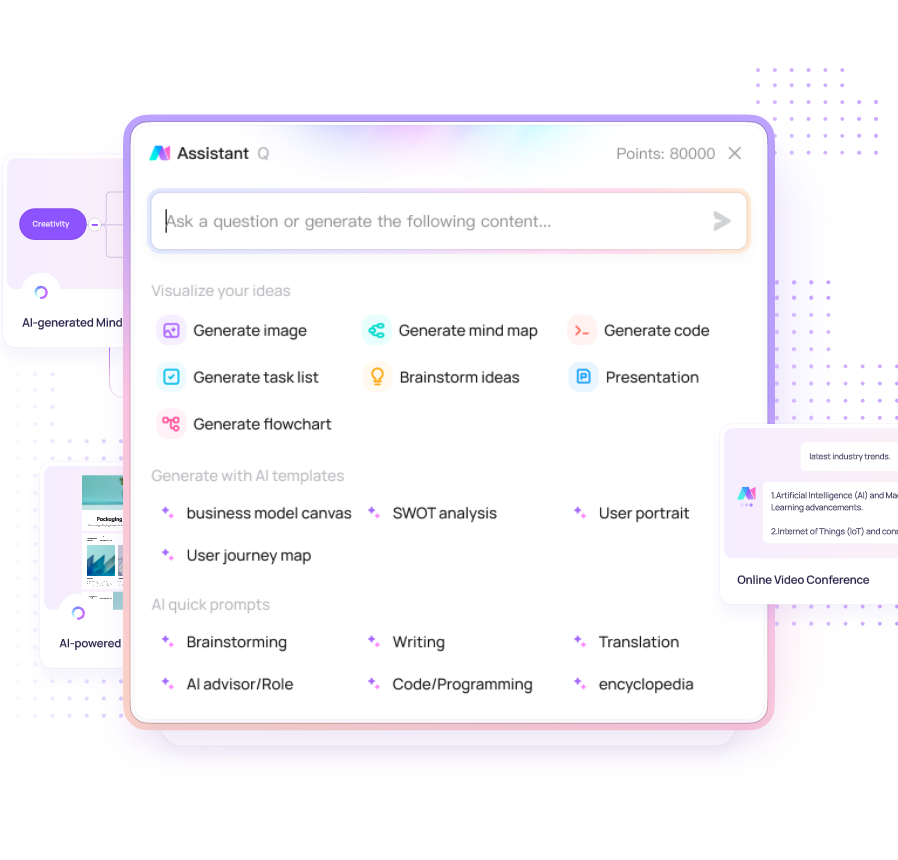
Where AI generation is available, give it a specific task: “Suggest three discussion questions about this topic for this age group.” Treat the output as draft material. Check facts, model answers, reading level, and alignment with the lesson objective.
For a history lesson, build a timeline from checked dates and sources. For science, review labels and explanations on every diagram. AI-generated text or images can contain errors even when they look plausible.
Keep a reusable preparation checklist: learning objective, materials, expected response, common misconception, and follow-up question. This makes it easier to review a draft than to accept an entire generated lesson without inspection.
Guide Real-Time Collaboration
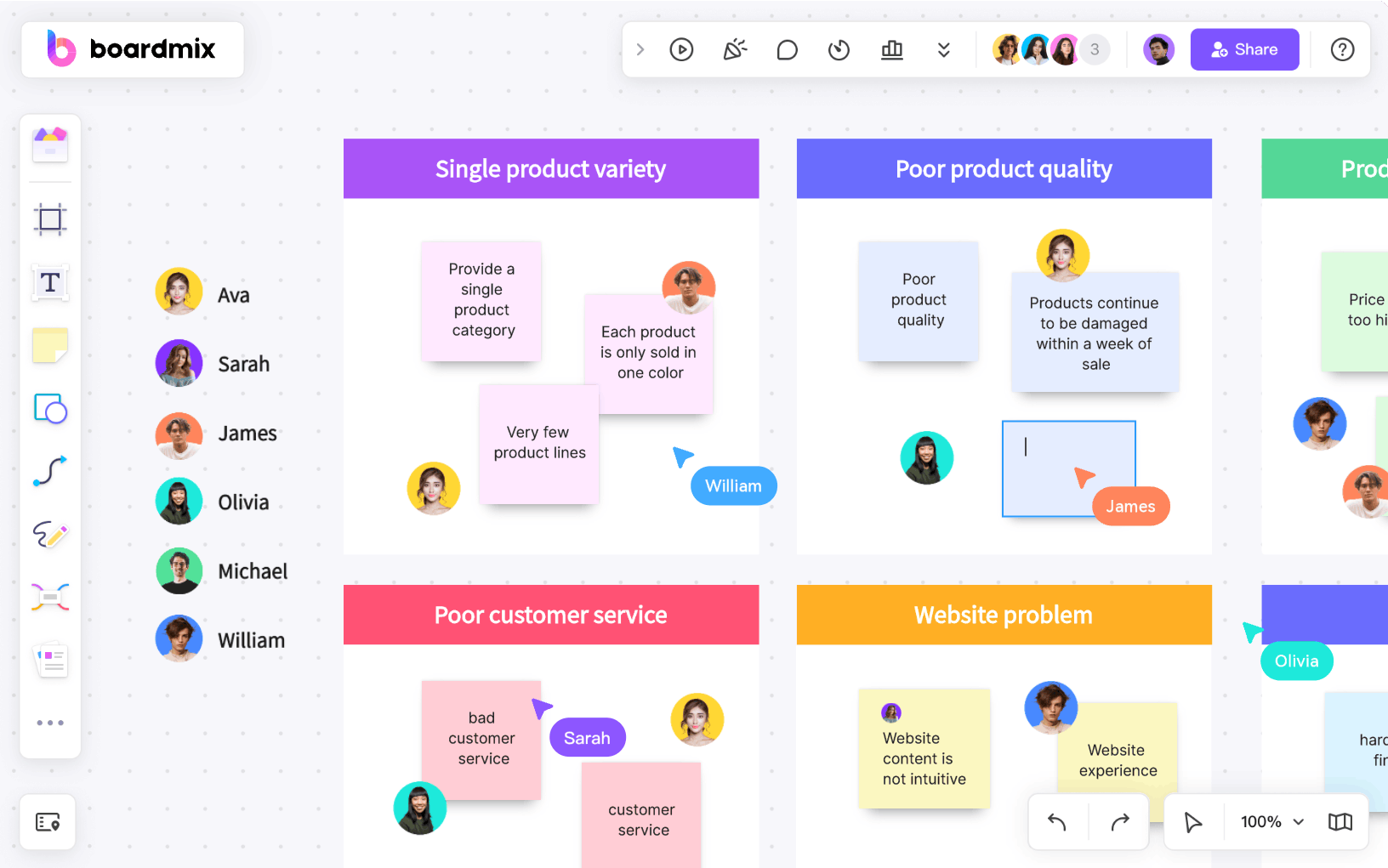
Create a clearly labeled area for each group and show how to add a note or comment. Ask students to contribute a reason or a source rather than only a keyword. Read the contributions and respond to the reasoning.
For example, in a literature activity, one group can identify an image in a poem while another explains a possible interpretation. Bring the groups together to compare how the text supports each reading.
Explain that shared areas remain visible to people with board access. Use the school’s approved private channel for individual grades or sensitive feedback. Visible cursors and activity are participation signals, not evidence of understanding.

Differentiate Tasks Through Teacher Decisions
Read a short starting response and choose the next task yourself. Prepare a support area with a worked example and an extension area with a more demanding application. Invite students to the appropriate activity based on their explanation.
In mathematics, a student who needs help with division can work through a model calculation; a student who understands the method can explain how it applies to a word problem. Ask both students to show their steps.
This is a teacher-managed workflow. It does not assume automatic student diagnosis, difficulty changes, predictive analytics, or long-term learning reports. Keep assessment records in the school’s approved system.
Prepare for Remote and Hybrid Lessons
Share the board link through the approved class platform and provide short written instructions. Test the board, source links, and permissions on the devices students will use.
Prepare a printable or downloadable alternative before class. Do not rely on unverified offline editing or assume that every interrupted session will synchronize successfully. Check that changes have saved and retain an appropriate copy of important material.
If you need breakout rooms, audio, or recording, use the relevant meeting platform’s features under school policy. Sharing a board link or screen is different from a native integration. Confirm recording consent and access arrangements before making a recording.
.png?width=591&name=image-removebg-preview%20(3).png)
A Checklist for Each Lesson
- Check the learning objective and model answer.
- Review generated material and remove unsupported claims.
- Test student access and board permissions.
- Provide an alternative way to participate.
- Review student explanations and choose a follow-up activity.
- Save the class summary according to school policy.
Use the same simple routine for several lessons before adding more features. Ask students which instructions were unclear and adjust the board layout accordingly.
Build a Reusable Teaching Routine
Combine preparation, group work, and reflection in one board structure. For example, keep a worked example at the top, group response areas in the middle, and an exit question at the end.
After each lesson, make a clean copy of the structure and update the content. Record practical observations such as setup time, access problems, and misconceptions. These observations are more useful for improving the next lesson than assuming the tool automatically improves learning.
Start Small and Evaluate the Result
A shared whiteboard can help you organize teaching materials and discuss student work. Begin with one activity that benefits from visual collaboration. Keep teacher review, clear instructions, and reliable access at the center of the workflow.
Before using the board with a full class, confirm the current plan and school requirements. Choose additional features only when they support a specific teaching need.
Start a small activity in Boardmix and review the experience with a colleague before introducing it to a full class.