


In a world where businesses thrive on efficient communication and dynamic tools, finding effective ways to share information is key. A leading platform, Miro, has revolutionised this space. However, knowing how to maximize its utility is essential. Our comprehensive guide explores how to copy a Miro board, a simple process that can significantly enhance your organization's productivity. Coupled with the Start, Stop, Continue feedback tool, this could change your organizational culture. Read on to master these skills.
Understanding Miro Board
A Miro Board is a shared workspace where you can visually conceptualize and collaborate on ideas. It offers a dynamic canvas that can hold text, images, shapes, sticky notes, and even other media. The tools provided help facilitate interactive sessions, real-time idea exchange, and connected project management.

How to Copy and Paste a Miro Board
1. Go to the dashboard and select the board you want to duplicate.
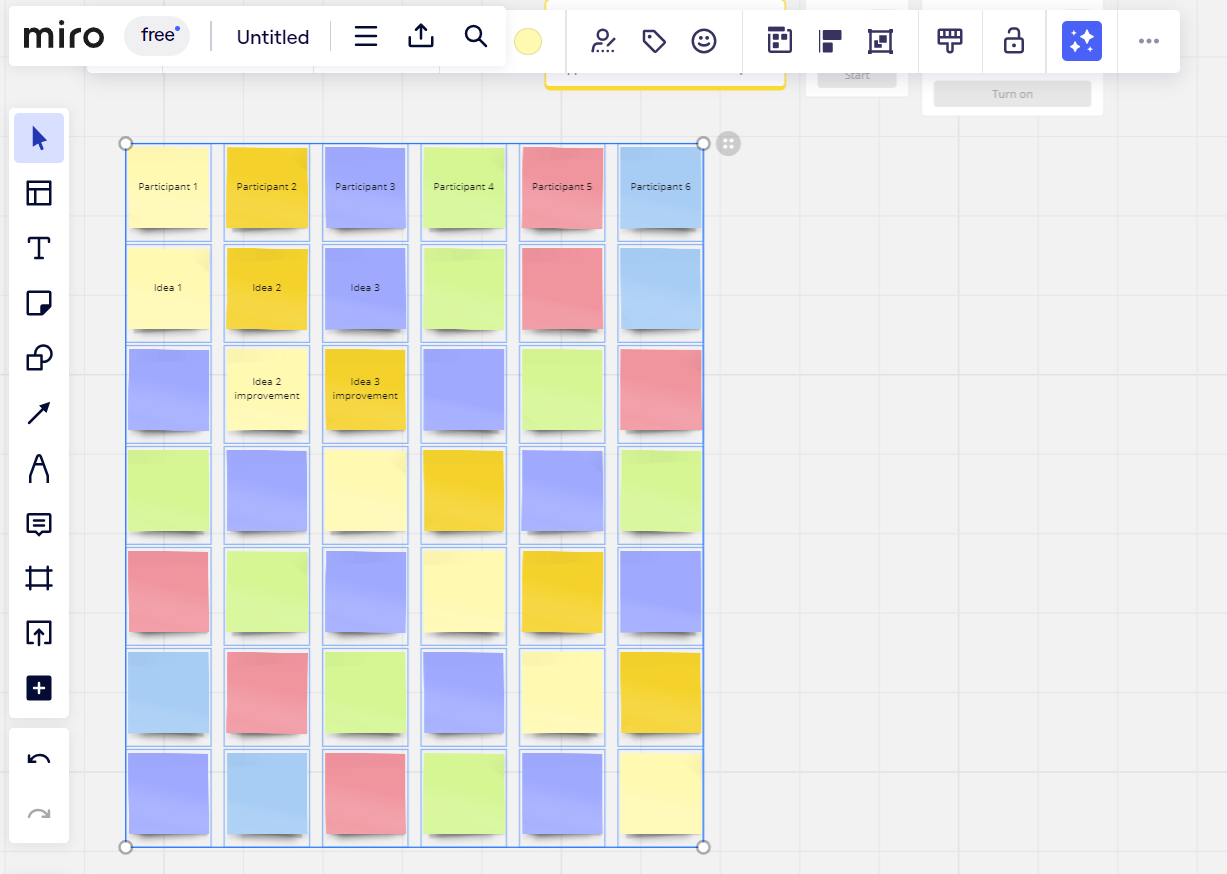
2. Click on the three-dot menu located at the top-right corner of the board thumbnail.
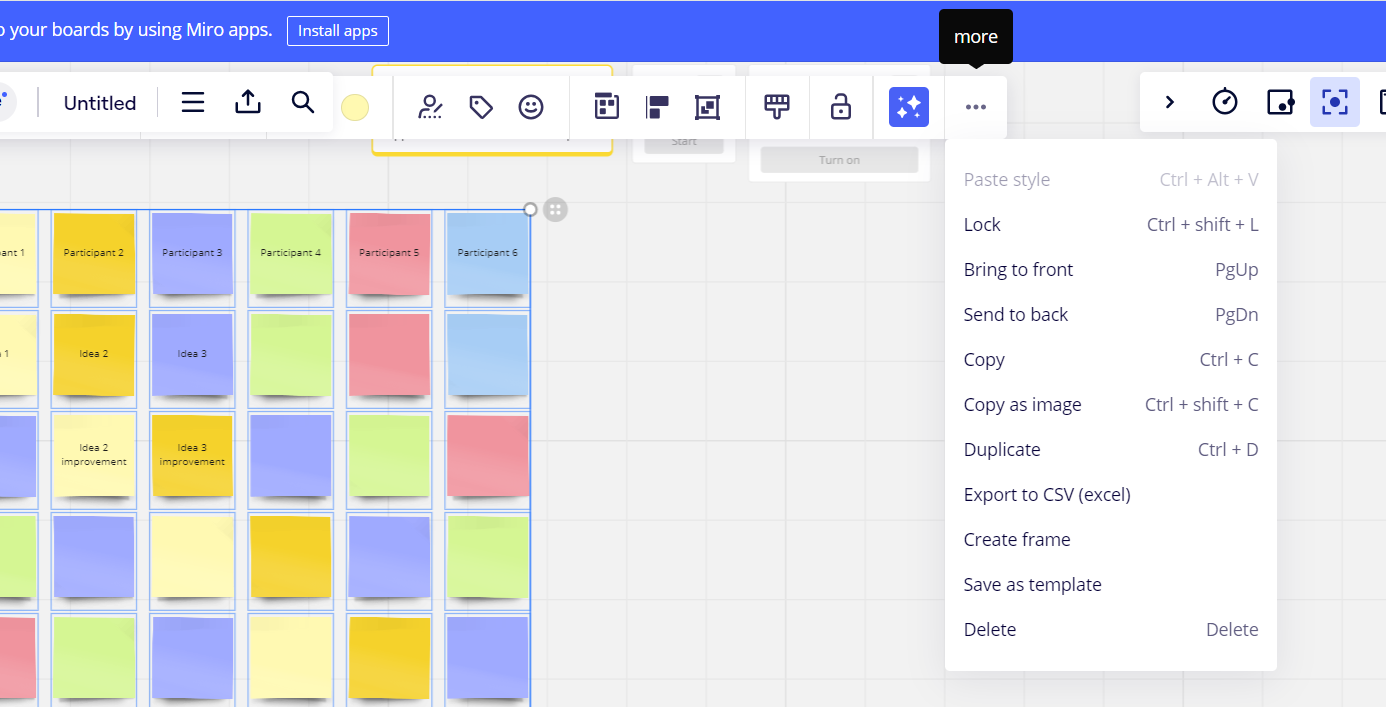
3. Select 'Duplicate', and a copy of your board will be created within the same team.
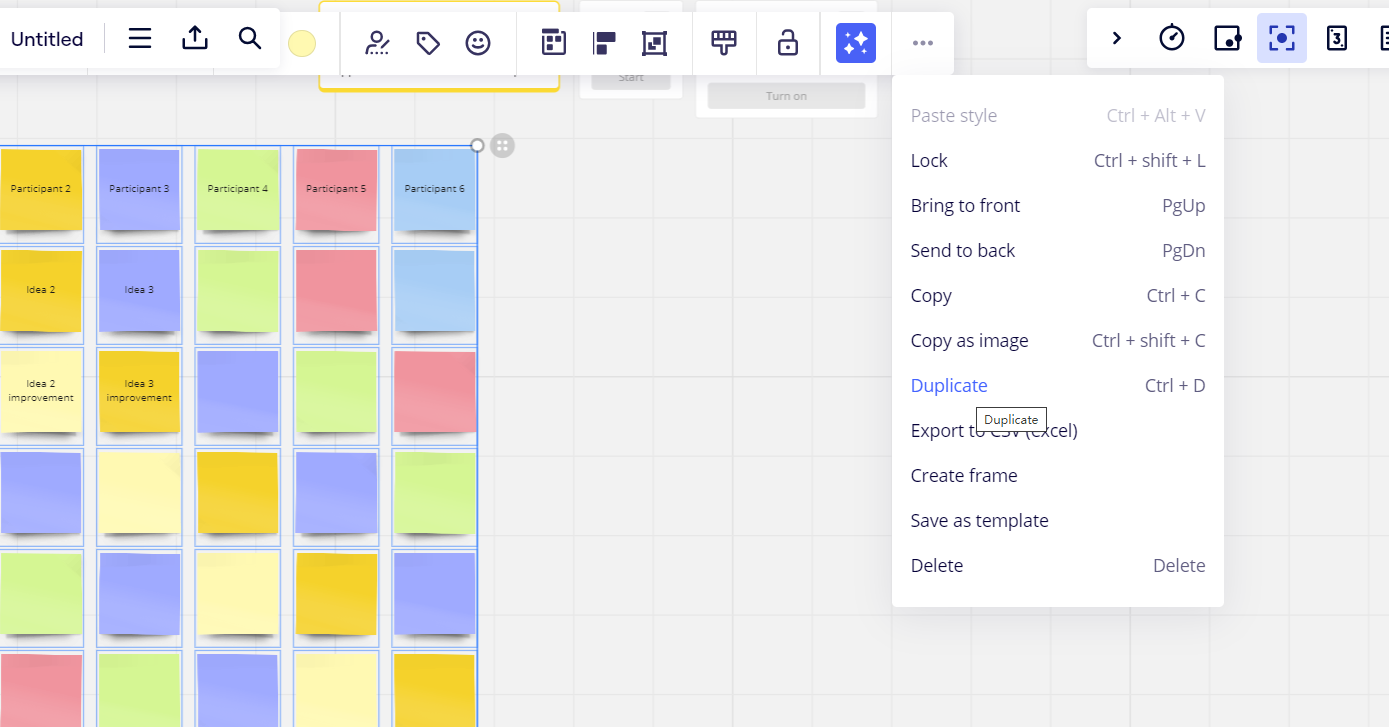
Remember, all the content and settings of a board will be copied, including frames, but without the comments.
How to Copy a Miro Board to Another Account
To share a template of a board with a different Miro account:
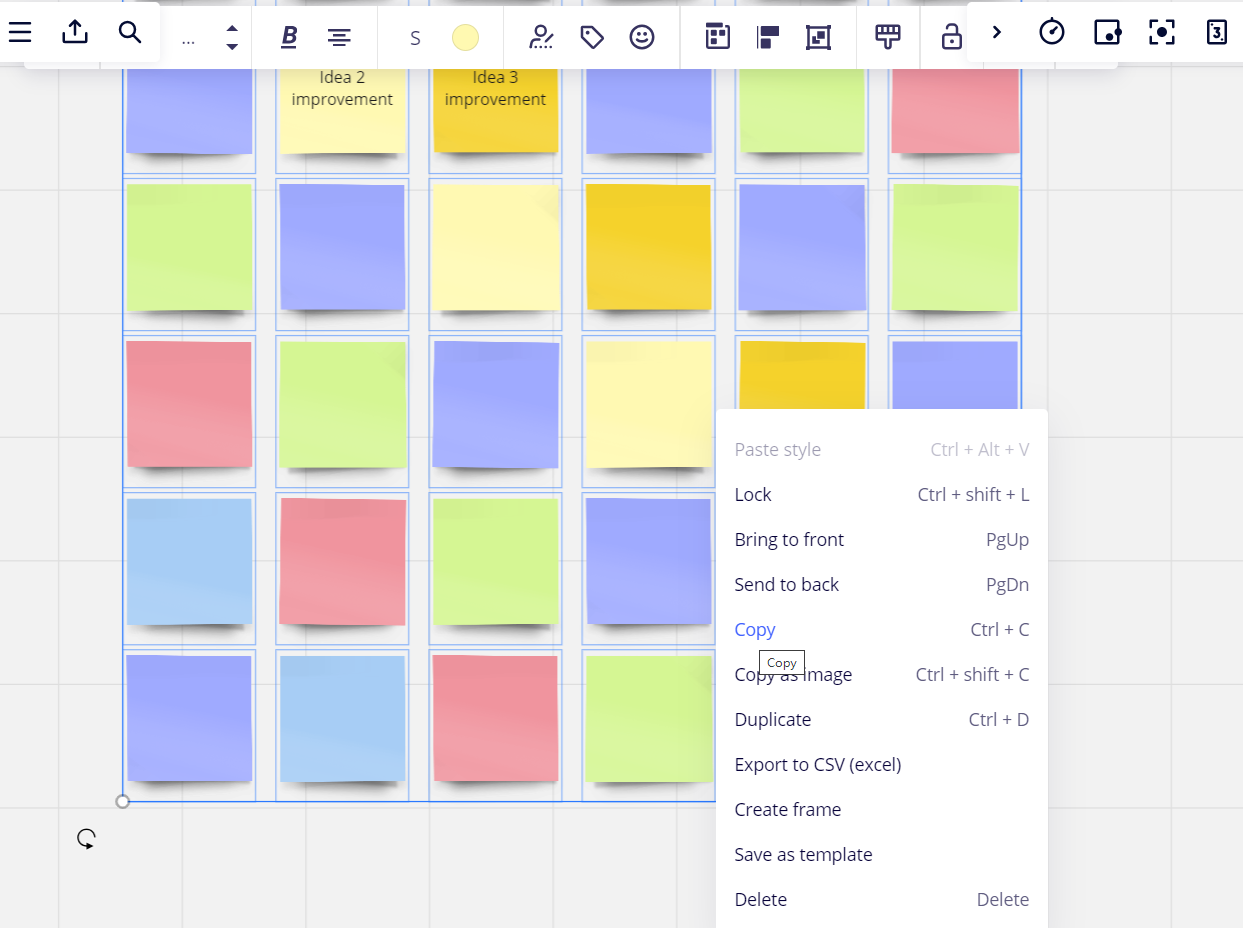
1. Copy the miro board you want to import to another account.
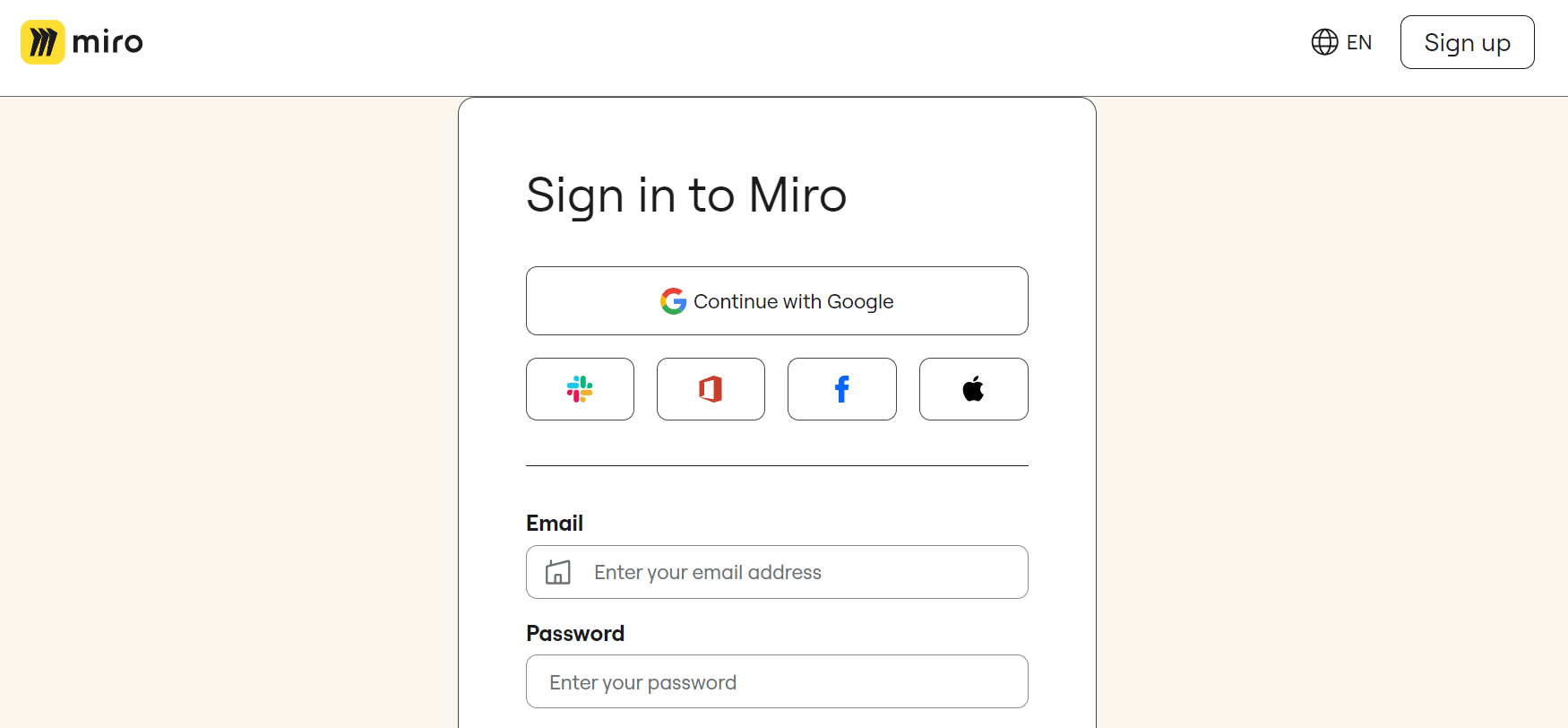
2. Sign in to your alternate account.
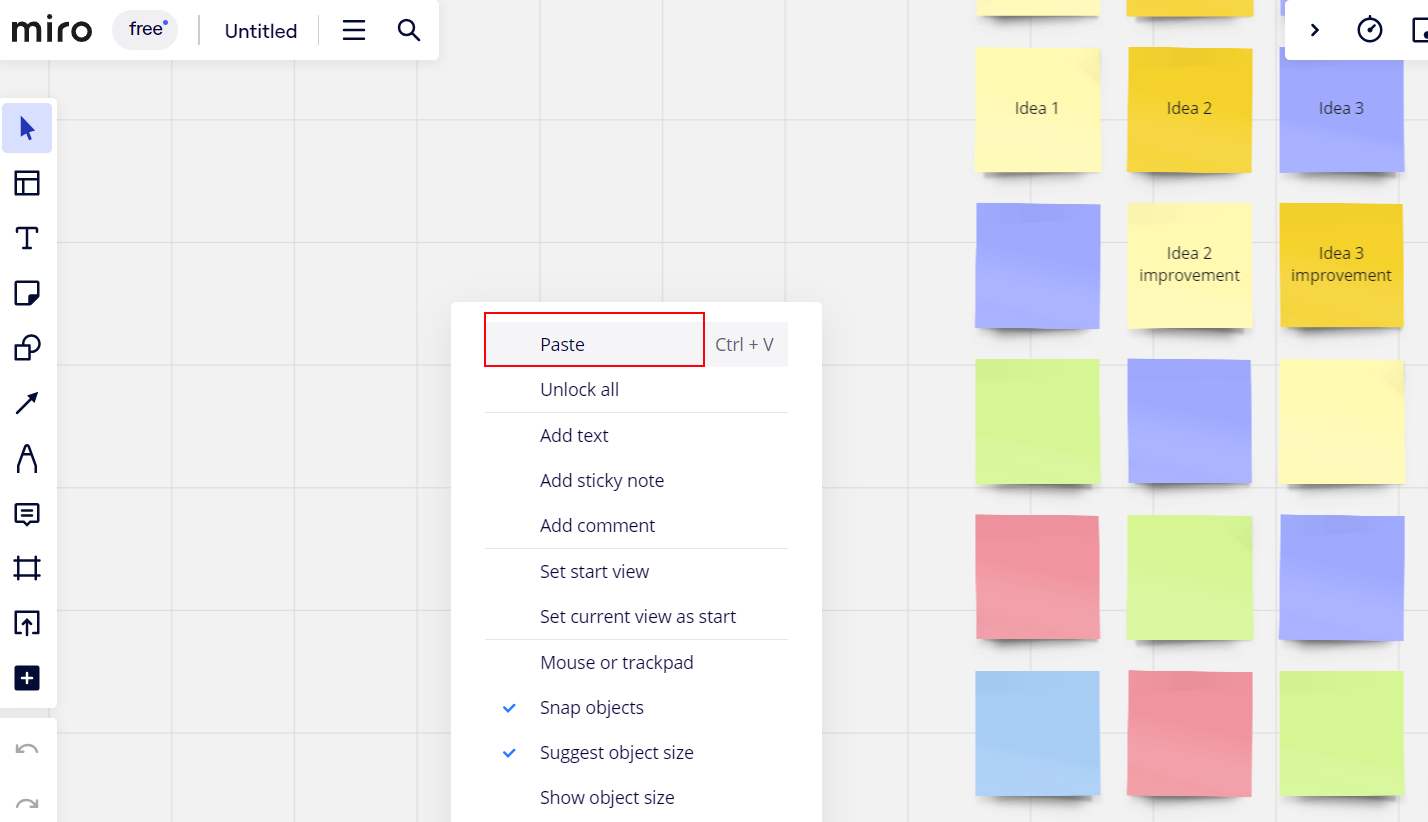
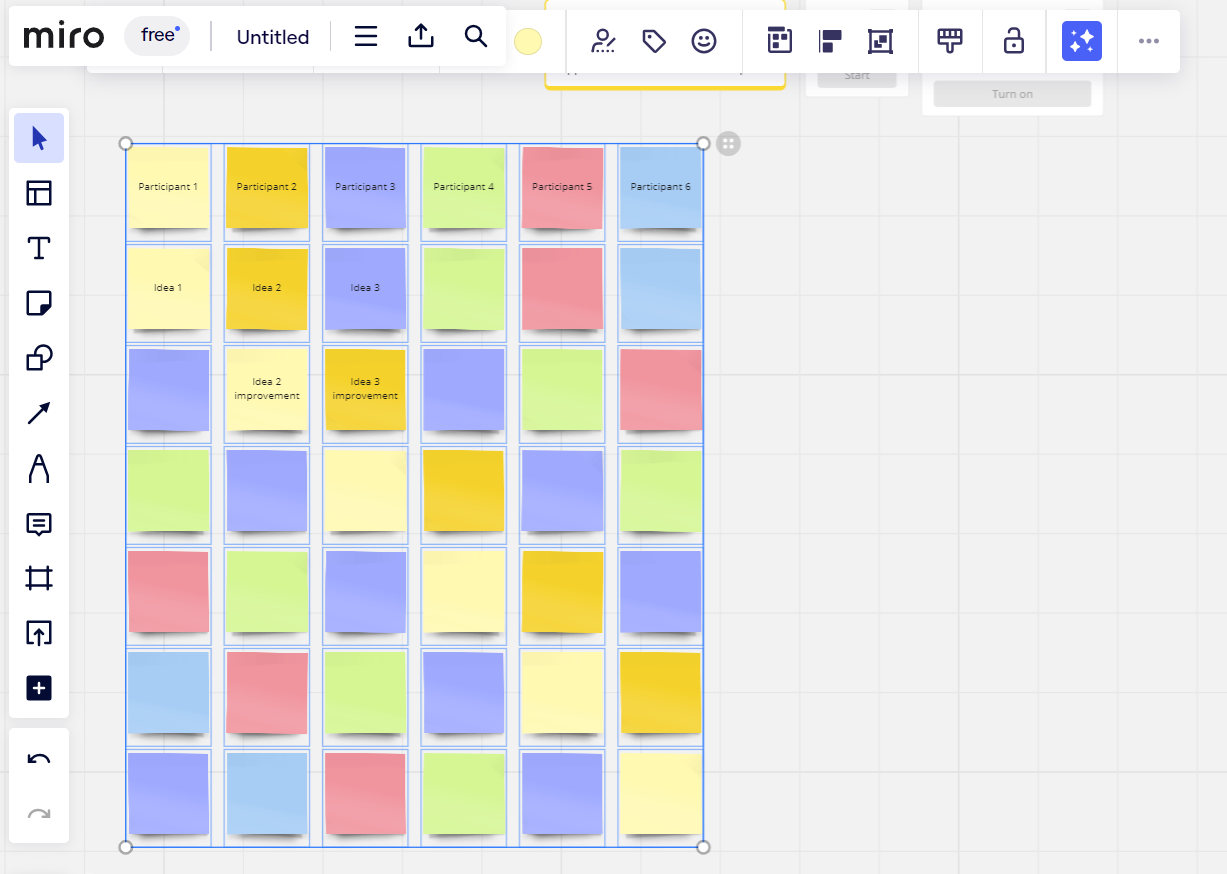
3. Create a new board on your new account, and click on 'Paste' to copy the previous board to the current team.
How to Copy from One Miro Board to Another Miro Board
You can manually copy specific content from one board and paste it into another:
1. Open the source board.
2. Select the elements you wish to copy.
3. Right-click on the selected area and choose 'Copy'.
4. Open the target board, right-click on the whiteboard area and select 'Paste'.
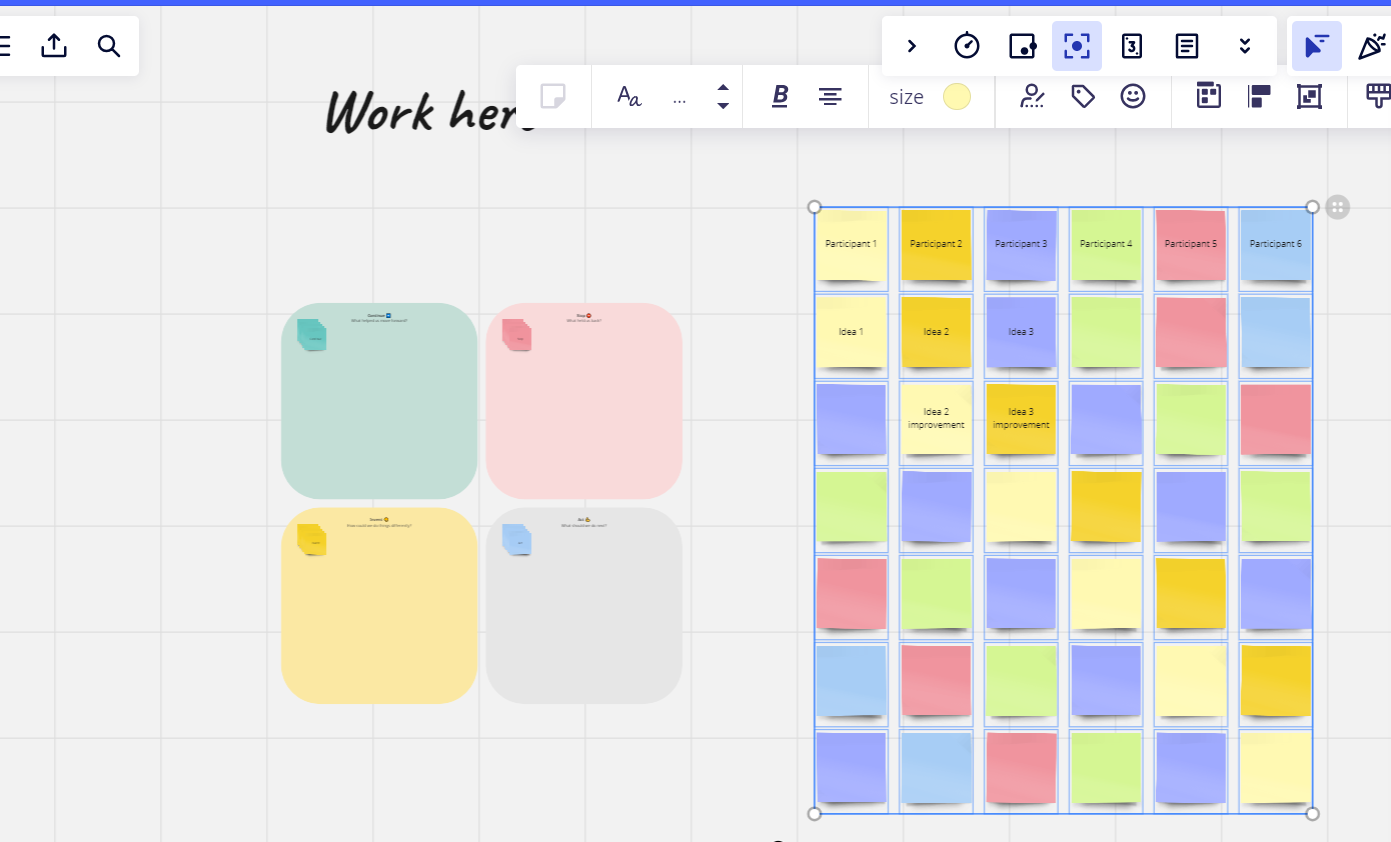
Boardmix - The Perfect Choice Over Miro
While Miro offers unique functionality in creating and duplicating boards, Boardmix steps it up a notch. Boardmix is an equally versatile yet simpler platform designed for collaborative efforts and boosting team productivity. Boardmix provides a more intuitive interface and more straightforward processes compared to Miro.
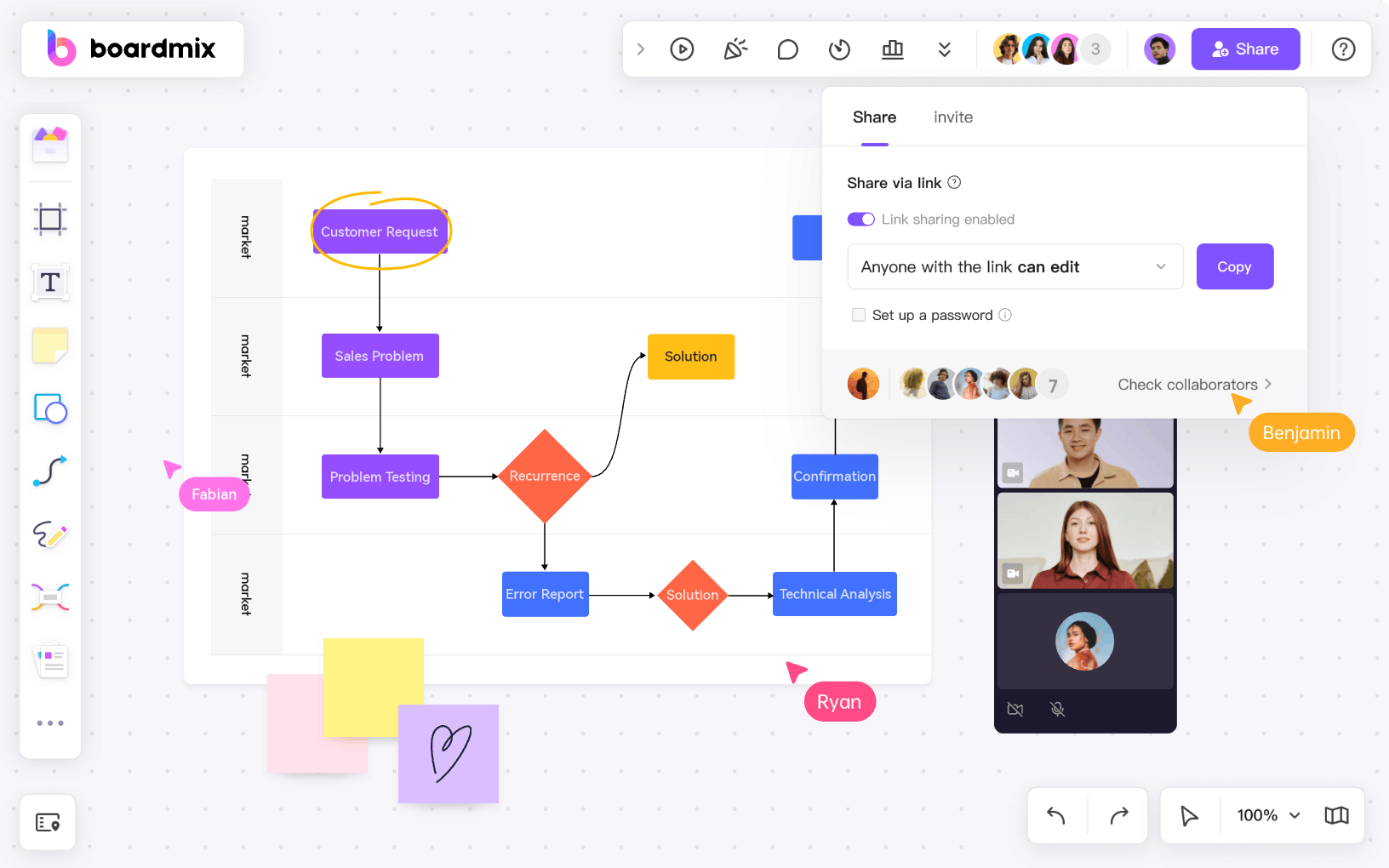
Boardmix, unlike Miro, doesn't necessitate several complicated procedures to copy boards. It not only emphasizes ease and practicality, but it also exhibits a powerful ability to centralize team efforts, streamline collaborations, and foster innovation.
Excellent for both remote and on-site teams, Boardmix represents a more holistic alternative to Miro. It achieves more than just replicating boards, giving users a more enjoyable and productive collaborative experience. Explore Boardmix today and take your team's productivity to new heights!