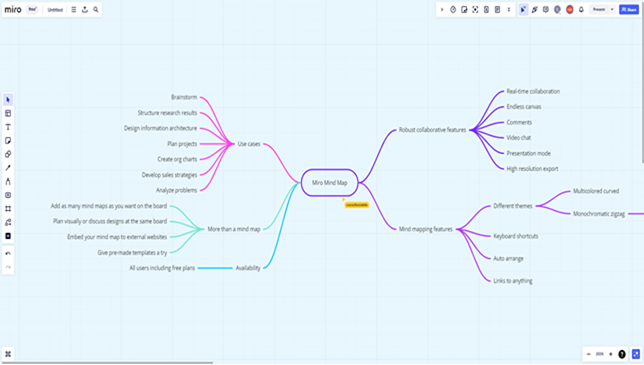



Tables and mind maps organize different kinds of information. Xmind provides Matrix and Tree Table structures for arranging topics, while Notes hold supporting text. If you want tables beside a collaboratively edited map, Boardmix combines a shared canvas with AI-assisted mind mapping.
This guide explains how to add supporting data in Xmind and how to create a table in a Boardmix mind map without assuming a live connection to the source spreadsheet.
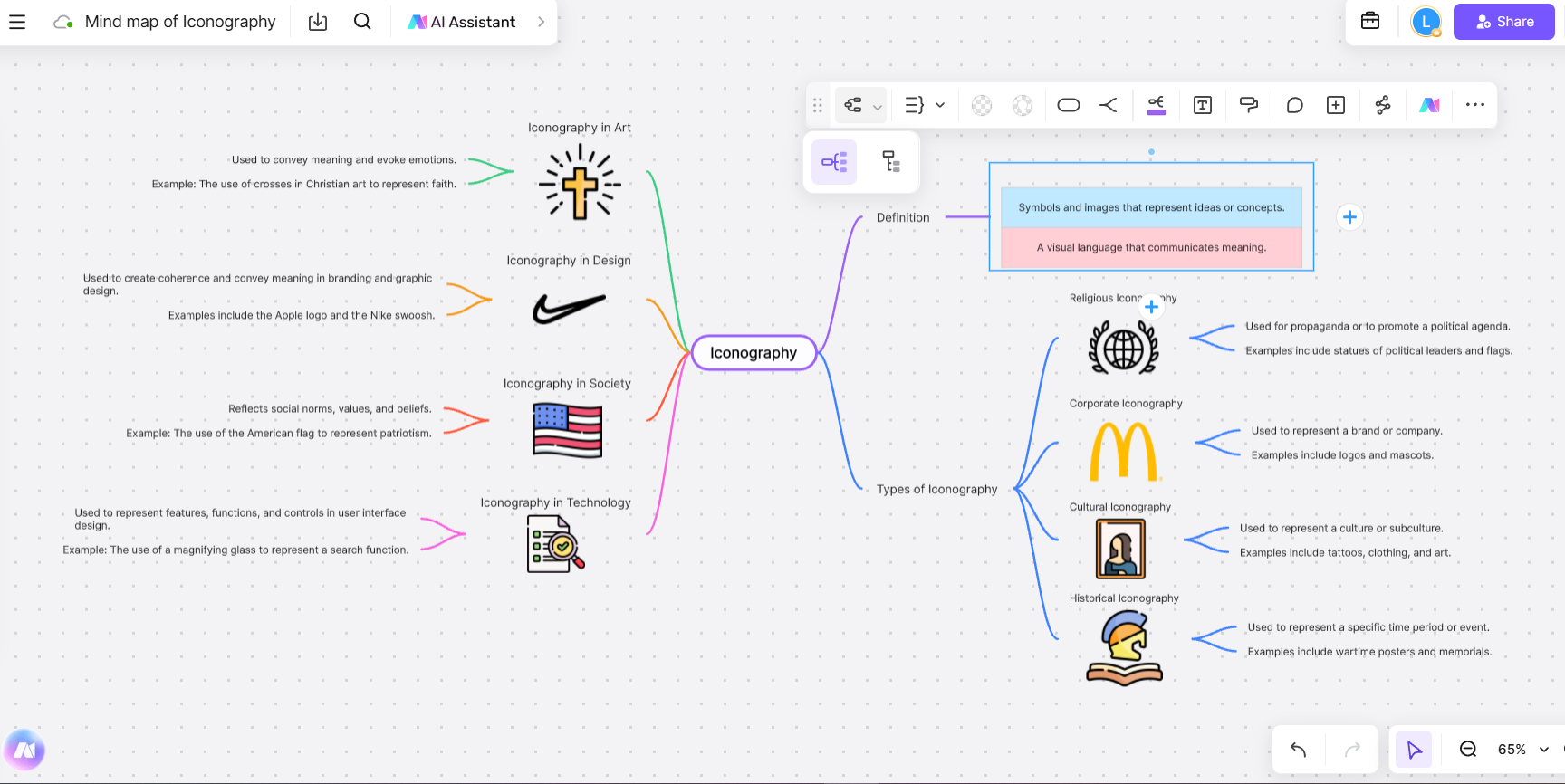

Can I Insert a Table into Xmind?
Xmind’s Matrix and Tree Table structures arrange topics in a tabular layout. Notes provide supporting text for a topic. The Notes example below uses typed labels and values; it is not an editable spreadsheet with cells, formulas, or automatic source synchronization.
Add Supporting Data to an Xmind Topic
- Open Xmind and Select a Topic
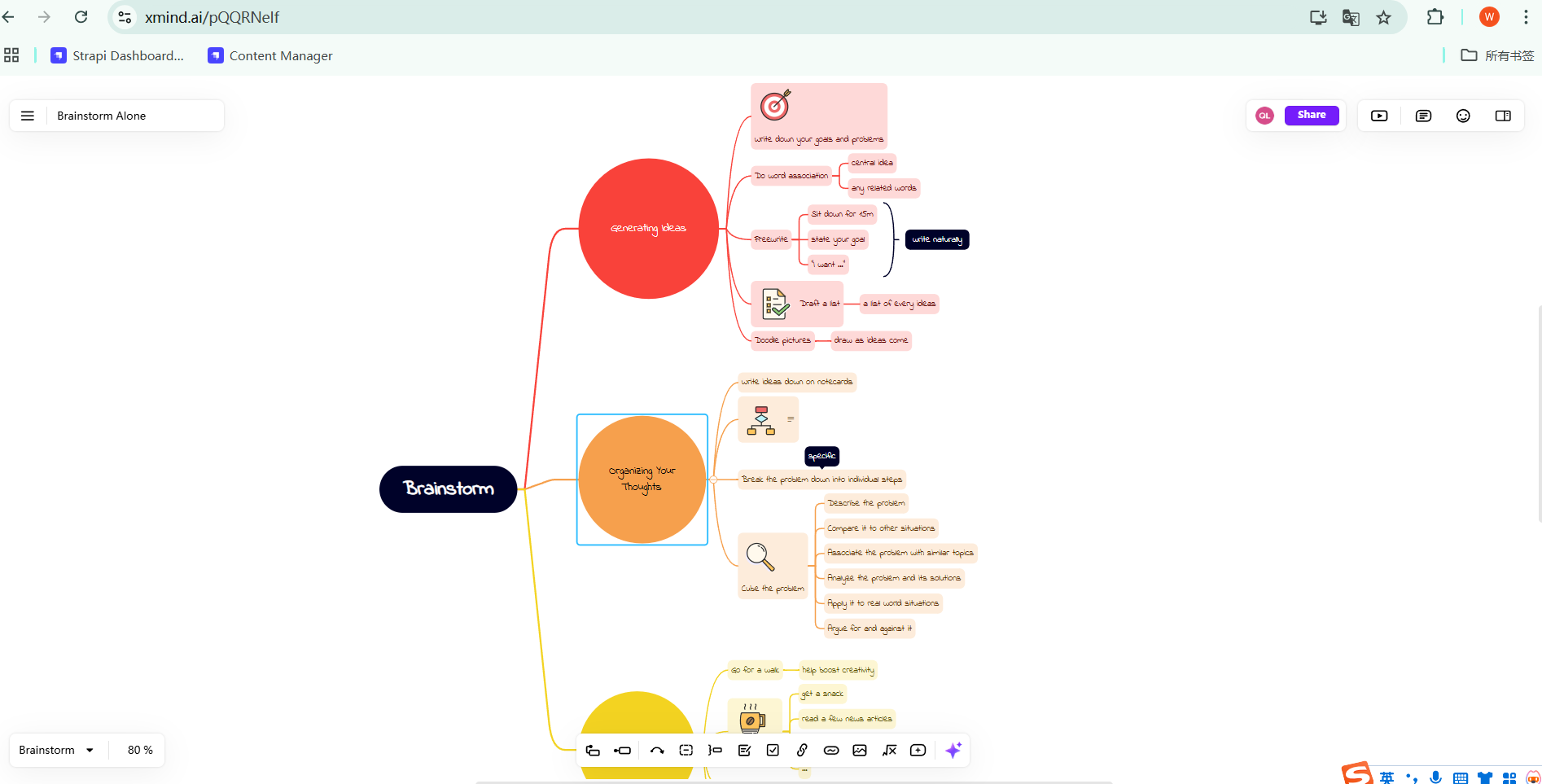
Open the mind map and select the topic that needs supporting data.
- Add Labels and Values to a Note
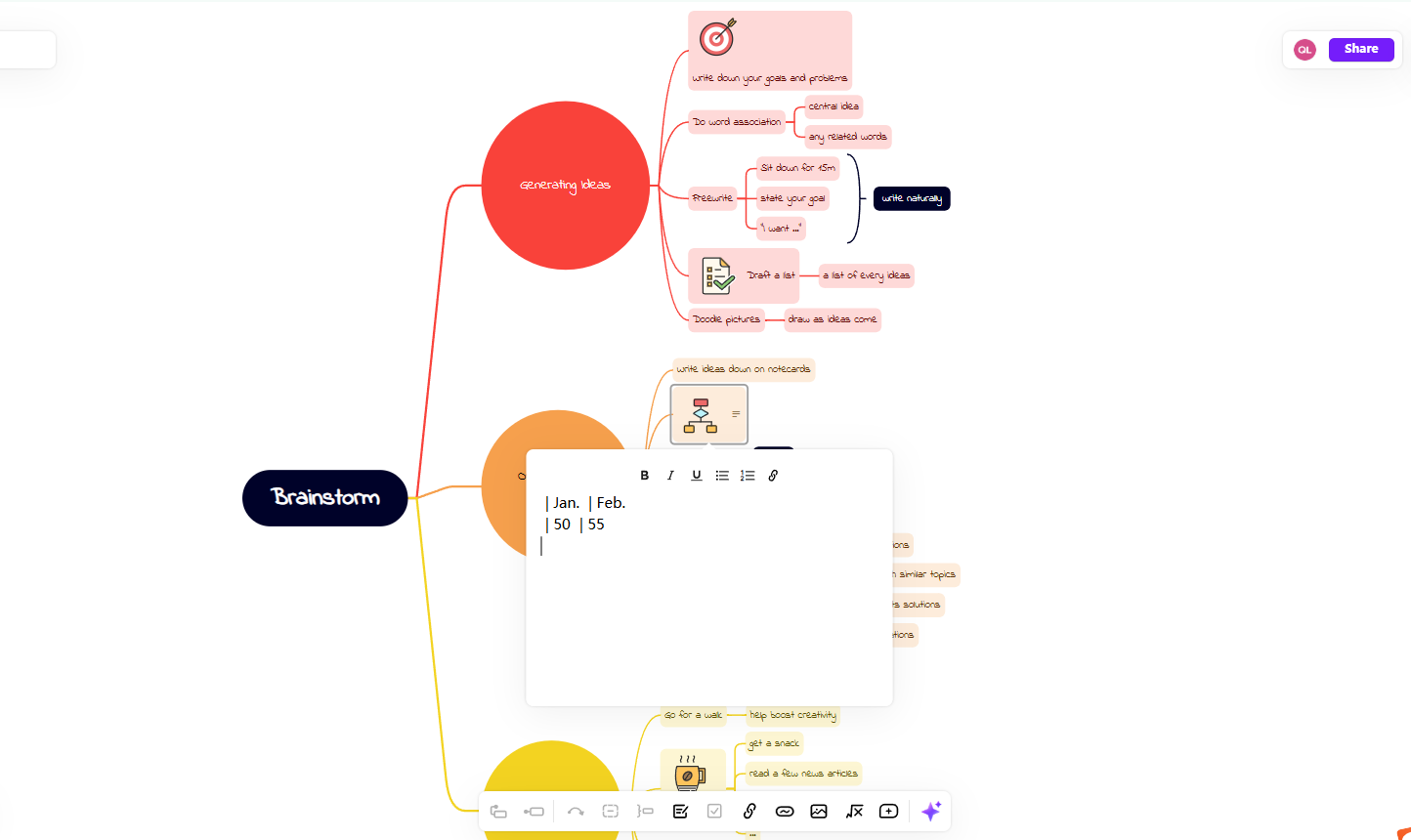
Click on the selected node and access the "Notes" section in the toolbar.
Type or paste the relevant labels and values into the note. Use clear line breaks; keep formulas and the full dataset in the source spreadsheet.
- Keep the Map Readable
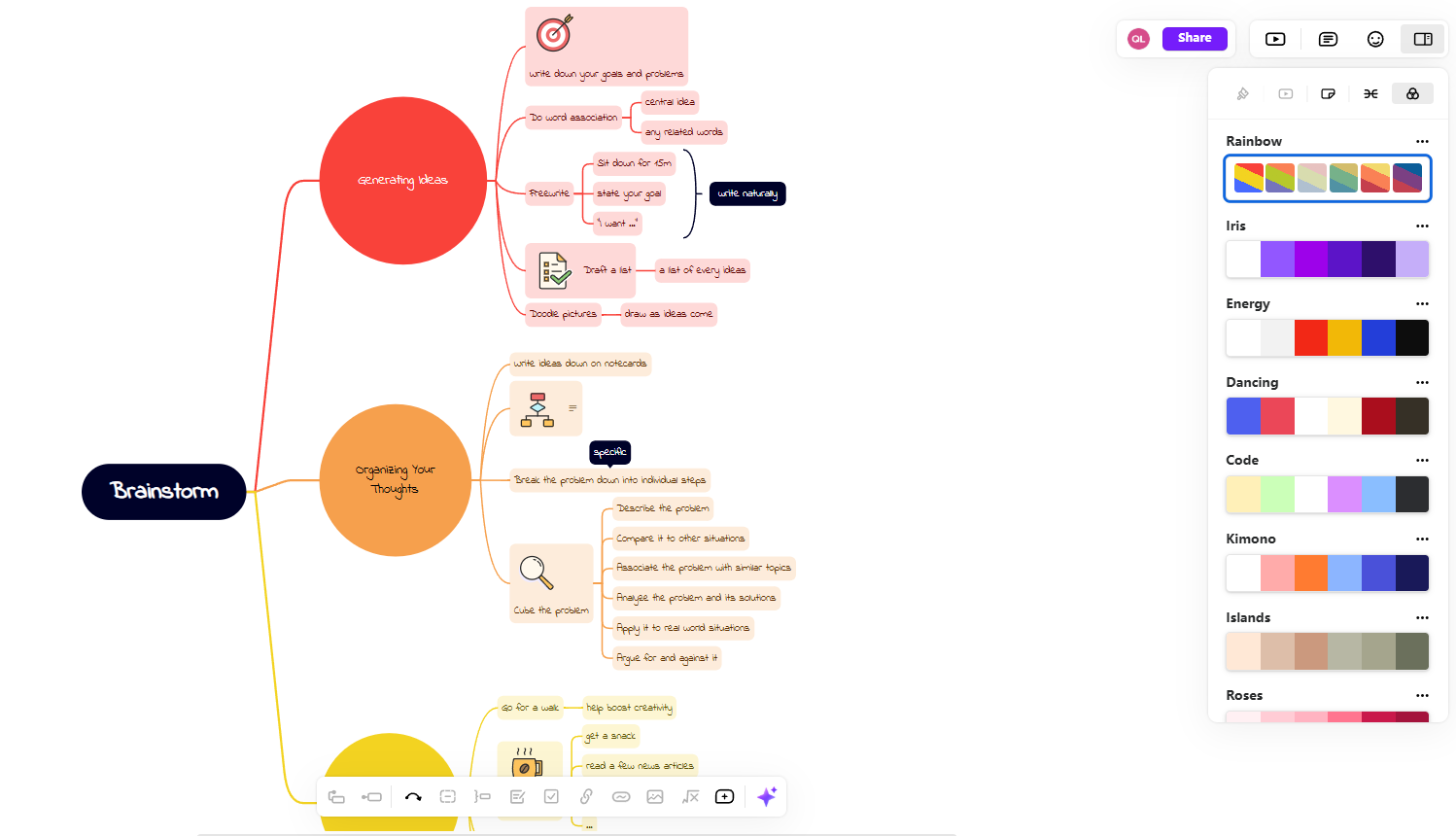
Use topic formatting and a readable map theme to distinguish sections. For a visible row-and-column map, choose a Matrix or Tree Table structure instead of trying to format note text as spreadsheet cells.
- Link or Update Data
Link to the source spreadsheet when readers need the full dataset, and update any copied values when that source changes.
The note keeps a small amount of supporting data close to the topic; the linked spreadsheet remains the place to manage calculations and larger datasets.
Explore Mind Mapping Alternative to Xmind
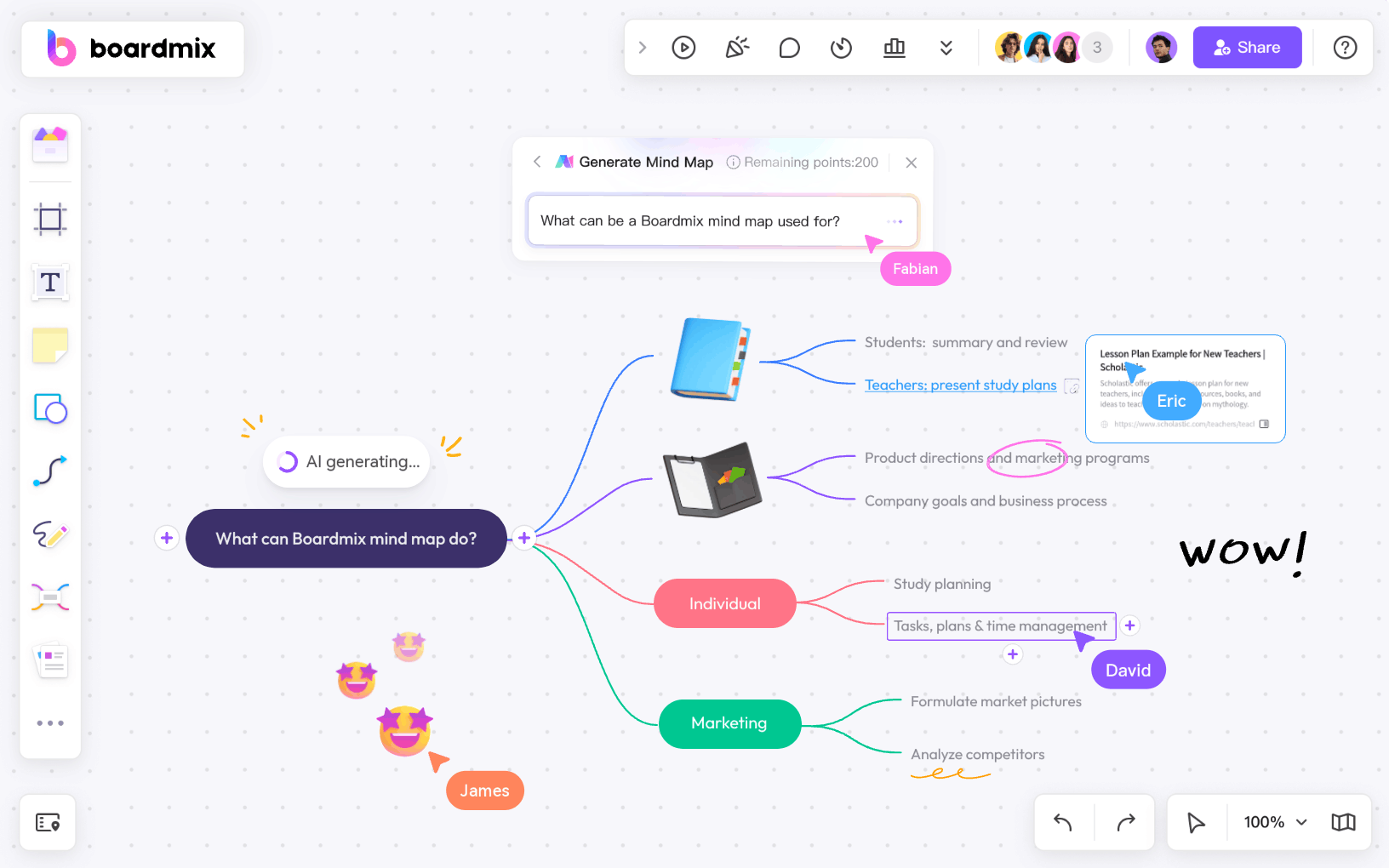
While Xmind is a popular tool for creating structured mind maps, there are times when a more flexible and collaborative platform is needed. This is where Boardmix shines as a powerful alternative and complement to Xmind. With its robust whiteboard and AI-powered mind mapping features, Boardmix goes beyond static diagrams to enable dynamic, real-time collaboration and data integration.
Why Choose Boardmix for Mind Mapping?
- Versatile Mind Mapping
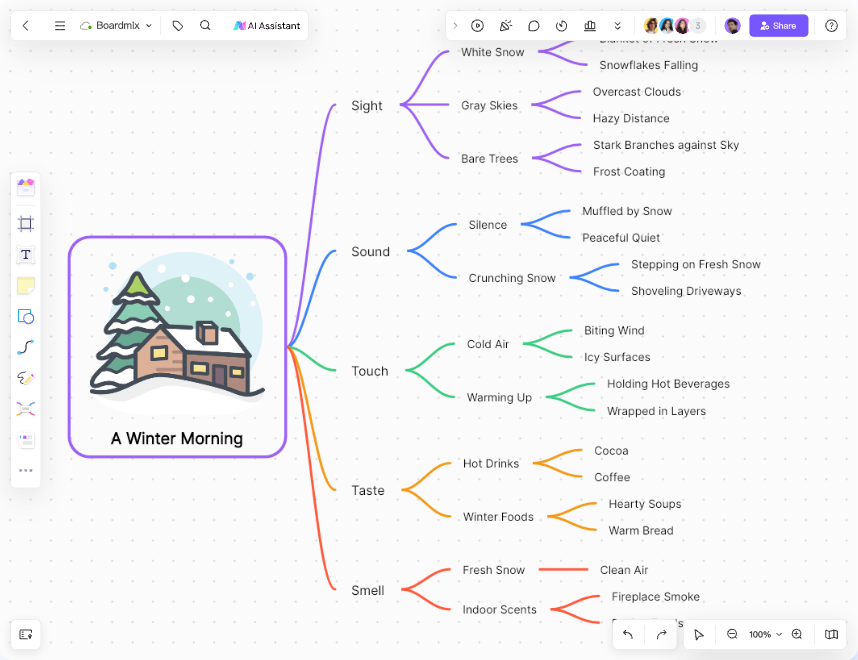
Boardmix provides a flexible canvas for creating mind maps of any complexity. You can start from scratch or use customizable templates to map out your ideas, projects, or plans directly. Its freeform design gives you the freedom to combine mind maps with flowcharts, diagrams, or even brainstorming notes, which is harder to achieve in Xmind.
- Data Integration and Tables
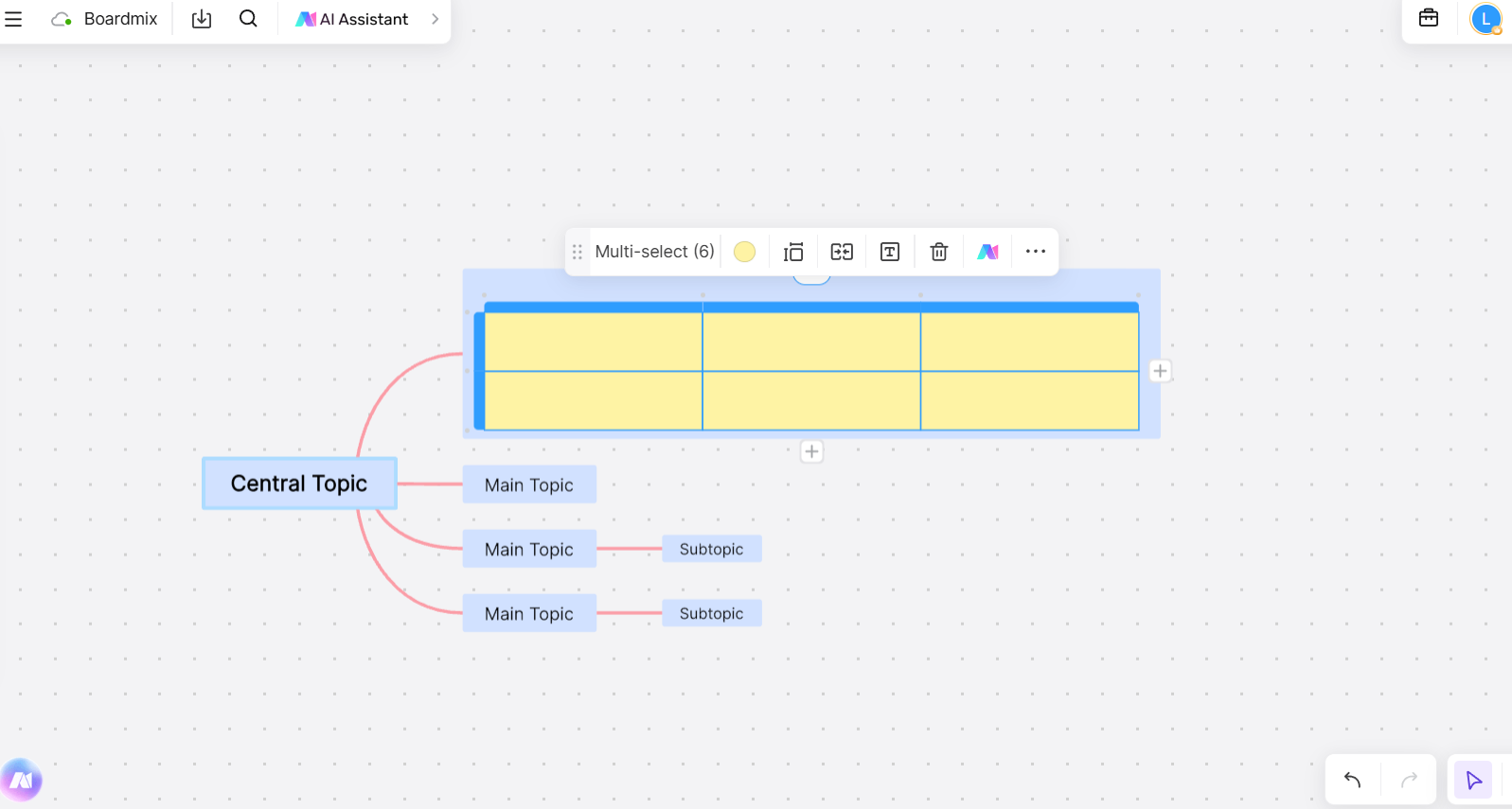
Boardmix supports tables in mind map topics. Use a table to organize a small set of values alongside the ideas they explain, rather than treating the map as a live spreadsheet connection.
- AI-Powered Enhancements
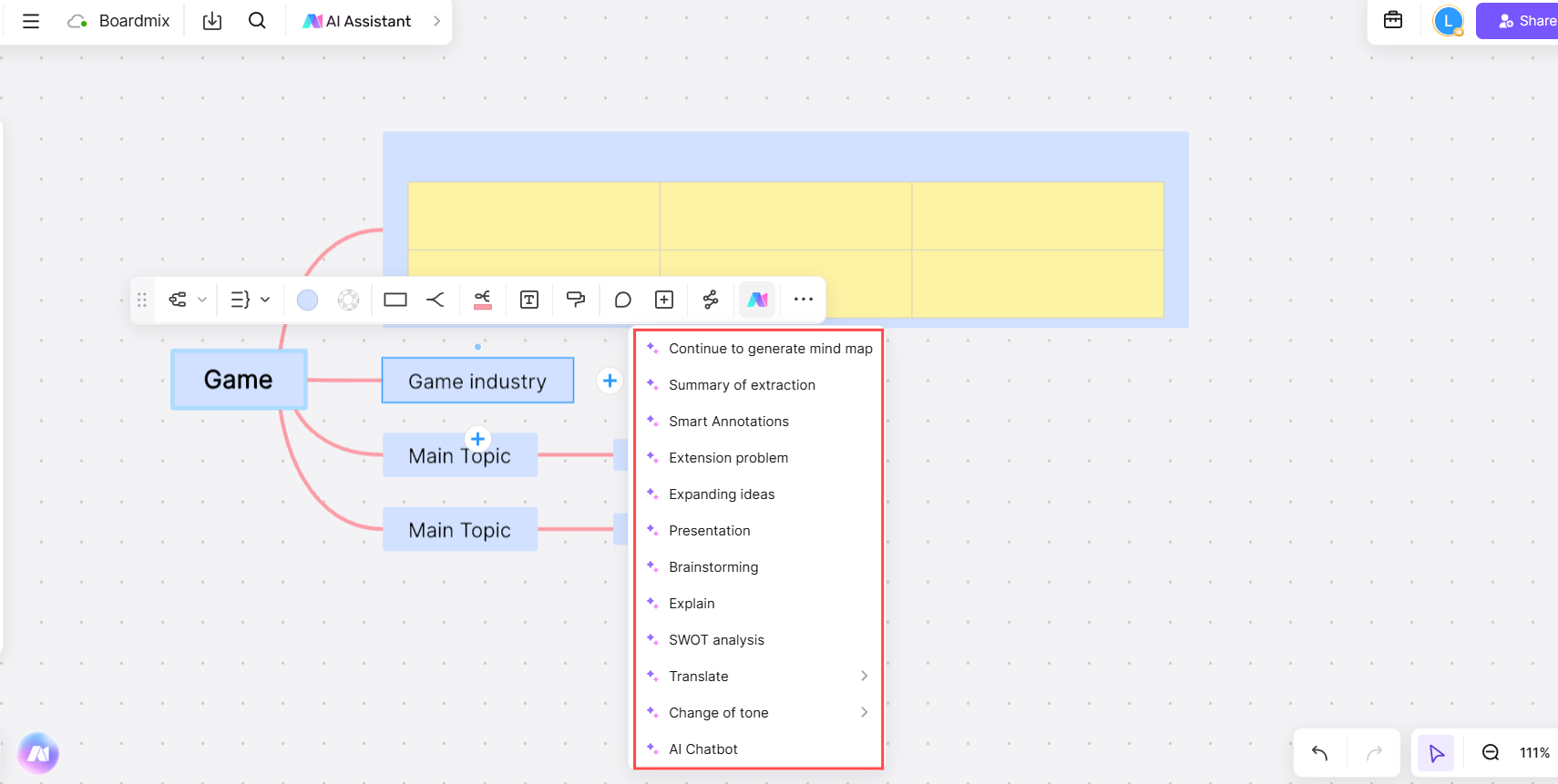
Boardmix AI can help generate a map or summarize selected content. Use the draft to organize ideas, then review its wording and values against the source material.
- Real-Time Collaboration
For teams, collaboration is key. Boardmix supports real-time multi-user editing, enabling you to work on mind maps simultaneously with colleagues. This makes it an excellent choice for brainstorming sessions, project planning, or education purposes.
- Integrated Whiteboard Features
Beyond mind mapping, Boardmix’s whiteboard lets you add annotations, sketch freely, or create complex workflows. It’s a comprehensive platform that adapts to various needs, from creative projects to business planning.
How Boardmix Complements Xmind
- For Static vs. Dynamic Needs
Xmind excels in creating polished, structured mind maps, ideal for personal use or predefined projects. Boardmix complements this by offering a dynamic workspace where you can combine different visualization tools, making it suitable for brainstorming and evolving ideas.
- Enhanced Collaboration
While Xmind is great for individual work, Boardmix enhances team collaboration by allowing multiple users to contribute to the same map in real time. This is perfect for remote teams or workshops.
- Broader Scope
Boardmix isn't just a mind mapping tool—it's a comprehensive online whiteboard platform. You can create project plans, flowcharts, and even wireframes, ensuring you have all tools in one place, reducing the need for multiple apps.
Boardmix combines tables, mind maps, and shared editing on a visual canvas.
Step-by-Step Guide: Add a Table to a Boardmix Mind Map
Here is how to add a table to a Boardmix mind map and keep its values connected to the topic they explain. Create an account or sign in, then open a board to follow the steps.
How to Insert a Table into Mind Maps on Boardmix
Integrating tables into your mind maps on Boardmix is straightforward and ensures your data is visually and structurally organized. Follow these steps to get started:
1. Log in to Your Boardmix Account
Begin by visiting the Boardmix website and logging in with your credentials. If you don’t have an account, create one for free to access the platform’s features.
2. Open a New or Existing Mind Map
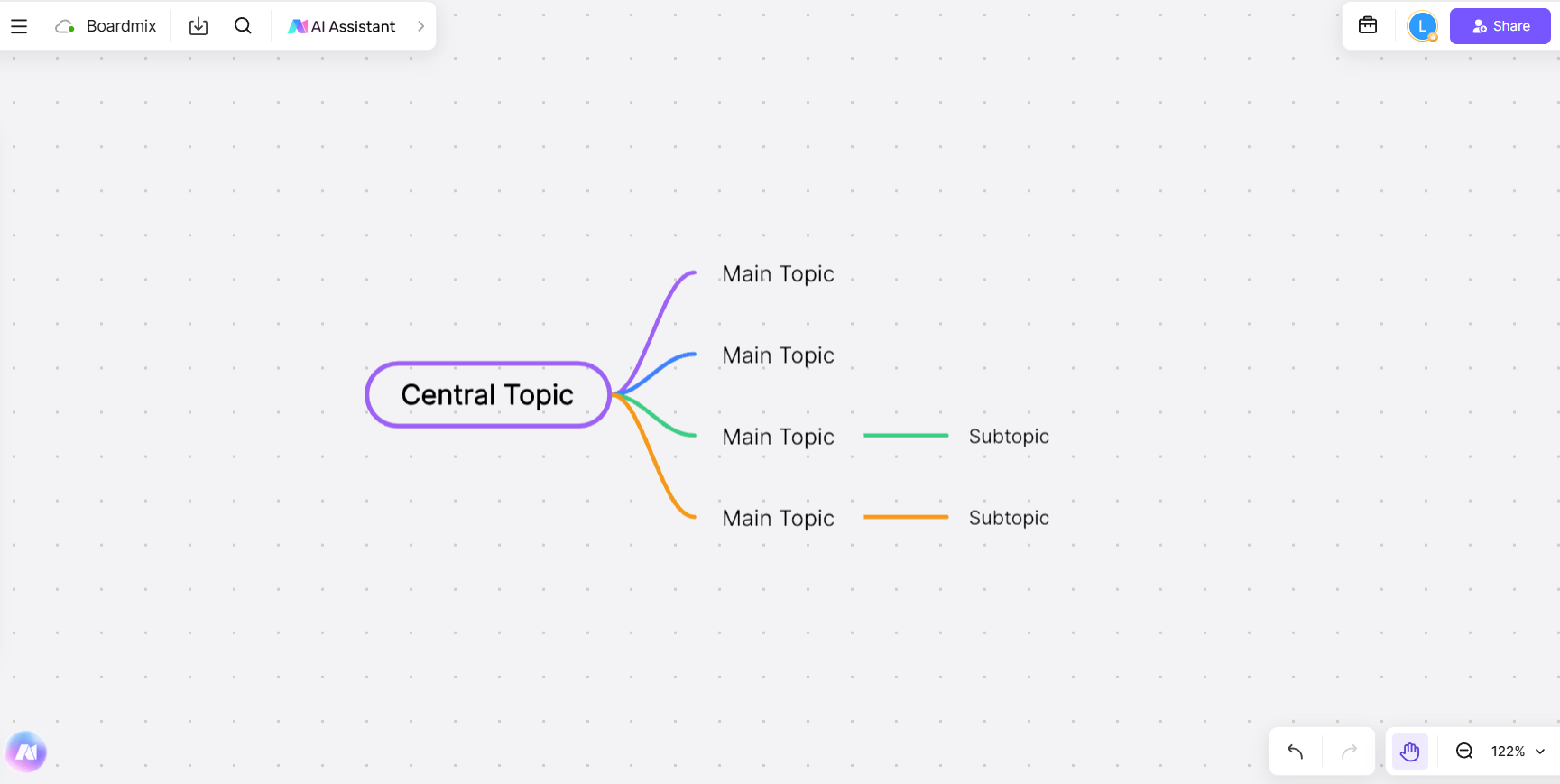
Once logged in, open a blank whiteboard or choose an existing mind map to edit. Navigate to the toolbar and select the mind mapping option to create your visual structure.
3. Add a Node for the Table
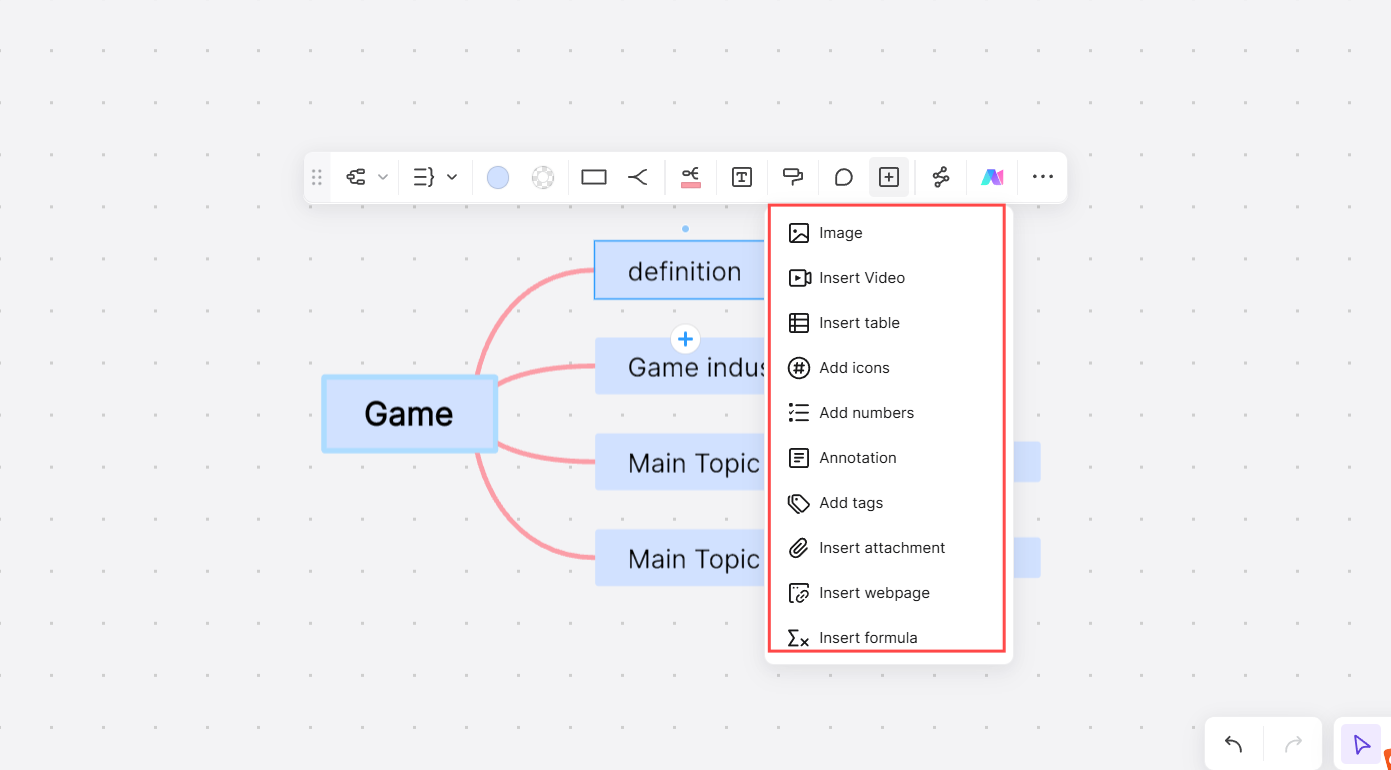
Select a specific node where you want to attach the table. This node will serve as the anchor point for your data, keeping your map organized and relevant.
4. Use the "Insert Table" Feature
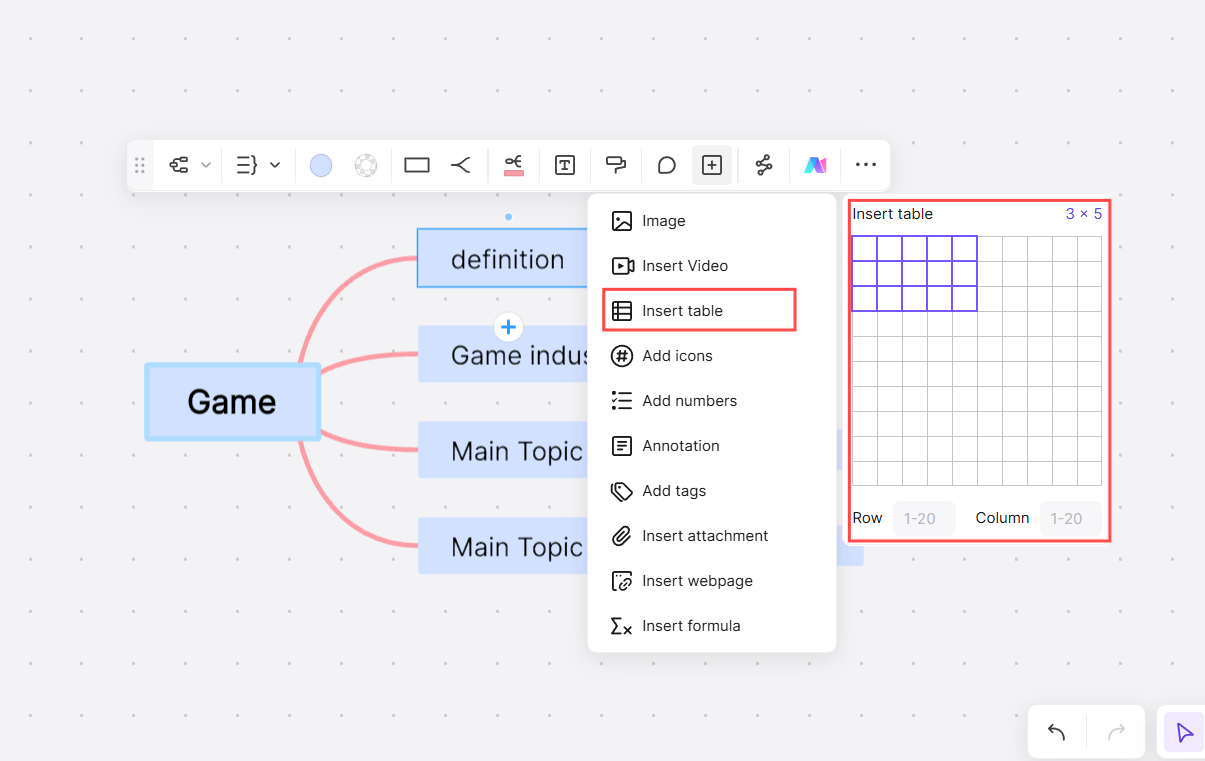
Boardmix offers multiple ways to add tables:
Direct table creation: Select a topic, open its add-content menu, and choose “Insert table.” Select the rows and columns you need, then enter headers and values.
Enter the data: Fill the cells with the labels and values you need. If you paste content from another app, check the resulting rows, columns, and formatting before sharing the map.
5. Keep the Table Consistent with Your Map
Place the table in the topic it supports and use clear labels to explain the relationship. When a value changes, update the table and any related text or figures that use that value.
Using Boardmix to integrate tables into your mind maps adds a layer of functionality that enhances data visualization and collaboration. This method is perfect for users managing dynamic and data-heavy projects.
6. Use Boardmix AI Assistance for Enhanced Visualization
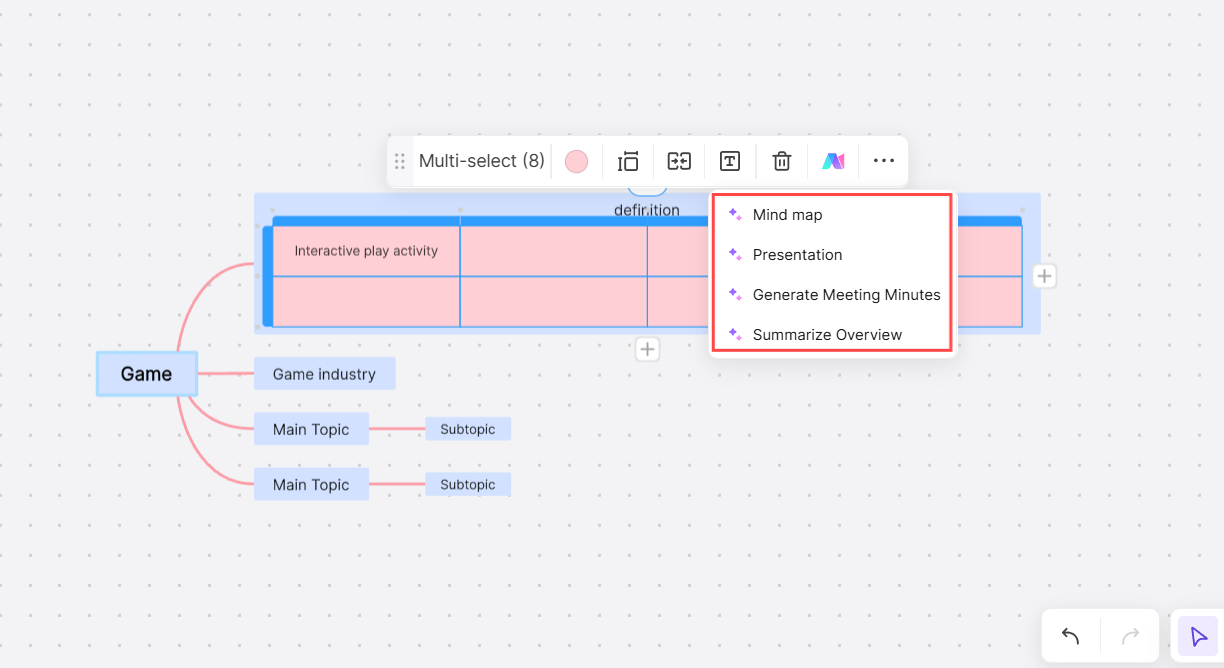
- Summarize Selected Content
Select the relevant content and use the available AI summary action to create a short overview of the information.
- Review the Summary
Compare the summary with the original values, especially names, dates, totals, and units. Add the reviewed text to the map where it helps explain the data.
When to Use Data-Enriched Mind Maps?
Integrating tables into mind maps can transform how you organize and visualize information across various scenarios. Here’s when this approach works best:
(1) Business Strategies
Use tables within mind maps to clearly link data to strategic goals. For instance:
- Map out sales metrics and align them with growth objectives.
- Visualize departmental KPIs to ensure alignment with company-wide strategies.
This method simplifies complex business planning and ensures every goal is backed by clear data.
(2) Project Management
A hybrid table-map approach keeps projects organized and teams on track. Examples include:
- Creating Gantt-style timelines for task scheduling and progress tracking.
- Assigning tasks to specific team members, with resources and deadlines clearly outlined.
This setup ensures no detail is missed while giving a comprehensive overview of the project.
(3) Academic Research
For students and researchers, mind maps enriched with tables streamline information management. They are perfect for:
- Structuring literature reviews by categorizing key findings.
- Visualizing survey results or experimental data to identify trends.
This approach makes complex academic tasks more manageable and visually accessible.
By linking data-rich tables with creative mind mapping layouts, you can make your project easier to analyze, plan, and present information.
Tips for Effective Data Visualization in Mind Maps
- Keep It Clean
Balance data-rich tables with concise visuals to avoid overcrowding your mind map.
- Use Color Codes
Highlight important data points by using distinct colors for map branches and table elements.
- Collaborate in Real Time
Share your map with team members to gather feedback, make edits, and finalize the visualization collaboratively.
Combining tables with mind maps brings a new level of clarity and functionality to your workflow. Whether you're strategizing for business, managing projects, or conducting research, the ability to import data into your mind maps transforms how you organize and present information.
Key points
Use Xmind’s map structures and Notes to organize topics and supporting context. Use Boardmix when the task benefits from tables, diagrams, and shared editing on one canvas. Keep the original spreadsheet available when calculations or frequently changing data matter.