



Kanban boards have become a vital tool in project management, helping teams streamline their workflows, visualize tasks, and enhance productivity. In this article, we’ll explore how an online Kanban board works, why you should choose Boardmix for your Kanban project management, and provide a step-by-step guide to setting up a Kanban board online with Boardmix.
How an Online Kanban Board Works?
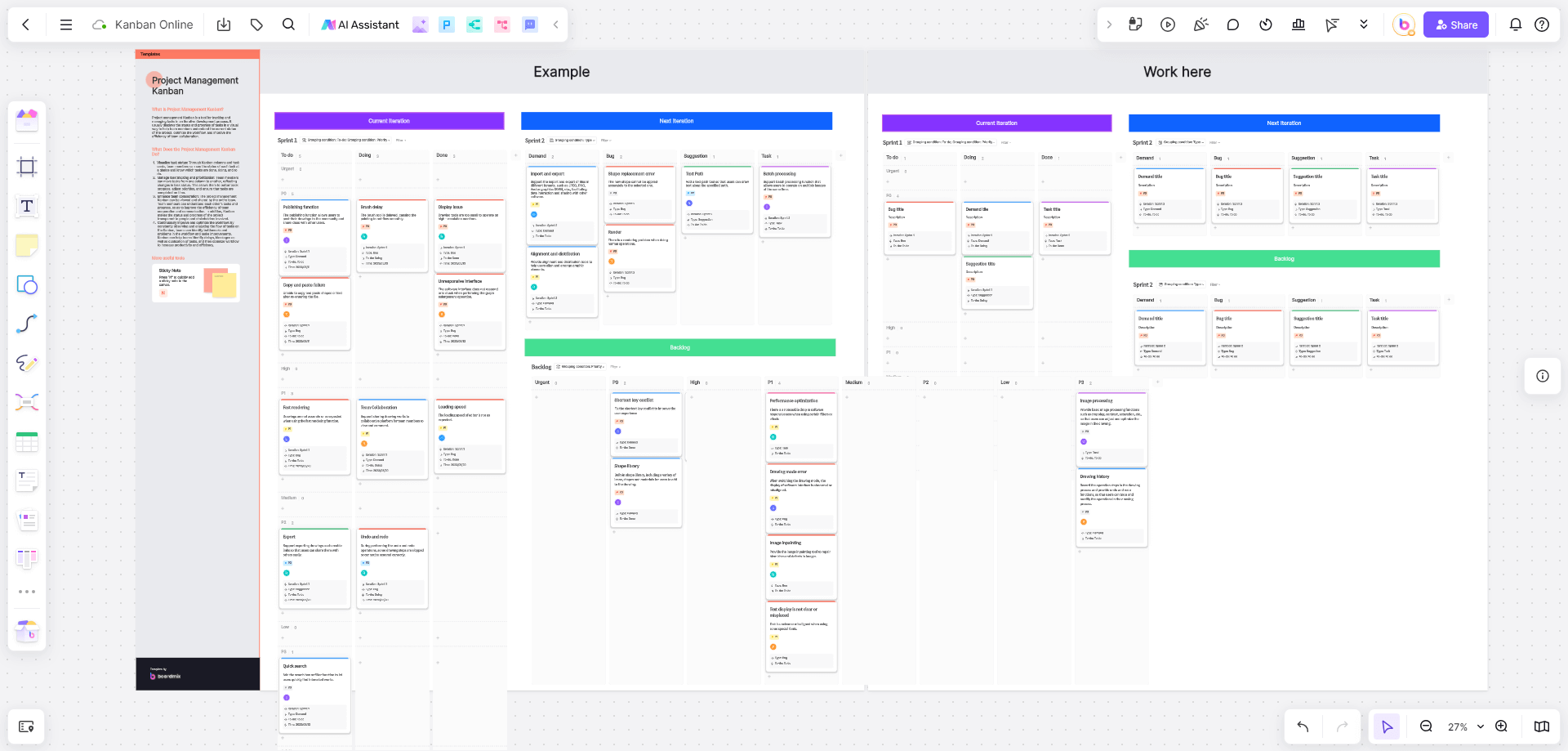

An online Kanban board operates on the principle of visual task management. It involves the use of cards and columns to represent tasks and their progress stages, respectively. The primary components include:
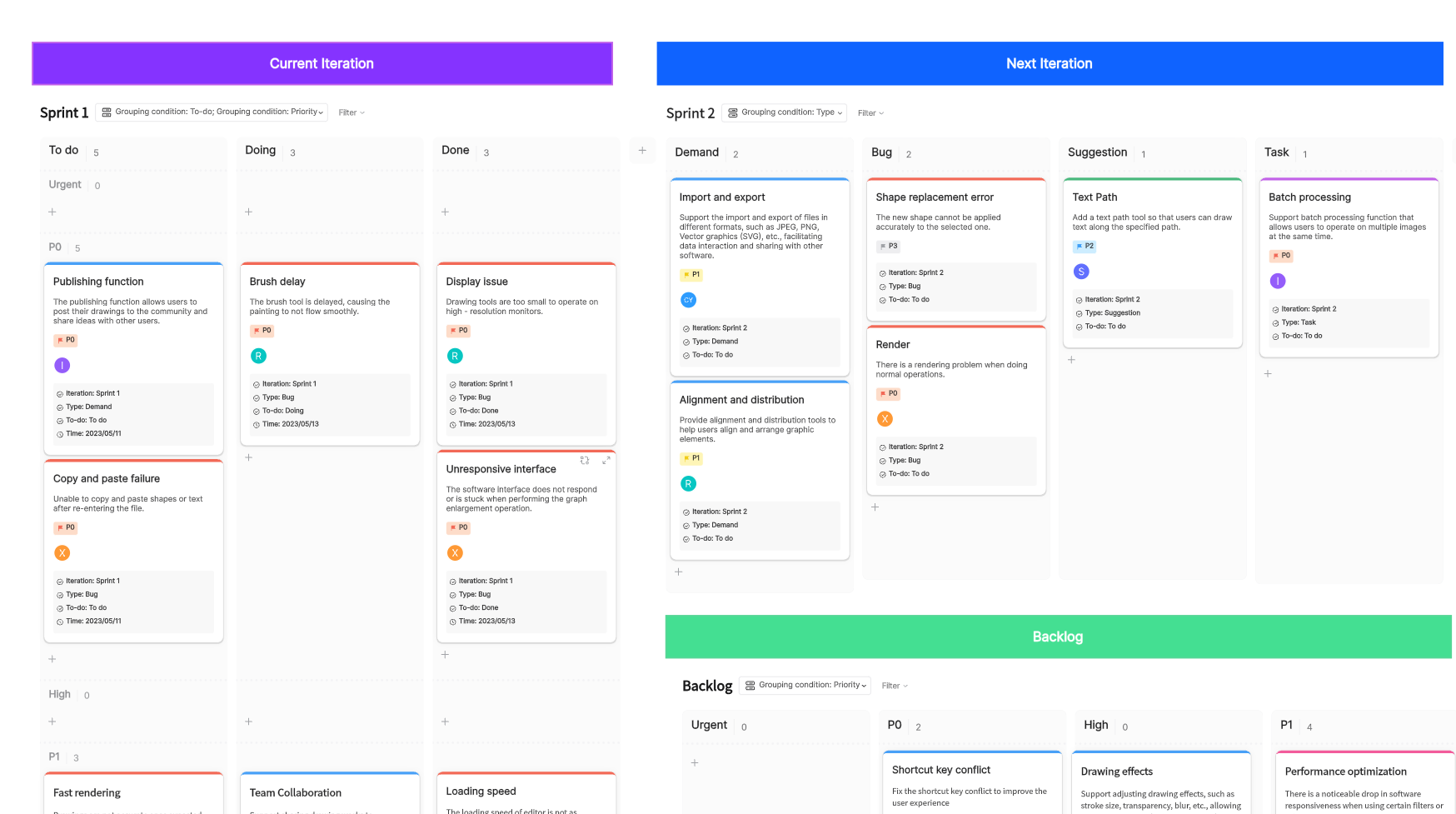
Columns: Represent stages in your workflow (e.g., To Do, In Progress, Done). Each column can be customized to match the specific phases of your project.
Cards: Represent tasks or work items that move through the columns. Each card contains details such as task descriptions, due dates, assignees, and attachments.
Work In Progress (WIP) Limits: Restrict the number of tasks in progress to maintain focus and efficiency. Setting WIP limits helps prevent bottlenecks and ensures that the team isn't overwhelmed.
Swimlanes: Horizontal rows that categorize tasks by type, priority, or team. Swimlanes allow for a clear distinction between different streams of work within the same board.
Online Kanban boards provide flexibility and accessibility, allowing teams to collaborate in real-time from anywhere. They offer features like drag-and-drop functionality, customizable templates, and integration with other tools, making them a powerful addition to any project management toolkit.
Why Choose Boardmix for Your Kanban Project Management?
Boardmix stands out as a versatile and user-friendly platform for Kanban project management. Whether you are a small team looking to streamline your workflow or a large enterprise aiming for enhanced project oversight, Boardmix offers a solution tailored to your needs. With a focus on collaboration, customization, and efficiency, Boardmix provides a comprehensive suite of tools designed to simplify and optimize your project management processes.
What Tools and Features Does Boardmix Offer for Online Kanban?
Boardmix offers a comprehensive suite of tools and features designed to enhance your online kanban experience:
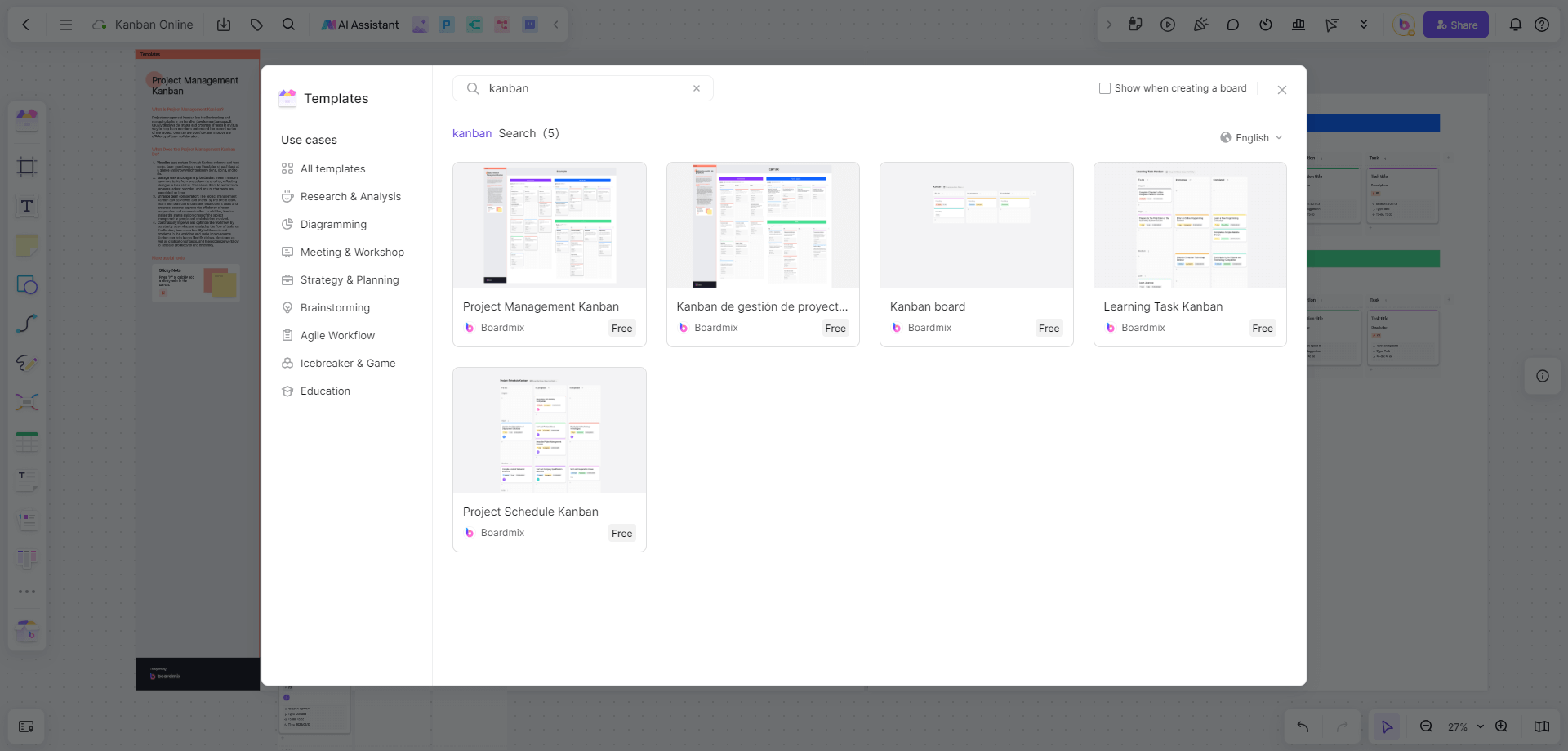
Customizable Templates: Pre-built kanban templates that can be tailored to your project needs. These templates save time and ensure consistency across different projects.
Drag-and-Drop Interface: Easily move cards between columns to update task statuses. The intuitive interface simplifies the process of tracking task progress.
Collaboration Tools: Real-time collaboration with team members, including chat and video conferencing. These tools facilitate communication and foster teamwork.
Task Management: Set due dates, assign tasks, and track progress. Detailed task management capabilities ensure that everyone knows their responsibilities and deadlines.
Integration: Seamlessly integrates with other productivity tools and platforms. Boardmix supports integrations with tools like Slack, Google Drive, and Trello, ensuring that your workflow remains uninterrupted.
AI Assistant: Assists in automating repetitive tasks and providing insights. The AI assistant can help predict task durations, suggest next steps, and even identify potential risks.
How Boardmix Kanban Features Can Benefit Your Project Management?
Boardmix’s kanban features offer several benefits to project management:
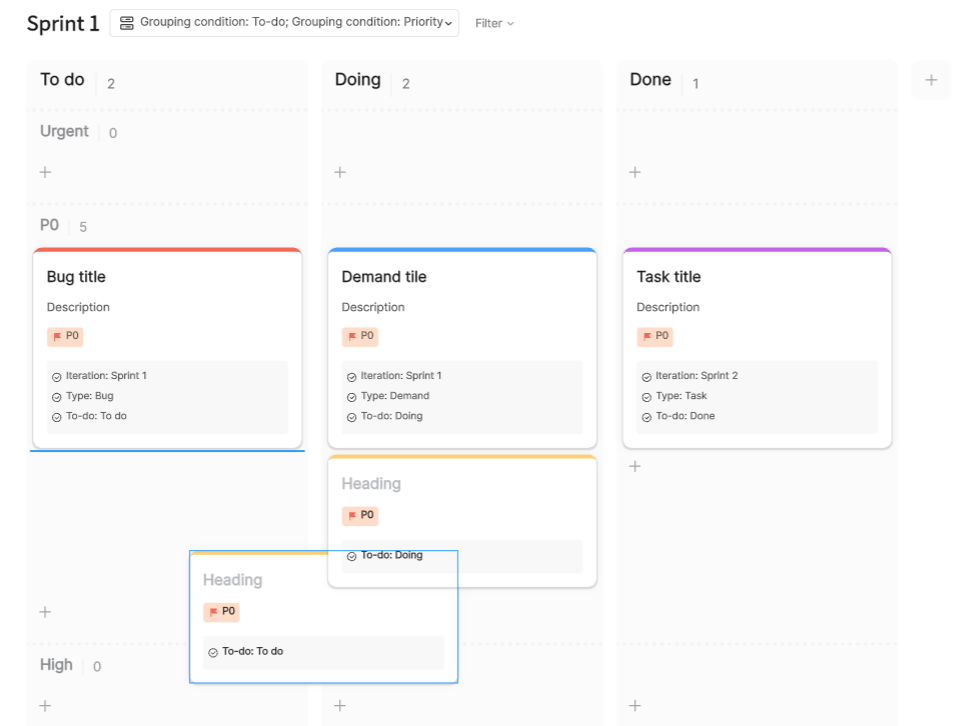
Enhanced Visibility: Visualize all tasks in one place, ensuring nothing falls through the cracks. This visibility helps teams stay on top of their workload and make informed decisions.
Improved Collaboration: Team members can collaborate in real-time, regardless of location. The collaboration tools ensure that everyone is on the same page and can contribute effectively.
Increased Efficiency: Streamline workflows with drag-and-drop functionality and WIP limits. By managing task flow more efficiently, teams can maintain a steady pace of work.
Better Task Management: Assign tasks, set priorities, and track deadlines with ease. Boardmix’s task management features help in organizing work and meeting project milestones.
Scalability: Suitable for projects of all sizes, from small teams to large enterprises. Whether you are managing a small project or a large portfolio, Boardmix can scale to meet your needs.
How to Set Up a Kanban Board Online with Boardmix?
Setting up a kanban board with Boardmix is straightforward. Here’s a detailed step-by-step guide for product managers and software development teams:
Steps Guide for Product Manager
Sign Up and Log In: Create an account on Boardmix and log in.
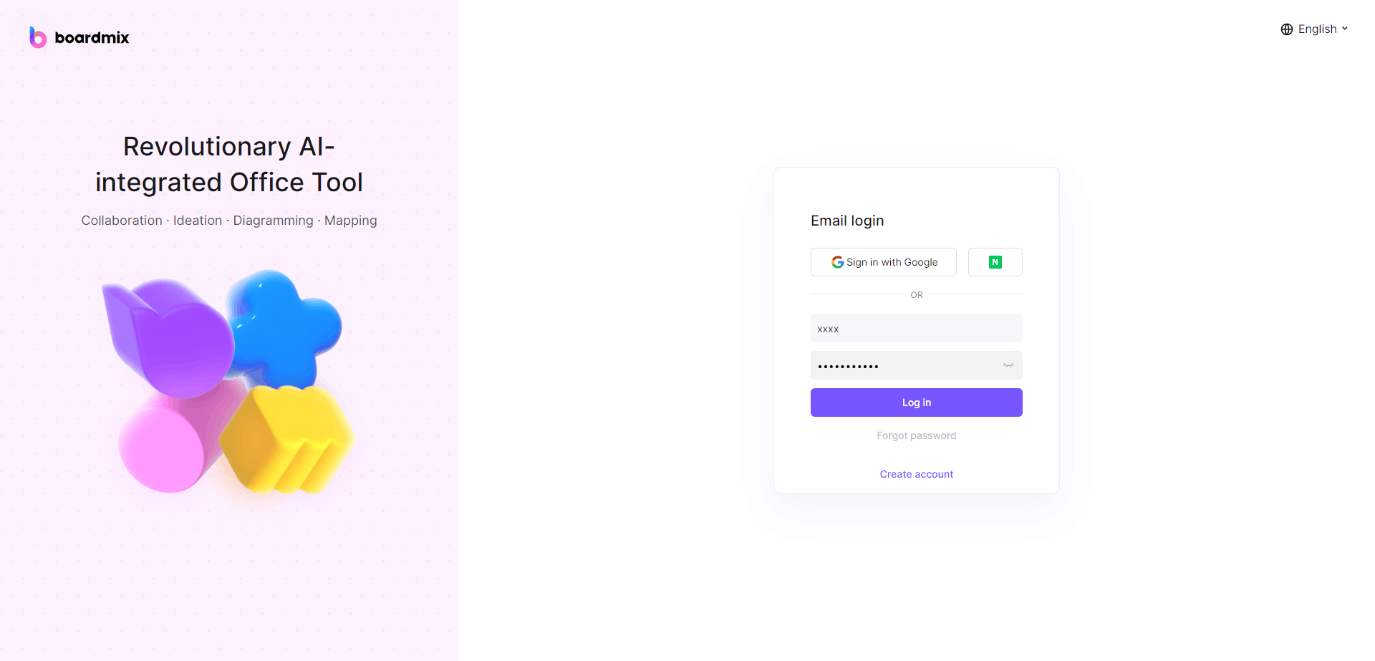
Navigate to the Boardmix website and click on the sign-up button.
Fill in your details and verify your email address.
Log in with your credentials to access the dashboard.
Create a New Board: Click on ‘New Board’ and select ‘Kanban Template’ from the options.
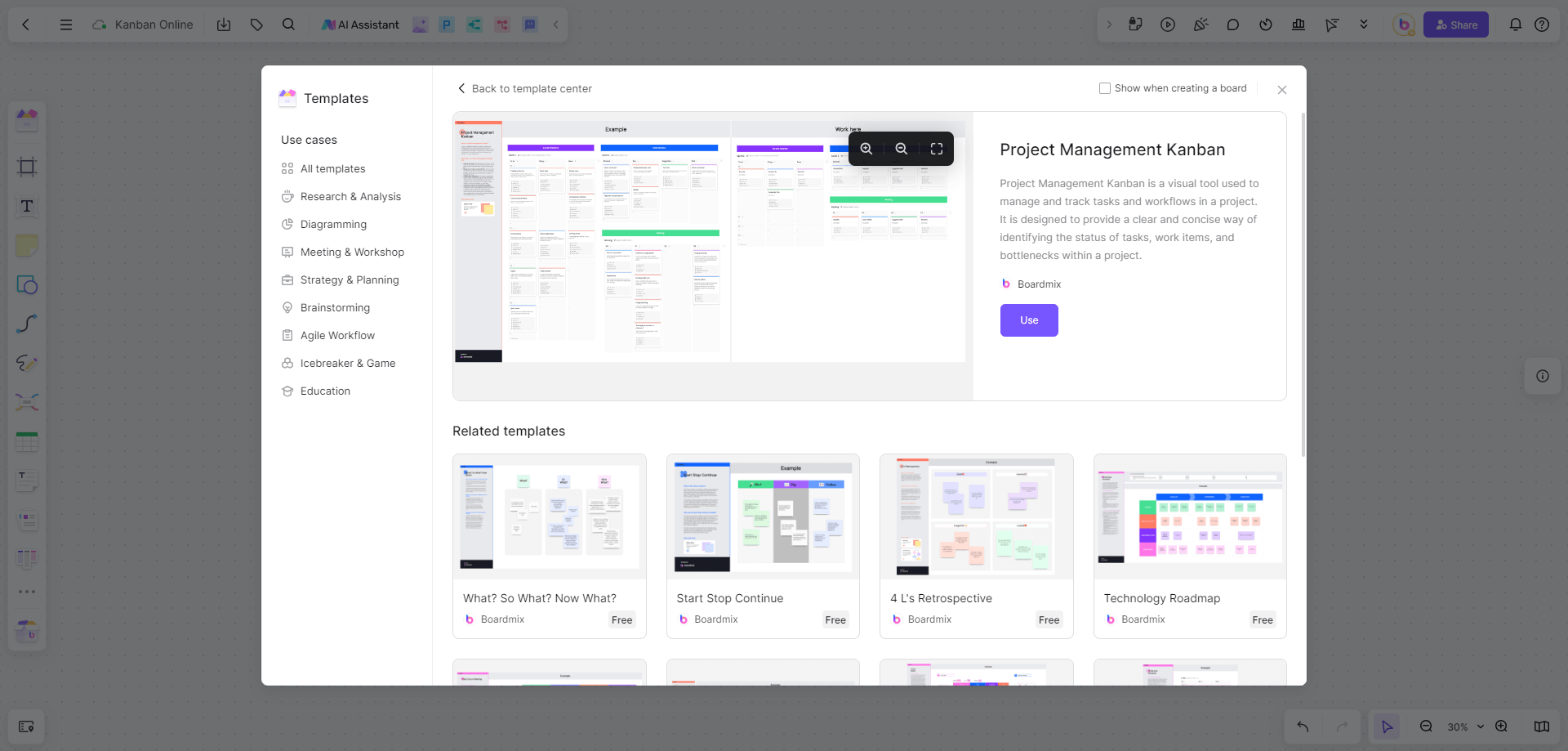
On the dashboard, click on the ‘New Board’ button.
Browse through the available templates and select the ‘Kanban Template’.
Name your board appropriately, e.g., "Marketing Campaign Kanban".
Customize Columns: Add columns that represent your workflow stages (e.g., Backlog, In Progress, Review, Done).
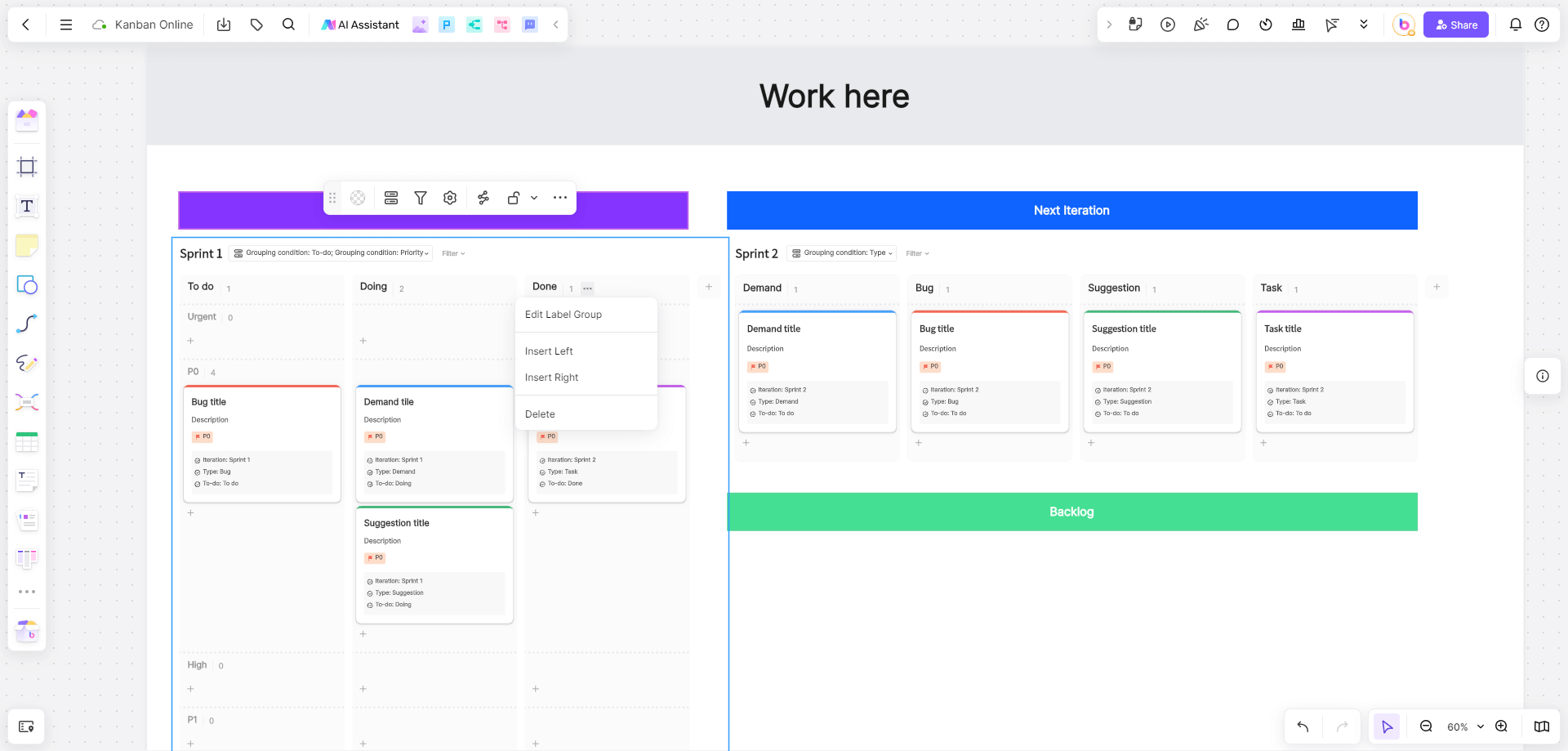
Click on the column headers to rename them according to your workflow stages.
Add new columns by clicking on the ‘+’ icon and naming them as needed.
Adjust the order of the columns by dragging and dropping them into place.
Add Tasks: Click ‘Add Card’ to create tasks, filling in details like task name, description, and due date.
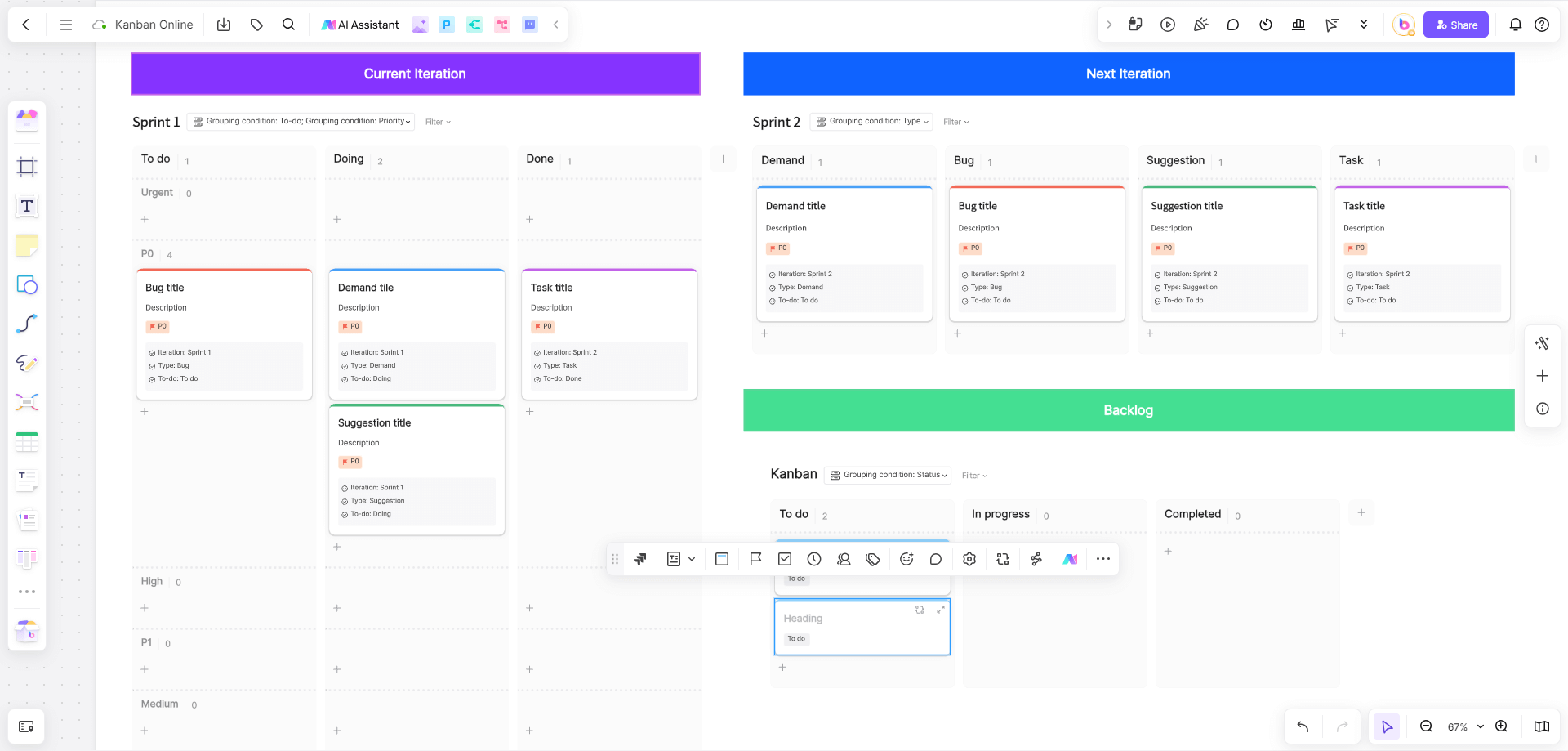
Click on the ‘Add Card’ button in the relevant column.
Enter the task name and description in the provided fields.
Set due dates and priorities to ensure timely completion.
Assign Tasks: Assign tasks to team members by adding their names to the cards.
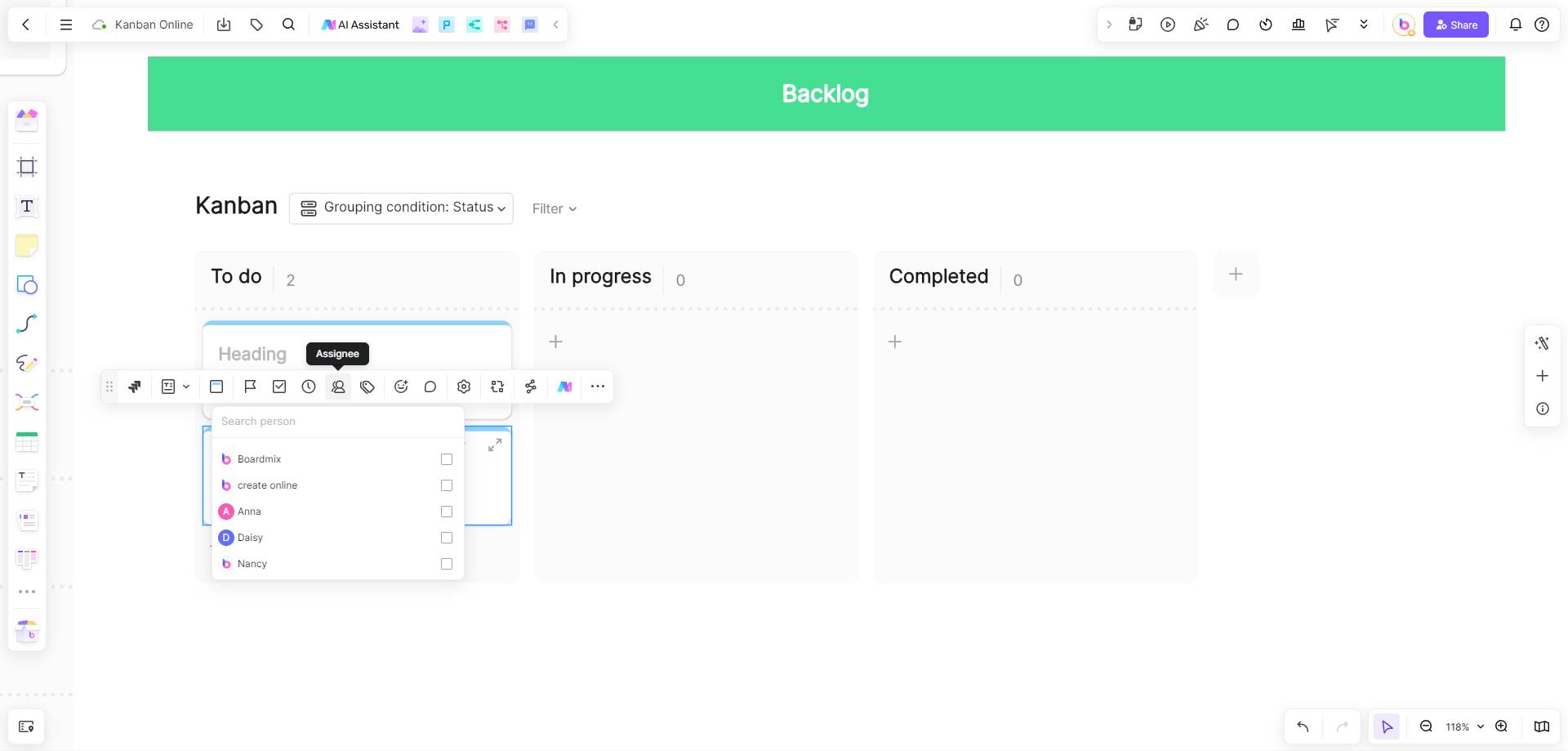
Click on the task card to open the details view.
Use the ‘Assignee’ field to search for and add team members to the task.
Notify assignees of their new tasks through the built-in notification system.
Set WIP Limits: Define WIP limits for each column to control the number of tasks in progress.
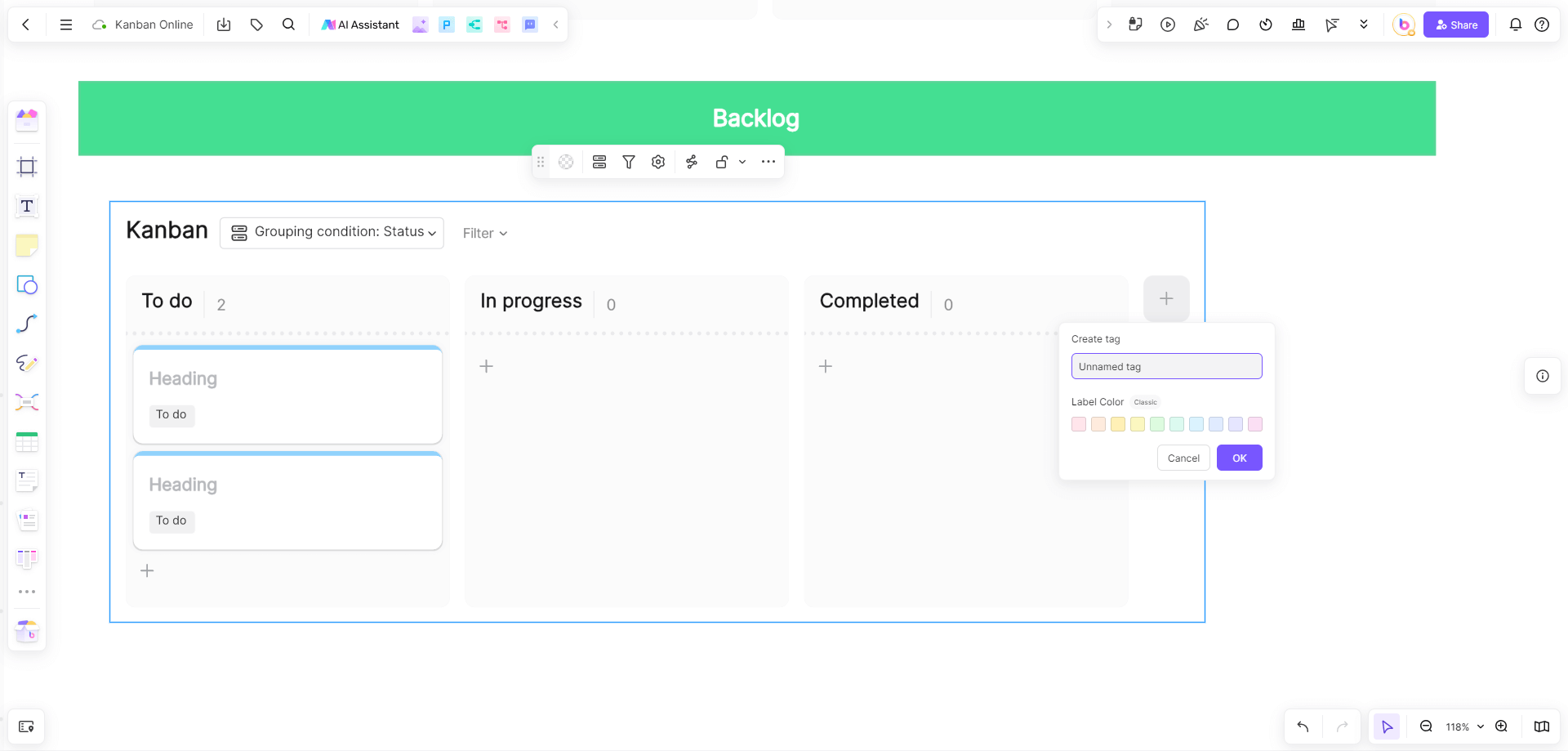
Click on the settings icon for each column.
Set the maximum number of tasks that can be in progress simultaneously.
Adjust these limits as necessary based on team capacity and workload.
Invite Team Members: Share the board link with your team to invite them for collaboration.
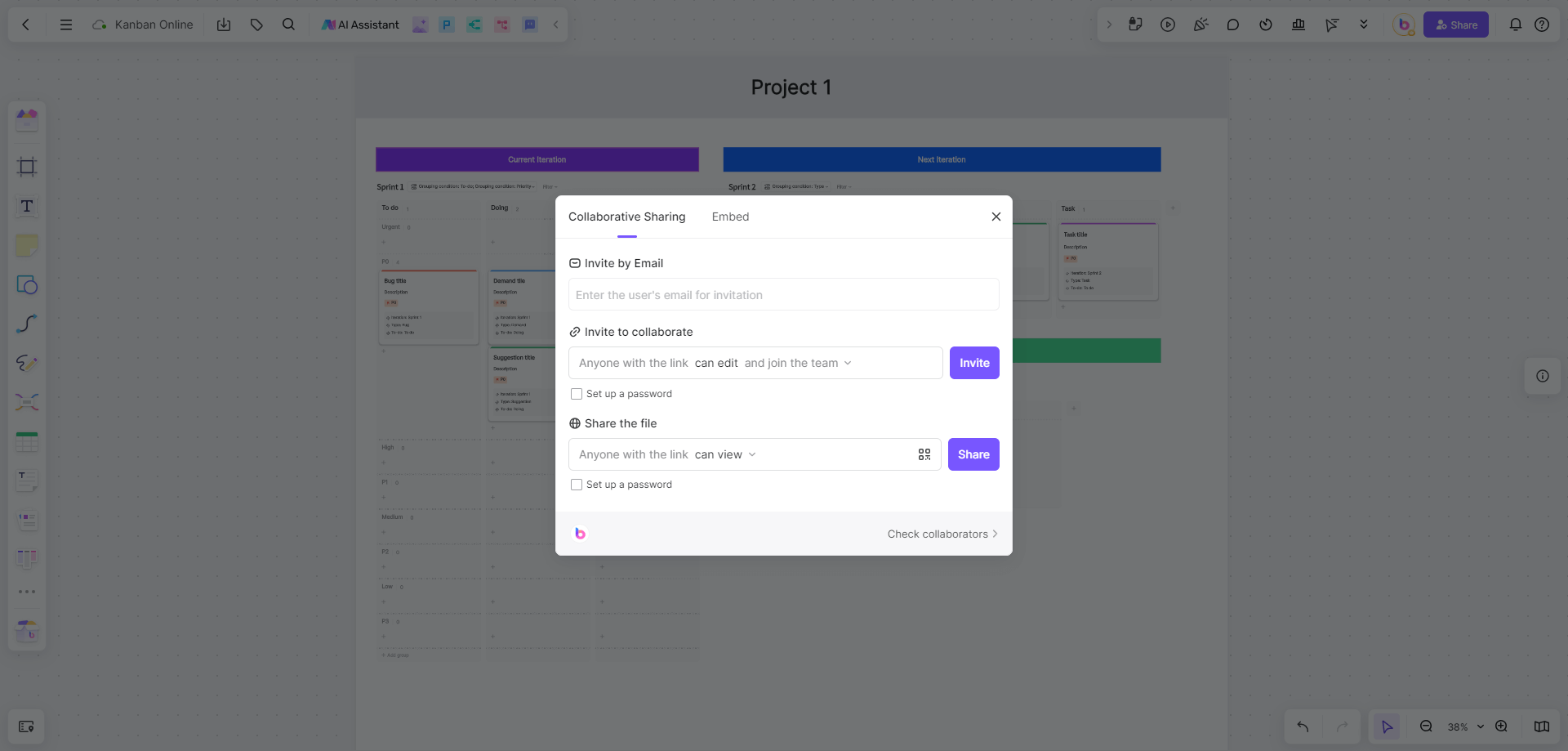
Click on the ‘Share’ button at the top right of the board.
Copy the shareable link or send email invitations directly from Boardmix.
Ensure that all team members have access and are logged into the board.
Monitor and Update: Regularly monitor task progress and update statuses by dragging cards across columns.
Review the board daily to track task progress and identify any bottlenecks.
Drag and drop task cards to update their status as they move through the workflow stages.
Use Boardmix’s analytics tools to generate reports and gain insights into team performance.
Steps Guide for Software Development Team
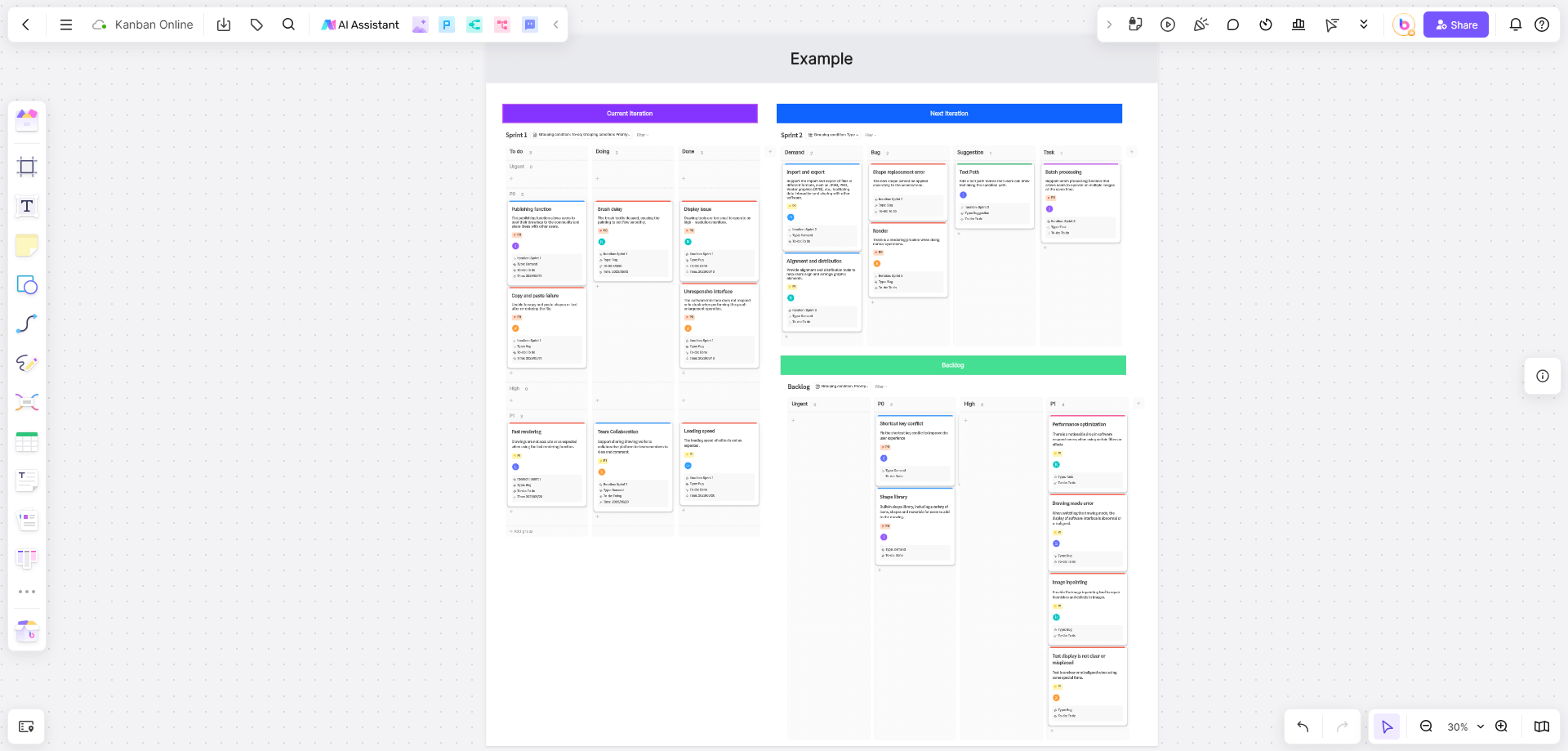
Log In to Boardmix: Ensure all team members have Boardmix accounts and are logged in.
Confirm that every team member has signed up for Boardmix.
Ensure they log in and familiarize themselves with the interface.
Create a Development Board: Select ‘New Board’ and choose a template suited for software development.
Click on the ‘New Board’ button from the dashboard.
Browse the templates and select one designed for software development, such as ‘Agile Kanban’ or ‘Scrum Board’.
Define Workflow Stages: Customize columns to fit your development process (e.g., To Do, Coding, Testing, Deployment).
Rename existing columns to match your development stages.
Add any additional columns needed for specific phases of your workflow.
Arrange the columns in the logical order of your development process.
Add User Stories: Create cards for each user story or feature, including necessary details and acceptance criteria.
Click ‘Add Card’ in the appropriate column.
Enter user story titles and detailed descriptions, including acceptance criteria.
Attach any relevant documents or links for reference.
Assign Developers: Assign tasks to specific developers, ensuring clear responsibility.
Open the task card and use the ‘Assignee’ field to add the responsible developer.
Notify the developer of their assignment through Boardmix’s notification system.
Set Up Swimlanes: Use swimlanes to categorize tasks by priority, type, or team.
Click on the ‘Add Swimlane’ button at the top of the board.
Name the swimlanes according to your categorization criteria (e.g., Priority, Feature Type, Development Team).
Drag and drop task cards into the appropriate swimlanes.
Collaborate in Real-Time: Utilize Boardmix’s collaboration tools to communicate, share updates, and resolve issues.
Use the built-in chat feature to discuss tasks and share updates.
Set up video conferences for more in-depth discussions and problem-solving.
Utilize the comment feature on task cards for detailed feedback and clarifications.
Track Progress: Continuously track the progress of tasks and move them through the workflow stages as they are completed.
Regularly review the board to monitor task status and identify any issues.
Move task cards to the next column as they progress through the stages.
Use Boardmix’s reporting tools to analyze workflow efficiency and make necessary adjustments.
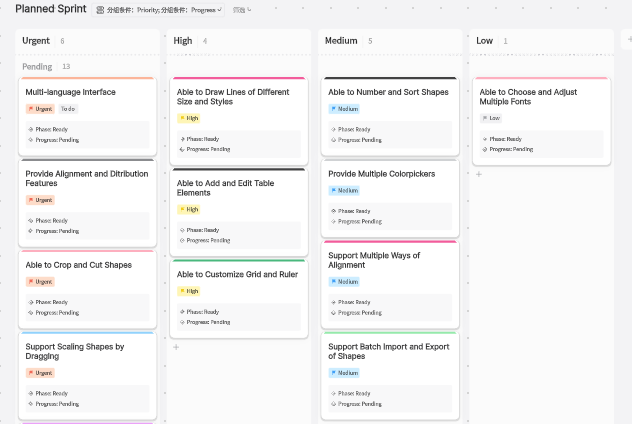
In conclusion, an online Kanban board is an effective tool for streamlining workflows and enhancing productivity. Boardmix offers robust features that make it an excellent choice for kanban project management. By following the provided steps, product managers and software development teams can efficiently set up and manage their Kanban boards online with Boardmix.