


Direct answer: To create a flowchart with ChatGPT, describe the process boundary, steps, decisions, and exceptions; ask for Mermaid or structured flowchart text; then render the draft in a compatible diagram tool and review every branch before sharing it. ChatGPT accelerates drafting, but it does not validate undocumented rules or guarantee a complete flow.
This tutorial shows a repeatable ChatGPT-to-flowchart workflow for developers, analysts, students, and product teams. It covers Mermaid code, structured text, visual editing, prompt design, and a final review checklist.
What ChatGPT Can and Cannot Do
ChatGPT is useful for turning a natural-language description into named steps, decisions, and connections. It can also produce Mermaid syntax or a structured outline that you can paste into another tool. It does not automatically know whether your undocumented business rule is correct, and a fluent answer is not evidence that every branch is complete.
- It can help with: scoping a process, naming nodes, identifying likely decisions, drafting Mermaid, and proposing test cases.
- You still need to do: confirm policy, inspect exceptions, check system behavior, and approve the final diagram.
A Five-Step ChatGPT Flowchart Workflow
- Set the boundary. State the start event, end state, audience, and what is out of scope.
- List the evidence. Provide the procedure, code excerpt, policy, or notes that the model should use.
- Choose an output format. Ask for Mermaid code, a numbered outline, or a table of nodes and edges.
- Review the draft. Look for missing branches, invented steps, ambiguous labels, and loops that never terminate.
- Render and test. Paste the result into a compatible renderer or whiteboard, then walk it with concrete cases.
Method 1: Ask ChatGPT for Mermaid Code
Mermaid flowchart syntax represents nodes and edges as text. Ask ChatGPT to use a top-to-bottom direction, label every decision branch, and keep node IDs stable.
Example prompt: “Write Mermaid flowchart code for a user-login process. Include credential validation, a retry limit, account lockout, and a successful session. Use explicit Yes and No labels and return only the code block.”
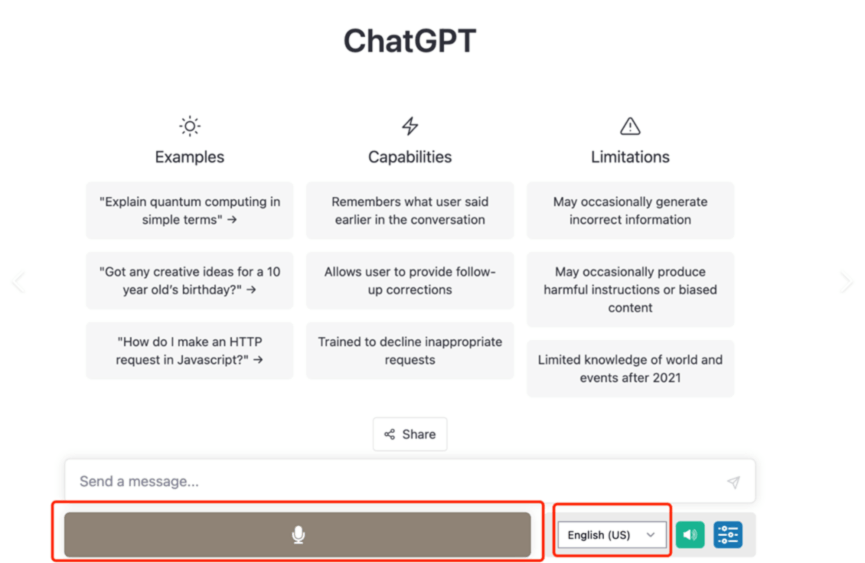
Before rendering, inspect the code for ambiguous node IDs and labels that could break the renderer. If the diagram is part of documentation, test it in the same Mermaid environment used by the site.
Render and edit the diagram
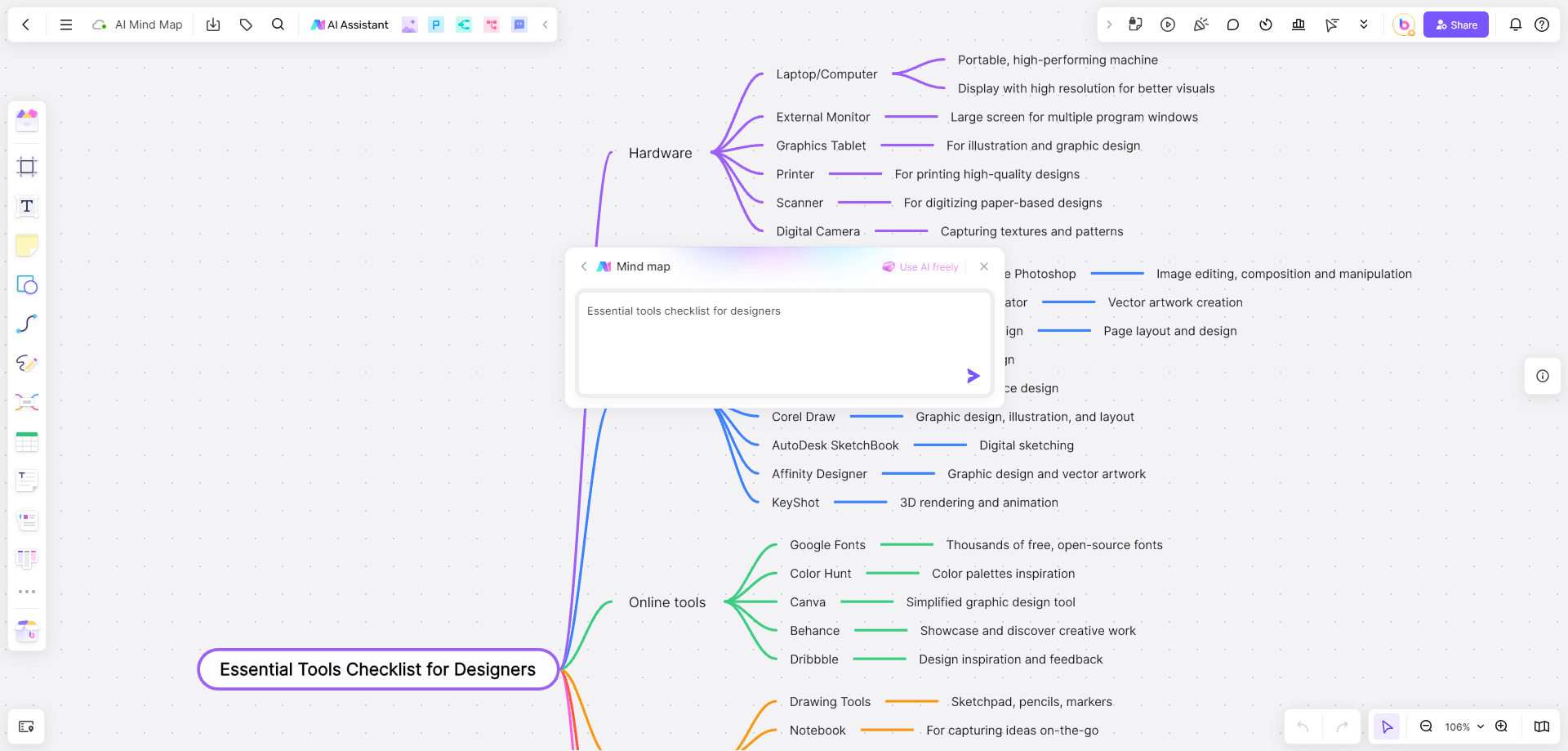
When the Mermaid draft needs visual review, move it into an editable workspace. The existing flowchart prompt templates article covers reusable prompt patterns; this article focuses on the technical handoff and validation.
Go to the Boardmix website and sign up/log in.
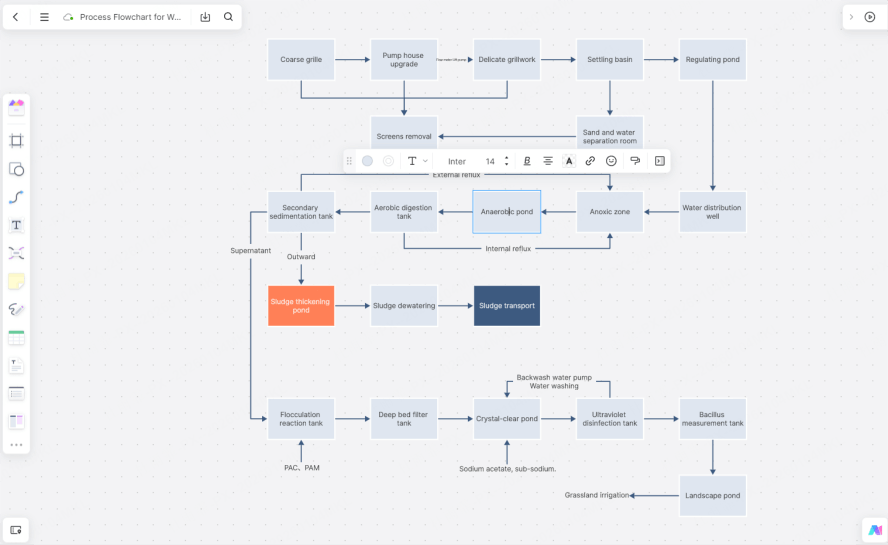
- Compare the rendered nodes with the original process.
- Rename vague steps such as “process data” into observable actions.
- Mark assumptions and unresolved policy questions as notes.
- Keep a copy of the source text next to the visual diagram.
Method 2: Ask for Structured Text
If your destination tool does not accept Mermaid, request a table with columns for step ID, label, type, next step, condition, owner, and evidence. This format is easier to review before drawing and makes missing transitions visible.
Prompt pattern: “Convert the supplied procedure into a flowchart specification. Return a start node, action nodes, decision nodes with labeled outcomes, exception paths, and an end node. Do not invent policy; mark unknowns as [VERIFY].”
Method 3: Use an AI Visual Draft
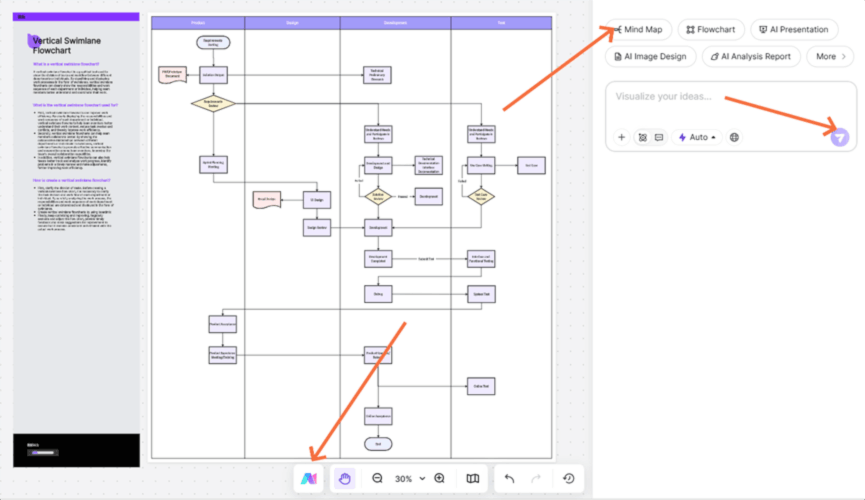
A visual AI tool can reduce the distance between a prompt and an editable diagram. Use a specific scope, then compare the generated result with the structured text rather than trusting its layout. A Boardmix AI flowchart maker can be used for this visual-drafting step; the same review rules still apply.
Prompt Design for Better Flowcharts
A useful prompt names five things: the process boundary, audience, source evidence, required decisions, and output format.
- Boundary: “Start when a support ticket is submitted; end when it is resolved or escalated.”
- Audience: “Write labels for a new support specialist.”
- Evidence: “Use only the procedure below and flag missing rules.”
- Decisions: “Show eligibility, approval, rejection, and retry paths.”
- Format: “Return Mermaid flowchart code with labeled edges.”
Use Cases and Review Questions
ChatGPT-generated flowcharts can support onboarding, code review, customer journeys, incident response, and study notes. The value is highest when the visual makes a relationship easier to inspect, not when it merely restates a paragraph.
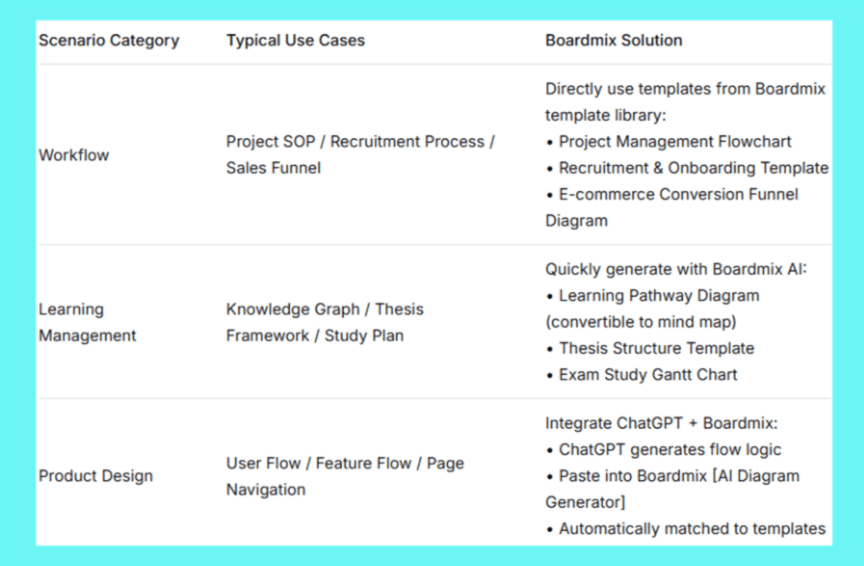
For each use case, ask: What source supports this step? Who owns the decision? What happens when the normal path fails? Can a reader reproduce the result from a real example? If the answer is unclear, keep the diagram labeled as a draft.
ChatGPT Flowchart FAQ
Can ChatGPT create a flowchart image by itself?
It can provide structured text or diagram code, but the visual rendering depends on the tool and features available in the workflow. Use a compatible renderer or editable whiteboard for the final visual.
Why does Mermaid code sometimes fail to render?
Syntax, unsupported features, ambiguous labels, or version differences can cause failures. Check the official Mermaid syntax for the renderer version you use and simplify the diagram until the error is isolated.
Should I use ChatGPT output as a source of truth?
No. Use it as a drafting aid, then verify technical facts, policy, data, and references against the source materials and representative cases.
Conclusion
ChatGPT is most useful for flowcharts when the request is bounded, the output format is explicit, and the result is tested. Ask for a draft, render it, inspect every branch, and keep the evidence beside the final diagram.