Use a digital sticker to acknowledge an idea, mark a milestone, or add a short reaction without covering the content it refers to. This guide includes nine original text-reaction labels you can save as PNG or SVG files, explains how to use stickers on a Boardmix board, and covers practical design and social-post checks. The downloadable labels below are article resources, separate from Boardmix’s built-in asset library.
Get Nine Original Reaction Labels
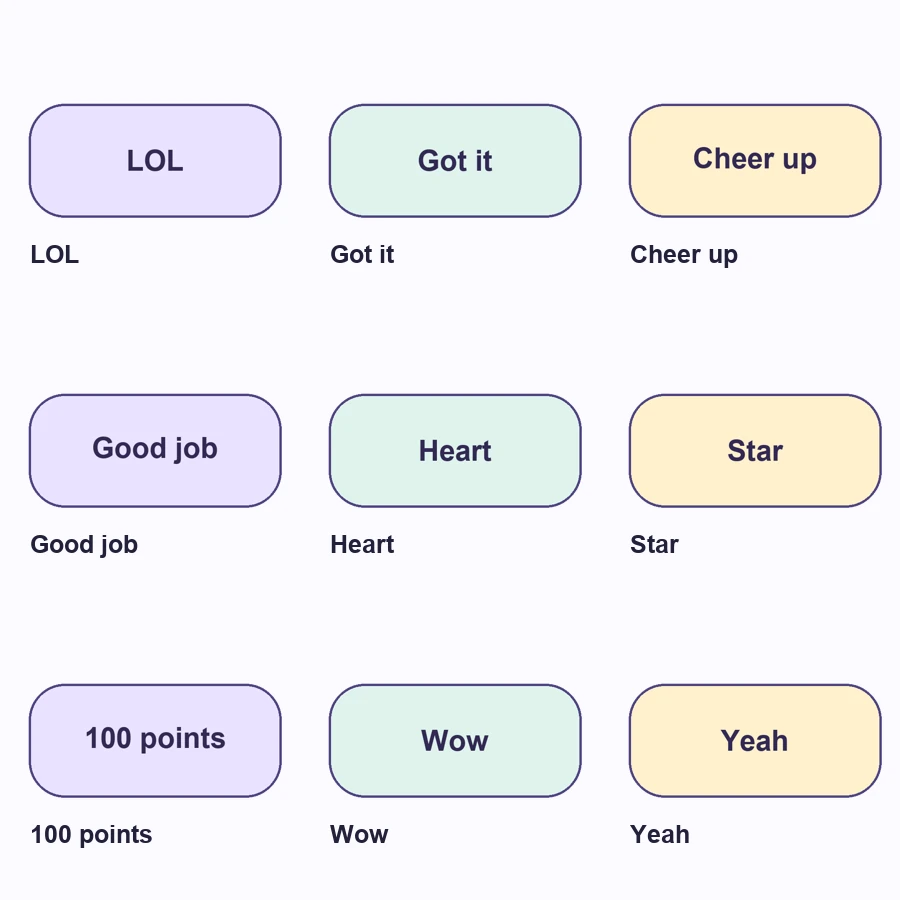
Choose PNG for a ready-to-place image with a transparent background, or SVG for a vector source you can edit in a compatible editor. Save the linked file using your browser’s save control if it opens in a new tab. You can use and adapt these original text labels in your boards and presentations; no third-party character or brand logo is included.
| Label | Transparent image | Vector source |
|---|---|---|
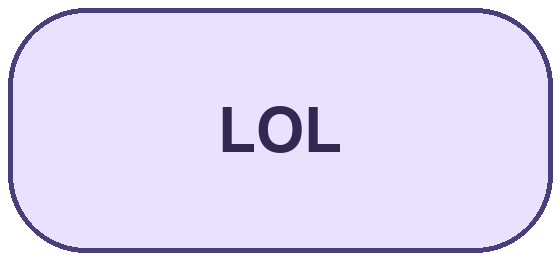
| LOL | Save LOL PNG | Save LOL SVG |
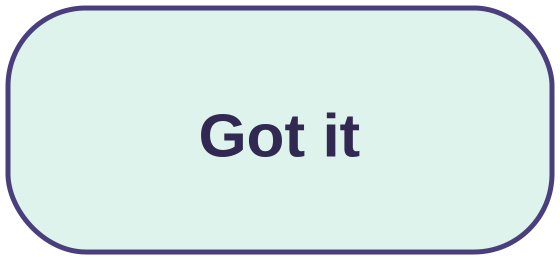
| Got it | Save Got it PNG | Save Got it SVG |
| Cheer up | Save Cheer up PNG | Save Cheer up SVG |
| Good job | Save Good job PNG | Save Good job SVG |
| Heart | Save Heart PNG | Save Heart SVG |
| Star | Save Star PNG | Save Star SVG |
| 100 points | Save 100 points PNG | Save 100 points SVG |
| Wow | Save Wow PNG | Save Wow SVG |
| Yeah | Save Yeah PNG | Save Yeah SVG |
On a board, keep the reaction close to its target and leave the original words readable. For example, place “Got it” beside an agreed action and “Good job” beside a completed milestone. If a reaction has operational meaning, also write the status in text; a decorative label should not be the only record of approval.
What Are Stickers?
Stickers are adhesive-backed pieces of paper, vinyl, or other materials that can be easily attached to surfaces. They come in various shapes, sizes, and designs, making them versatile for both personal and commercial use.
Types of Stickers
- Decorative Stickers: Used for personalizing items like laptops, phones, or water bottles.
- Informative Stickers: Contain information such as warnings, instructions, or product details.
- Branded Stickers: Feature a company's logo or slogan to promote brand awareness.
- Functional Stickers: Serve a specific purpose, like barcodes or price tags.
- Promotional Stickers: Used for marketing campaigns or events.
When to Use Stickers
- Branding: To reinforce brand identity and create brand recall.
- Marketing: As part of a promotional campaign to attract attention and generate interest.
- Education: To teach or inform, such as with safety instructions or educational charts.
- Organization: For labeling and categorizing items in a visually appealing way.
- Personalization: To customize personal items or spaces with unique designs.
Online Stickers for Digital Projects
Online stickers are digital images or elements used in a document, board, message, or social post. Some are downloadable files, while others stay inside the service that provides them. Check the format, license, and export options before choosing an asset for a use outside its original platform.
Why Use Online Stickers?
- Enhance Visual Appeal: Stickers can make your digital content more engaging and visually appealing.
- Express Emotions: They provide a quick and easy way to convey emotions, reactions, and attitudes.
- Invite a response: A relevant reaction or prompt can give readers a clear way to participate. Measure the response instead of assuming that a sticker increases retention.
- Facilitate Communication: They can be used to simplify complex ideas or to add a layer of clarity to communication.
- Personalize Content:Stickers allow you to put a personal touch on your projects, making them unique and memorable.
How to Use Online Stickers Effectively
- Identify Your Purpose:Determine the role the sticker will play in your project—whether it's for decoration, emphasis, or communication.
- Choose the Right Design:Select stickers that align with your content's theme and the message you want to convey.
- Consider Placement: Think about where the sticker will be most effective within your design.
- Customize If Needed:Many online platforms allow you to customize stickers to match your color scheme or style.
- Keep It Relevant: Ensure that the stickers you use are relevant to your audience and the context in which they will be viewed.
For a presentation, choose a sticker that supports the message and check it at slide size. For a shared board, agree what a reaction means. For a social post, preview the image at phone size and make sure it does not cover a face, a key figure, or the call to action.
Use Stickers and Visual Resources in Boardmix
Boardmix’s asset library provides visual material for a board, and the official release notes document changes to assets and sticker behavior. Open the library in your account to see the currently available items. The collection, controls, and plan conditions can change; a free account does not establish unrestricted access, downloads, or commercial rights for every asset.
Choose a Useful Reaction
The nine reactions below are useful starting points for a board. Use the original downloadable text labels above, or choose an appropriate item from the library available in your workspace. Keep the tone suitable for the people reading it.
LOL Sticker: Perfect for adding a light-hearted touch to your work or studies.
Got it Sticker: A quick and easy way to show understanding or agreement.
Cheer up: Lift the spirits of your team or friends with this uplifting sticker.
Good job Sticker: Recognize and reward achievements with this motivational sticker.
Heart Gesture: Show appreciation or love with a simple yet powerful symbol.
Star: Highlight important points or achievements with this classic icon.
100 Points: Use this sticker to acknowledge high scores or top performance.
Wow Sticker: Express amazement or admiration for a job well done.
Yeah Sticker: Celebrate success with this enthusiastic and energetic sticker.
Illustration Styles and Collections
Choose a collection by its visual style and the job of the illustration. The examples below come from Boardmix’s illustration library; names such as Seoul and London identify styles rather than city guides. The linked samples show representative artwork. Library assets have their own usage conditions, separate from the original reaction labels supplied above.
UX Illustration: Small, outlined scenes such as buying a laptop work well beside a shopping journey or a user-task card. Use the illustration to set context and keep the actual interface design alongside it.
Sofia Illustration: Bold, flat-color people depict activities such as planning an event and answering customer questions. Use them to introduce a participant role or a customer-service scenario.
Seoul Illustration: Soft pastel characters and friendly objects include a rocket launch, recycling, and a computer workstation. The rocket example suits a project kickoff or an introductory learning activity.
Scrawl (Monochrome): Black-and-white line-drawn people provide a quiet visual style for participant cards or workshop scenes, leaving status colors available for the content itself.
Scrawl Illustration: Loose black linework, pink accents, and energetic poses give people-and-pet scenes an informal feel. Use them for an icebreaker or a playful presentation section.
Scrawl (Coloring): Line-drawn people with selected clothing colors fit persona cards or team introductions. Keep the same drawing style across a set of roles so color supports the story rather than distracting from it.
Project Status Sticker: Bright reaction graphics such as “OMG!”, “Hot,” and a sleeping face can flag a topic for discussion. Pair them with a written status and owner when the board tracks real work.
Porto Illustration: Thick dark outlines and bright color blocks make compact subjects such as a robot, takeaway food, or a support agent easy to distinguish. The robot sample can introduce an automation idea in a workshop.
Manila Illustration: Rounded cartoon people, dark outlines, and blue accents illustrate situations such as fixing a defect or handling an error. Use them beside a troubleshooting exercise or a team-support topic.
London Illustration: Fine outlines with cyan and pale-yellow accents depict activities such as an online class, a coffee break, and a business agreement. The online-class sample fits a learning agenda or a remote-work presentation.
Havana Illustration: Bright colors and playful nonhuman characters turn ideas such as privacy protection and recharging into small visual stories. Use them to introduce a theme or a workshop break.
Hand-drawn Illustration: Sketch-like outlines with selective color show scenes such as online learning and translation. Use them beside an explanation or learning activity when a conversational visual style fits.
Djakarta Illustration: Purple outlines with pastel fills show people speaking, coding together, and assisting another person. These scenes can introduce teamwork, collaboration, or support in a presentation.
Bubble Gum Illustration: Rounded figures in pink, lilac, and yellow depict work, ideas, and busy days. Use them to add a light tone to an ideation board or an informal team update.
Bruxelles Illustration: Hand-drawn scenes with restrained pastel color show activities such as arranging sticky notes and listening to music. They suit a workshop agenda or a creative-session introduction.
BM Avatar: Flat portraits on colored circular backgrounds work as visual markers for roles on a board. Add a name or role label beside each portrait so readers can identify who it represents.
Bangalore Illustration: Fine purple lines, pale fills, and expressive poses depict winning, inspiration, and virtual reality. Use them beside a goal, an idea-generation exercise, or an exploration topic.
BAM 3D Illustration: Shaded objects such as a car, calendar, and megaphone add depth to a section marker. Use a calendar for a schedule or a megaphone for an announcement, keeping the written message visible.
Icons
There is a diverse collection of icons to complement your designs and enhance visual communication.
Emojis
Let’s express emotions and reactions in a fun and engaging way.
Images
Choose images by their actual subject and the purpose of the board. Useful search themes include:
City: Images of various cities to add a global perspective.
Scenery: Breathtaking landscapes to set the scene.
Building: Architectural images to showcase structures and spaces.
Technology: Modern tech images to keep your designs up-to-date.
Food: Appetizing food images to stimulate the senses.
Figure: Human figures to add a personal touch.
Business: Professional images to convey a business context.
Animal: Adorable animal images to add a touch of nature.
Background: Versatile backgrounds to set the foundation for your designs.
Text Title Box
Give your titles and headings a polished look with these text title boxes.
How to Access and Use the Boardmix Asset Library
Use the Boardmix workspace to work with a board and its library. The steps below describe the task; the exact labels can vary with the interface. If you only need the original files supplied with this article, use their direct PNG and SVG links above.
- Sign Up for Free:Sign in or create an account, and check the current plan conditions before relying on a particular asset or export.
- Start a Board and Browse the Library: Create or open a board in the intended workspace, then open its asset or resource library. Browse the sticker category or available search results and inspect the item before placing it.
- Customize: Resize and position the selected element using the available controls. Color or text editing depends on the asset type; a PNG does not automatically have editable lettering.
- Drag and Drop: Insert the chosen item on the board. For the original PNGs above, save the file and add it through the image or file-insertion option available in your workspace.
- Collaborate: Set the board’s intended view or edit permissions and test the link with one participant. Keep reactions close to the content they refer to.
Before sharing, check the board at the size your audience will use. Confirm that each reaction remains readable and does not hide the original content. For export, check the available format and the selected asset’s permitted use; an item visible in a library is not automatically a separately downloadable commercial asset.
Start with one purpose and a small set of consistent reactions. If you need a different label, edit the supplied SVG in a compatible editor or create a text element in the board, then preview the result before using it.
How Can You Use Stickers in a Social Media Plan?
Incorporating stickers into your social media marketing strategy can be a fun and engaging way to connect with your audience. Here are some tips on how to do it effectively.
- Understand Your Audience
Know their preferences, the type of content they engage with, and the platforms they use most.
- Brand Consistency
Use stickers that align with your brand's visual identity and messaging. Consistent use of branded stickers can reinforce brand recognition.
- Visual Appeal
Choose high-quality, eye-catching stickers that enhance the visual appeal of your posts without overshadowing the main content.
- Emphasize Key Points:
Use stickers to highlight important information or calls to action within your posts.
- Celebrate Milestones
Use stickers to mark achievements, anniversaries, or special occasions to create a sense of community and shared celebration.
- Use Trends Selectively
Use a trend only when it fits the audience and the message. Check the meaning of an unfamiliar meme and the asset’s permitted use before including it.
- User-Generated Content
Encourage your followers to create their own content using your branded stickers and share it on their profiles.
- Interactive Content
Use the social platform’s actual poll or quiz controls when you need an interactive response. A static sticker can label the question, but it does not itself collect votes or answers.
- Cross-Promotion
Use stickers to cross-promote different social media platforms or content types (e.g., directing followers from Instagram to your YouTube channel).
- Storytelling
Use a series of stickers to tell a story or convey a message in a creative way, especially on platforms like Instagram Stories.
- A/B Testing
Test different stickers to see which ones resonate most with your audience and adjust your strategy accordingly.
- Accessibility
Ensure that your stickers are accessible to all users, including those with visual impairments, by providing alternative text descriptions.
- Legal Considerations
Be aware of copyright and trademark laws when using or creating stickers, especially if they include popular characters or logos.
- Analytics
Monitor the performance of your sticker-inclusive posts to understand their impact on engagement, reach, and conversions.
Treat the sticker as one design choice within the post. Compare an appropriate version with and without it while keeping the message and audience as similar as possible. Use the platform’s metrics to assess the result; an attractive reaction alone does not prove increased engagement, conversion, or brand loyalty.
Choose one of the original labels above, place it beside a relevant piece of content, and check the result at its final display size. For a collaborative board, use the Boardmix workspace and agree on the meaning of reactions with your participants.